

Overview
Rootly’s PagerDuty integration uses workflows to automate how incidents interact with PagerDuty. These actions let teams page on-call responders, assign incident roles, invite responders into Slack channels, update linked PagerDuty incidents, and post status updates back to PagerDuty. If you are new to workflows in Rootly, start with the Workflows documentation first.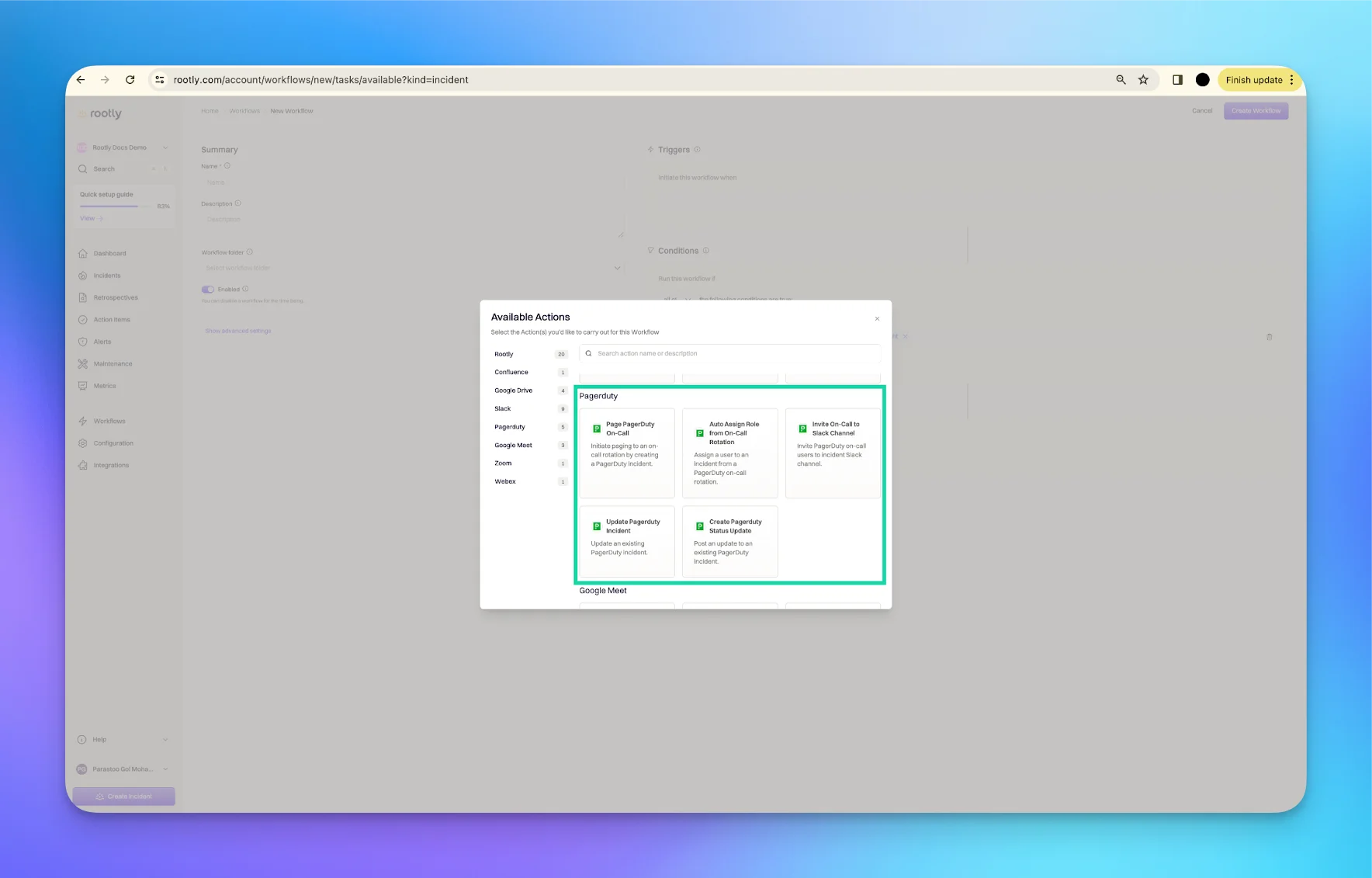
Available Workflow Actions
The following workflow actions are available for the PagerDuty integration.Page PagerDuty On-Call
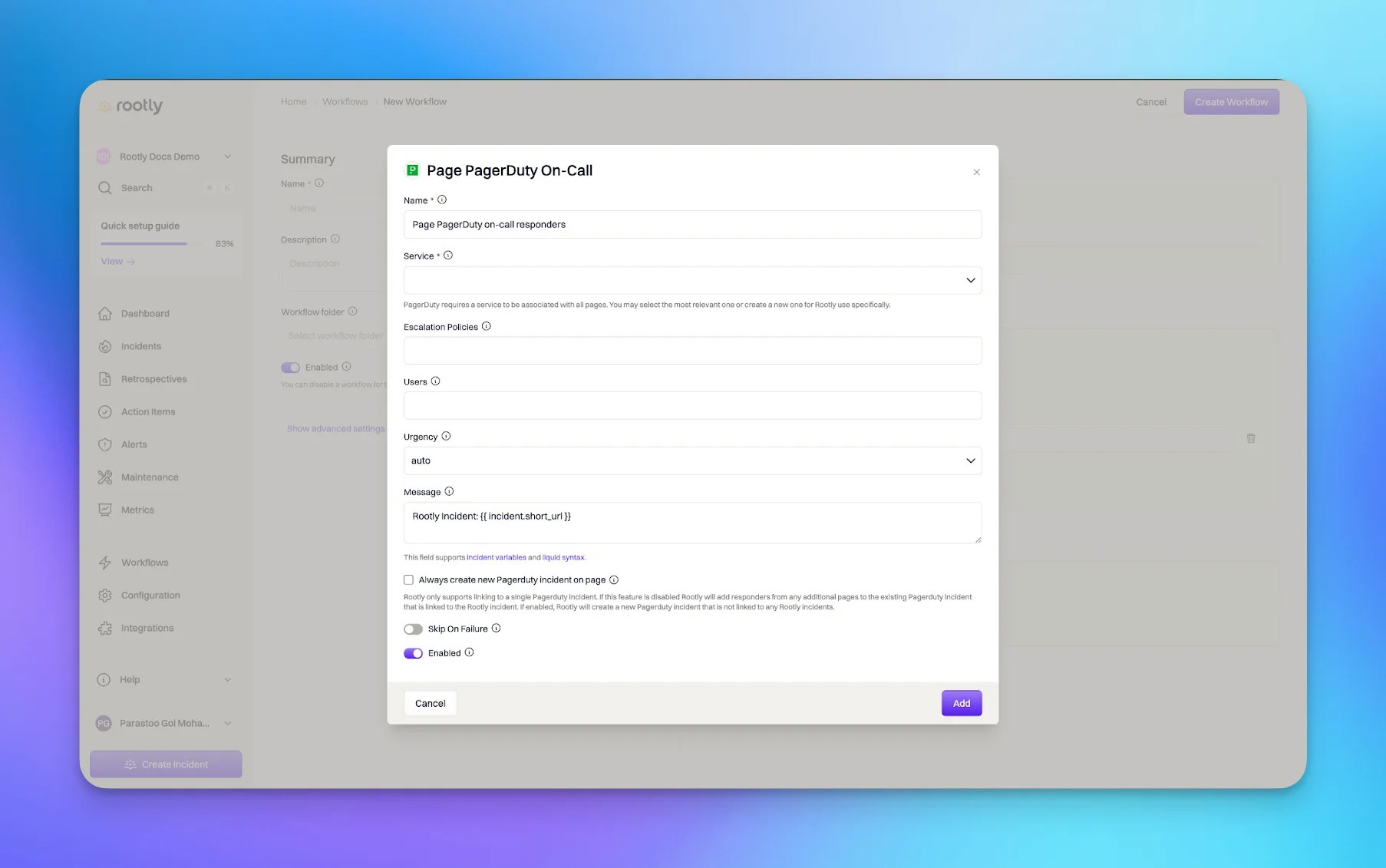
Use this action to page an on-call responder through PagerDuty. In practice, this creates or updates a PagerDuty incident from the Rootly incident.In PagerDuty, paging is tied to incident creation and responder assignment.Each Rootly incident can only be linked to one PagerDuty incident.
Choose the PagerDuty service or responder target
The Service field specifies which PagerDuty service should be paged.If you have imported PagerDuty services into Rootly, you may be able to reference them dynamically from the workflow configuration.PagerDuty requires every incident to be associated with a service.
Optionally target an escalation policy or specific users
The Escalation Policy field lets you override the default escalation policy associated with the selected service.The Users field lets you page specific PagerDuty users instead of relying on the default service routing.
Set the PagerDuty incident details
Use these fields to control how the PagerDuty incident is created:
- Title
- Urgency
- Message
Choose whether to reuse or create a new PagerDuty incident
The Always Create New PagerDuty Incident on Page setting controls what happens if the Rootly incident is already linked to a PagerDuty incident.If enabled, Rootly creates a new PagerDuty incident, but that new incident is not linked back to the Rootly incident.If disabled, Rootly continues using the existing linked PagerDuty incident and may add responders to that incident instead.
AutoAssign Role from On-Call
Use this action to assign the current PagerDuty on-call responder to an Incident Role in Rootly.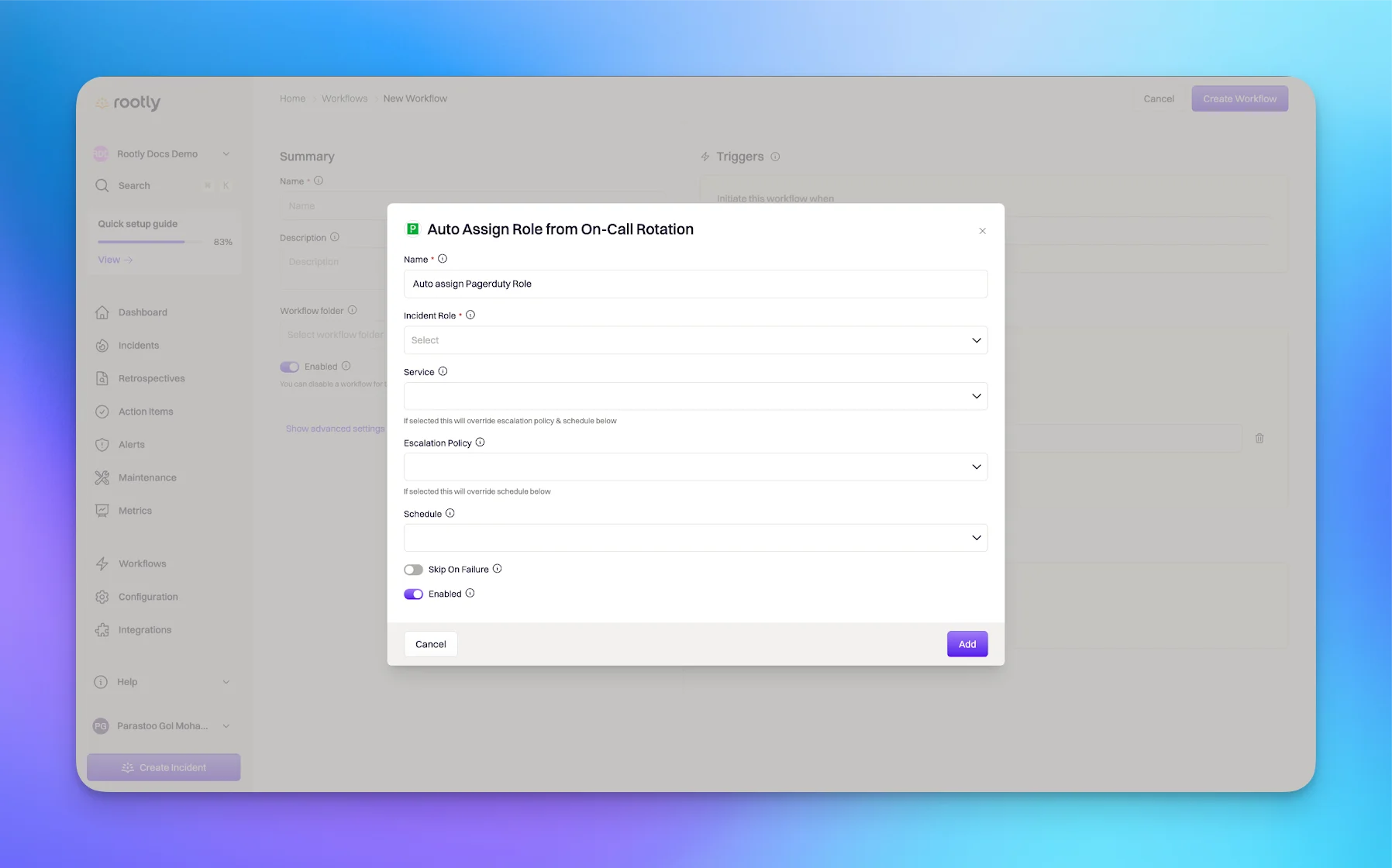
Choose the Incident Role
The Incident Role field determines which Rootly incident role should be assigned.To learn more about incident roles, see Incident Roles.
Choose exactly one PagerDuty lookup source
Use one of the following as the source of truth for the on-call lookup:
- A Service
- An Escalation Policy
- A Schedule
Understand how escalation policy assignment works
When assigning from an escalation policy, Rootly looks up the on-call responders at the lowest active escalation level and assigns the first matching user found in Rootly.This action does not progress through the full escalation policy over time the way an actual page would.
Invite On-Call to Slack Channel
Use this action to invite PagerDuty on-call responders into Slack channels.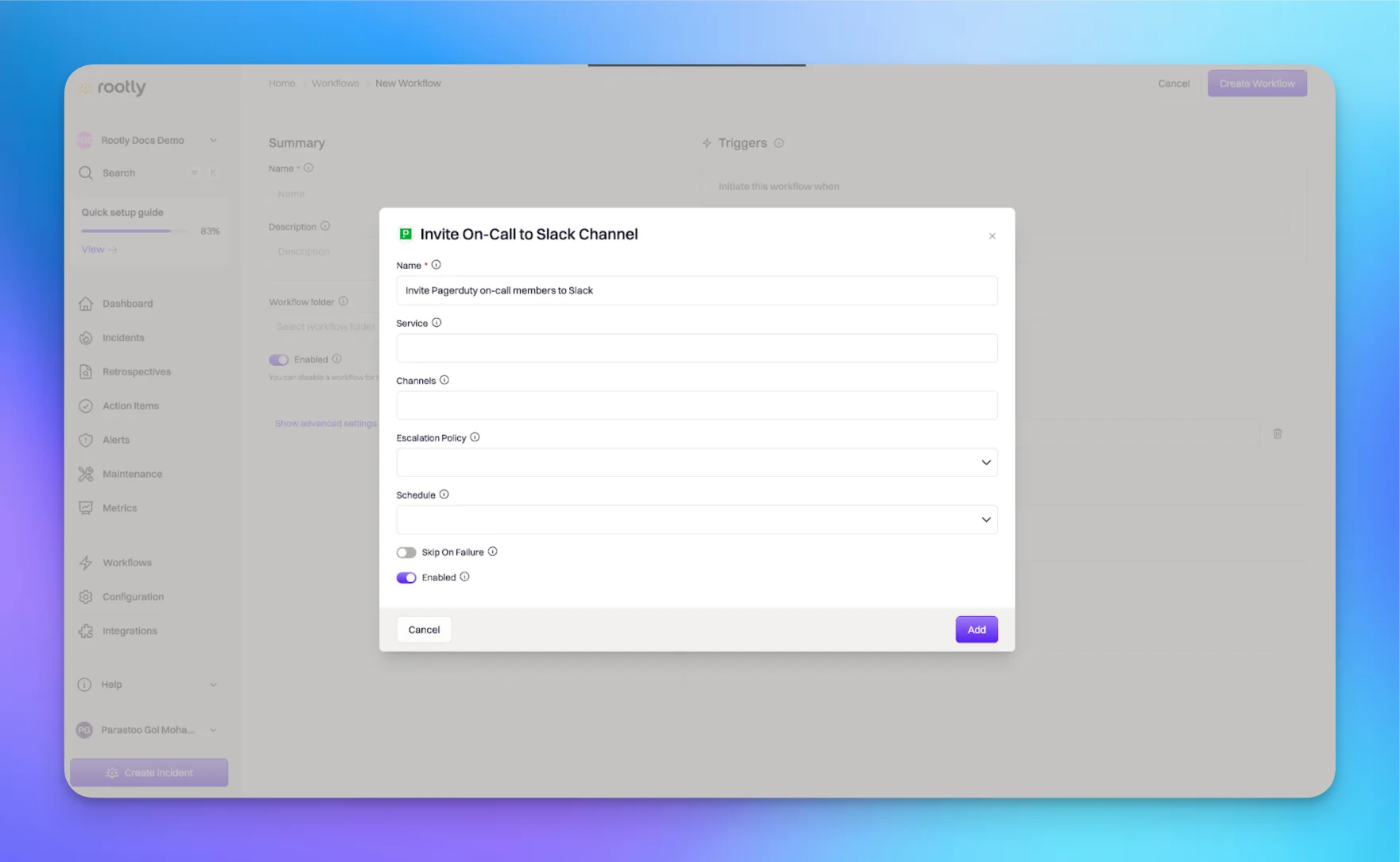
Choose exactly one PagerDuty lookup source
Use one of the following as the source of truth for who should be invited:
- A Service
- An Escalation Policy
- A Schedule
Choose the Slack channels
Use the Channels field to select one or more Slack channels to invite PagerDuty responders into.You can use:
{{ incident.slack_channel_id }}for the current incident channel{{ parent_incident.slack_channel_id }}for the parent incident channel
Understand who gets invited
When using a PagerDuty escalation policy, Rootly invites the on-call users at the lowest active escalation level rather than every user in the full policy.This keeps the invite behavior aligned with how Rootly looks up active on-call responders.
Update PagerDuty Incident
Use this action to update an existing PagerDuty incident linked to the Rootly incident.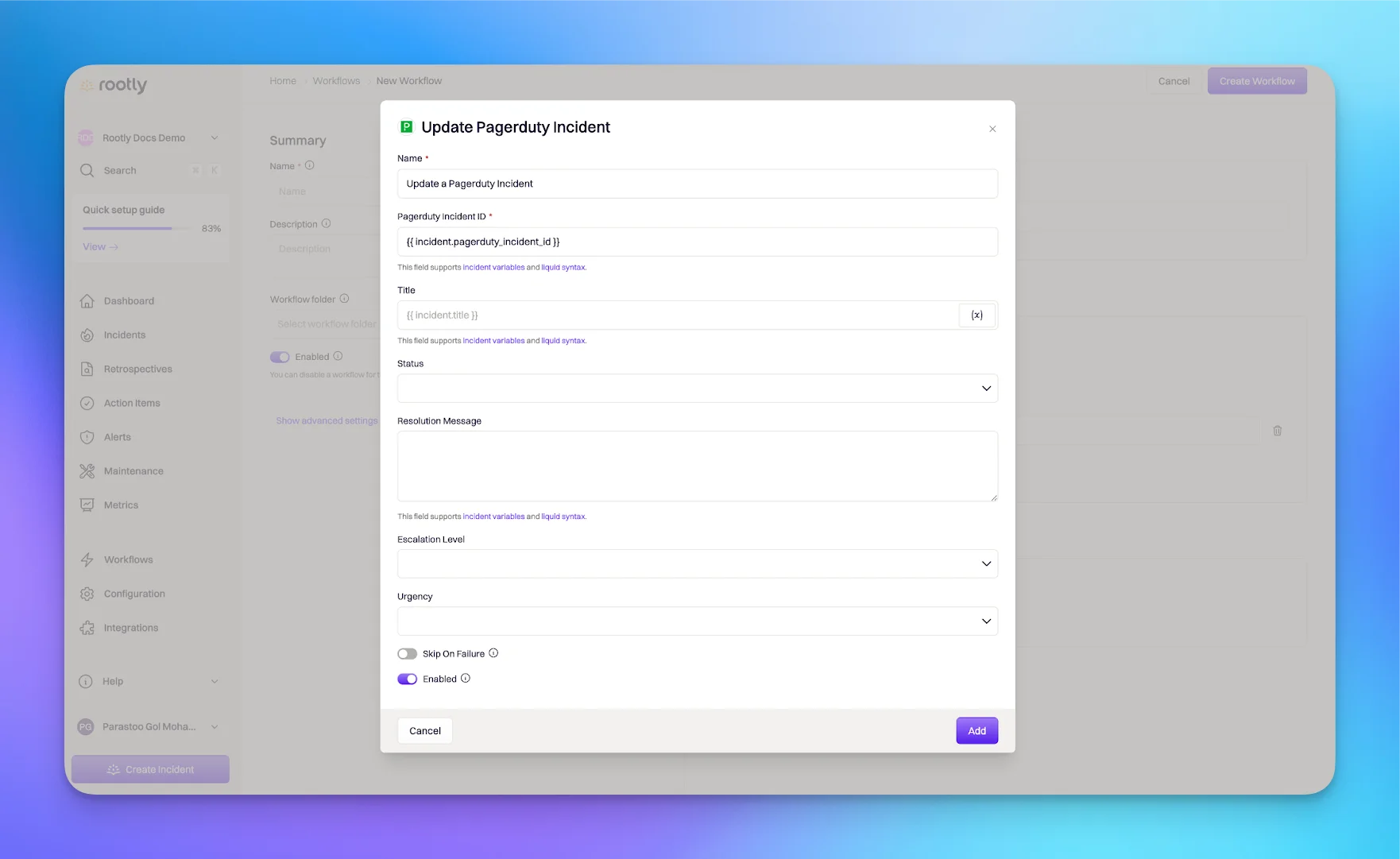
Reference the linked PagerDuty incident
Use PagerDuty Incident ID to specify which PagerDuty incident should be updated.Set this field to
{{ incident.pagerduty_incident_id }} to reference the PagerDuty incident linked to the Rootly incident.Update the incident details
You can update fields such as:
- Title
- Status
- Urgency
- Priority
- Escalation Level
auto if you want PagerDuty status behavior to follow Rootly status logic.Add a resolution message when resolving
Use Resolution Message when resolving the PagerDuty incident.This field is useful for adding final context or outcome details to the PagerDuty incident when Rootly closes it.Liquid support for this field may vary, so test the output before relying on dynamic values in production.
Create PagerDuty Status Update
Use this action to add a status update message to the linked PagerDuty incident.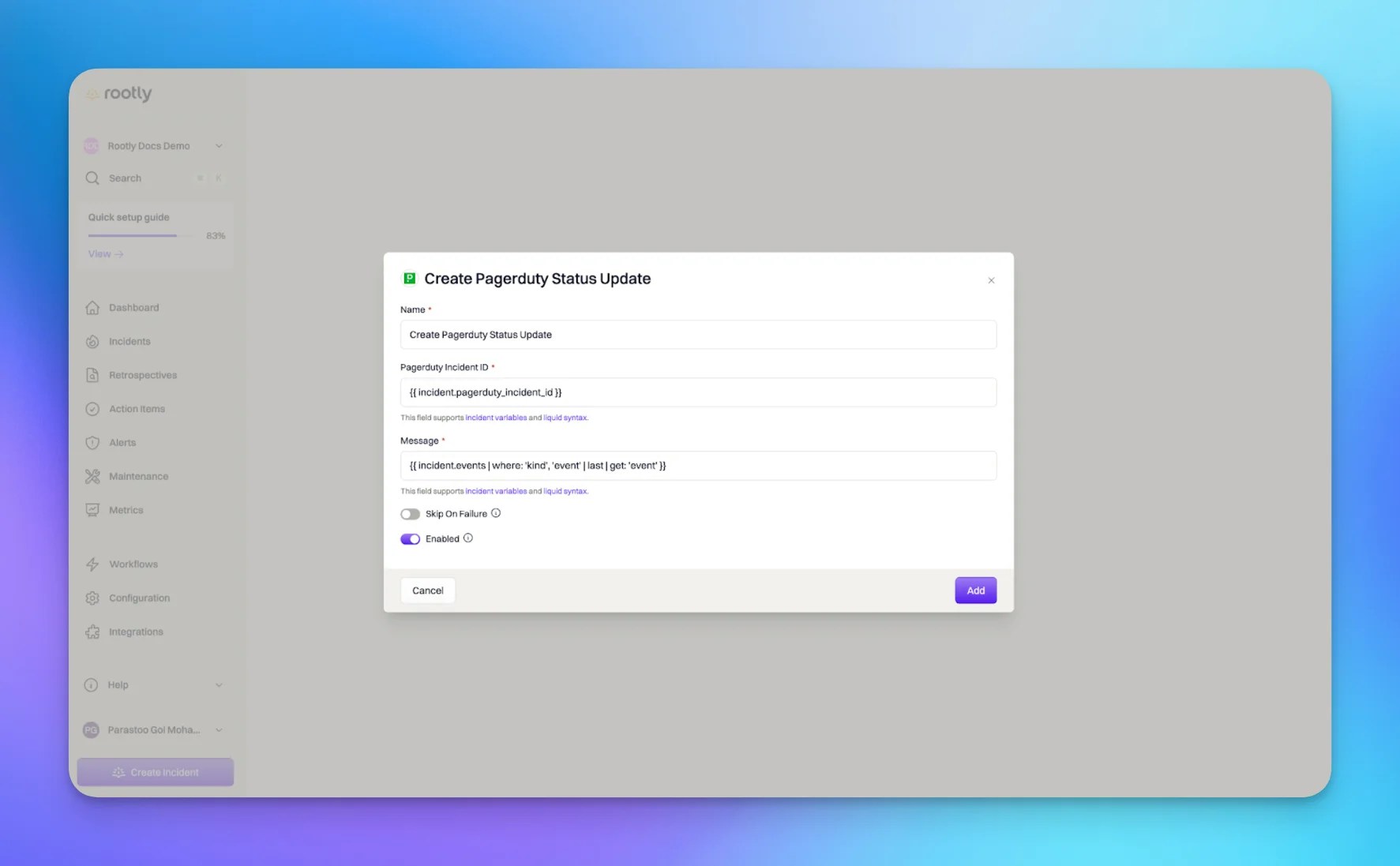
Reference the linked PagerDuty incident
Use PagerDuty Incident ID to specify which PagerDuty incident should receive the status update.Set this field to
{{ incident.pagerduty_incident_id }} to target the linked PagerDuty incident.Compose the status update message
Use Message to define what should be posted into the PagerDuty incident notes or status updates.This field supports Liquid syntax.A common pattern is to post the latest Rootly incident event into PagerDuty.
Important Notes
- Workflow actions can be combined to page, invite, assign, and synchronize activity across Rootly and PagerDuty
- Some PagerDuty actions depend on the PagerDuty plan and permissions of the connected account
- Rootly links only one PagerDuty incident to each Rootly incident
- Advanced teams can combine these actions with broader Rootly workflow conditions and branching logic
Related Pages
Installation
Connect PagerDuty to Rootly and configure the required authentication and webhook setup.
Smart Defaults
Use common PagerDuty automation defaults without building every workflow manually.
Alerts
Learn how Rootly ingests supported PagerDuty events as alerts.