

Introduction
The OpenAI integration lets you connect Rootly to your organization’s OpenAI account, using your own API key and Organization ID to power AI-assisted incident workflows. This gives your team control over model selection, data handling, and API usage under your organization’s specific agreements with OpenAI — including data retention policies that may differ from Rootly’s default OpenAI configuration. With the OpenAI integration, you can:- Generate AI-powered summaries, analyses, and responses within incident workflows
- Send custom prompts to GPT and reasoning models with full Liquid template support
- Use a system prompt to define the model’s role, tone, or output constraints
- Route requests through a regional OpenAI endpoint to meet data residency requirements
- Access OpenAI’s reasoning models (
o1,o3) with configurable reasoning effort and summary output
Before You Begin
Before setting up the OpenAI integration, make sure you have:- A Rootly account with permission to manage integrations
- An OpenAI API key with the following permissions:
- Models permission set to
Read - Model Capabilities permission set to
Write
- Models permission set to
- Your OpenAI Organization ID
Installation
Open the integrations page in Rootly
Navigate to the integrations page in your Rootly workspace and select OpenAI.
Enter your API key and Organization ID
Paste your OpenAI API key and Organization ID into the respective fields. Rootly validates the credentials against the OpenAI API before saving.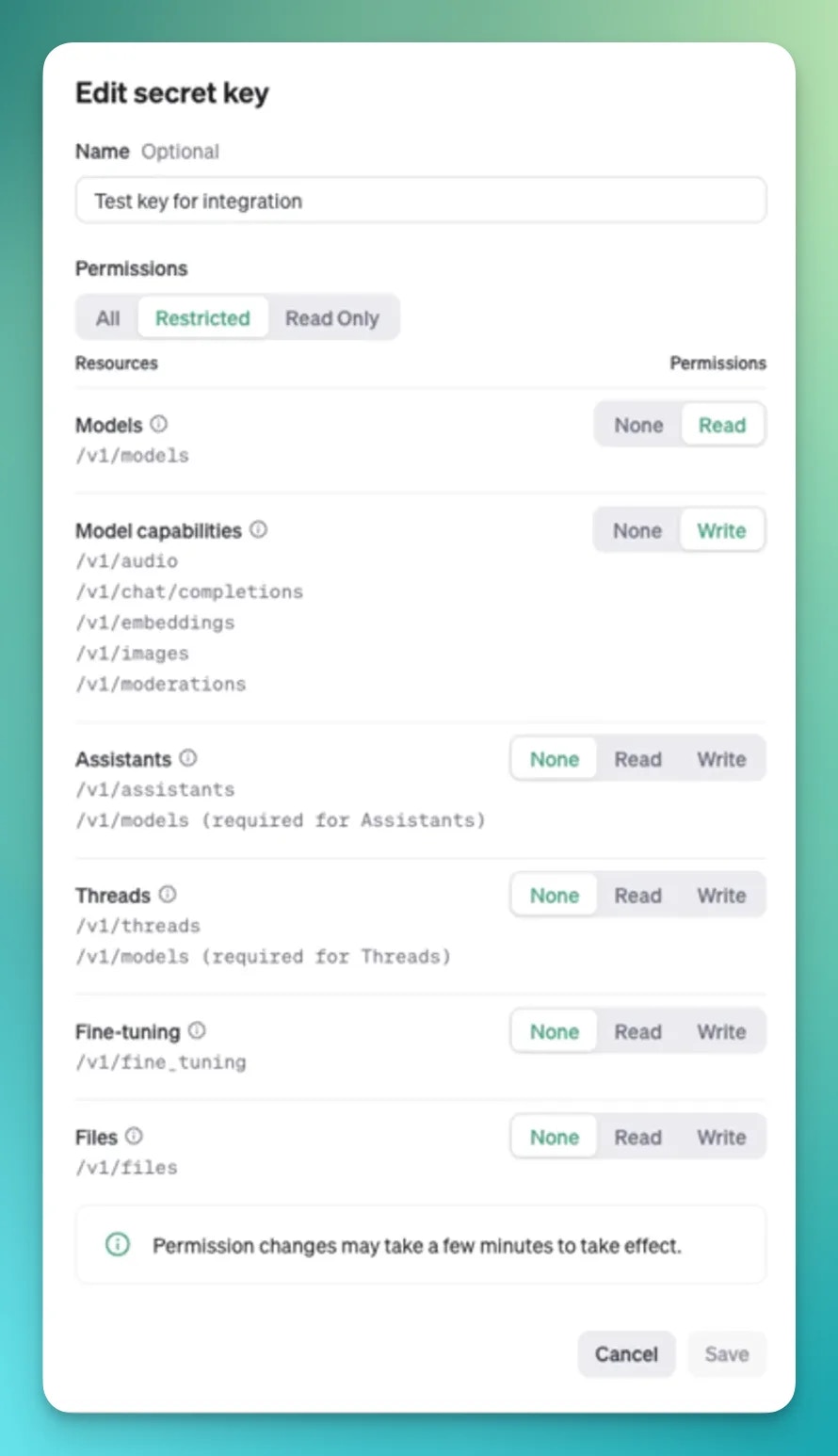
Select a regional host
Choose the OpenAI API host for your requests. The default is
api.openai.com. If your organization requires data to stay within a specific region, select the appropriate regional endpoint:Integration connected
Your OpenAI integration is active. The Create OpenAI Chat Completion workflow action is now available in your incident and action item workflows.
Workflow Actions
Create OpenAI Chat Completion
Sends a prompt to an OpenAI model and captures the response as a workflow output. Supports both standard GPT models via the Chat Completions API and reasoning models (o1, o3) via the Responses API.
The System Prompt field sets the model’s persona or output format — for example: “You are an incident response assistant. Respond in bullet points. Be concise.”
Reasoning models (
o1-*, o3-*) use the OpenAI Responses API instead of the Chat Completions API. When using these models, use Reasoning Effort to control how much compute the model uses before responding, and Reasoning Summary to control how much of that reasoning is surfaced in the output.
Troubleshooting
The API key or Organization ID is rejected on save
The API key or Organization ID is rejected on save
Rootly validates your credentials by making a test request to OpenAI. Confirm that the API key is active, has not been revoked, and has the correct permissions: Models set to
Read and Model Capabilities set to Write. Also verify that the Organization ID matches the organization the API key belongs to.The workflow action fails with an authentication error
The workflow action fails with an authentication error
If the integration was working and then stopped, the API key may have been rotated or revoked. Update the key in the integration settings — Rootly re-validates on save. Also confirm the Organization ID has not changed.
The workflow action fails with a rate limit error
The workflow action fails with a rate limit error
OpenAI enforces rate limits based on your usage tier. Running many concurrent workflows may exceed requests-per-minute or tokens-per-minute limits. Consider staggering workflows, reducing token usage with more focused prompts, or upgrading your OpenAI tier.
A model is not appearing in the model selector
A model is not appearing in the model selector
The model list is fetched dynamically from your OpenAI account. Rootly filters for
gpt-*, o1-*, and o3-* models. If a model you expect to see is missing, confirm your API key has access to it — some models require specific OpenAI tiers.Reasoning model parameters are being ignored
Reasoning model parameters are being ignored
Reasoning effort and reasoning summary only apply to
o1-* and o3-* models using the Responses API. If you select a standard GPT model, these fields are ignored and only the Chat Completions parameters (temperature, max tokens, top p) apply.Liquid variables are not rendering correctly in the prompt
Liquid variables are not rendering correctly in the prompt
Check your Liquid syntax — unclosed tags or undefined variables can cause rendering failures. Use the Liquid variables reference to confirm variable names and test your template in a low-stakes workflow first.