

Introduction
The Quip integration connects Rootly with your Quip workspace so teams can automatically create and update documents during and after incidents through Genius workflows. With the Quip integration, you can:- Automatically create Quip documents from incident workflows using retrospective templates or custom content
- Start documents from an existing Quip template
- Update existing Quip documents as an incident progresses
- Attach created documents directly to the incident record
Before You Begin
Before setting up the integration, make sure you have:- A Rootly account with admin permission to manage integrations
- A Quip account with permission to create API keys in the Quip admin portal
- Access to admin.quip.com
Rootly recommends installing with a dedicated service account so the integration does not break if an individual user leaves your organization.
Installation
Create a Quip API key
Go to admin.quip.com and navigate to Settings > Integrations.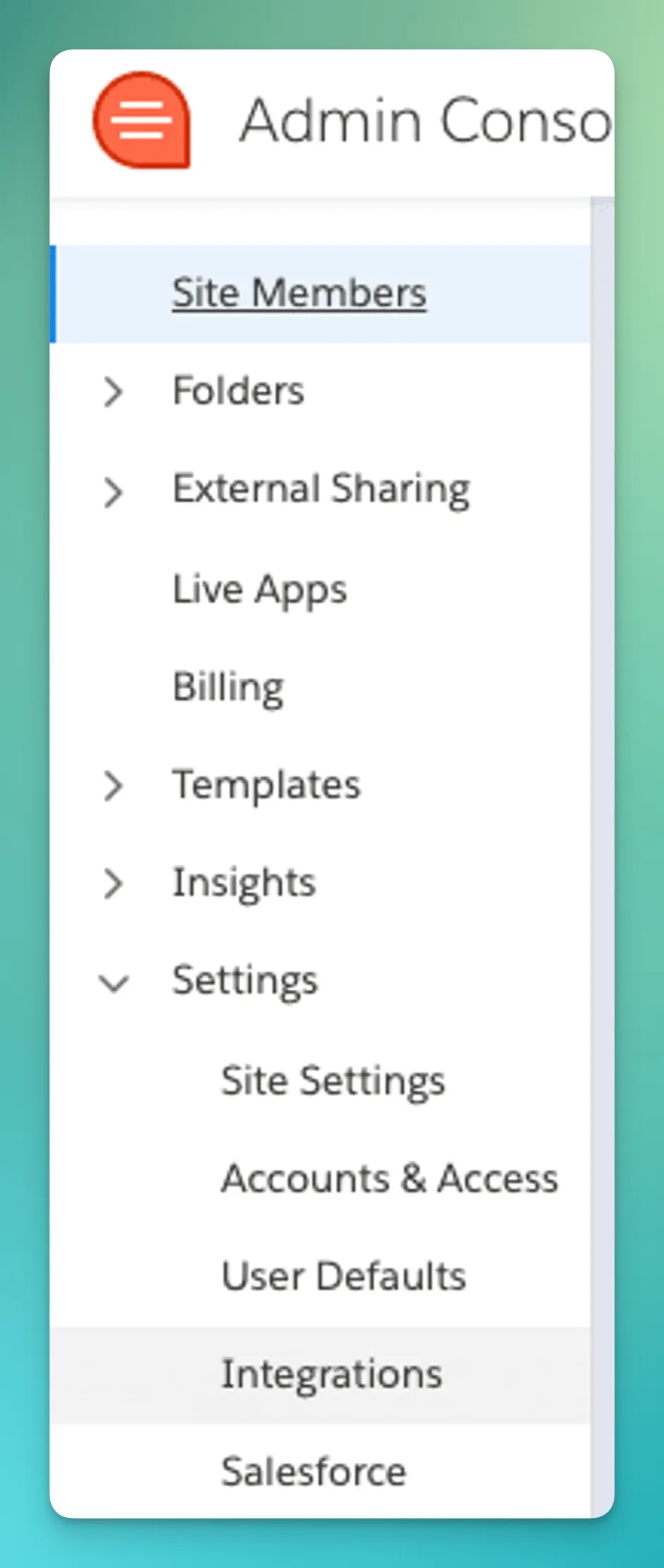
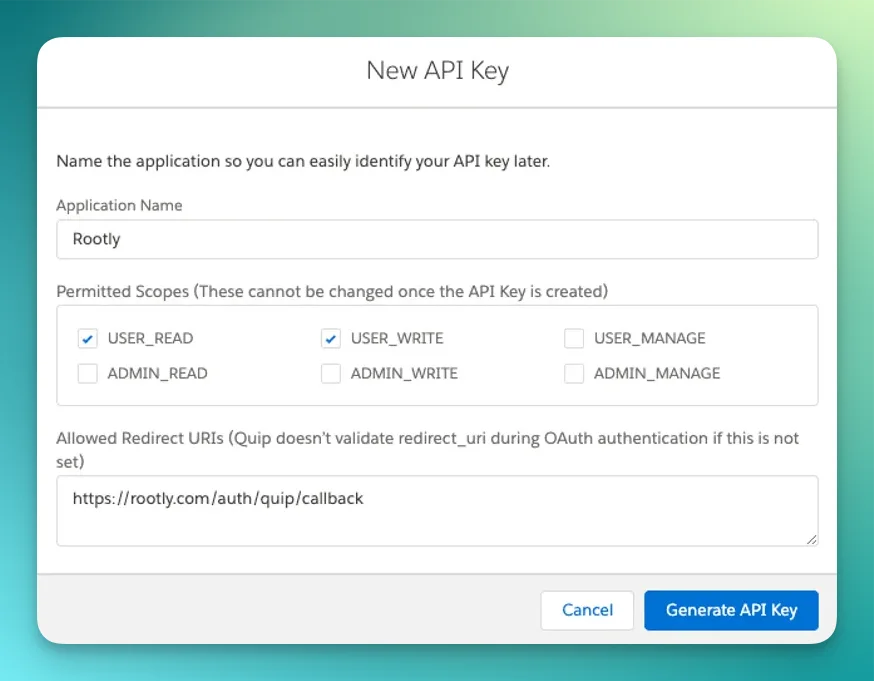
- Permissions:
USER_READandUSER_WRITE - Redirect URI:
https://rootly.com/auth/quip/callback
Open the Quip integration in Rootly
Navigate to the integrations page in Rootly and select Quip.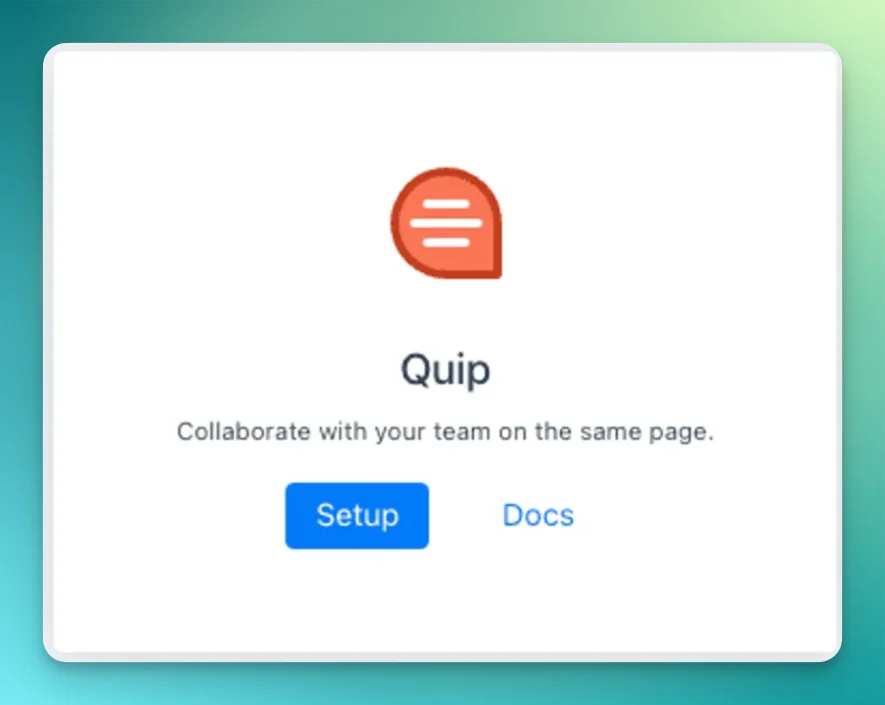
Enter your Quip credentials
Paste the Client ID and Client Secret from Quip into the Rootly integration settings and save.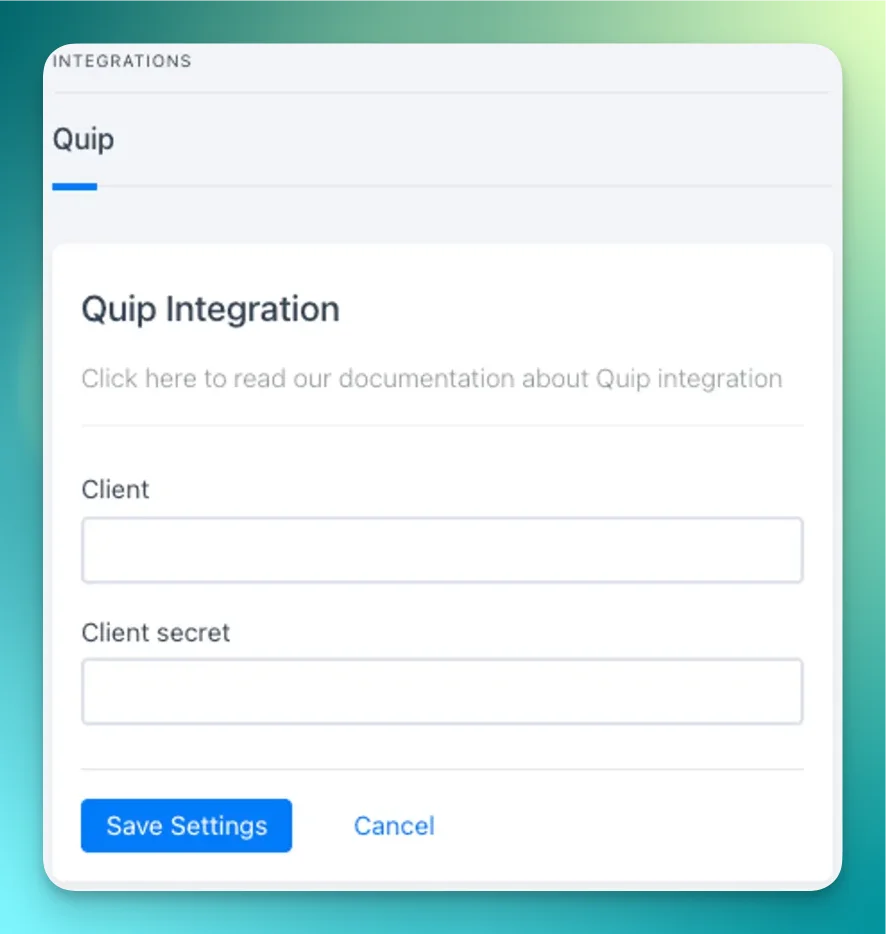
Once saved, the Create a Quip Page and Update a Quip Page workflow actions are available in your Genius workflows.
Workflow Actions
Create a Quip Page
This action creates a new Quip document in a specified folder. Parent Folder The Quip folder where the document will be created. Leave blank to create in your private folder. Title The title of the Quip document. Defaults to{{ incident.title }}. Supports Liquid syntax.
Quip Template
Optionally select an existing Quip document to use as a starting template. The new document will be based on the content of the selected template.
Retrospective Template
Select a predefined Rootly retrospective template to populate the document body. Templates are managed on the Retrospective Templates page.
Custom Content
Define the document body manually. Supports Liquid syntax. Used when no Retrospective Template is selected.
Mark Post Mortem as Published
When enabled, marks the retrospective status as published after the document is created. Use this when follow-up notification workflows trigger on published retrospectives.
Update a Quip Page
This action updates an existing Quip document with new content. File ID The Quip thread ID of the document to update. Supports Liquid syntax.When a Create a Quip Page action runs, Rootly stores the resulting document ID and URL on the incident record. Reference the file ID in subsequent update actions using Liquid variables.