

Overview
Workflows let you automate Notion page creation and updates for incident retrospectives. You can trigger page creation when an incident resolves or a retrospective begins, and populate the page with timeline data, action items, and custom template content using Liquid variables.Available Actions
Create a Workflow
1
Open Workflow Creation
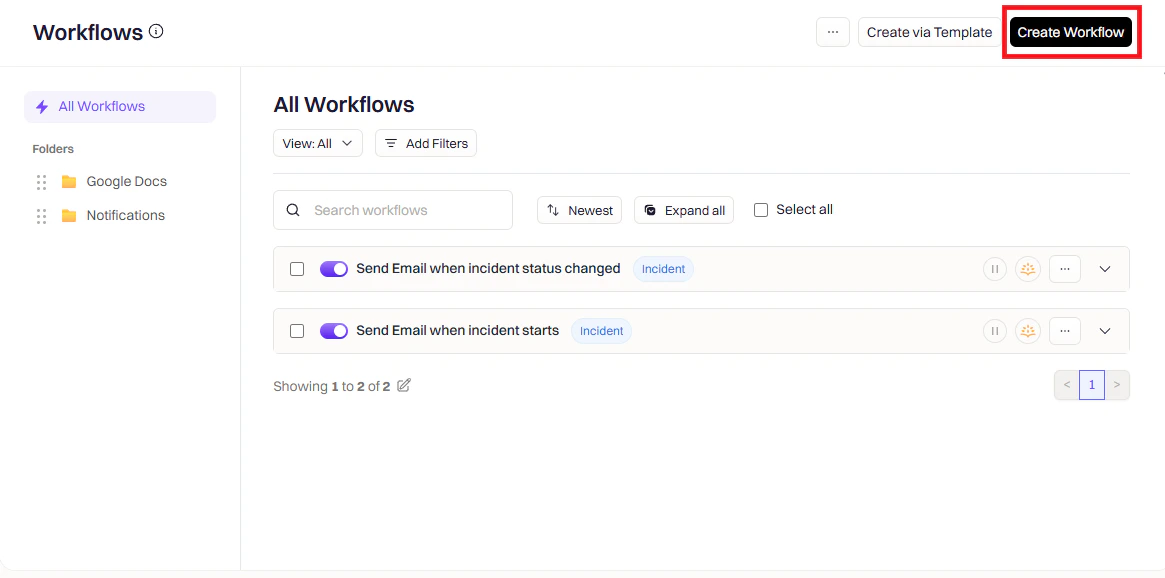
Navigate to Workflows in Rootly and click Create Workflow.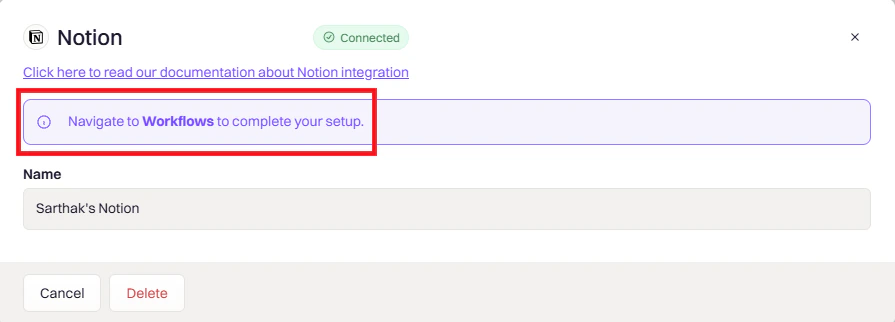
2
Choose Workflow Type
Select the workflow type that matches your use case — Incident, Retrospective, or Pulse.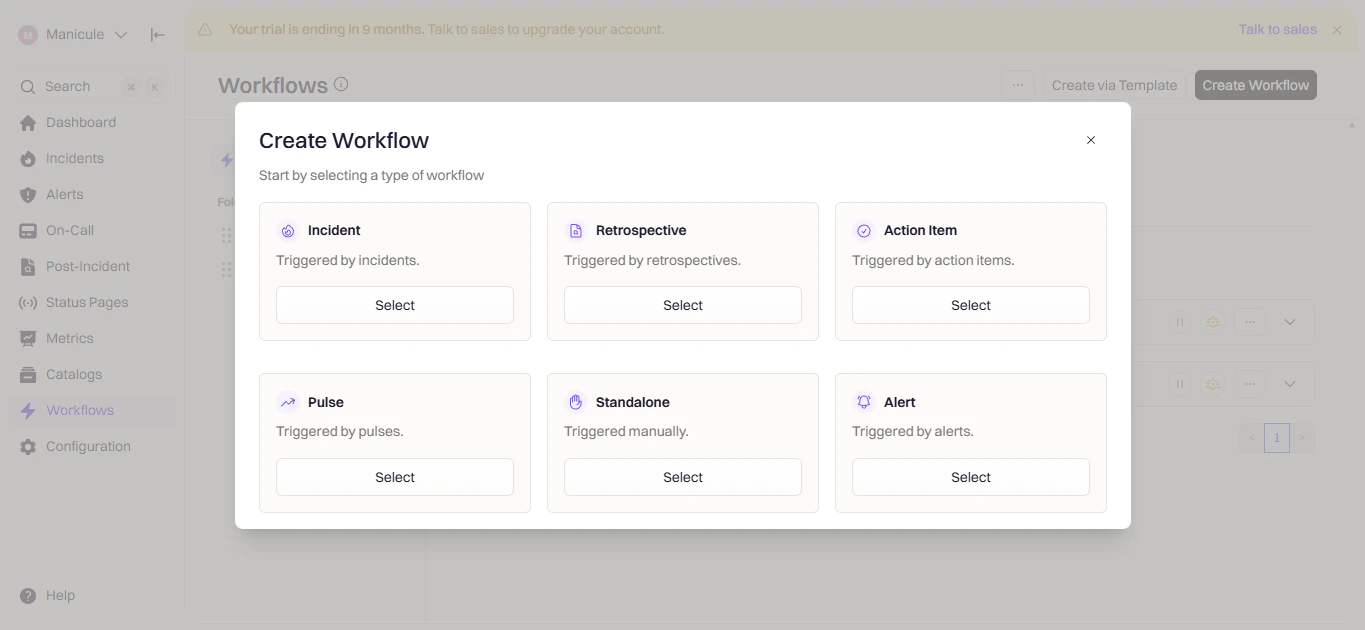
3
Configure Triggers
Triggers define when the workflow runs. Choose the event that should kick off page creation.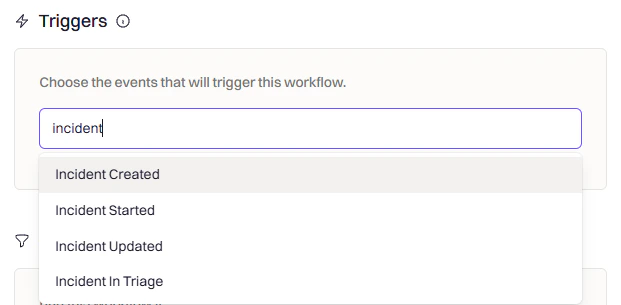
4
Add Conditions (Optional)
Use conditions to control when the workflow fires after the trigger. For example, only create a Notion page for SEV-1 or SEV-2 incidents, or only for specific teams or environments.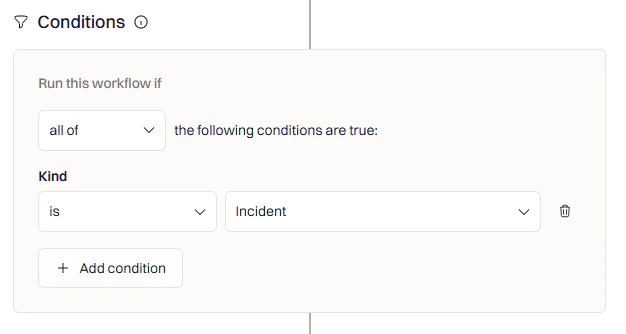
5
Add the Notion Action
Click Add Action and search for Notion.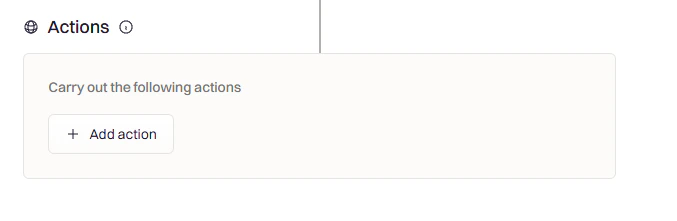
Create Notion Page
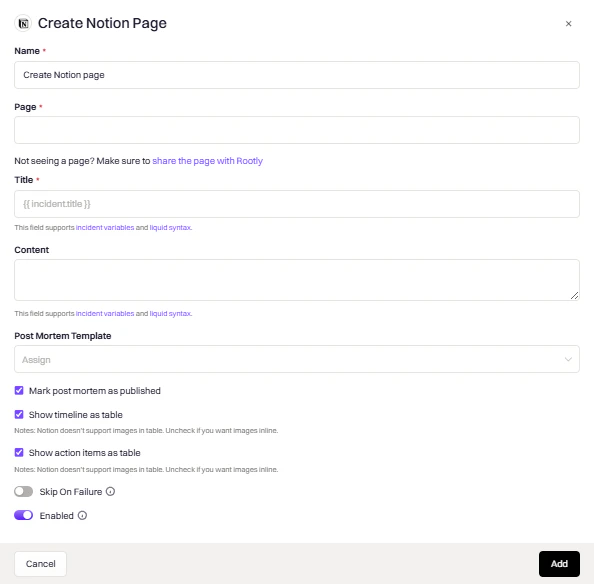
Use this action to create a new retrospective page in Notion for an incident. The page is created under a parent page you select and is populated using the template and fields you configure.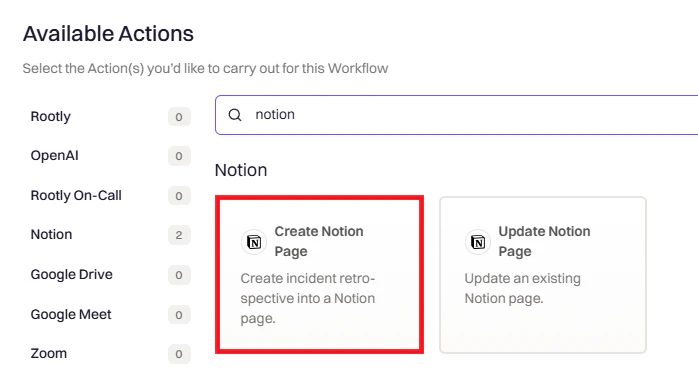
Update Notion Page
Use this action to overwrite an existing Notion page with the latest incident data. This is useful for keeping the retrospective page current as the incident progresses.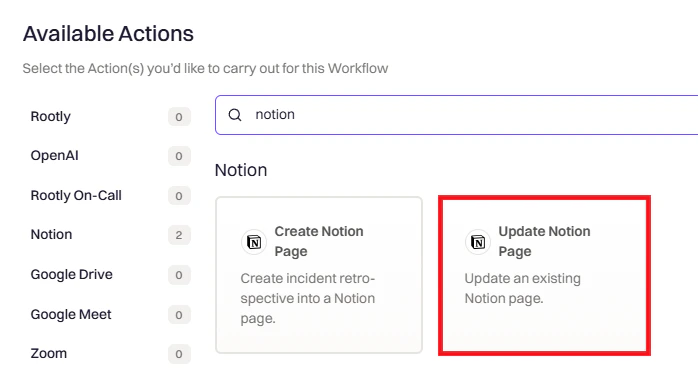
This is an overwrite operation. Any manual changes made to the Notion page will be replaced when this action runs.
Variable Reference
Use these variables in page titles and templates. Use the Liquid Variable Explorer to test variables with real incident data.Incident Variables
Notion Variables
Frequently Asked Questions
The workflow ran but no Notion page was created
The workflow ran but no Notion page was created
Check the workflow run log under Workflows → Your Workflow → View Runs for error details. Confirm the parent page selected in the action is one Rootly was granted access to during installation. Re-authorize the integration if the connection has expired.
Manual edits to my Notion page keep getting overwritten
Manual edits to my Notion page keep getting overwritten
The Update Notion Page action is a full overwrite. If you need to preserve manual edits, disable any workflows that trigger an update on that page, or add conditions to prevent them from running after a certain point in the incident lifecycle.
Can I use custom Liquid templates for the page content?
Can I use custom Liquid templates for the page content?
Yes — define a custom retrospective template in Retrospective Templates and select it in the Post Mortem Template field. Use the Liquid Variable Explorer to build and test your template.
Why are images not appearing in the timeline?
Why are images not appearing in the timeline?
Notion does not support images inside tables. Uncheck Show Timeline as Table to render the timeline inline, which will allow images to display correctly.