

Overview
Rootly receives alerts from Honeycomb via webhooks. When Honeycomb detects anomalies like latency spikes, error rate increases, or threshold breaches, it sends an alert to Rootly. From there, Rootly can create an incident, notify Slack, or page your on-call team automatically.Before You Begin
You will need a Honeycomb account with admin access to create API keys and alert policies, and a Rootly account with Admin permissions to create integrations.
Step 1: Get Your API Key from Honeycomb
You will first create a Configuration API key in Honeycomb. Rootly uses this key to authenticate your environment and generate the webhook URL and secret needed in the next steps.1
Open your Honeycomb environment
Log into Honeycomb and select the environment you want to integrate with Rootly.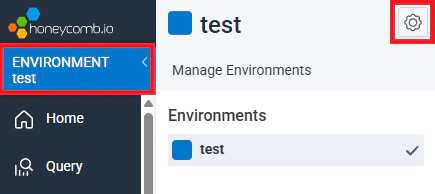
2
Create a Configuration API Key
Go to Settings → API Keys and click Create a Configuration API Key.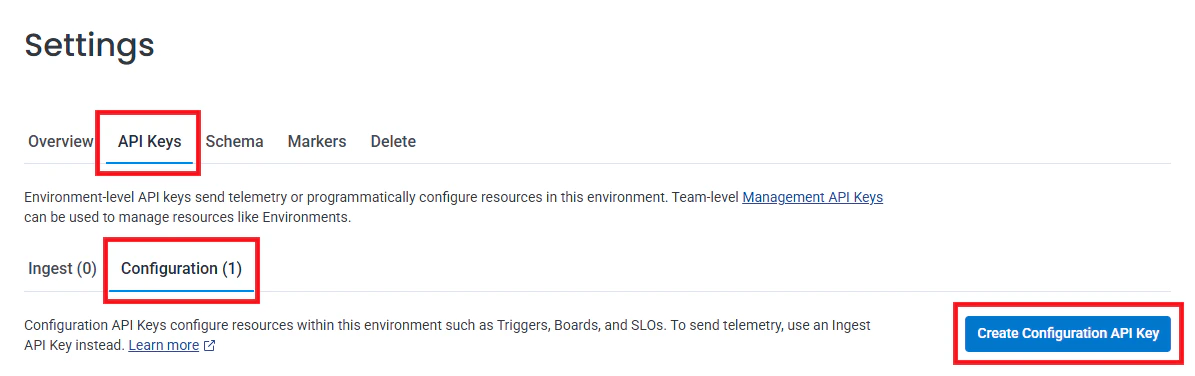
Honeycomb has two types of API keys: Configuration and Management. Rootly requires a Configuration (environment-level) key.
3
Save the API Key
Name the key, set any permissions, and click Create Key. Copy the key immediately — you will need it in the next step.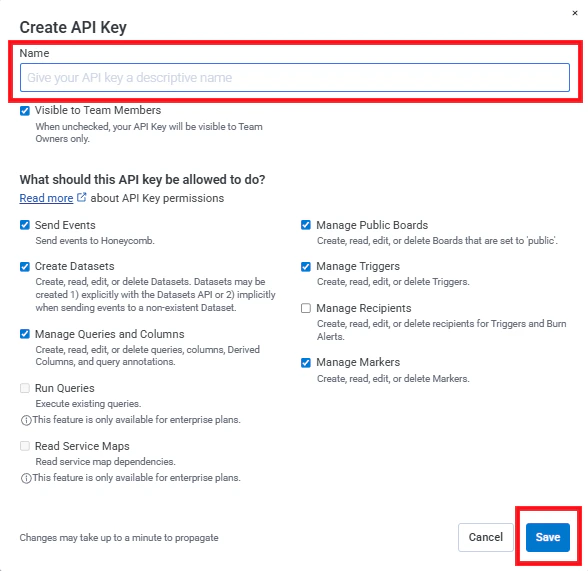

The API key is used only to authenticate Rootly to your Honeycomb environment and generate a webhook URL and secret. Rootly does not make direct calls to Honeycomb to read or write data.
Step 2: Connect Honeycomb in Rootly
Now that you have your Honeycomb API key, connect the integration in Rootly to generate the webhook URL and secret you will configure in Honeycomb.1
Open Integrations
In Rootly, navigate to Configuration → Integrations and search for Honeycomb.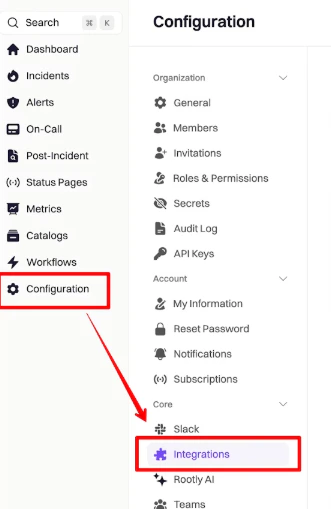
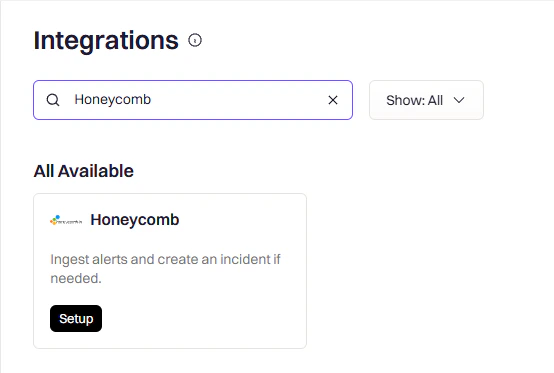
2
Enter your API Key
Click Setup, paste your Honeycomb API key, and click Connect.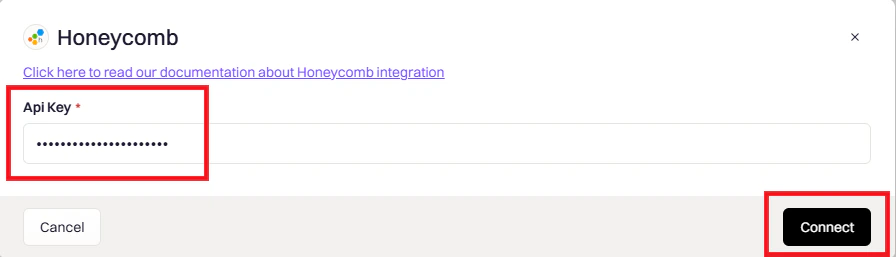
3
Copy your Webhook URL and Secret
After connecting, Rootly displays a Webhook URL and Secret. Copy both — you will need them in Step 3.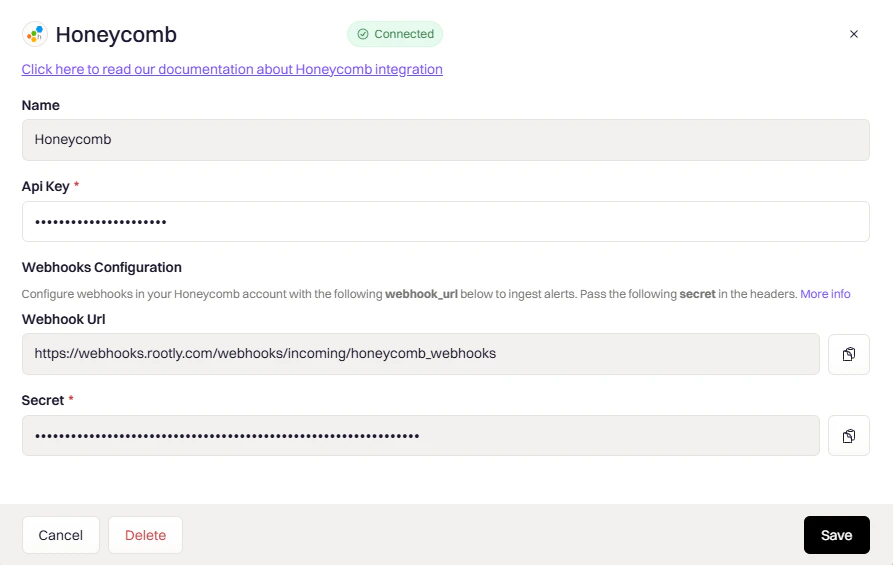
Step 3: Create a Webhook in Honeycomb
Now that you have the Webhook URL and Secret from Rootly, go back to Honeycomb and create a webhook integration that forwards alerts to Rootly. The webhook URL format depends on whether you want to page someone or just surface alerts.1
Open Team Settings
In Honeycomb, navigate to Account → Team Settings → Integrations.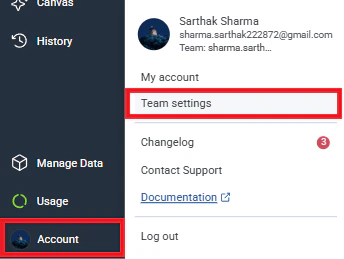
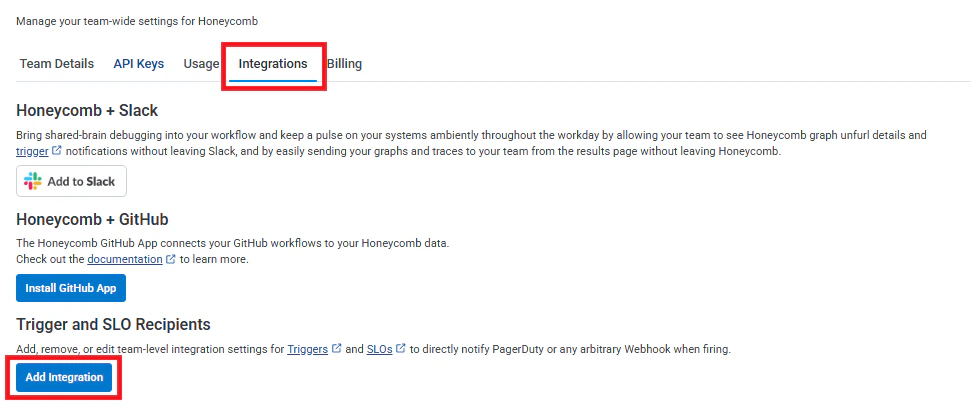
2
Add a Webhook integration
Click Add Integration, select Webhook as the provider, and give it a descriptive name (e.g., 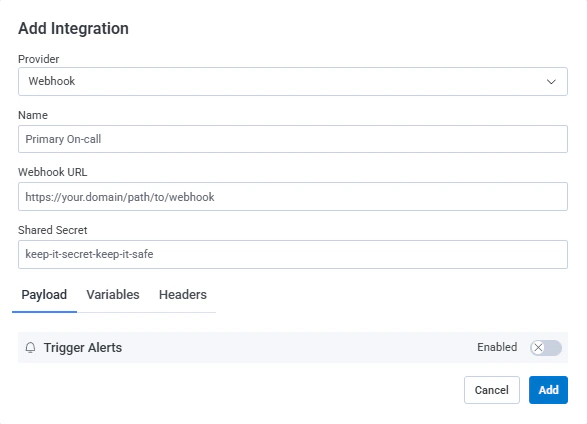
Rootly Alerts or Page On-Call).3
Configure the Webhook URL
Choose the alert type and enter the appropriate URL:
- General Alerts
- Paging Alerts
Alerts appear in Rootly’s Alerts page without paging anyone. Use this for low-priority or informational notifications.Replace 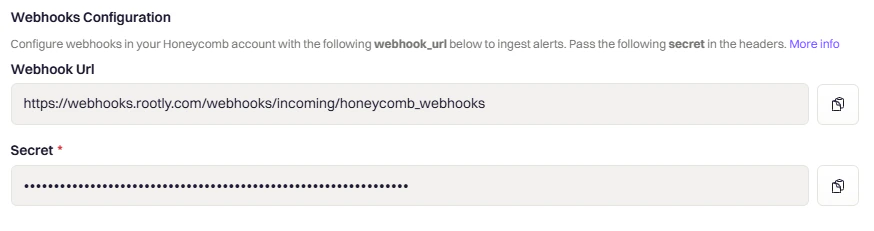
YOUR_SECRET with the secret from Rootly.The secret must appear in both the Webhook URL query string and the Shared Secret field. They must match exactly.
4
Save the integration
Click Add to create the webhook integration.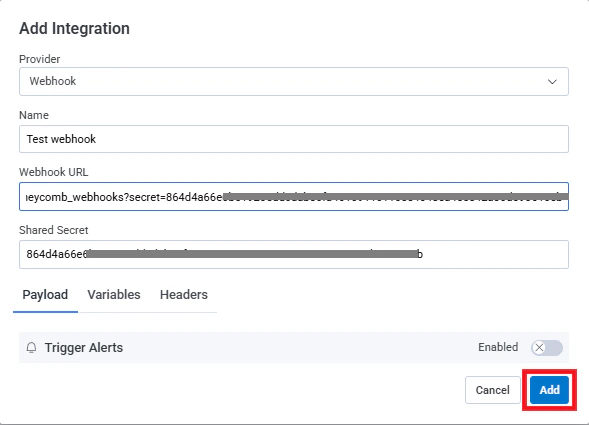
Your webhook is now active. Any Honeycomb alert policy using this integration will send alerts to Rootly.
Verify Installation
- Go to the Alerts page in Rootly
- Trigger a test alert in Honeycomb
- Confirm the alert appears in Rootly within a few seconds
Uninstall
To remove the Honeycomb integration:- Go to Configuration → Integrations and find Honeycomb
- Click the Connected button to reveal the disconnect option
- Click Delete
Disconnecting in Rootly does not stop Honeycomb from sending alerts. Delete the webhook in Honeycomb under Team Settings → Integrations to stop alert delivery.
Frequently Asked Questions
Alerts are not appearing in Rootly
Alerts are not appearing in Rootly
Verify the webhook URL includes the secret as a query parameter (
?secret=...). Confirm the Shared Secret field in Honeycomb matches the URL secret exactly. Check that the alert policy in Honeycomb is using this webhook integration.403 or authentication errors
403 or authentication errors
The secret in the URL must match the Shared Secret field exactly — regenerate the secret in Rootly and update both places in Honeycomb if needed. Also verify you are using a Configuration API key, not a Management key.
Paging alerts are not triggering on-call
Paging alerts are not triggering on-call
Verify you are using the
/notify/RESOURCE_TYPE/RESOURCE_ID URL format. Confirm the resource type is one of User, Group, EscalationPolicy, or Service, and that the resource ID exists in Rootly.