

Overview
Rootly’s Email integration works in both directions. Inbound emails to your team’s generated alias automatically open new incidents, while the Send an email workflow action lets you notify stakeholders at any point during an incident.Email-to-Incident
Send an email to your Rootly alias to instantly create an incident — no login required.
Severity Detection
Rootly automatically maps severity from the email subject line using tags like
[SEV0] or sev1.Reply to Timeline
Reply to an incident notification email and Rootly adds your reply to the incident timeline.
Workflow Notifications
Send fully templated emails to any address from a workflow, with Liquid variables, CC, BCC, and custom branding.
Installation
The Email integration provisions automatically — there are no API keys or OAuth flows to complete.1
Connect the integration
Go to Configuration → Integrations, find Email, and click Setup.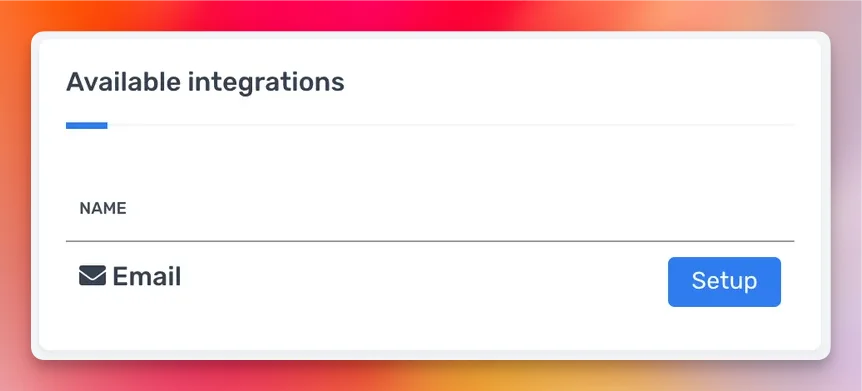
2
Copy your alias
After connecting, click Settings to view your team’s alias. It looks like: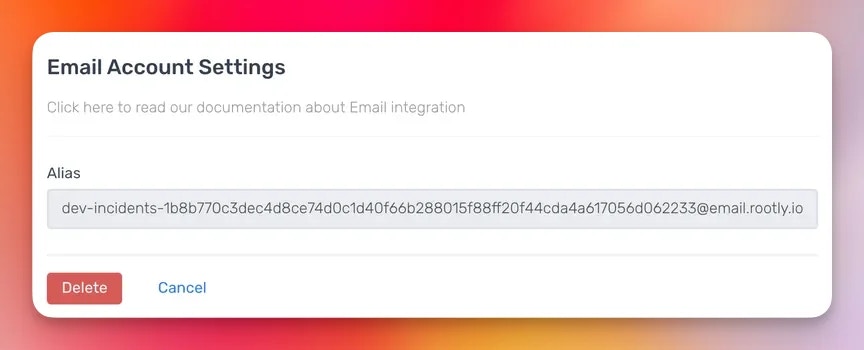
Creating Incidents via Email
To open an incident, send an email to your alias. The email subject becomes the incident title and the body becomes the initial description.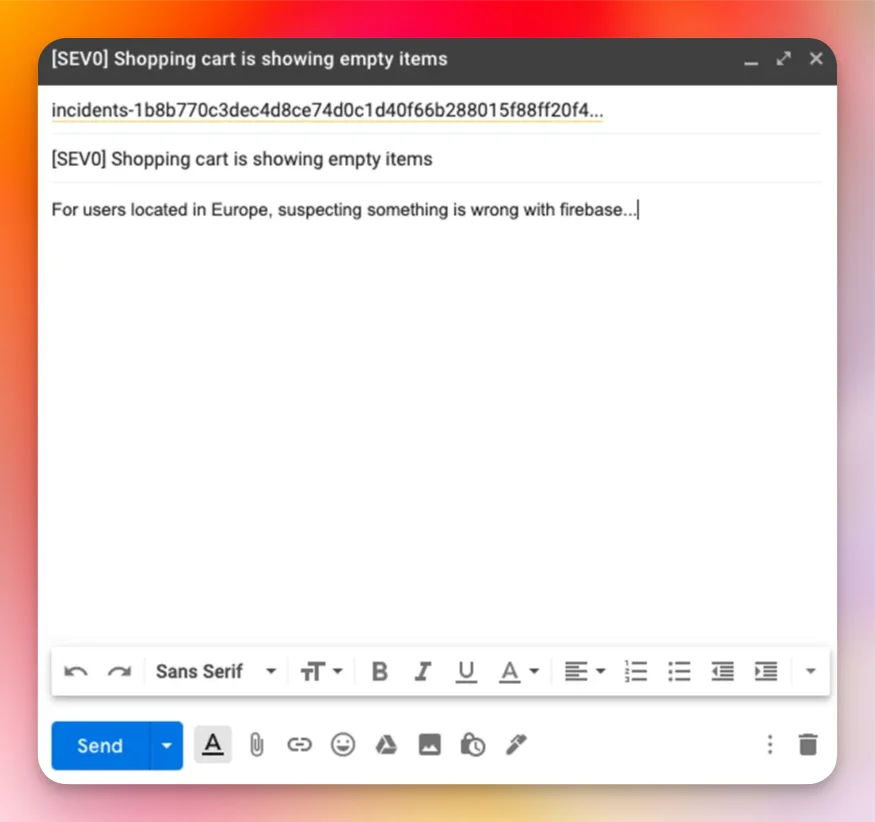
Automatic Severity Detection
Rootly parses the subject line for severity tags and maps them to your configured severities. Supported formats:Severity tags are only matched if the corresponding severity exists in your Rootly configuration. If no match is found, the incident is created without a severity.
Replying to Incidents via Email
When Rootly sends an email notification for an incident, you can reply to it directly. Rootly detects the reply and appends it to the incident timeline.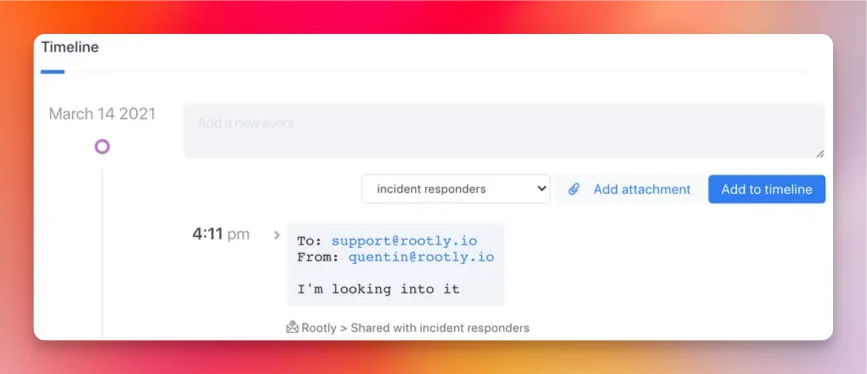
Workflow Action
Send an Email
Sends a fully templated email from a workflow. All text fields support Liquid variables.string
required
The sender address displayed to recipients. Defaults to
Rootly <workflows@rootly.com>. You can override this with a custom address.array
required
One or more recipient email addresses. Supports Liquid — for example,
{{ incident.commander.email }} to notify the incident commander.array
Email addresses to copy on the message.
array
Email addresses to blind-copy. Maximum 10 BCC recipients on trial plans.
string
required
The email subject line. Defaults to
{{ incident.title }} is on fire. Supports Liquid.string
The email body. Supports Markdown formatting and Liquid variables.
string
Short preview text that appears in the recipient’s inbox next to the subject line. Supports Liquid.
string
A URL pointing to an image to use as the email header logo. Overrides the default Rootly logo.
boolean
Whether to include the email header section. Defaults to
true.Whether to include the email footer section. Defaults to
true.Uninstall
To remove the Email integration:- Go to Configuration → Integrations and find Email
- Click Settings
- Click Delete
Frequently Asked Questions
Can I use my own email domain for the alias?
Can I use my own email domain for the alias?
No. The inbound alias is always on Rootly’s domain (
email.rootly.io). If you need to route from your own domain, set up email forwarding from your mail provider to the Rootly alias.What happens if the To field resolves to empty?
What happens if the To field resolves to empty?
The workflow action is skipped and a log entry is recorded. No email is sent. This can happen if a Liquid expression resolves to an empty value — double-check your template variables if emails aren’t being delivered.
Is there a limit on recipients?
Is there a limit on recipients?
On trial plans, BCC is capped at 10 recipients and total recipients (To + CC + BCC) at 50. Paid plans do not have these restrictions.