

Overview
Rootly AI in Web is an AI chat built into the incident page of the Rootly web app. Open it on any incident and ask questions in natural language. Answers are grounded in that incident’s live context: its timeline, alerts, chat history, and bridge-call transcripts.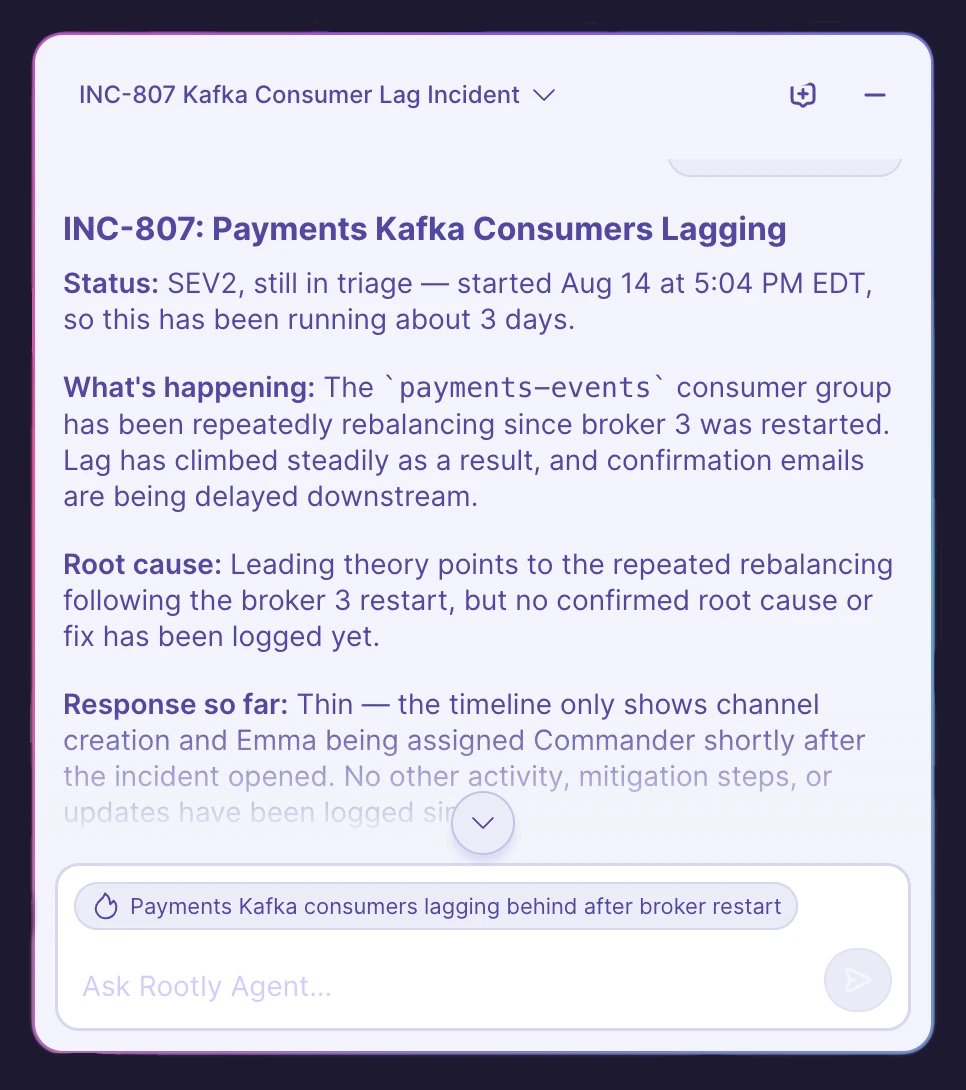
Read-only by design. The web panel answers questions and never changes your incident. Actions live in Rootly AI in Slack and Rootly AI on Mobile.
Using the Panel
Open Rootly AI on any incident page.Multiple Chats and History
Keep separate conversations per incident. Start a new chat or switch to an earlier one from the panel header.Chats are private to you, scoped to your user and the incident. Other responders can’t see your chats, and you can’t see theirs.
Configuration
Rootly AI in Web is available to all customers. An Incident Response Owner or Admin with an Incident Response seat must enable it, and using the panel also requires an Incident Response seat.- Open AI & Agents and toggle on Opt in to Rootly AI capabilities.
- Under Features, turn on Rootly Agent in Web.
Troubleshooting
Rootly AI isn't available on an incident
Rootly AI isn't available on an incident
Check that Rootly Agent in Web is enabled under AI & Agents and that you have an Incident Response seat. Also confirm you have access to the incident (see Data Privacy for Rootly AI).
A reply is taking a while or didn't appear
A reply is taking a while or didn't appear
Replies stream in as they’re generated. If you switch chats or close the panel mid-reply, generation finishes in the background. Reopen the chat to see the complete answer.