

Overview
By default, Rootly sends workflow emails fromworkflows@rootly.com. Connecting SendGrid lets you route those emails through your own SendGrid account instead — so emails arrive from your company domain and you retain full delivery analytics in SendGrid.
Custom Sender Domain
Send workflow emails from your own domain instead of Rootly’s default address.
Delivery Analytics
Track opens, clicks, bounces, and delivery status directly in your SendGrid dashboard.
Works with Send Email Action
All Send an Email workflow actions automatically route through SendGrid once connected — no changes needed to existing workflows.
API Key Validation
Rootly validates your API key against the SendGrid API on connect, so misconfigurations are caught immediately.
Before You Begin
- You must be a Rootly admin to set up the integration
- You need a SendGrid account with permission to create API keys
Installation
1
Create a SendGrid API key
In SendGrid, go to Settings → API Keys and create a new key. Select Restricted Access and enable Full Access for Mail Send only — no other scopes are needed.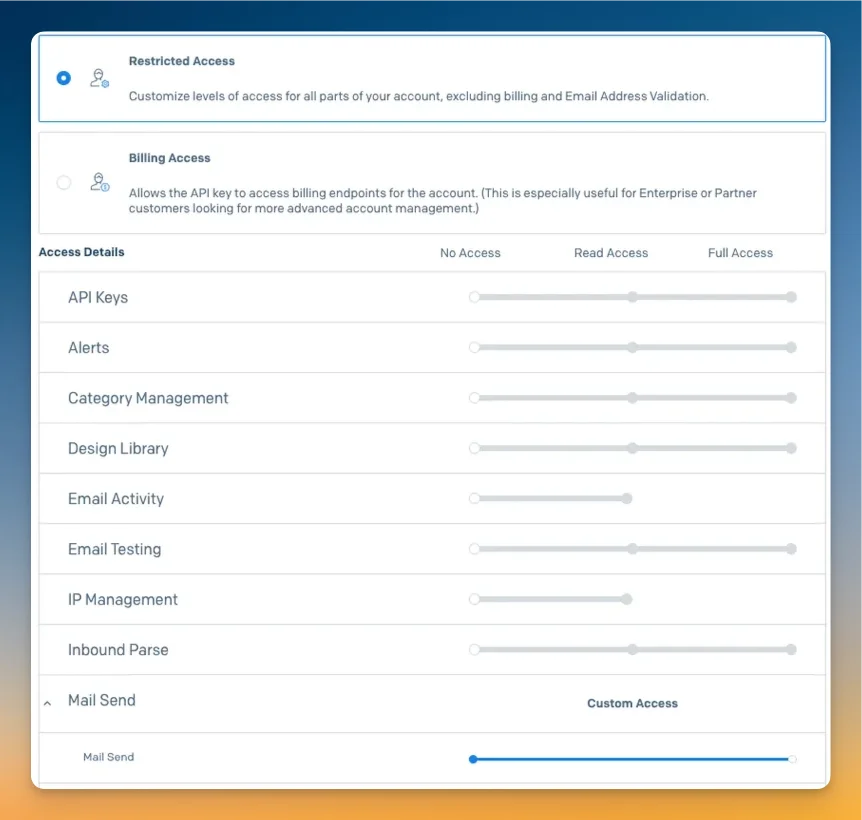
2
Connect in Rootly
In Rootly, go to Configuration → Integrations, find SendGrid, and click Setup. Enter your API key and optionally set a Default From address.Rootly validates the key against the SendGrid API before saving. If the
mail.send scope is missing, the connection will be rejected.Configuration
string
required
Your SendGrid API key. Must have the
mail.send scope. Stored encrypted at rest.string
The sender email address used when no
From is specified in a workflow action — for example, incidents@yourcompany.com. If left blank, the From field in each workflow action determines the sender.Once SendGrid is connected, all Send an Email workflow actions are automatically routed through it. The From field in the workflow action still controls the sender address per-email — the Default From here serves as a fallback.
Uninstall
To remove the SendGrid integration:- Go to Configuration → Integrations and find SendGrid
- Click Connected to reveal the disconnect option
- Click Disconnect
Frequently Asked Questions
Do I need to change my existing workflows after connecting SendGrid?
Do I need to change my existing workflows after connecting SendGrid?
No. All Send an Email workflow actions automatically route through SendGrid once the integration is connected. No changes to existing workflows are required.
What's the minimum permission needed for the API key?
What's the minimum permission needed for the API key?
Only
mail.send (Full Access) is required. Rootly validates this on connect — if the scope is missing, the key will be rejected.Can I use SendGrid and SMTP at the same time?
Can I use SendGrid and SMTP at the same time?
No. If both a SendGrid and an SMTP integration are connected, Rootly prefers SMTP. To use SendGrid, disconnect the SMTP integration first.
Will disconnecting SendGrid affect emails already sent?
Will disconnecting SendGrid affect emails already sent?
No. Emails already delivered are unaffected. After disconnecting, new workflow emails will revert to Rootly’s default delivery method.