

Overview
Google Cloud Monitoring can be configured as an alert source that sends webhook notifications to Rootly whenever an alert fires in your GCP environment. Once alerts arrive in Rootly, they can trigger incident workflows, page on-call responders, or route notifications to Slack.Before You Begin
Setting Up the Integration
To integrate Google Cloud Monitoring with Rootly, you will create a webhook notification channel in GCP that forwards alert notifications to Rootly. These alerts can then be used in Rootly for automation and incident response. Follow these steps to set up the integration:Step 1: Choose Your Webhook Endpoint
You will first retrieve the appropriate Rootly webhook endpoint URL where GCP will send its alerts. Rootly provides two types of webhook endpoints: Non-paging and Paging. Depending on how you want to handle alerts from GCP, you can choose either type. Below is a summary of both options:
Copy the URL you need — you will use it in Step 3.
Step 2: Retrieve Your Auth Password
Google Cloud Monitoring authenticates to Rootly using HTTP Basic Auth. The username is alwaysrootly — the password is an organization-specific secret you retrieve from Rootly.
1
Open Alert Sources
Go to Alerts → Sources in Rootly and click Add Source, then select Google Cloud Platform.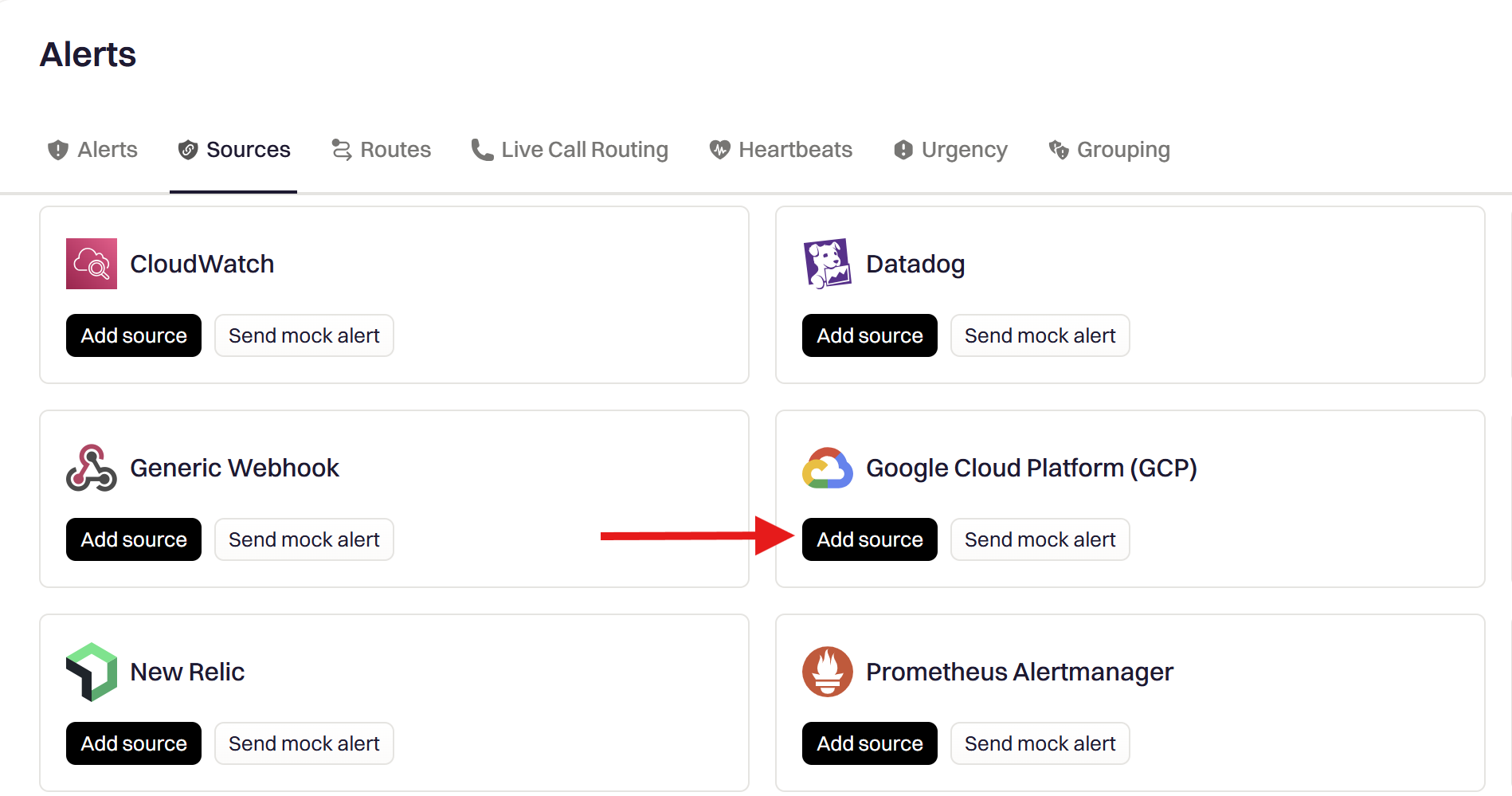
2
Fill in the source details
Provide an Alert Source Name (for example, 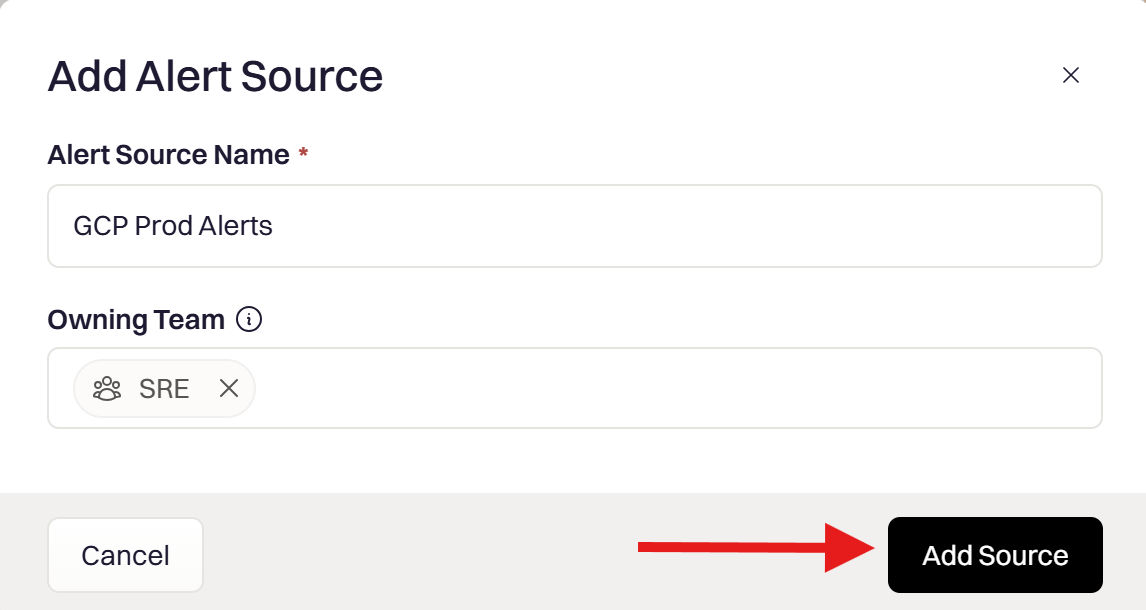
GCP – Production Alerts) and select an Owning Team, then click Add Source.3
Copy the Auth Password
On the Google Cloud Setup page, find Step 5 and copy the Auth Password.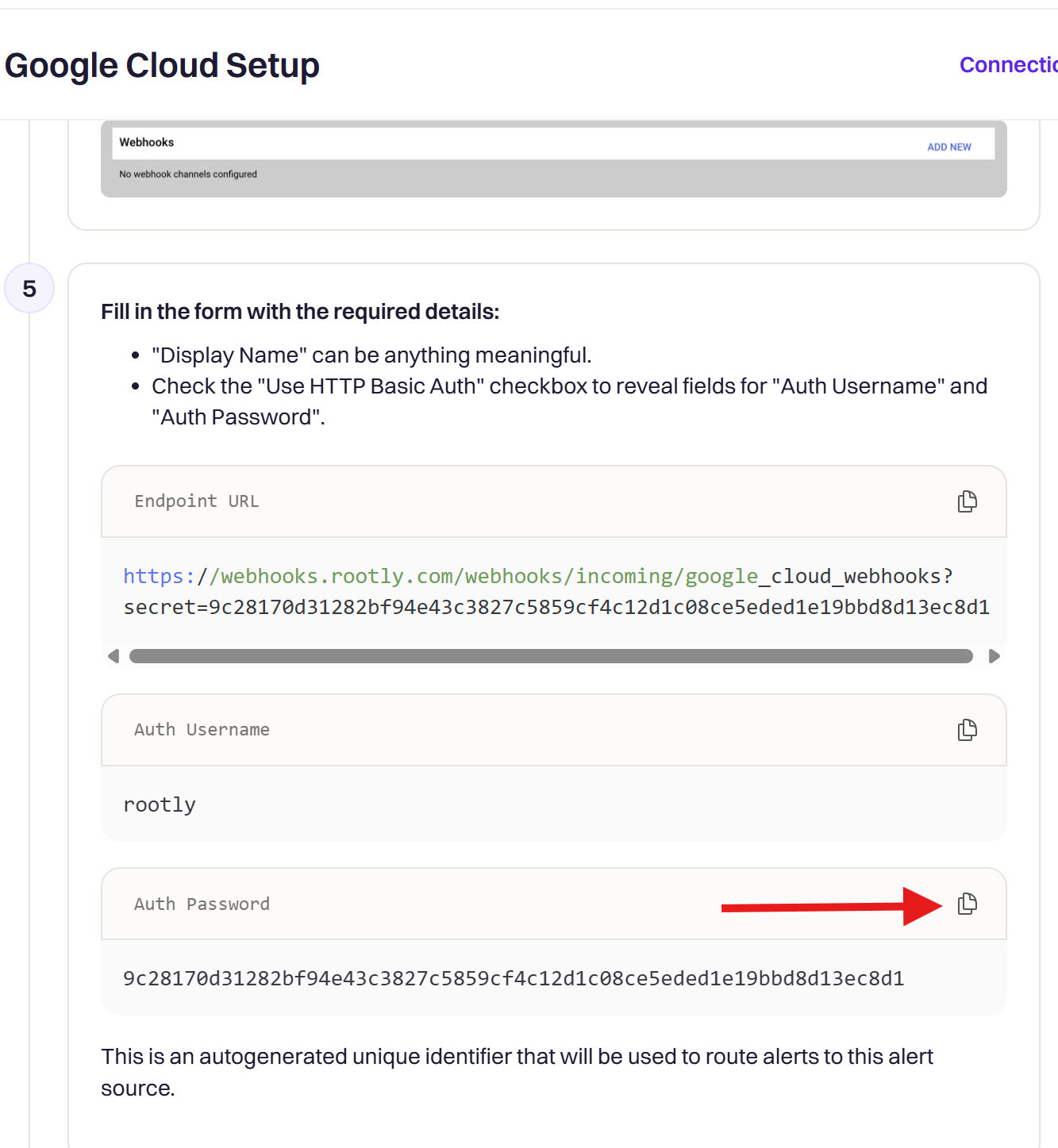
Step 3: Create the Webhook Notification Channel in GCP
Now that you have: You can now use these values to create a Webhook Notification Channel in Google Cloud Monitoring.1
Navigate to Alerting
In the Google Cloud Console, go to Monitoring → Alerting.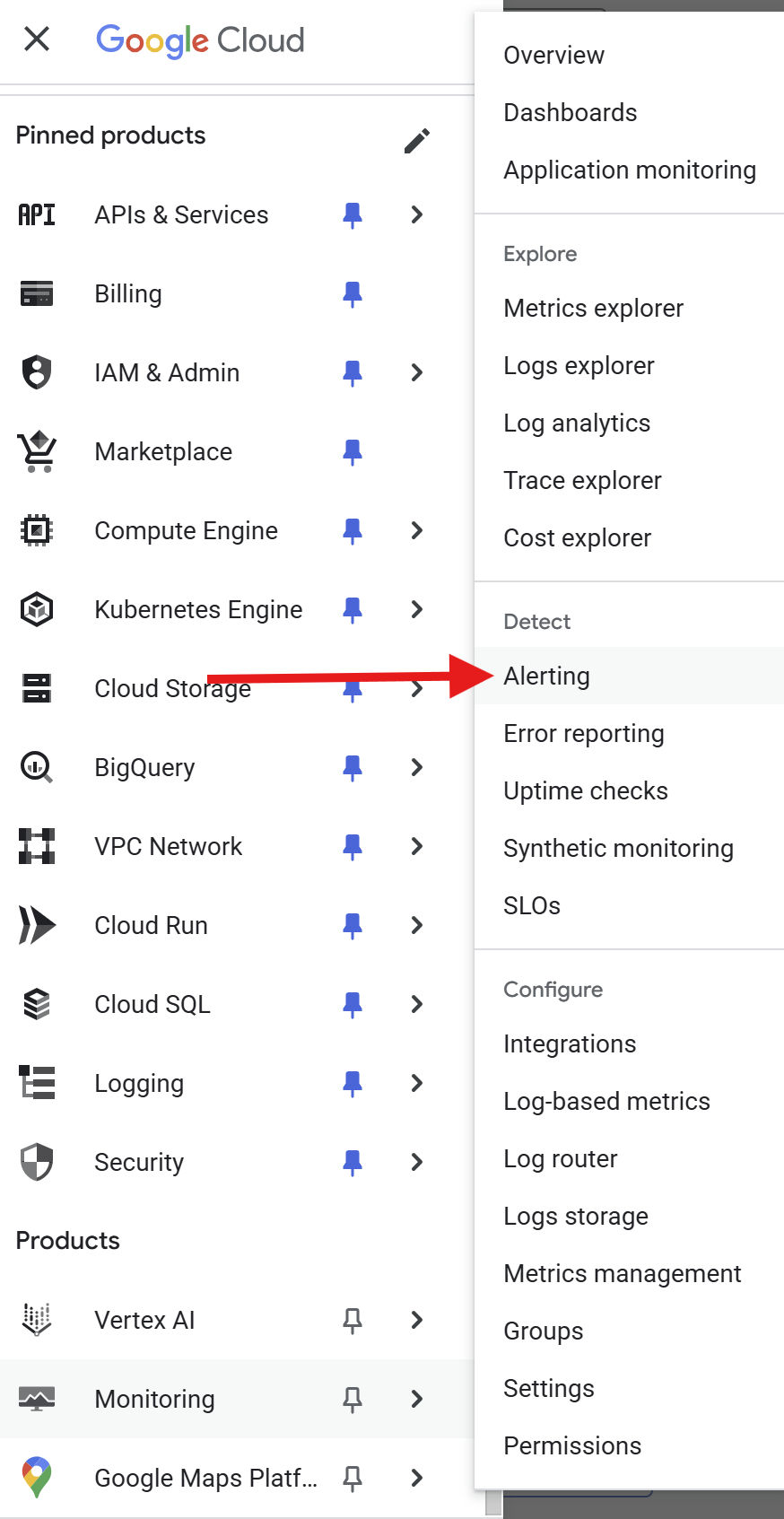
2
Edit notification channels
Click Edit Notification Channels at the top of the Alerting page.
3
Add a new webhook
Scroll to the Webhooks section and click Add New.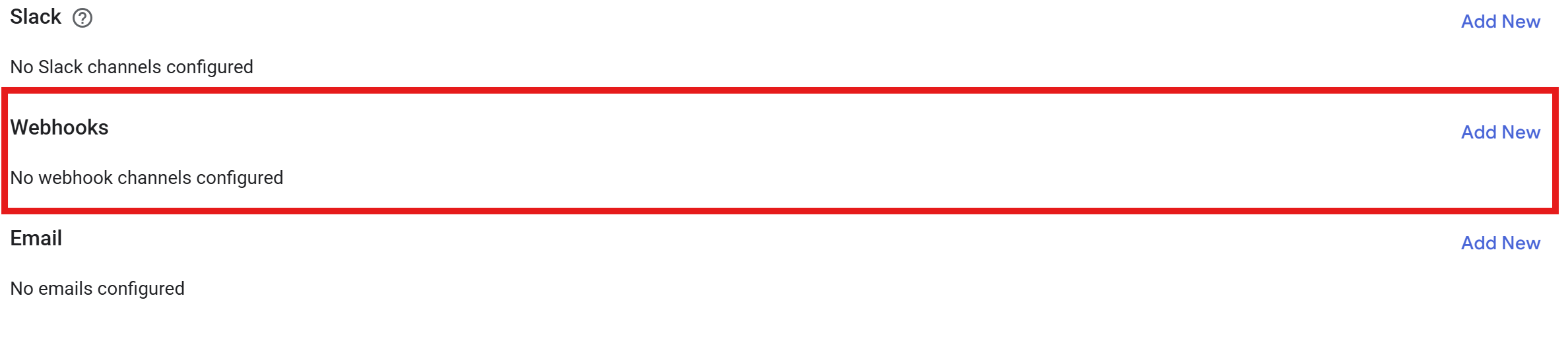
4
Configure the webhook
Fill in the form using the values gathered in the previous steps:
5
Test and save
Click Test Connection to verify GCP can reach Rootly.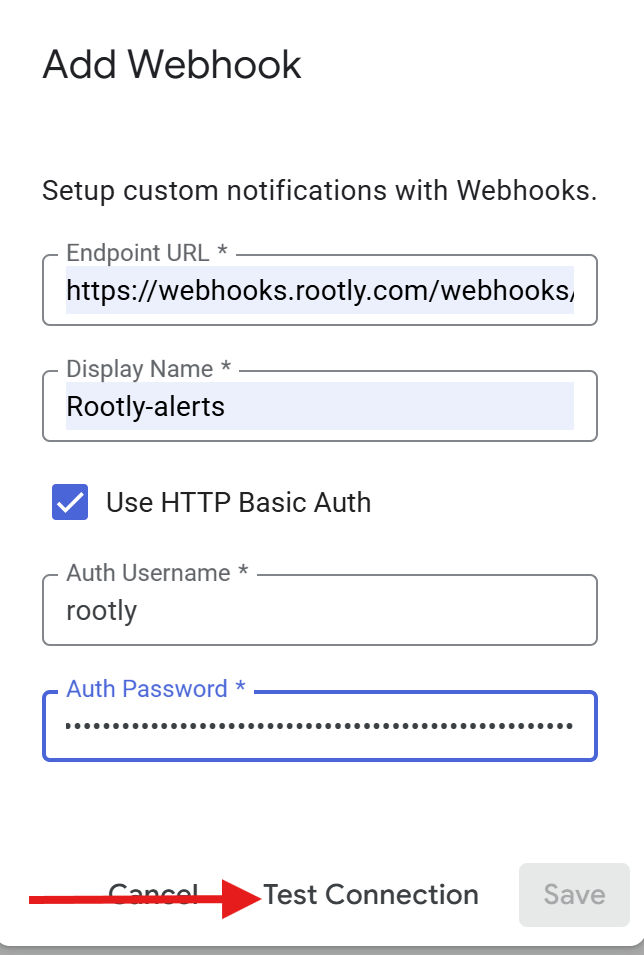
- If successful: click Save to create the notification channel.
- If unsuccessful:
- Verify the URL is correct
- Confirm you used
rootlyas the username - Re-copy the Auth Password from Rootly
Your integration is now active. Alerts from Google Cloud Monitoring will be delivered to Rootly and routed based on your paging or automation configuration.
Step 4: Verify the Test Alert in Rootly
After running Test Connection, a test notification is sent from GCP to Rootly. Confirm it arrived on the Alerts page in Rootly.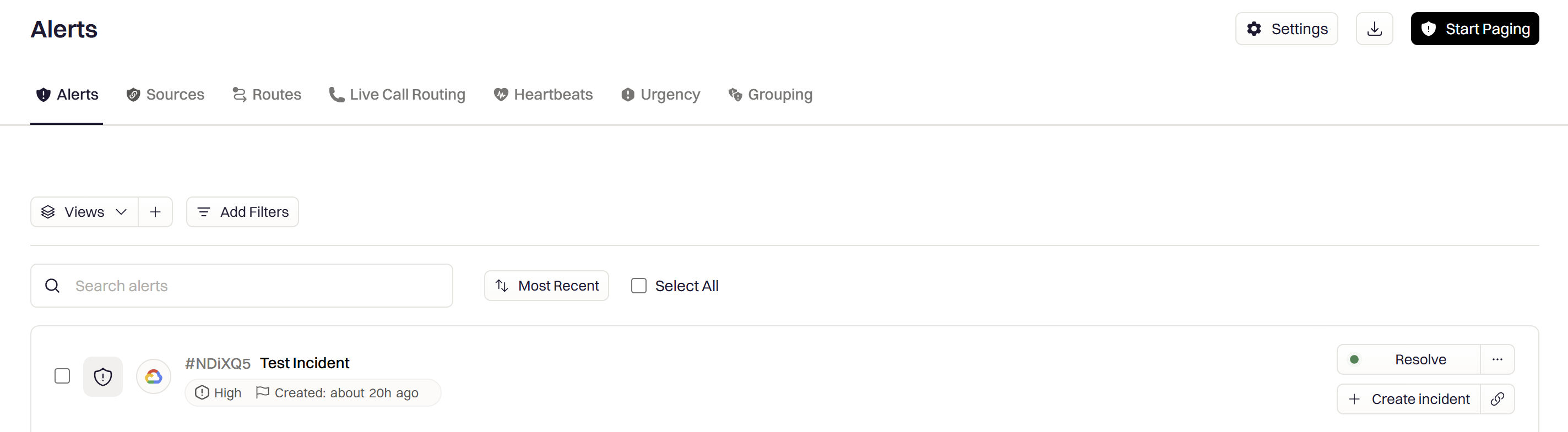
View GCP test alert payload
View GCP test alert payload
Frequently Asked Questions
GCP test connection fails
GCP test connection fails
Verify the Endpoint URL is correct and matches your intended alert type (paging or non-paging). Confirm the username is exactly
rootly (lowercase). Re-copy the Auth Password from Alerts → Sources → Google Cloud Platform → Configure in Rootly — passwords can change if the source is recreated.Alerts are not appearing in Rootly
Alerts are not appearing in Rootly
Confirm the webhook notification channel is attached to an active alerting policy in GCP. Check that the alert policy has fired by reviewing Monitoring → Alerting → Incidents in GCP. Verify the webhook URL and credentials in the notification channel settings.
How do I find the ID for a paging target?
How do I find the ID for a paging target?
Open the resource (User, Team, Escalation Policy, or Service) in Rootly and click Edit. The resource ID appears in the URL or in the edit form. Use this ID in the paging URL path.