

Introduction
The Opsgenie integration connects Rootly with your existing alerting and on-call workflows so teams can coordinate incidents across both platforms. This integration is a strong fit for teams that already use Opsgenie for paging or alerting and want Rootly to act as the central system for incident coordination and response. With the Opsgenie integration, you can:- Import Opsgenie services into Rootly
- Create Rootly alerts from supported Opsgenie webhook events
- Create and update Opsgenie alerts from Rootly workflows, with automatic severity-to-priority mapping
- Create and update Opsgenie incidents from Rootly workflows and escalation actions
- Resolve linked Opsgenie incidents from Rootly
- Page Opsgenie teams from Slack when the Slack integration is enabled
Before You Begin
Before installing the integration, make sure you have:- A Rootly account with permission to manage integrations
- An Opsgenie account on a supported plan, such as Standard or Enterprise
- Access to create a global Opsgenie API integration key
- The correct Opsgenie API host for your workspace:
api.opsgenie.comapi.eu.opsgenie.com
Rootly recommends using a dedicated service account so the integration does not break if an individual user leaves your organization.
Installation
Open the Opsgenie integration in Rootly
You can install the integration from the Rootly integrations page as a logged-in admin user.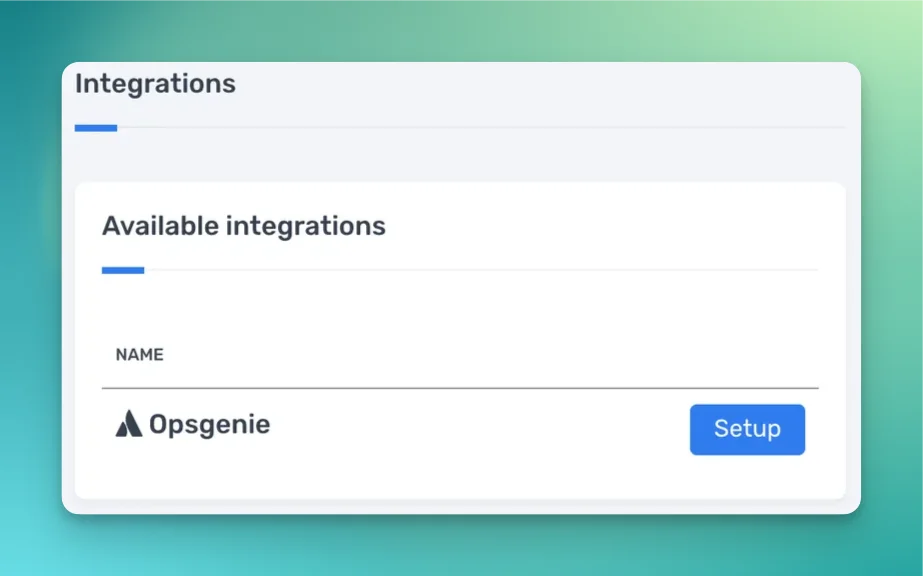
Import or Link Services
Import or link Opsgenie services
You can import your current Opsgenie services into Rootly or link existing Rootly services to Opsgenie services from the Services page.When a Rootly service is linked to Opsgenie, Rootly can use that relationship during incident escalation and sync workflows.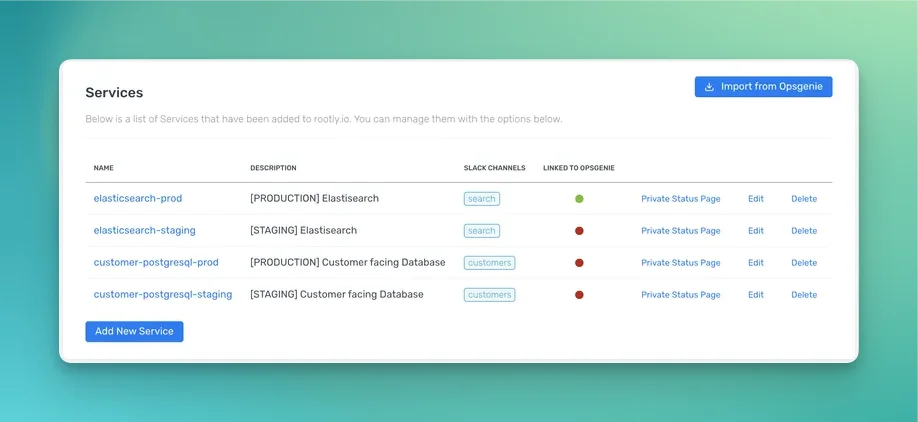
Configure Opsgenie
To complete setup, create an API integration in Opsgenie and copy its credentials into Rootly.Create a new Opsgenie integration
In Opsgenie, navigate to Settings > Integrations > New Integration.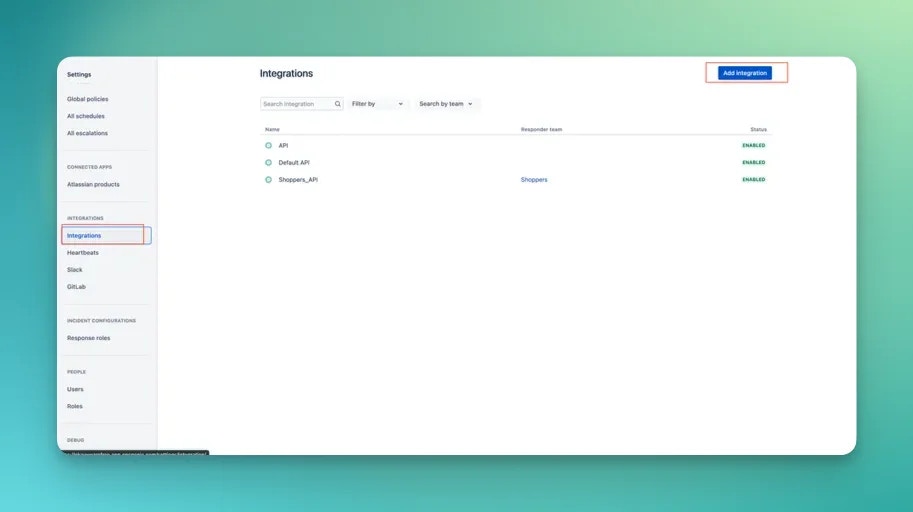
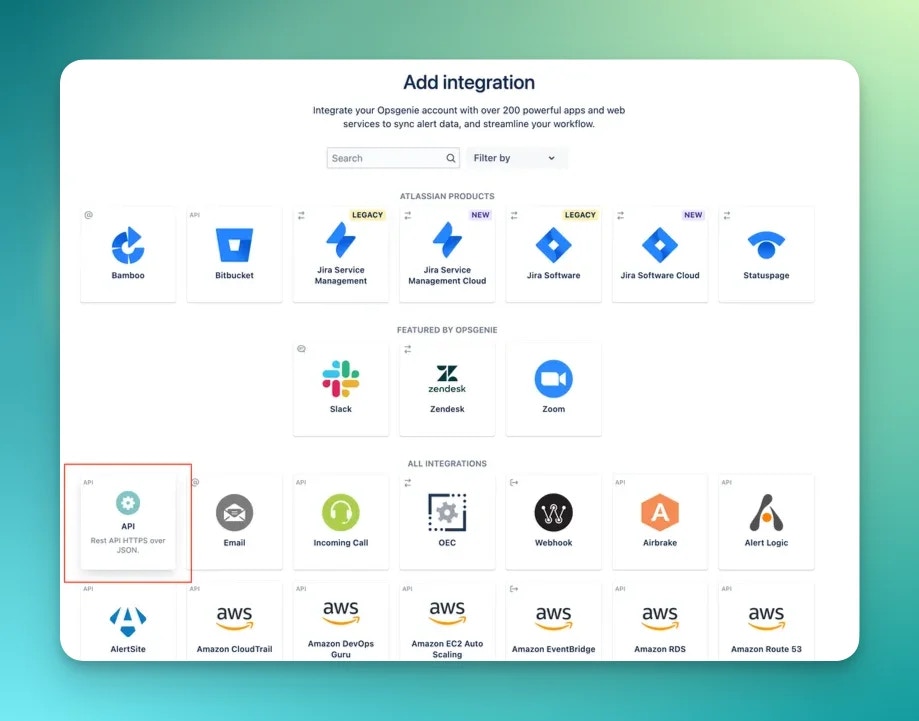
Configure API access
The API integration should include the access required for Rootly to read, create, and update incidents and related data.The API key must be a global key and cannot be scoped only to a single team.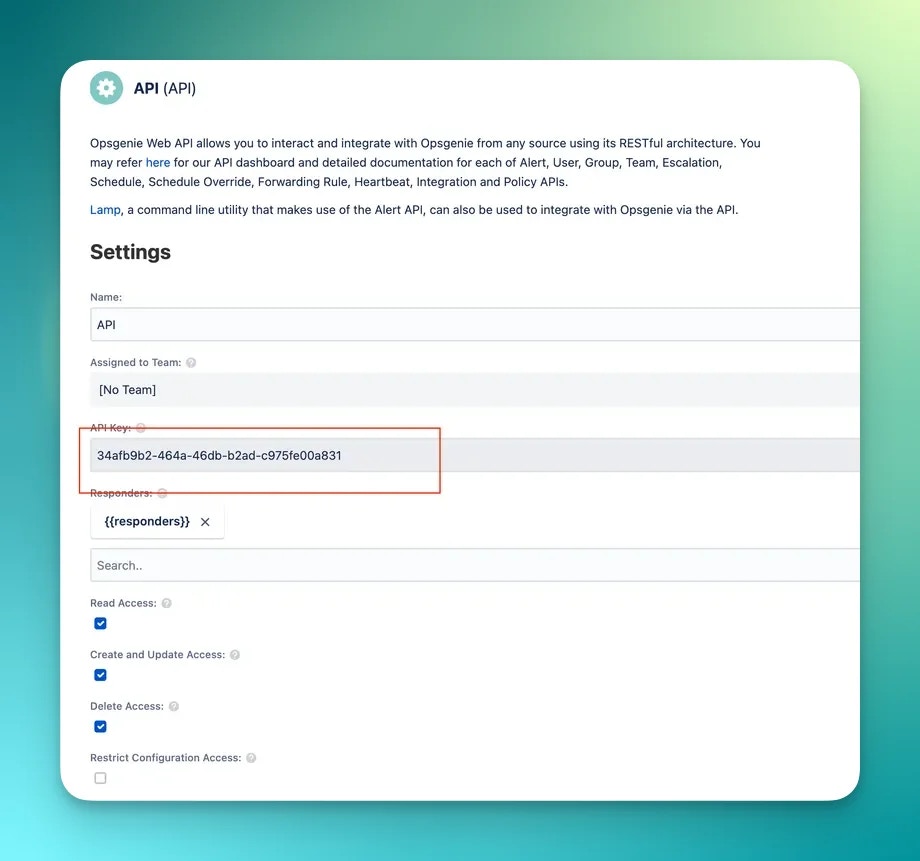
Copy the API key into Rootly
After saving the integration in Opsgenie, copy the API key into the Opsgenie integration settings in Rootly.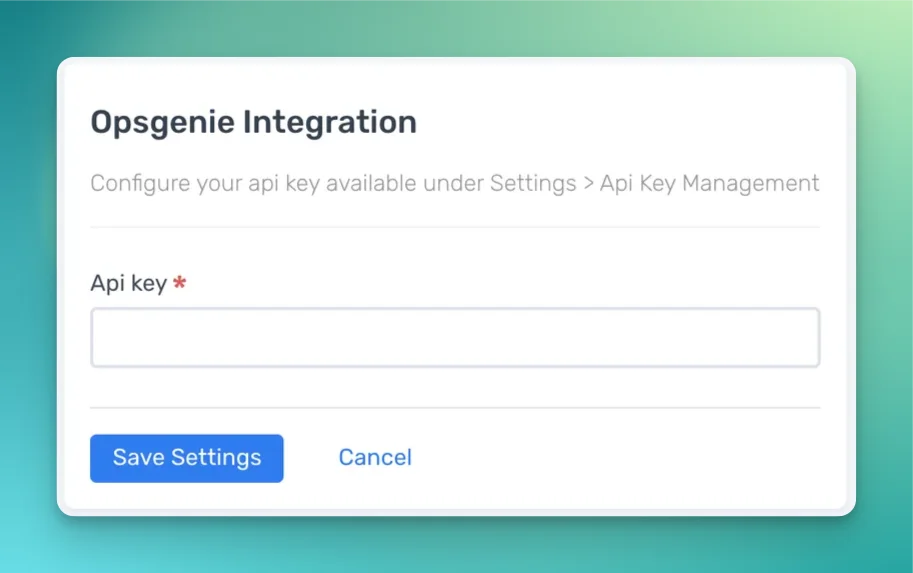
Configure Webhooks
Rootly can receive supported Opsgenie webhook events and turn them into alerts or linked incident activity. Supported webhook actions include:CreateAcknowledgeAssignOwnershipClose
Open webhook configuration in Opsgenie
To configure webhook delivery in Opsgenie, add the Rootly webhook configuration shown during setup.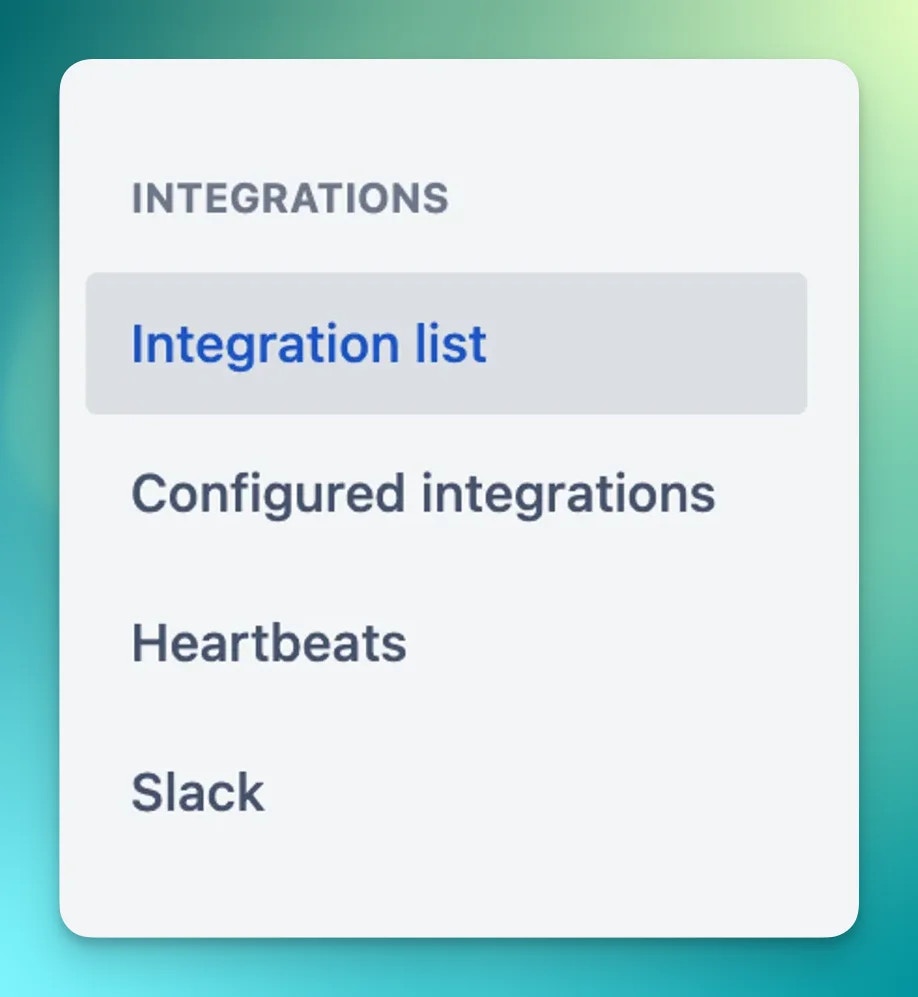
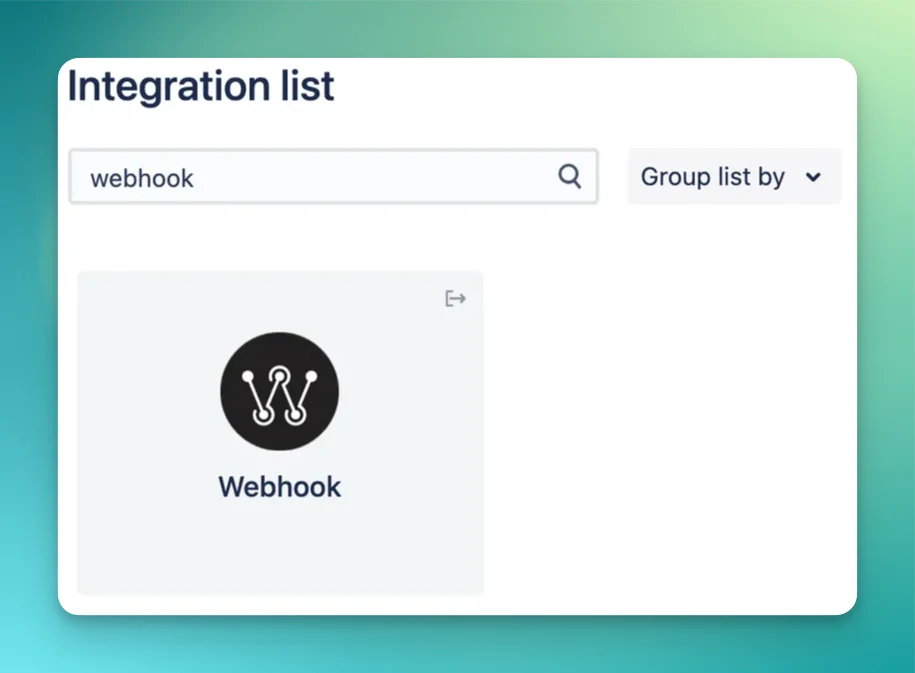
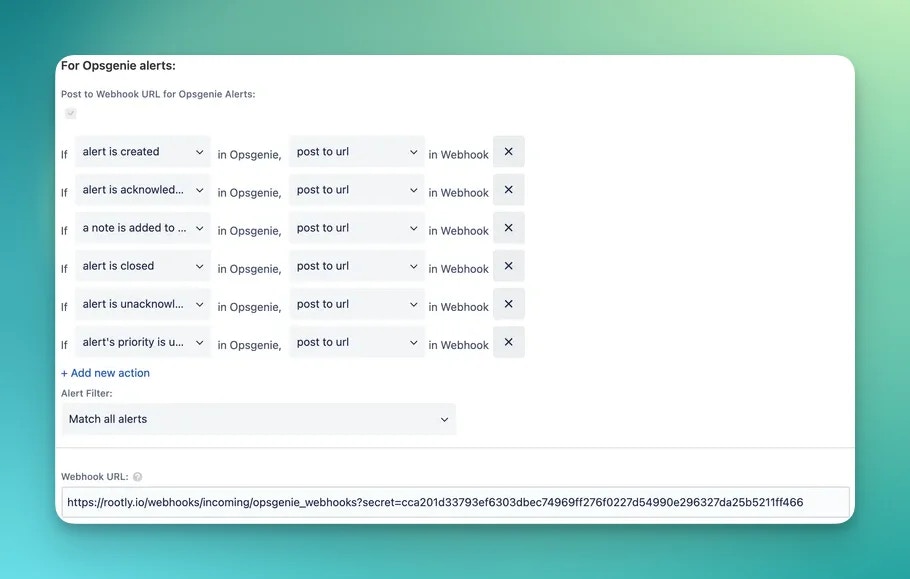
The webhook secret used for Rootly webhook delivery is separate from your Opsgenie API key. Make sure you copy the correct value into the webhook configuration.
How Sync Works
The Opsgenie integration supports both inbound and outbound workflows.Opsgenie to Rootly
When Opsgenie sends supported webhook events to Rootly, Rootly can create alerts and update linked incident activity. In most cases, theCreate action creates a Rootly alert from the Opsgenie alert payload. The Acknowledge, AssignOwnership, and Close actions can also add incident activity when the Opsgenie event is linked to a Rootly incident.
If an incoming Opsgenie event is already tied to a synced Rootly incident, Rootly may skip creating a duplicate alert.
Rootly to Opsgenie
Rootly can create or update both Opsgenie alerts and incidents through workflows and escalation actions. Alerts — Rootly can create and update Opsgenie alerts directly, targeting specific teams, users, escalation policies, or schedules. Rootly incident severity is automatically mapped to Opsgenie priority:
Incidents — Rootly can also create or update Opsgenie incidents. This is commonly used when a Rootly incident needs to page an Opsgenie team or when a linked Opsgenie incident should be resolved after the Rootly incident is resolved.
Default Workflows
When the integration is connected, Rootly can create default workflows to support common Opsgenie actions, such as:- Adding Opsgenie on-call responders into the incident workflow
- Automatically resolving linked Opsgenie incidents when the Rootly incident is resolved
Auto Assign On-Calls to Incident Roles
If you want to automatically assign the on-call user from an Opsgenie schedule to an Incident Role, such as Commander, follow the setup guidance on the PagerDuty integration page.Re-Paging Existing Responders
By default, Rootly will not re-page responders who are already on an active Opsgenie alert or incident. If you want Rootly to re-page existing responders, enable Re-page existing responders in the Opsgenie integration settings.Paging Automatically via Workflows
You can use workflows to page different Opsgenie schedules and escalation policies based on incident conditions. For example, you might page Infrastructure for SEV1 incidents and Security for incidents tagged with a security-related incident type.Use workflows to automate Opsgenie paging
Configure workflows to notify the correct Opsgenie targets based on incident severity, type, team, or other conditions.
Paging from Slack
If the Slack integration is enabled, responders can page Opsgenie teams directly from Slack.Page Opsgenie from Slack
Use the Slack integration to trigger Opsgenie paging directly from the incident workflow in Slack.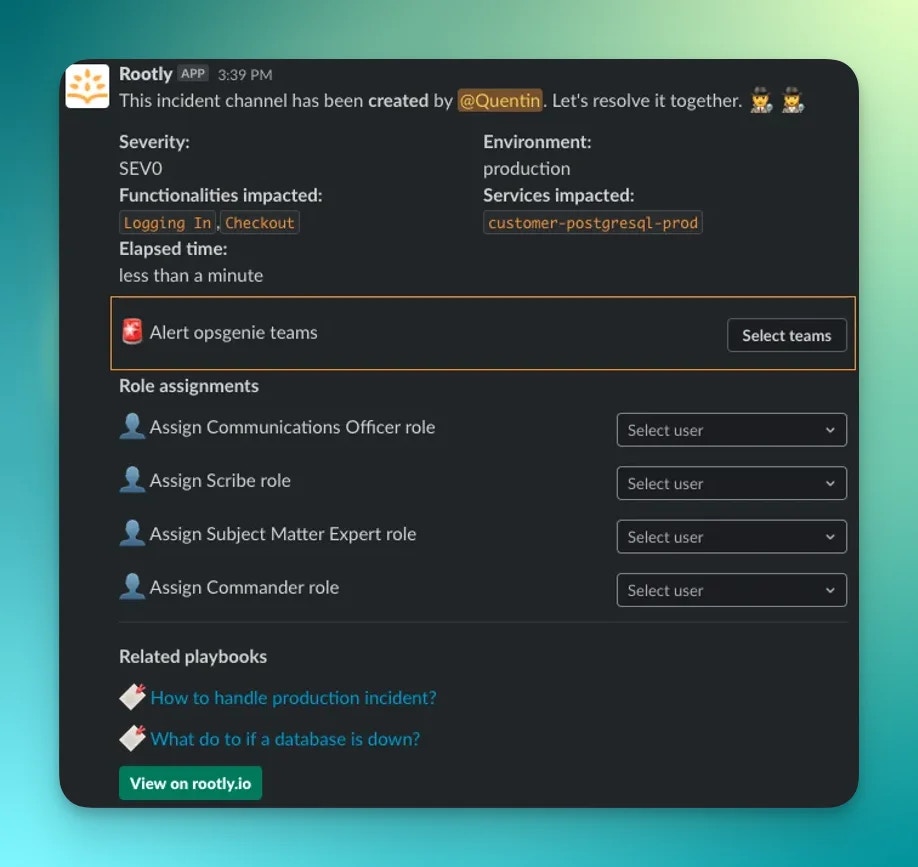
Notes
- Large imports and webhook volume may be affected by Opsgenie API rate limits.
- Incoming webhook-created alerts are also subject to your Rootly alert limits.