

Overview
Rootly’s Airtable integration lets you push incident data directly into Airtable tables using workflow actions. When an incident is declared — or updated — Rootly can create or update a record in any base and table you choose, with full control over field mapping via Liquid variables.Create Records
Update Records
Custom Field Mapping
Any Base & Table
Before You Begin
- You must be a Rootly admin to set up the integration
- You need an Airtable account with permission to create OAuth applications
- The Airtable base and table you want to write to must already exist
Installation
Setting up the Airtable integration requires creating an OAuth application in Airtable and connecting it to Rootly.1
Open the integration in Rootly
In Rootly, go to Settings → Integrations and find Airtable. Click Connect.
2
Create an OAuth application in Airtable
In a new tab, go to airtable.com/create/oauth and create a new OAuth application.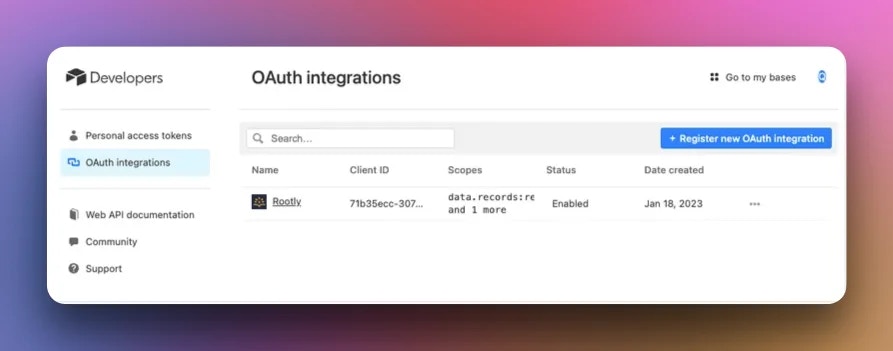
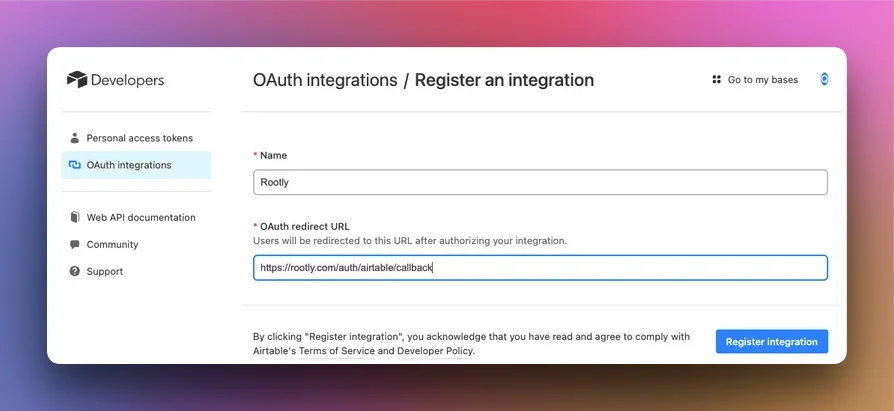
3
Configure required scopes
In the OAuth app settings, enable the required scopes: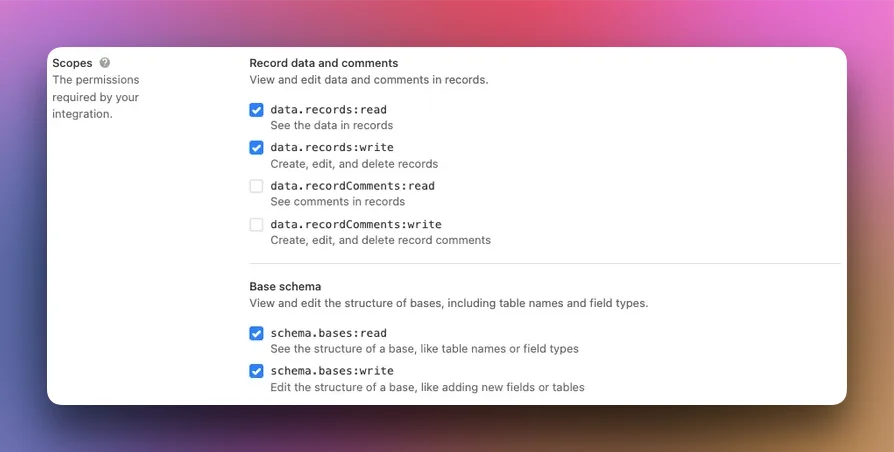
4
Copy credentials into Rootly
Copy the Client ID and Client Secret from your Airtable OAuth app into Rootly and save.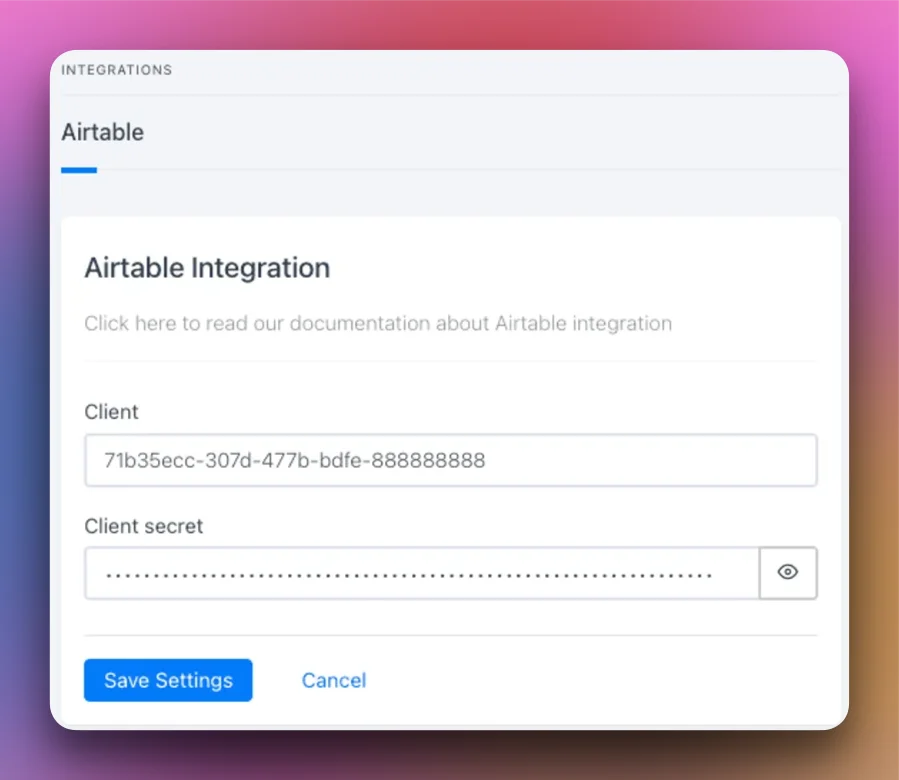
5
Authorize
Click Authorize in Rootly. You’ll be redirected to Airtable to grant access. Once approved, you’ll return to Rootly with the integration connected.
When you connect Airtable, Rootly automatically creates a default Create Airtable Record workflow to get you started quickly.
Workflow Actions
Create Airtable Record
Creates a new record in the specified Airtable base and table when the workflow triggers.string
required
The Airtable base to write the record to. Select from the dropdown populated from your connected account.
string
required
The table within the selected base. Populated dynamically based on the selected base.
json
A JSON object mapping Airtable column names to values. Supports Liquid variables.
Update Airtable Record
Updates an existing record in Airtable. Use this after a record has been created to reflect incident updates.string
required
The Airtable base ID (for example,
appXXXXXXXXXXXXXX). Supports Liquid variables.string
required
The name of the table containing the record to update. Supports Liquid variables.
string
required
The ID of the Airtable record to update (for example,
recXXXXXXXXXXXXXX). Supports Liquid variables.json
A JSON object of fields to update. Same syntax as the Create action.
Uninstall
To remove the Airtable integration:- Go to Settings → Integrations and find Airtable
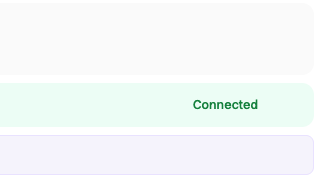
- Click Connected to reveal the disconnect option
- Click Disconnect
Frequently Asked Questions
How do I find my Base Key and Record ID for the Update action?
How do I find my Base Key and Record ID for the Update action?
The Base Key is visible in the URL when you open a base in Airtable:
airtable.com/appXXXXXXXXXXXXXX/.... The Record ID (format: recXXXXXXXXXXXXXX) can be retrieved via the Airtable API or by expanding a record and copying the ID from the URL.Can I map custom Rootly fields to Airtable columns?
Can I map custom Rootly fields to Airtable columns?
Yes. Use the
incident.custom_fields Liquid variable to access custom field values. For example: {{ incident.custom_fields | find: 'custom_field.slug', 'your-slug' | get: 'selected_options' | map: 'value' }}.What happens if a mapped column doesn't exist in Airtable?
What happens if a mapped column doesn't exist in Airtable?
Airtable will return an error and the workflow action will fail. Make sure all column names in the mapping exactly match your Airtable table’s field names (case-sensitive).
Can I create records in multiple tables from one incident?
Can I create records in multiple tables from one incident?
Yes. Add multiple Create Airtable Record actions to the same workflow, each targeting a different base or table.