

This page focuses on the PagerDuty-to-Rootly flow: supported PagerDuty webhook events are ingested as alerts in Rootly, and those alerts can then trigger alert workflows.
Overview
PagerDuty alerts in Rootly are powered by incoming webhook events. Once PagerDuty is configured to send supported events to Rootly, those events can appear as Rootly alerts and become the starting point for automation. This is useful when you want PagerDuty activity to drive follow-up actions in Rootly, such as creating incidents, updating existing incidents, recording acknowledgement timing, or setting incident fields automatically.Before You Begin
Before building PagerDuty alert workflows, make sure you already have:- A working PagerDuty integration
- PagerDuty webhooks configured so Rootly can receive supported PagerDuty events
- Familiarity with Alert Workflows in Rootly
PagerDuty events must first be received as alerts before any PagerDuty alert workflow can run.
Set Up the Workflow
PagerDuty events are ingested into Rootly as alerts, so the correct workflow type is Alert.Choose the Alert workflow type
Create a new workflow and select Alert as the workflow type.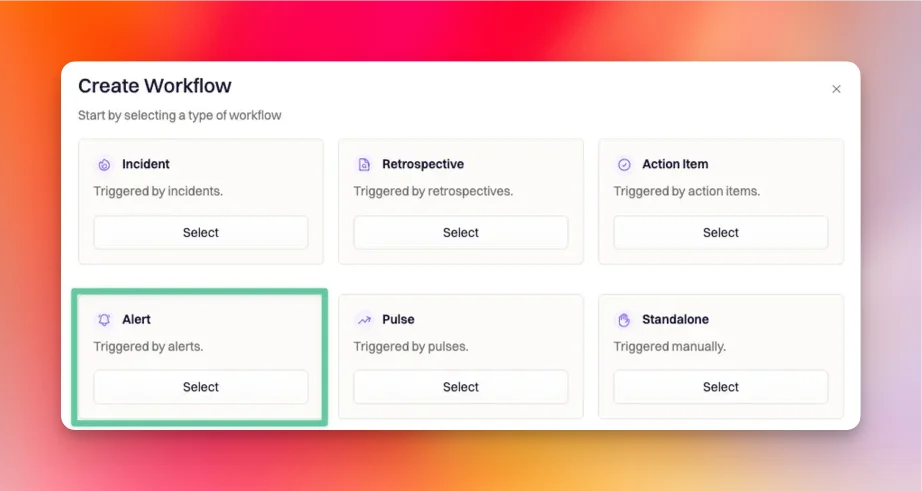
Use the Alert Created trigger
Select Alert Created as the workflow trigger.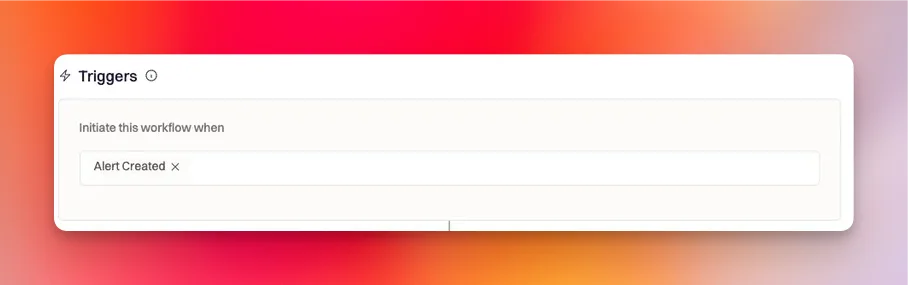
Add PagerDuty-specific run conditions
Configure the workflow so it only runs for PagerDuty alerts you actually want to automate.A typical setup starts with: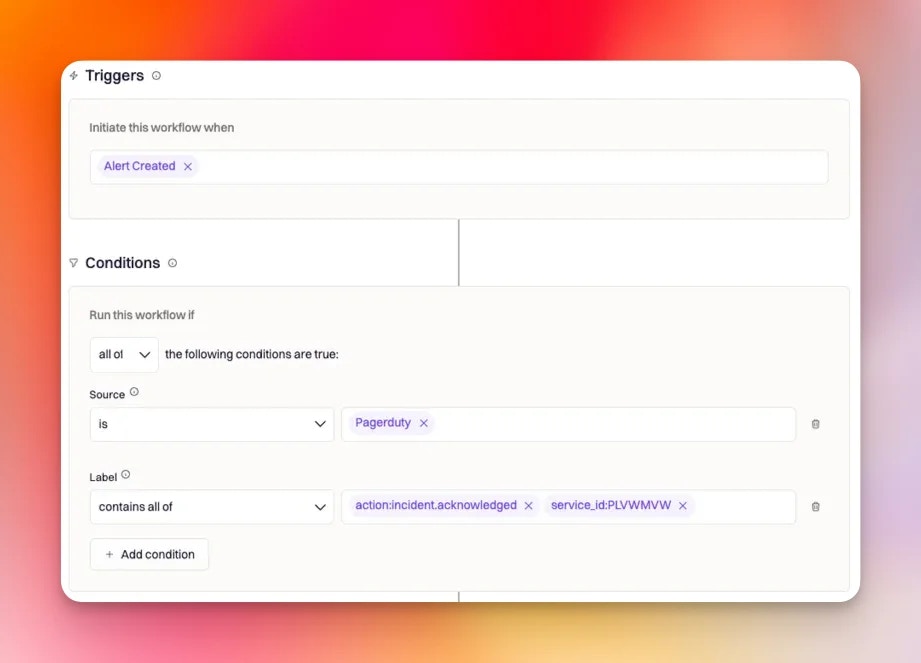
- Alert source is
Pagerduty - Alert labels contain the PagerDuty event type you want to react to
- Optional payload filtering if you need more precise matching
Recommended Run Conditions
PagerDuty alerts in Rootly include label values that make it easier to target specific event types without relying only on payload filtering. A common pattern is to match on the alert source first, then useaction: labels to decide which PagerDuty event should trigger the workflow. You can also add service_id: if you only want the workflow to run for alerts from a particular PagerDuty service.
Common examples include:
-
New PagerDuty incident triggered
action:incident.triggered- Optional:
service_id:PLVWMVW
-
Existing PagerDuty incident acknowledged
action:incident.acknowledged- Optional:
service_id:PLVWMVW
-
Existing PagerDuty incident resolved
action:incident.resolved- Optional:
service_id:PLVWMVW
-
Responder added to an existing PagerDuty incident
action:incident.responder.added
action: label values may also be available depending on the specific supported PagerDuty event being ingested.
Filter by Payload When Needed
If labels are not specific enough, you can add payload-based filtering. Use JSONPath to select the field from the alert payload, then compare it to a value or regular expression. This is helpful when your team only wants to react to PagerDuty events that match a certain property in the webhook payload. For example:- JSONPath:
$.object.specific_field - Match value:
/specific_value/i
Many workspaces start with a single payload condition plus labels. Some teams may have support for multiple payload conditions, depending on feature availability.In most cases, it is better to filter by labels first and only use payload filters where labels are not enough.
- JSON Path Explorer
- Rubular for Ruby regular expressions
Create a Rootly Incident from a PagerDuty Alert
Use the Create Incident action when you want a PagerDuty alert to declare a new incident in Rootly. Because this action is being driven by an alert, dynamic values use the{{ alert.<properties> }} format. If you want the new Rootly incident to stay linked to the PagerDuty incident, include a custom mapping that stores the PagerDuty identifiers on the incident.
Add the Create Incident action
Add a Create Incident action to your alert workflow.This is the action that declares the Rootly incident when the PagerDuty alert arrives.
Map the PagerDuty identifiers onto the incident
Add the following custom mapping so the new Rootly incident stays associated with the PagerDuty incident: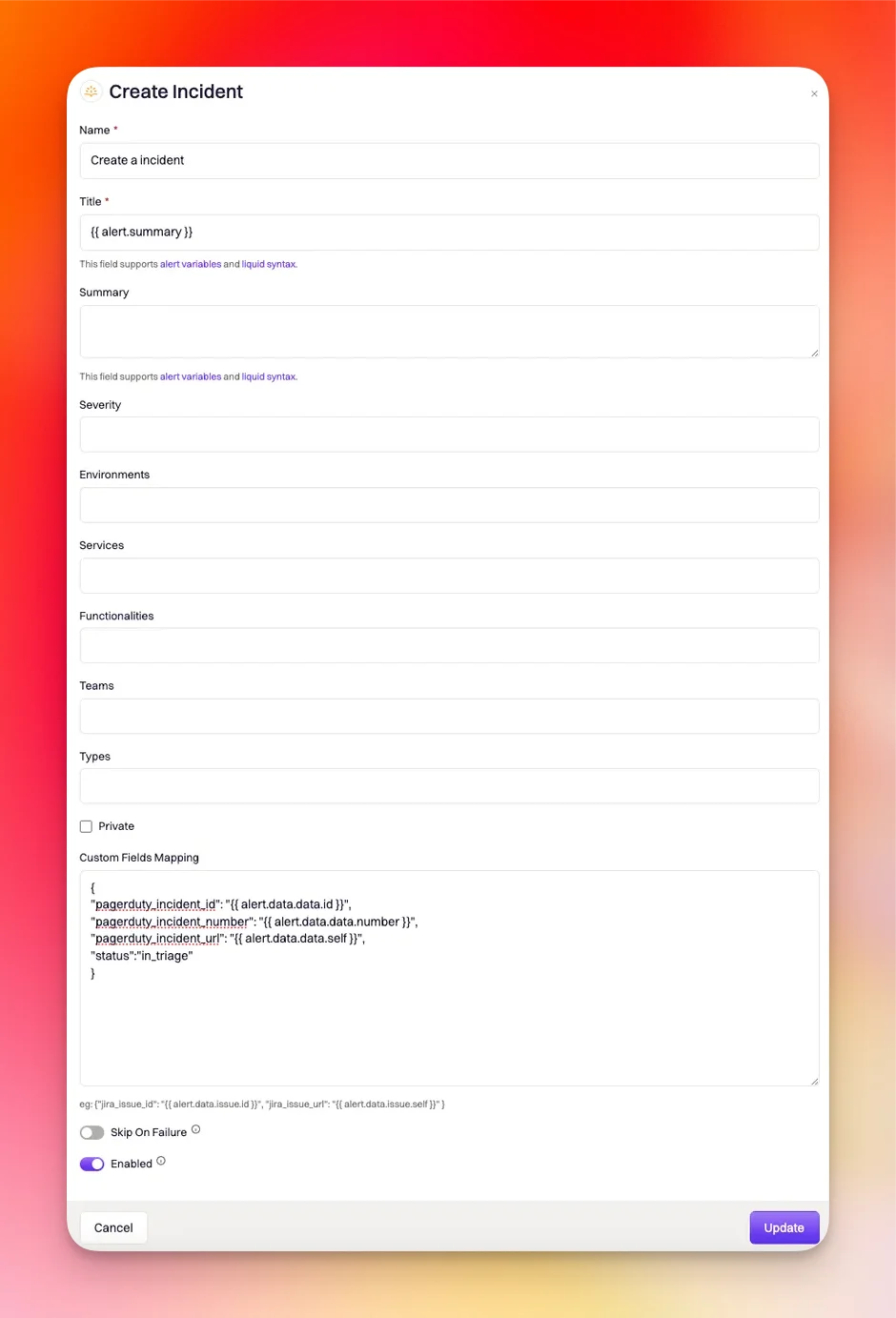
If alert grouping is enabled, Rootly skips incident creation for grouped alerts that are not the leader alert.
Update an Existing Rootly Incident from a PagerDuty Alert
Use the Update Incident action when the PagerDuty alert should modify an incident that already exists in Rootly. The most important part of this setup is telling Rootly how to find the correct incident. For PagerDuty-driven updates, the standard pattern is to match onpagerduty_incident_id.
Add the Update Incident action
Add an Update Incident action to the workflow for the PagerDuty event you want to handle.
Match on the PagerDuty incident ID
Set the match fields as follows: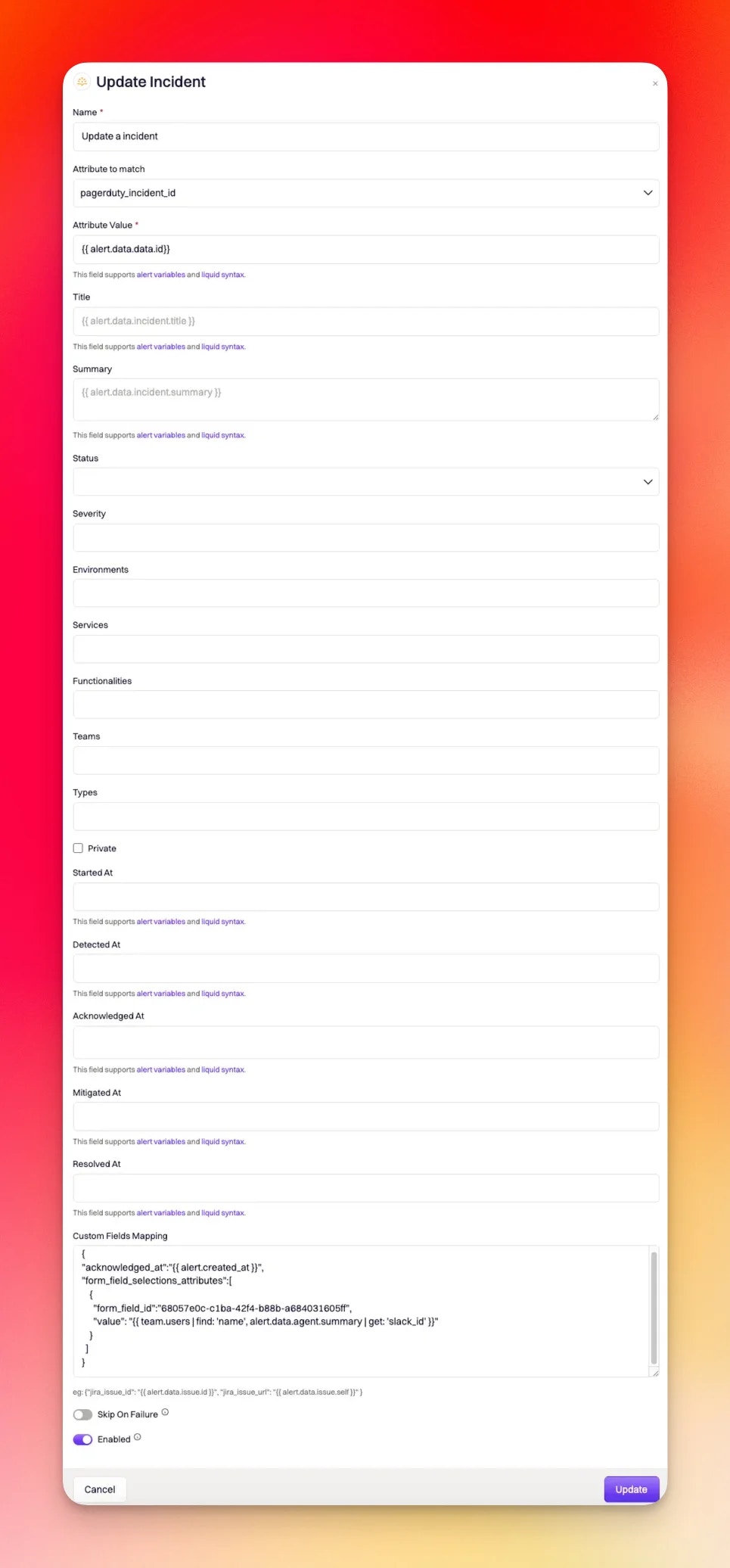
- Attribute to Match:
pagerduty_incident_id - Attribute Value:
{{ alert.data.data.id }}
Use Custom Fields Mapping for Richer Automation
Custom Fields Mapping lets you set additional incident attributes dynamically. This field accepts JSON with embedded Liquid, which makes it useful for incident timestamps, role assignments, and custom form fields.Log acknowledgement time
Use this when the workflow is responding to an acknowledged PagerDuty incident:Pair this with run conditions for
action:incident.acknowledged.Assign an incident role to the acknowledging user
You can map the PagerDuty acknowledging user back to a Rootly user by combining Liquid with custom JSON:Pair this with run conditions for
action:incident.acknowledged.Set a custom Rootly field
Example for a text field with a hard-coded value:Important Notes
- Supported PagerDuty webhook events do not all behave the same way in Rootly
- Some accepted PagerDuty events may not create an alert at all, so there may be nothing for an alert workflow to trigger from
incident.triggeredalerts may be skipped if the PagerDuty incident is already linked to an existing Rootly incident- PagerDuty webhook payload structure can differ by webhook version, so always verify your Liquid paths and payload fields before using them in production