

Overview
Rootly workflows automatically create Zoom meeting rooms when incidents occur. You can use the built-in Auto-Create Incident Call setting for quick setup, or build a custom workflow when you need conditional logic, specific triggers, or advanced routing.Rootly enforces one Zoom meeting per incident. Running the same automation multiple times updates the existing link rather than creating a new one. For additional meetings, create a sub-incident.
Option 1: Auto-Create Incident Call
The Auto-Create Incident Call setting lets you automatically generate a Zoom meeting when an incident begins — no workflow required.
Use Auto-Create for quick setup. Build a custom workflow when you need conditions, specific triggers, or advanced routing.
Option 2: Custom Workflow
For more control — such as only creating meetings for SEV-1 incidents or routing to specific hosts — build a custom Incident workflow.1
Open workflow creation
Navigate to Workflows in Rootly and click Create Workflow.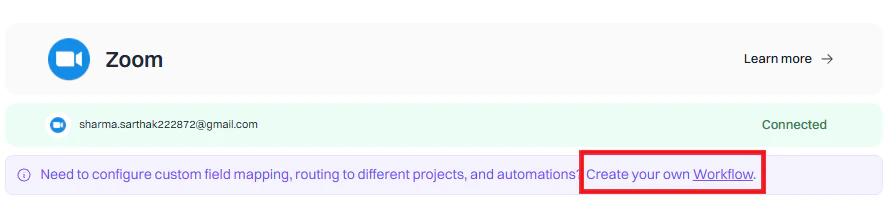
2
Choose workflow type
Select Incident as the workflow type.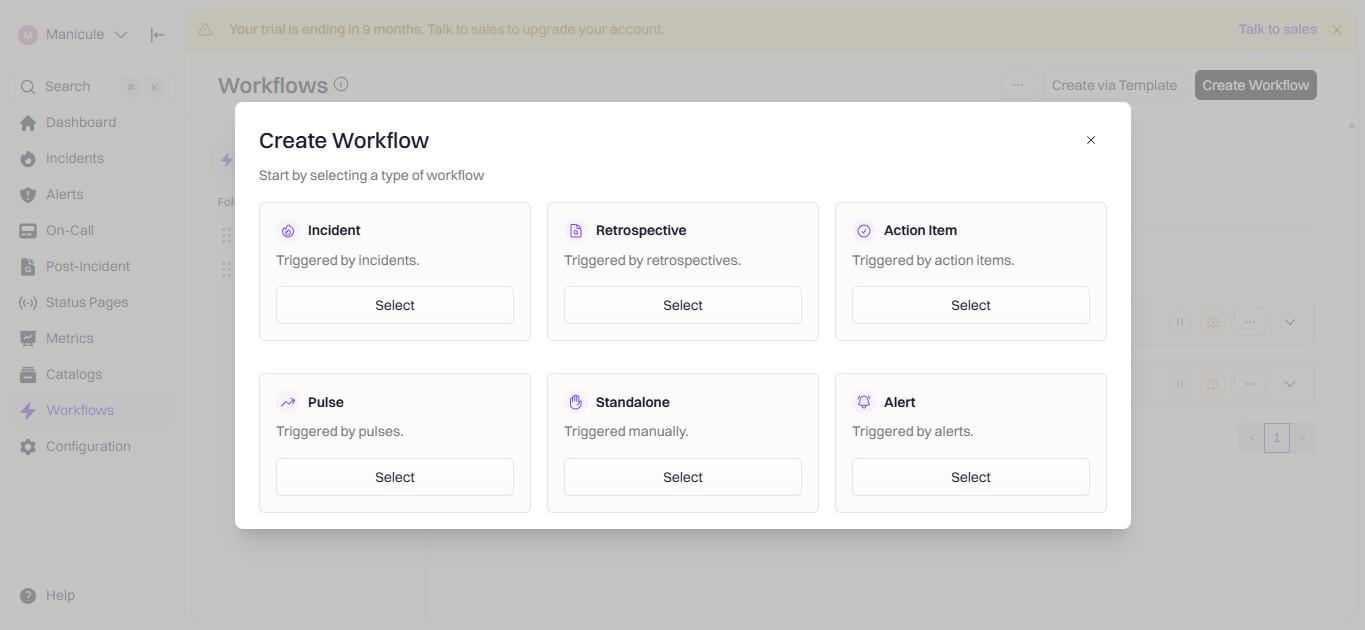
3
Configure triggers
Choose when the workflow fires. Common triggers for Zoom meeting creation: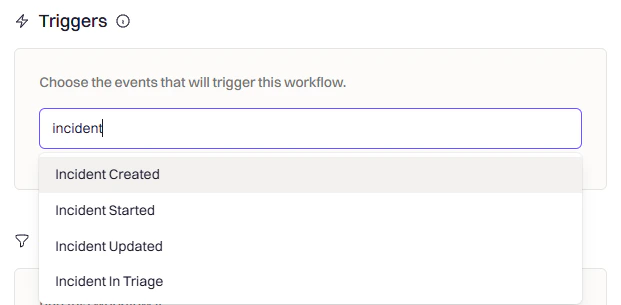
4
Add conditions (optional)
Use conditions to control when the workflow should run after triggering.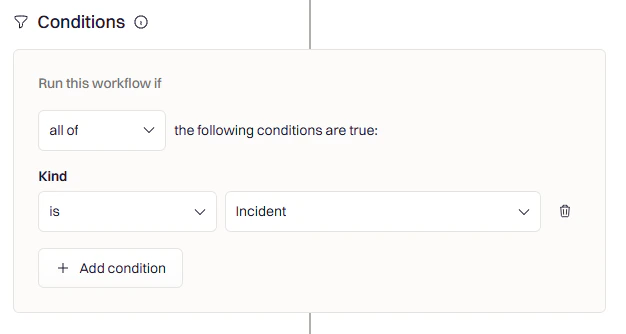
- Severity filter — Only create calls for SEV-1 or SEV-2 incidents
- Team filter — Only for incidents affecting specific teams
- Incident type — Only when Kind is set to Incident
5
Add the Create Zoom Room action
Click Add Action, search for Zoom, and select Create Room.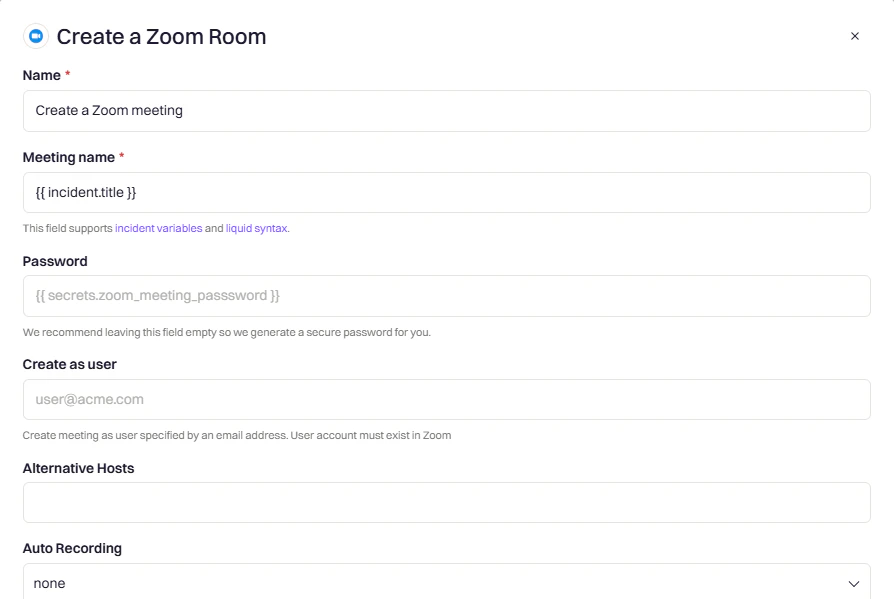
For Create as User, use the incident creator’s email via Liquid syntax, or set a dedicated service account like
zoom@yourcompany.com to ensure meetings are always owned by a known account.6
Save the workflow
Name the workflow clearly (e.g.,
Create Zoom Call for SEV-1 Incidents) and click Create Workflow.Variable Reference
Use the Liquid Variable Explorer to test variables with real incident data.Zoom Variables
Incident Variables
Frequently Asked Questions
Can I create multiple Zoom meetings for one incident?
Can I create multiple Zoom meetings for one incident?
Rootly enforces one Zoom meeting per incident. If you need additional meetings, declare a sub-incident from the main incident and create a separate Zoom link for it.
The Zoom meeting was created but not posted to Slack
The Zoom meeting was created but not posted to Slack
Ensure the Slack Channels field in the workflow action is configured with the correct channel. You can use Liquid syntax to reference the incident channel dynamically. Also confirm the Slack integration is connected under Configuration → Integrations.
How do I use Liquid variables in meeting names?
How do I use Liquid variables in meeting names?
The Meeting Name field supports Liquid syntax. Use the Liquid Variable Explorer to preview available variables. Common examples include the incident title, severity, and ID.
What happens if the Create as User email is not a Zoom account?
What happens if the Create as User email is not a Zoom account?
The meeting creation will fail if the email is not associated with a valid Zoom account. Use a dedicated service account email or verify the Liquid variable resolves to a known Zoom user.