

New vs Existing Customers:
- New customers have Smart Defaults enabled by default and can manage incidents immediately
- Existing customers have Smart Defaults disabled to avoid disrupting existing workflow configurations
How to Access
- Go to Configuration → Integrations → Slack
- Click Configure
- You’ll see the Smart Defaults panel
Workspace Setup
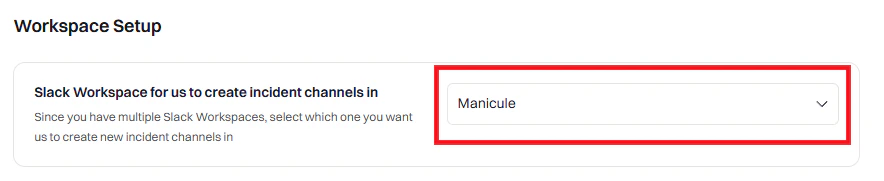
Most users see one workspace. Enterprise Grid customers may see multiple workspaces.
Notifications
Configure what messages Rootly sends to Slack.Team Notifications

Default Announcement Channel
Default Announcement Channel
Announces every new incident in a specified channel.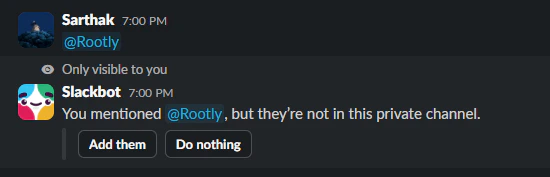
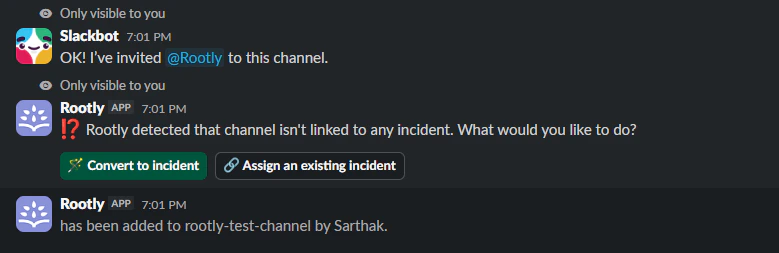
Rootly refreshes channels daily. Click Refresh channels if a channel doesn’t appear.
@Rootly in the channel to invite the bot.High Severity Notifications
High Severity Notifications
Notify specific users, groups, or channels when high-severity incidents are declared.
Default Alerts Channel
Default Alerts Channel
Announces new alerts in a specified channel. Messages auto-update as alerts are acknowledged, escalated, or resolved.
For conditional routing (e.g., different channels per team), use a Custom Workflow.
Smart Reminders
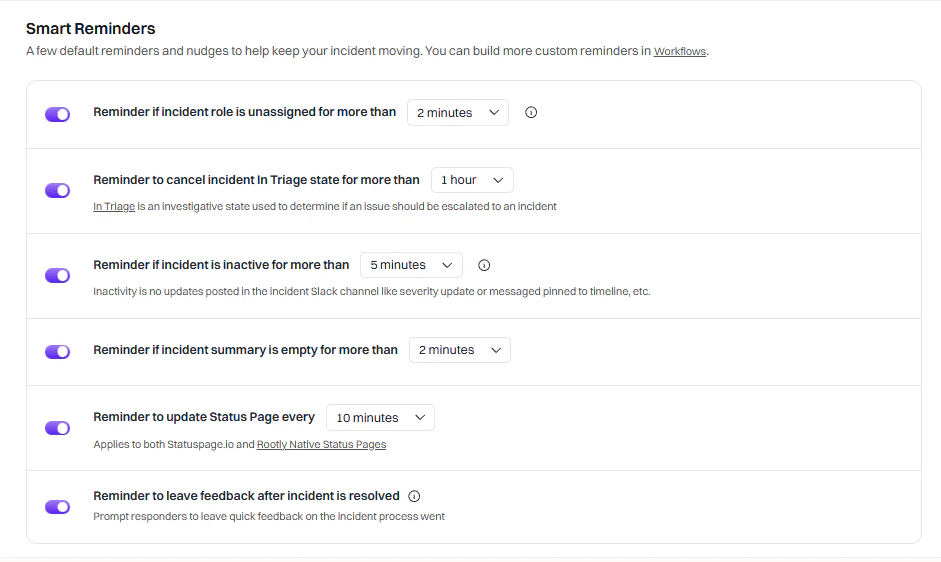
What counts as “activity”?
- Updating the incident summary ✓
- Using 📌 emoji to log timeline events ✓
- Regular messages in the channel ✗ (does not count)
Updates

Advanced

Incident Channel
Configure how incident channels are created and managed.Channel Settings

Example custom channel names:
inc-{{ incident.sequential_id }}-{{ incident.title | slugify }}{{ incident.severity | downcase }}-{{ incident.created_at | date: '%Y%m%d' }}-{{ incident.title | truncate: 20 }}
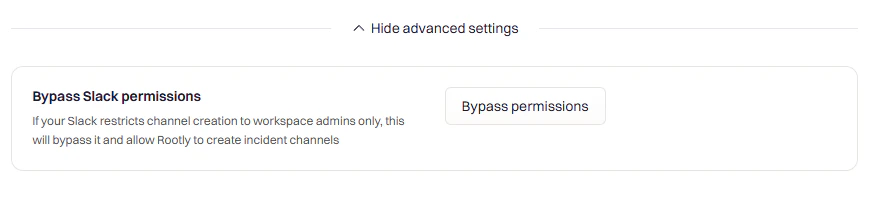
Bypass Slack Permissions
Emoji Shortcuts
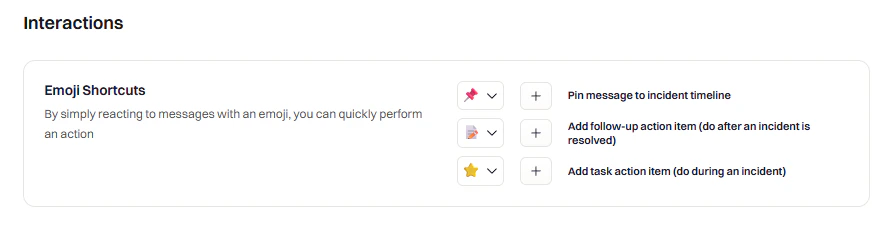
Choose uncommon emojis to avoid accidental triggers. Avoid 👍, 😄, or other frequently used reactions.
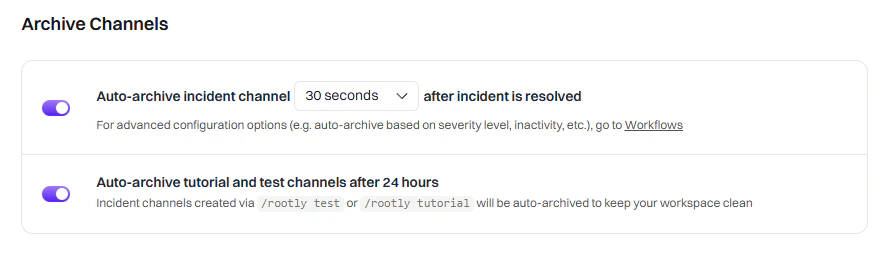
Archive Channels
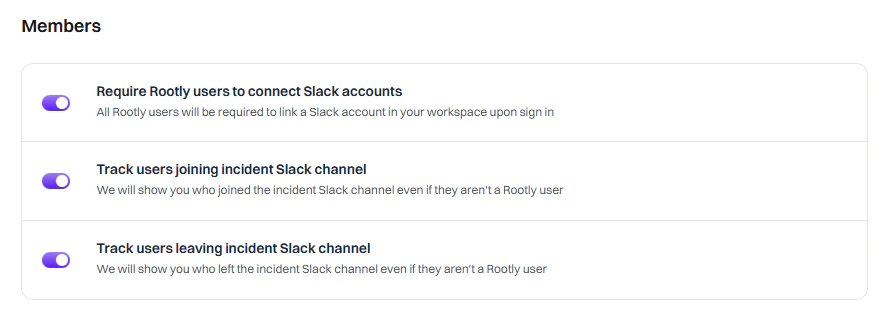
Member Tracking
When to Use Custom Workflows Instead
Smart Defaults cover common scenarios, but use Custom Workflows when you need:- Conditional logic — Different channels for different teams or severities
- Multi-step automations — Invite users, then send a message, then add a bookmark
- Integration actions — Create Jira tickets, page PagerDuty, update status pages
- Scheduled/delayed actions — Send reminders at specific intervals
- Custom message formatting — Use Block Kit for rich interactive messages