

Workflow Actions
Create Jira Issue
Create Jira Issue
Creates a new ticket in a Jira project. You must select the Project Key and Issue Type for the ticket to be created correctly.This action can be used for both incidents and action items. For action items, using Create Jira Subtask is recommended if your team uses subtasks — but if not, this action works as well.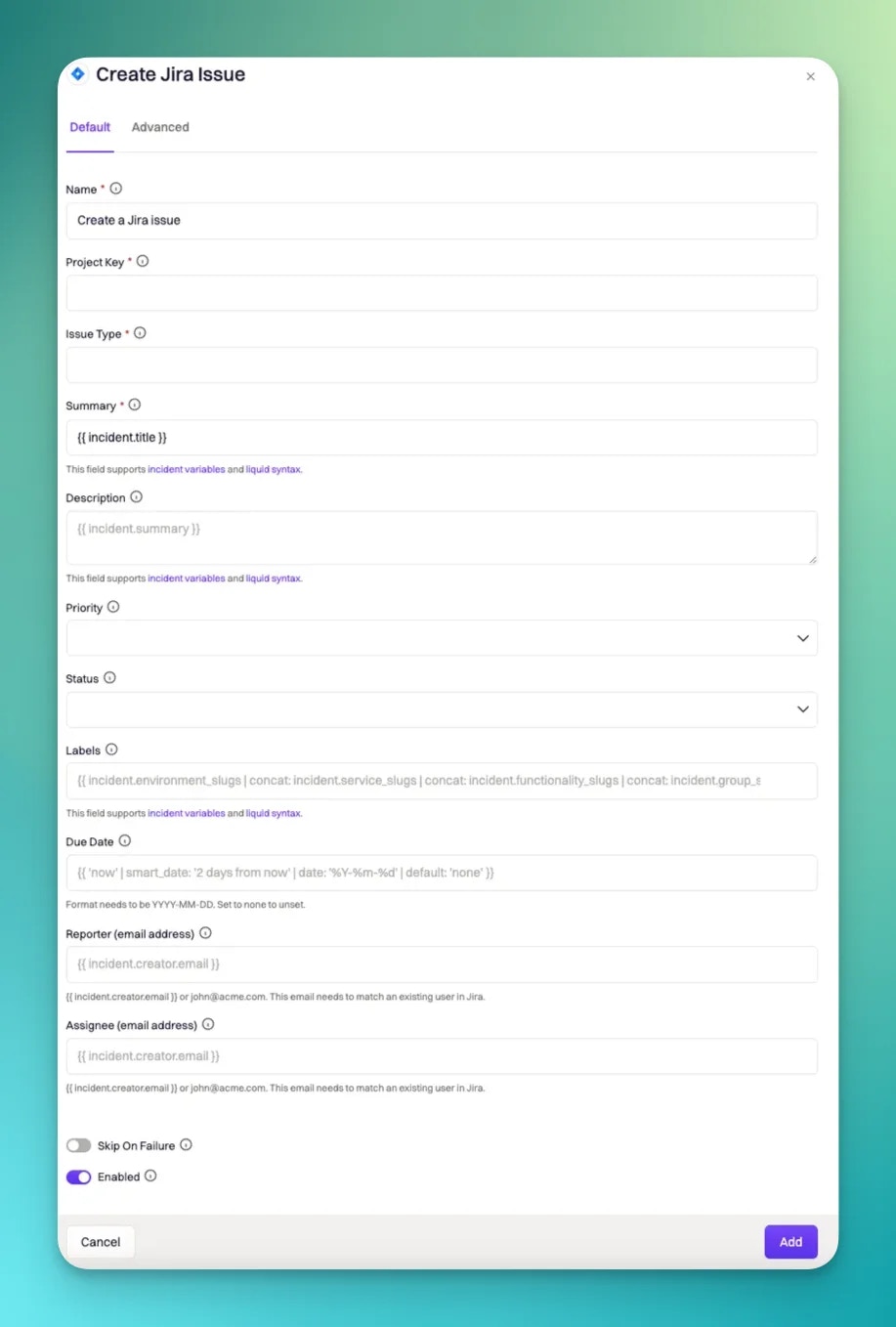
The Jira project where the issue will be created.
The type of Jira issue to create. Options are pulled from the selected project.
The title of the Jira issue. Supports Liquid syntax (e.g.,
{{ incident.title }}).The description of the Jira issue. Supports Liquid syntax (e.g.,
{{ incident.summary }}).Assign the Jira issue to a user by email. Supports Liquid syntax.
Update Jira Issue
Update Jira Issue
Updates an existing ticket in Jira. You must reference the issue in the Jira Issue to Update field using 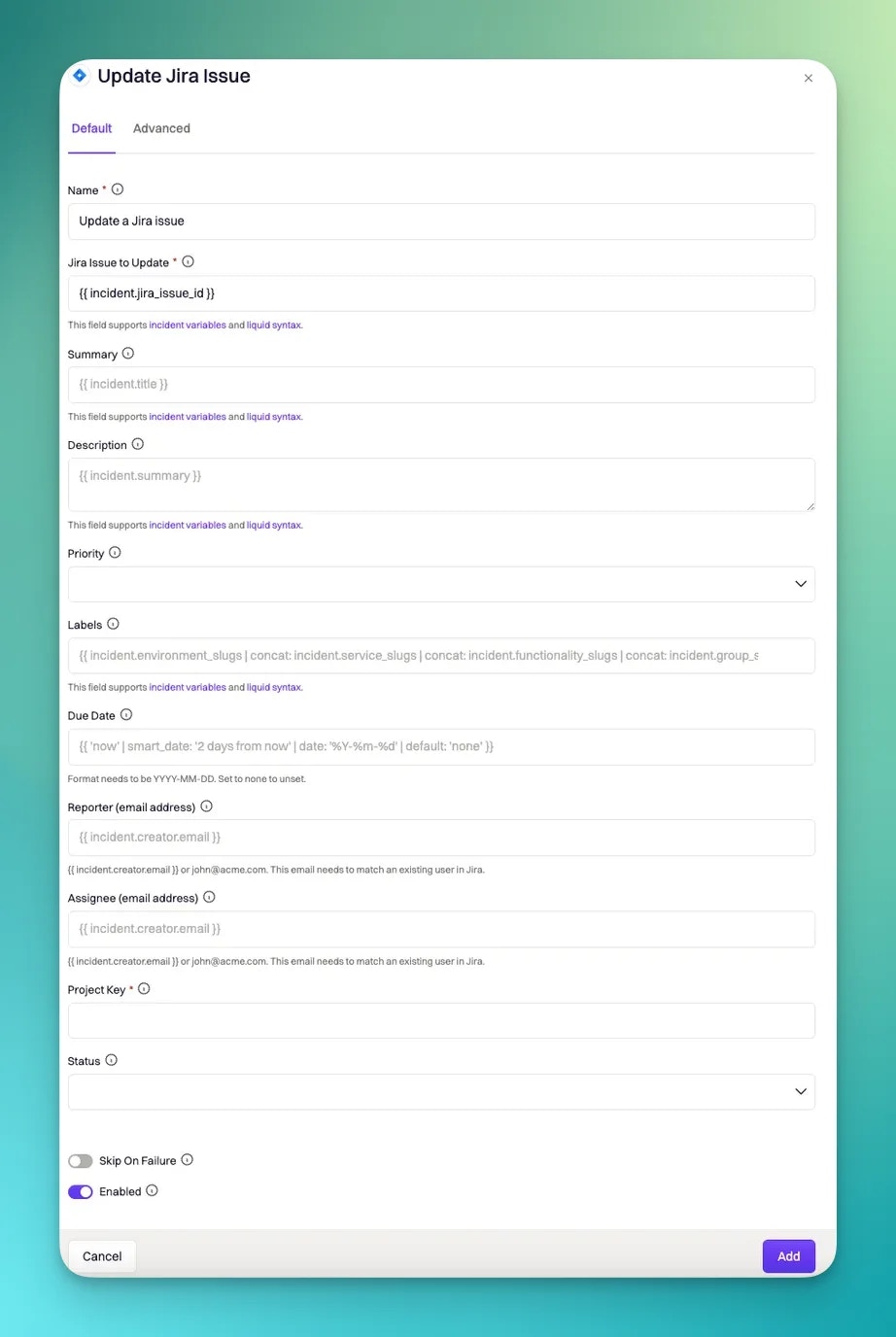
{{ incident.jira_issue_id }}.Reference to the existing Jira issue. Use
{{ incident.jira_issue_id }} to dynamically target the issue linked to the current incident.Updated title of the Jira issue. Supports Liquid syntax.
Updated description. Supports Liquid syntax.
Transition the issue to a new status. Options are pulled from the selected project and issue type.
Reassign the Jira issue to a different user. Supports Liquid syntax.
Create Jira Subtask
Create Jira Subtask
Creates a subtask under an existing Jira issue. Intended for action items or sub-incidents. The Project Key must match the one used when creating the parent issue.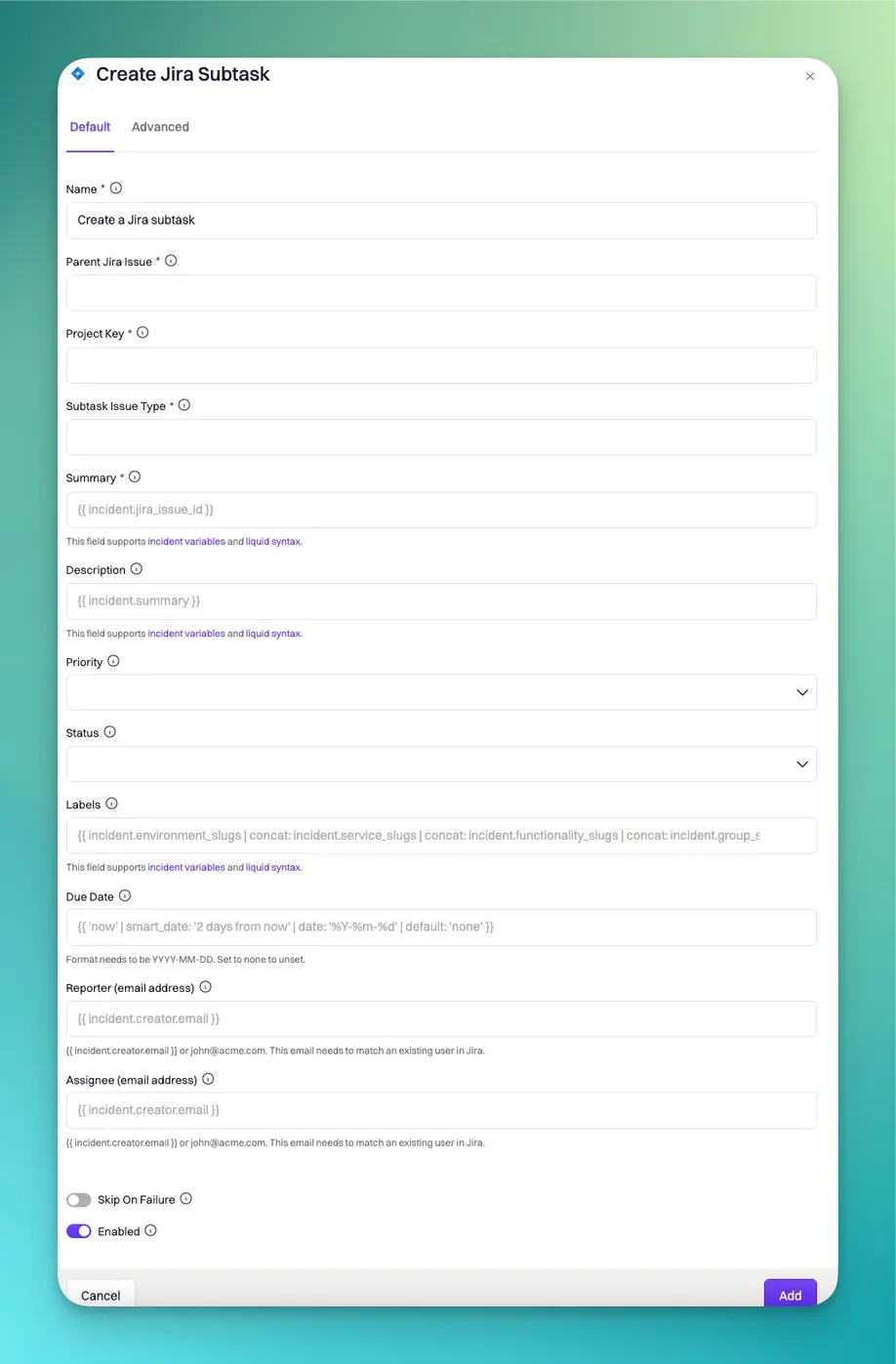
Reference to the parent Jira issue. Use
{{ incident.jira_issue_id }} to link the subtask to the current incident’s issue.Must match the project used to create the parent issue.
Title of the subtask. Supports Liquid syntax.
Description of the subtask. Supports Liquid syntax.
Assign the subtask to a user by email. Supports Liquid syntax.
Jira Native Field Mapping
Some Jira fields behave differently than standard custom fields.Labels (Native Jira Field)
Labels (Native Jira Field)
Jira’s native Labels field uses a different syntax than custom label-type fields.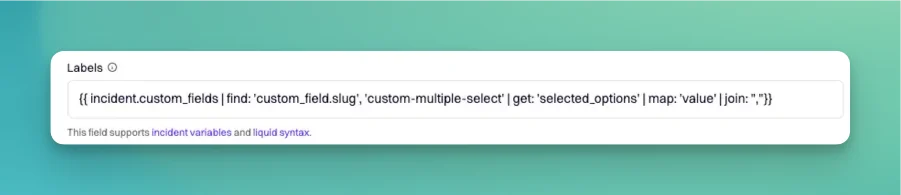
Team (Native Jira Field)
Team (Native Jira Field)
Jira’s native Team field is stored as a custom field and only allows a single team selection.
Custom Fields Mapping
The Custom Fields Mapping section lets you map Rootly incident data to Jira custom fields dynamically. To access it, open the Advanced tab in any Jira workflow action.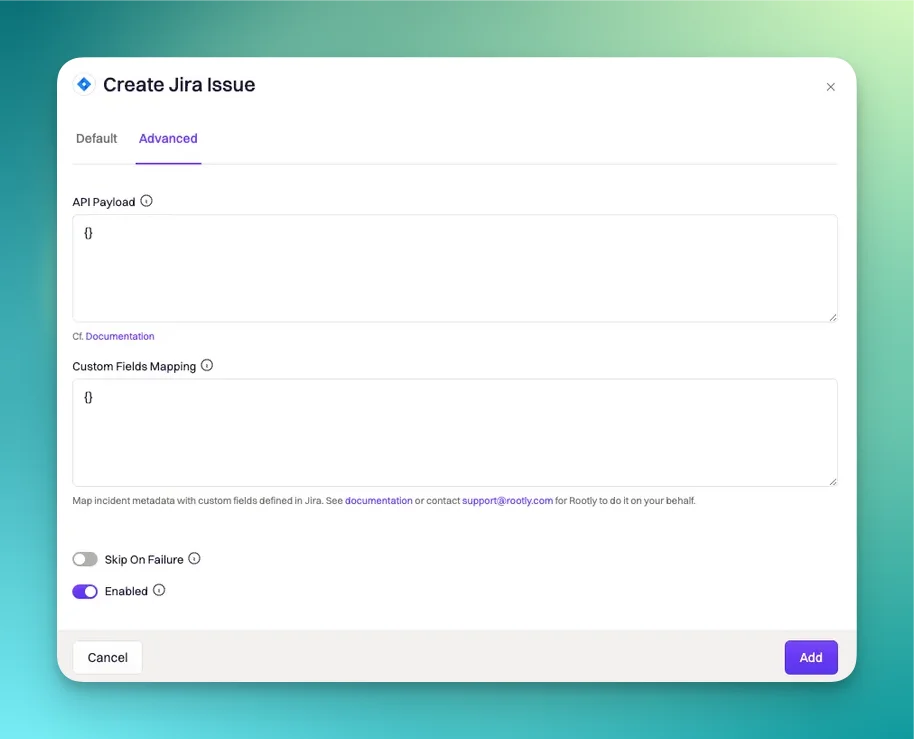
- The custom field ID in Jira (e.g.,
customfield_12345) - The field type in Jira
- The incident property in Rootly to map from
Find Jira custom field IDs with this Atlassian article. Browse Rootly’s available Liquid variables in the Liquid Variable Explorer.
Text and Paragraph Fields
Text and Paragraph Fields
Single Select Fields
Single Select Fields
Note the
{ "value": ... } wrapper required by Jira:Multi-Select Fields
Multi-Select Fields
Simple approach (Rootly custom multi-select):Manual array building (Rootly native fields):
Labels Fields (Custom)
Labels Fields (Custom)
For Jira custom fields of type “Labels” (different from the native Labels field):
Number Fields
Number Fields
Date/Time Fields
Date/Time Fields
Must use ISO 8601 format:
User Fields
User Fields
Single user:Multiple users:
API Payload
The API Payload section provides direct access to Jira’s REST API for advanced field updates not available through Custom Fields Mapping.Set Priority Based on Severity
Set Priority Based on Severity
Add a Comment
Add a Comment
Add a comment to an existing Jira issue. Only works with the Update Jira Issue action.
Link Issues Together
Link Issues Together
Link a Jira issue (e.g., for an action item) to the parent incident issue.“Relates to” link:Custom “Action item for” link:
Set Native Labels Field
Set Native Labels Field
Set Components Field
Set Components Field
Maps Rootly services to Jira Components. Service names in Rootly must match component names in Jira exactly.