Prerequisites
Required Jira Permissions
The Jira account you use to install must have these permissions:Learn more about Jira permissions in Atlassian’s documentation.
Required OAuth Scopes
Rootly requests these OAuth scopes during installation:View all 28 OAuth scopes
View all 28 OAuth scopes
Read permissions:
read:application-role:jiraread:avatar:jiraread:field-configuration:jiraread:group:jiraread:issue:jiraread:issue-status:jiraread:issue-meta:jiraread:issue-security-level:jiraread:issue-type:jiraread:issue-type-hierarchy:jiraread:issue.changelog:jiraread:issue.transition:jiraread:issue.vote:jiraread:priority:jiraread:project:jiraread:project-category:jiraread:project-version:jiraread:project.component:jiraread:project.property:jiraread:status:jiraread:user:jiraread:user.property:jira
write:attachment:jirawrite:comment:jirawrite:comment.property:jirawrite:issue:jirawrite:issue.property:jira
Connect Jira to Rootly
The OAuth flow connects your Jira Cloud instance to Rootly. You’ll be redirected to Jira to authorize the connection, then returned to Rootly automatically.1
Go to Configuration → Integrations
In the Rootly sidebar, click Configuration → Integrations.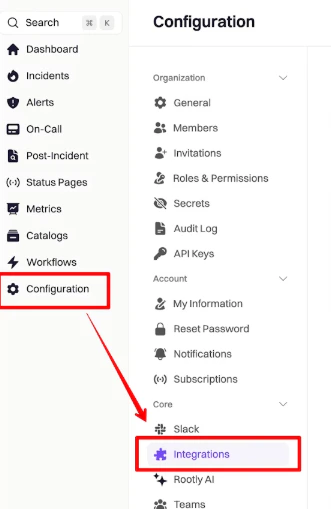
2
Find Jira Cloud and click Setup
Search for Jira Cloud and click Setup.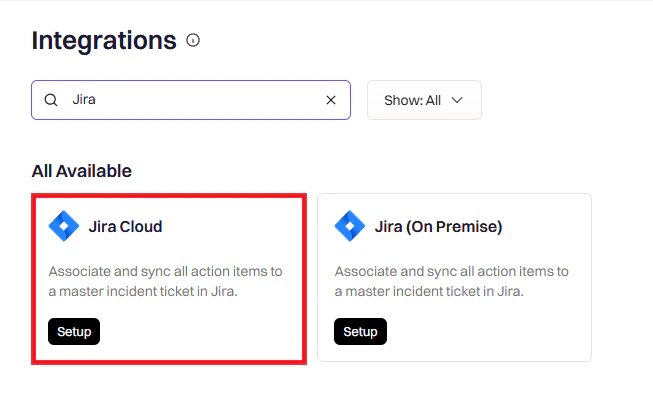
3
Authorize in Jira
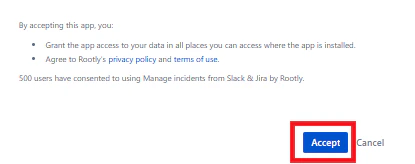
You’ll be redirected to Jira. Verify you’re installing on the correct instance, then click Accept.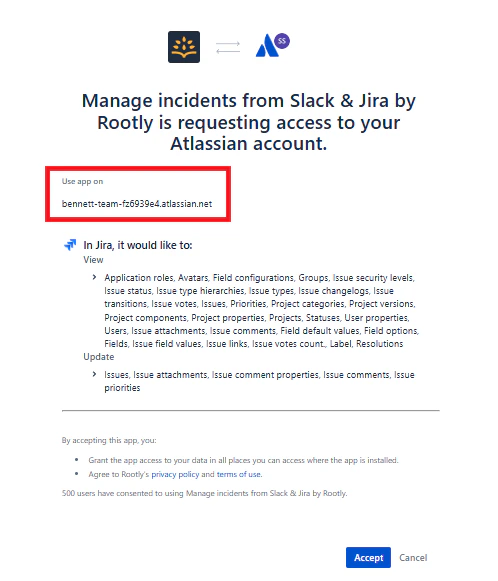
4
Installation complete
You’ll be redirected back to Rootly with a success message confirming the connection.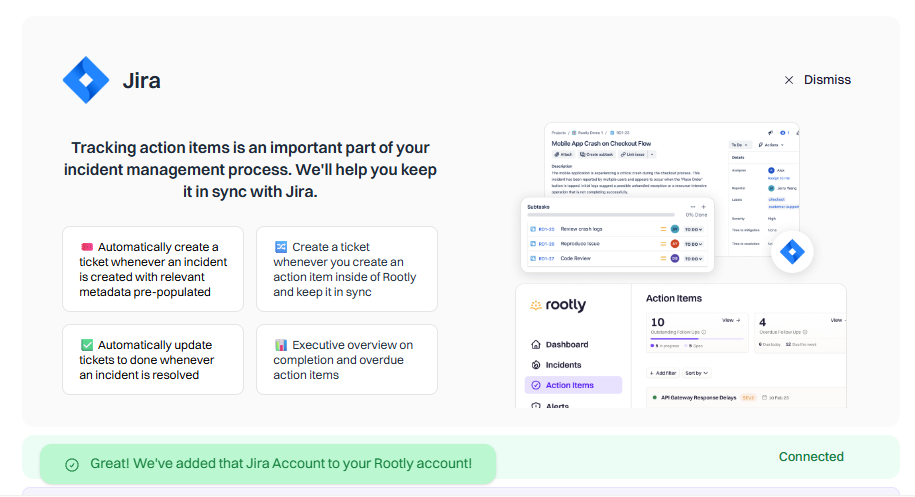
Your Jira Cloud instance is now connected to Rootly.
Installing Additional Instances
If your organization uses multiple Jira Cloud instances, you can connect them separately.A Jira Cloud instance is not the same as a Jira project. An instance is a separate domain (e.g.,
company.atlassian.net). You can have multiple projects within one instance — most organizations have a single instance with multiple projects.- Go to Integrations and search for Jira Cloud
- Click Set up another instance
- Follow the same authorization flow
Setting Up the Jira Webhook
To enable Jira → Rootly sync, you must configure a webhook in Jira. This allows Rootly to receive events when Jira issues are created or updated. Without this step, changes in Jira won’t reflect back in Rootly.1
Open Jira Webhooks
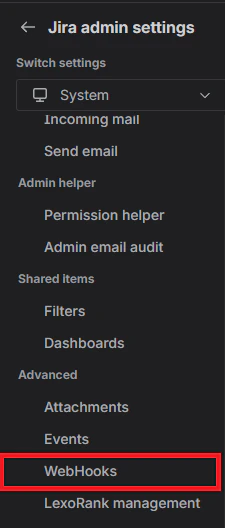
In Jira, navigate to Settings → System → WebHooks.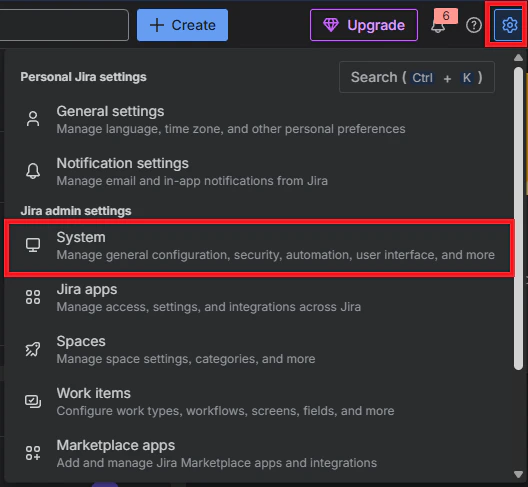
2
Create a new webhook
Click Create a WebHook.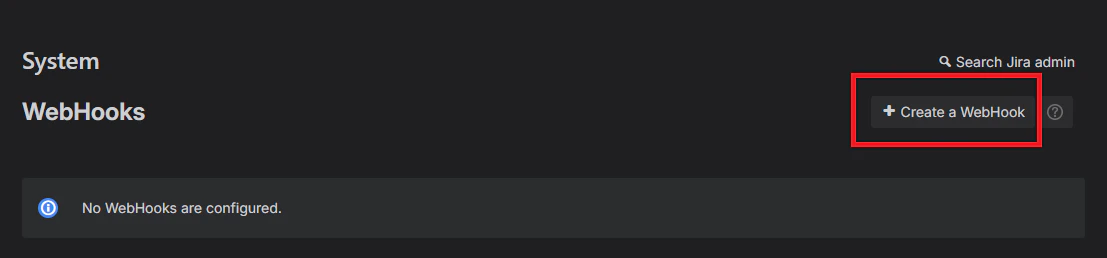
3
Configure the webhook
Give it a descriptive name (e.g., “Rootly Webhook Listener”) and ensure the status is set to Enabled.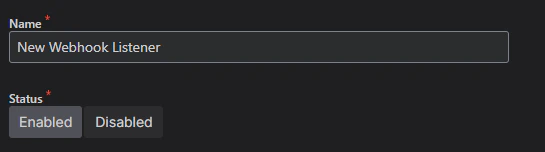
4
Add the Rootly webhook URL
In Rootly, go to Integrations → Jira → Configure and copy the webhook URL. Paste it into the URL field in Jira.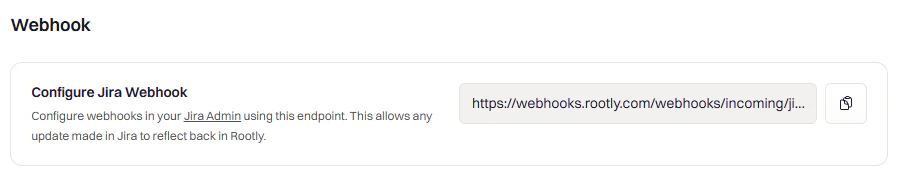
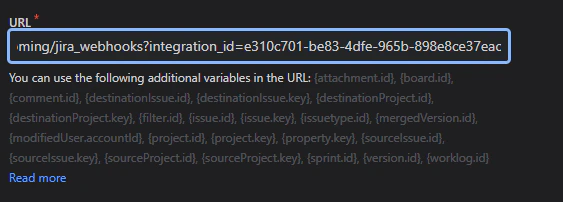
5
Filter by project (optional)
To limit which projects send events to Rootly, add a JQL filter under Issue related events. Leave this blank to receive events from all projects.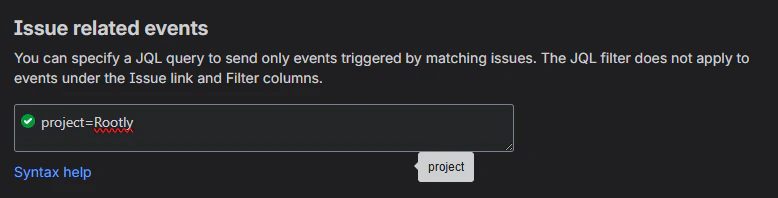
6
Select events
Choose the Jira events you want Rootly to receive — at minimum, select issue created and issue updated.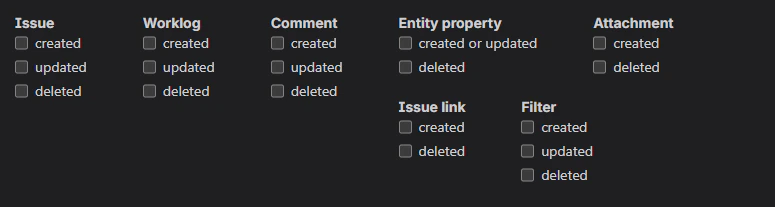
7
Keep request body enabled
Ensure Exclude body is not checked. Jira may enable this by default, but Rootly requires the full event payload to process events correctly.
8
Save the webhook
Click Create to save your webhook configuration.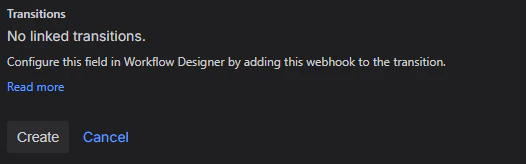

Your Jira webhook is now configured for bidirectional sync.
Verify Installation
Once connected, confirm the integration is working end-to-end:- Check integration status — The Jira tile in Rootly should show Connected.
- Test Rootly → Jira — Create a test incident and verify that a Jira issue is created in the expected project.
- Test Jira → Rootly — Create or update a Jira issue, then check the Alerts page in Rootly to confirm the event arrived.
Troubleshooting
Jira integration not appearing after OAuth
Jira integration not appearing after OAuth
Issue: After completing OAuth, Jira doesn’t show under Connected Apps.Solutions:
- Ensure you completed the full OAuth consent flow without navigating away
- Confirm your Jira user has admin or manage apps permissions
- Log out of other Jira accounts and retry authorization
- Revoke the app in Jira (Settings → Apps → Manage Apps) and reconnect
Rootly cannot access Jira projects
Rootly cannot access Jira projects
Issue: Jira connects but no projects appear in Rootly.Solutions:
- Verify your Jira account has Browse Projects permission
- Check project-level permissions for Create Issues, Edit Issues, and Add Comments
- Re-authenticate to refresh your permission scopes
Issue creation fails
Issue creation fails
Issue: Integration connects but Rootly can’t create issues in Jira.Solutions:
- Verify your Jira user has: Create Issues, Edit Issues, Assign Issues, Add Comments
- Check for required custom fields in Jira that aren’t being populated by Rootly
- Confirm the issue type exists in the selected project
- Review Jira workflow validators that may block external issue creation
Webhook events not appearing in Rootly
Webhook events not appearing in Rootly
Issue: Jira events don’t show on Rootly’s Alerts page.Solutions:
- Verify the webhook URL in Jira matches the one from Rootly
- Ensure Exclude body is NOT checked in the Jira webhook settings
- Confirm the webhook status is Enabled
- Check that your JQL filter (if used) includes the project you’re testing with
Uninstall
To remove the Jira integration:- Go to Configuration → Integrations and find Jira
- Click Connected to reveal the disconnect option
- Click Disconnect