

Automation Options
Smart Defaults
Auto-create Teams channels at incident start using built-in settings
Custom Workflows
Build workflows with triggers, conditions, and multiple Teams actions
Available Actions
Create a Workflow
1
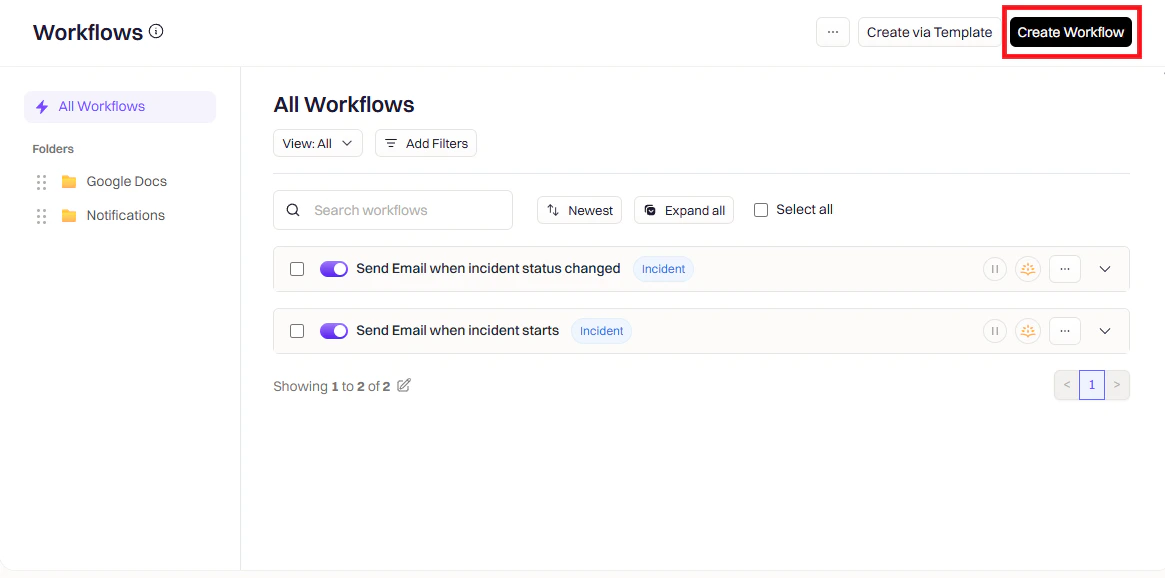
Open Workflows
Go to Rootly → Workflows → Create Workflow.
2
Choose workflow type
Select the workflow type that matches your use case (e.g., Incident, Retrospective, or Pulse).
3
Configure triggers
Triggers define when this workflow runs.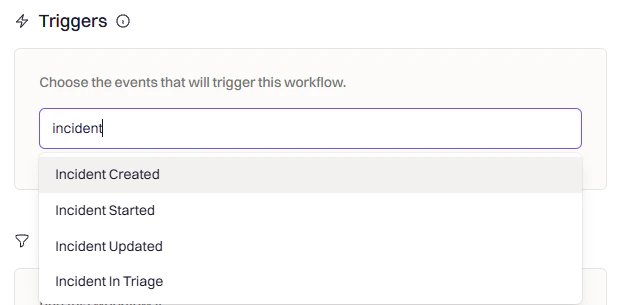
4
Add conditions (optional)
Conditions filter when the workflow should run after it’s been triggered — keeping Teams activity focused on the incidents that matter.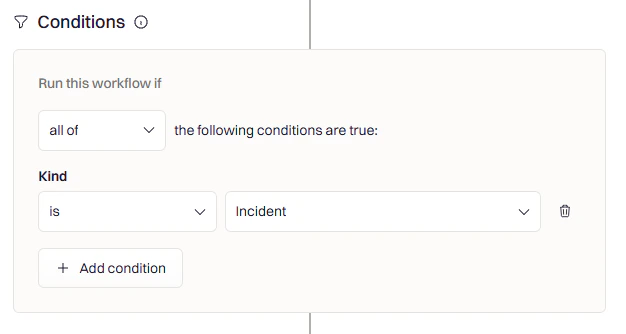
- Only for SEV-1 or SEV-2 incidents
- Only for specific teams or services
- Only for production environments
5
Add a Microsoft Teams action
Click Add Action and search for Microsoft Teams to see all available actions.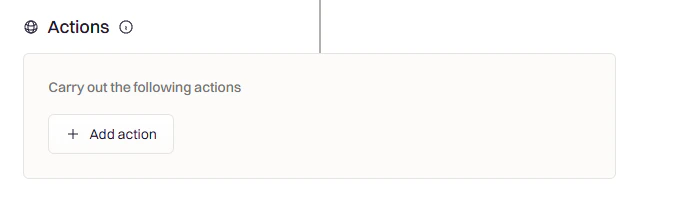
Actions
Create Microsoft Teams Channel
Create Microsoft Teams Channel
Creates a dedicated Teams channel for the incident. Use this as your first action when an incident opens to give responders a central place to coordinate.
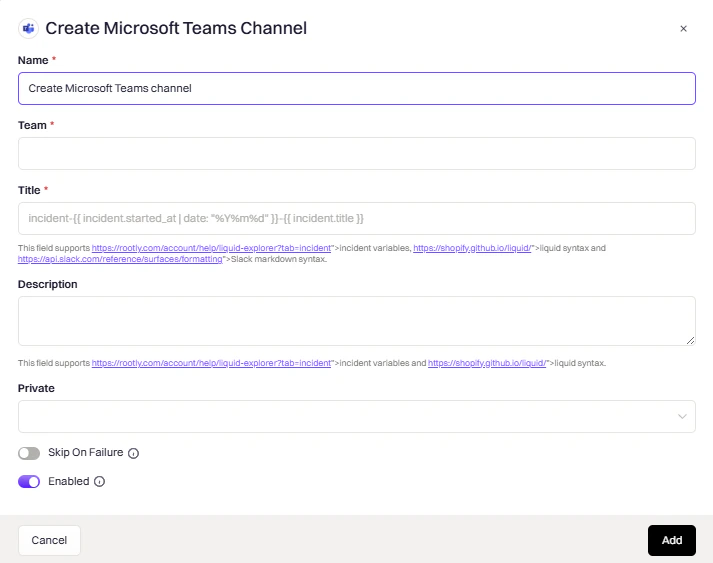
The Microsoft Teams workspace where the channel will be created.
The channel name. Supports Liquid syntax (e.g.,
{{ incident.title }}).Channel names are automatically lowercased, parameterized, and truncated to 50 characters.
An optional description for the channel. Supports Liquid syntax.
Controls channel visibility:
- auto — Private for private incidents, public for non-private incidents
- true — Always private
- false — Always public
If the incident already has a Teams channel, this action skips creation to avoid duplicates.
Create Microsoft Teams Chat
Create Microsoft Teams Chat
Creates a group or one-on-one chat for the incident. Once created, the chat ID and URL are stored on the incident for use in subsequent actions.
- group — Creates a group chat with multiple members and an optional topic
- oneOnOne — Creates a one-on-one chat between exactly two members
A topic for the chat. Only used for group chats. Supports Liquid syntax.
A JSON array of members to add. Each member requires an
email field. Supports Liquid syntax.Group chats require at least three members (including the service account). One-on-one chats require exactly two.
Add Microsoft Teams Tab
Add Microsoft Teams Tab
Adds a tab to the incident Teams channel. Use this to give responders quick access to dashboards, runbooks, or the Rootly incident page directly within the channel.
The team that contains the channel.
The channel to add the tab to. Use
{{ incident.microsoft_teams_channel_id }} to target the incident’s channel.The display name shown on the tab. Supports Liquid syntax.
The URL the tab should point to. Supports Liquid syntax.
Optionally select a playbook to add as a dedicated playbook tab. When a playbook is selected, the tab renders only the playbook checklist — it is a distinct tab type and does not include the Rootly incident dashboard. Leave this empty to use the Title and Link fields to add a URL-based tab, such as a link to the incident page or an external runbook.
The Rootly app must be installed in the target team for this action to work.
Archive Microsoft Teams Channel
Archive Microsoft Teams Channel
Archives the incident channel when it’s no longer needed. Keeps the workspace clean while preserving conversation history.Common trigger: Incident Status Changed to “Closed”
The team that contains the channel.
The channel(s) to archive. Use
{{ incident.microsoft_teams_channel_id }} to target the incident’s channel.Rename Microsoft Teams Channel
Rename Microsoft Teams Channel
Renames an existing Teams channel. Use this to reflect status changes — for example, prefixing resolved incidents with Common trigger: Incident Resolved
[RESOLVED].The team that contains the channel.
The channel to rename. Use
{{ incident.microsoft_teams_channel_id }} to target the incident’s channel.The new channel name. Supports Liquid syntax.
Invite Users to Microsoft Teams Channel
Invite Users to Microsoft Teams Channel
Invites users to a private incident channel by email. Use this to automatically add on-call responders when they’re assigned a role.Common triggers: Incident Created, Incident Commander Assigned
The team that contains the channel.
The private channel to invite users to. Supports Liquid syntax.
Comma-separated list of email addresses to invite. Supports Liquid syntax.
Send Microsoft Teams Channel Message
Send Microsoft Teams Channel Message
Posts a message to a Teams channel using the Rootly bot. Use Liquid variables to include dynamic incident details in the message.Common triggers: Incident Created, Incident Updated, Status Changed
The channel(s) to post to. Supports Liquid syntax.
The message content. Supports Liquid variables.
If the message text is empty, the action will be skipped.
Send Microsoft Teams Attachments
Send Microsoft Teams Attachments
Sends Adaptive Card attachments to one or more Teams channels. Use this to send richly formatted, interactive content such as structured incident summaries.
The channel(s) to send the attachments to. Supports Liquid syntax.
A JSON payload defining the Adaptive Card content. Supports Liquid syntax. Follows the Microsoft Adaptive Card schema.
Create Microsoft Teams Meeting
Create Microsoft Teams Meeting
Creates a Microsoft Teams video meeting for live incident collaboration. The meeting link is automatically stored on the incident.Common trigger: Incident Created (for high-severity incidents)
This action requires the Microsoft Teams Meeting integration to be installed separately.
The meeting title. Supports Liquid syntax (e.g.,
{{ incident.title }}).