

Before You Begin
Choose your setup method based on your environment:OAuth (Personal Account)
Best for: Testing, evaluation, or personal useConnects your personal Google account. If that account loses access or the person leaves, the integration breaks.
Service Account (Recommended)
Best for: Teams and production environmentsUses a dedicated service account that isn’t tied to any individual. More resilient and easier to manage at scale.
Quick Setup (OAuth)
OAuth connects your personal Google account in about 2 minutes.1
In Rootly, go to Configuration → Integrations
Use the search bar to find Google Docs among the available integrations.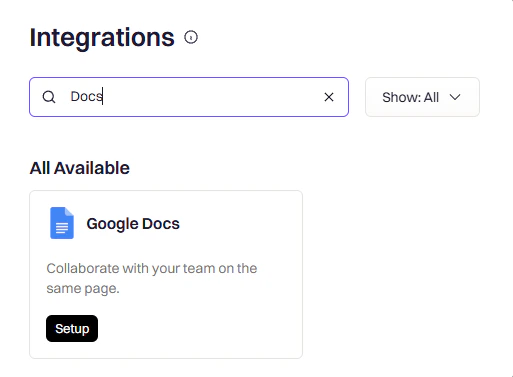
2
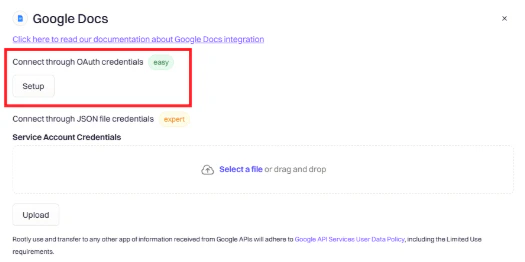
Click Setup and choose OAuth
Select the OAuth connection method, then choose which Google account to connect.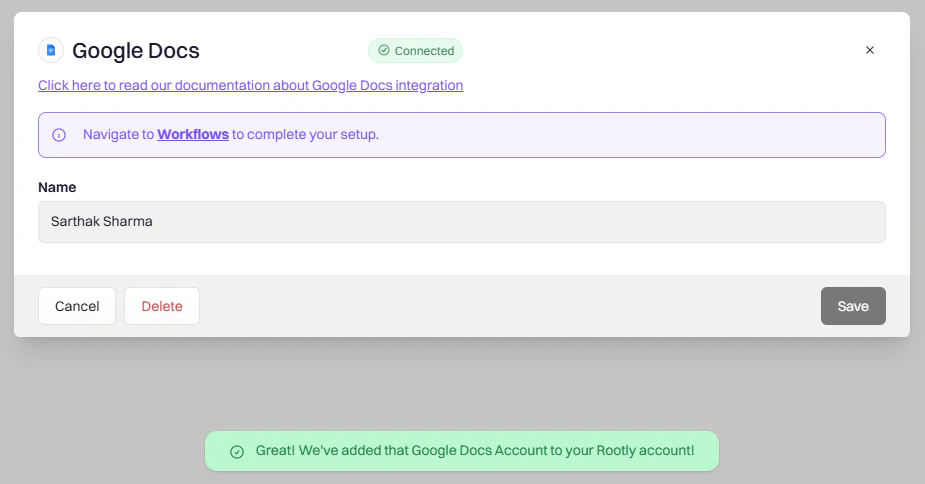
3
Approve the requested permissions
Google will ask Rootly to access Google Drive and Docs on your behalf. Approve to complete the connection.You’ll be redirected back to Rootly once the authorization completes.
Production Setup (Service Account)
A service account keeps the integration running independent of any individual’s Google account. This setup involves creating the account in Google Cloud, uploading its credentials to Rootly, and granting it domain-wide delegation.1
In Google Cloud Console, go to IAM & Admin → Service Accounts
If you don’t have a project yet, create one first. You’ll create the service account inside an existing project.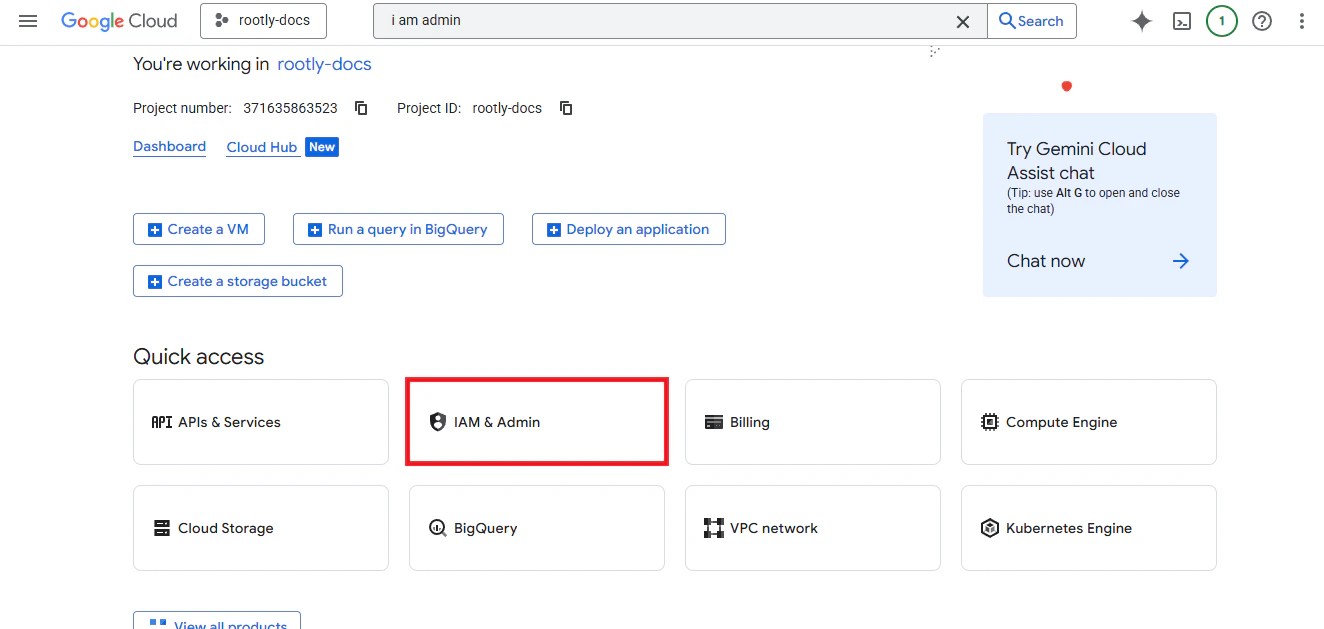
2
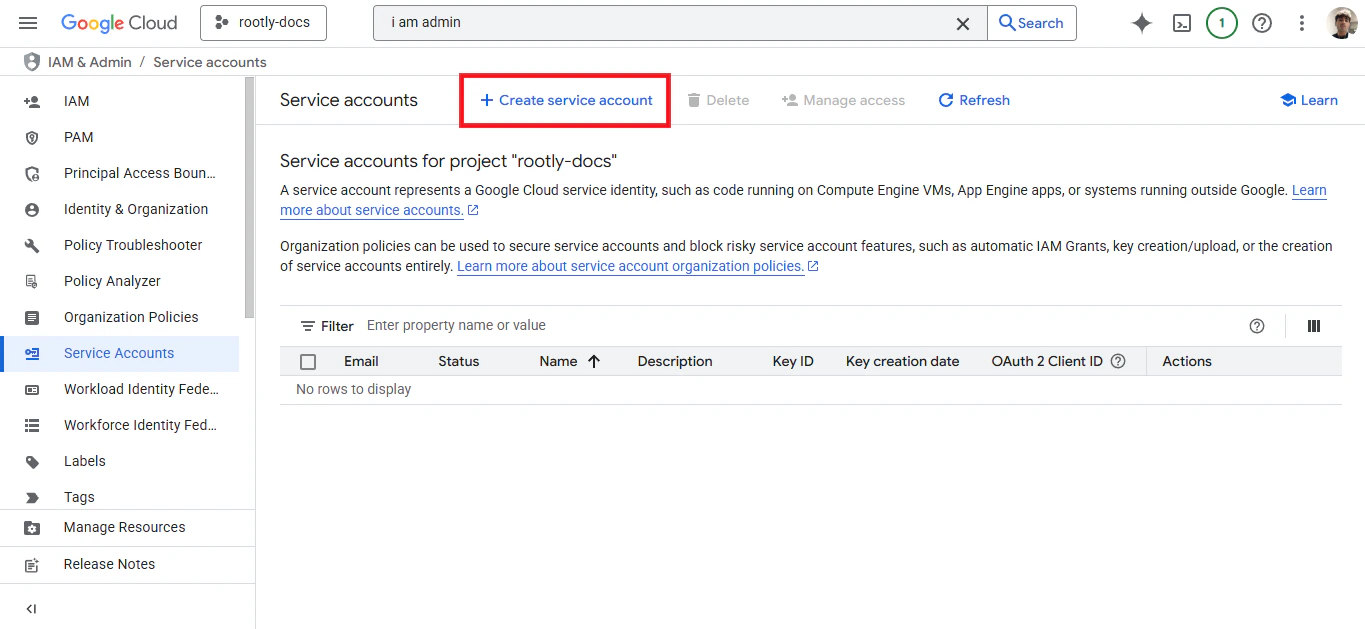
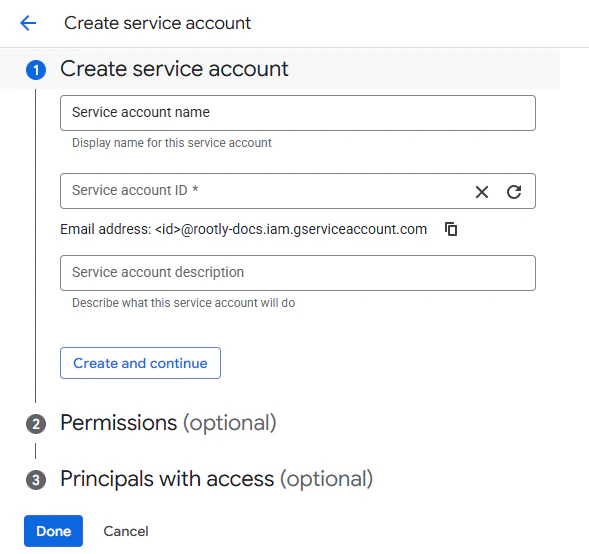
Create a new Service Account
Click Create Service Account, fill in a name and description, then click Done.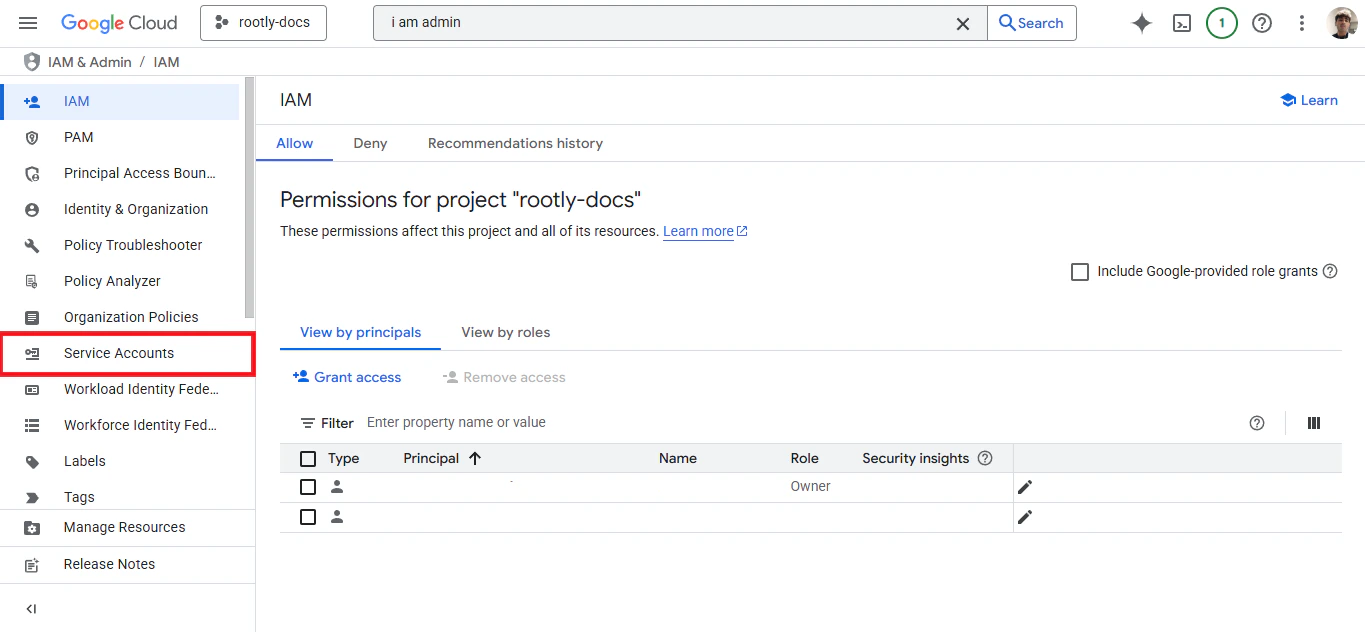
3
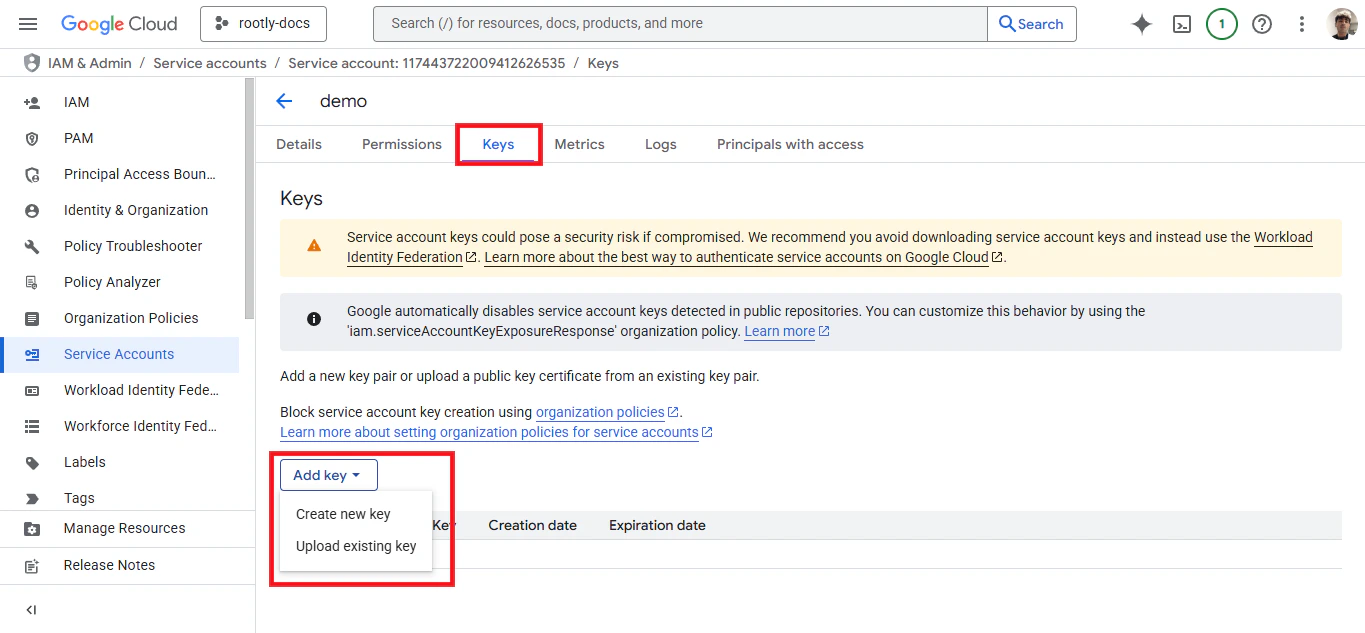
Create a JSON key for the service account
Go to the Keys tab → Add Key → Create new key. Select JSON as the key type and click Create.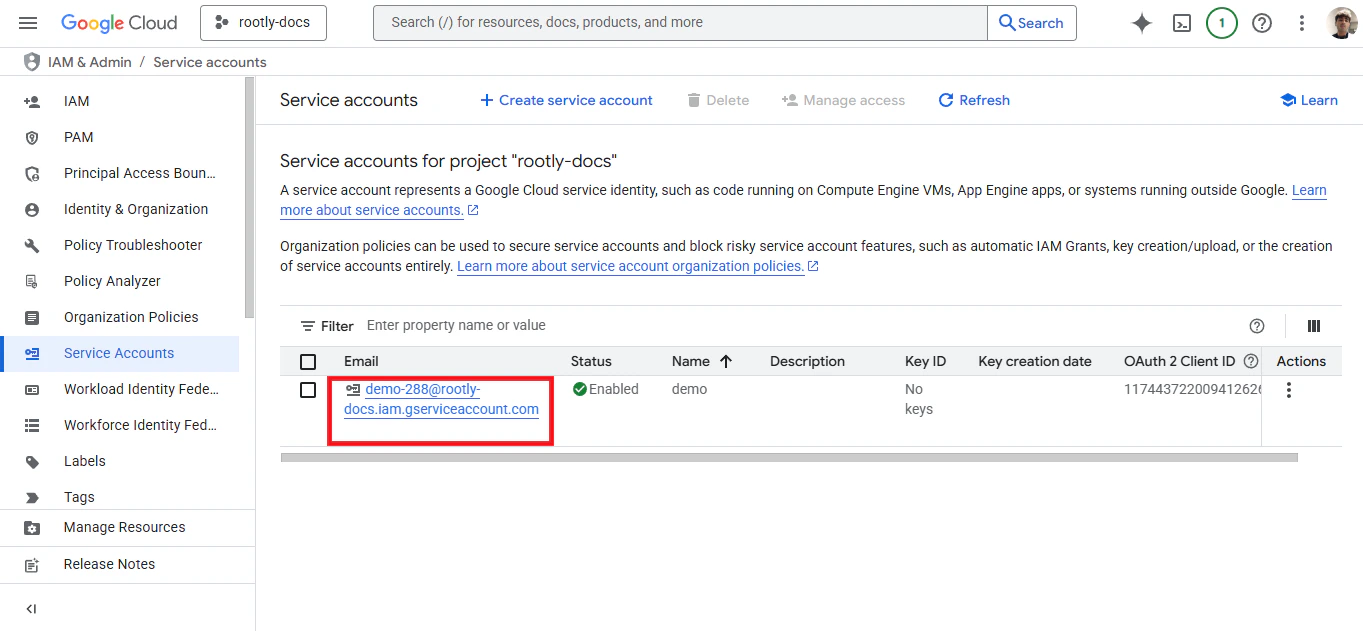
.json file will download automatically — keep it safe, you’ll need it in the next step.4
Upload the JSON key to Rootly
In Rootly, go to Configuration → Integrations → Google Docs → Setup. Choose the Service Account connection method and upload the JSON file you just downloaded.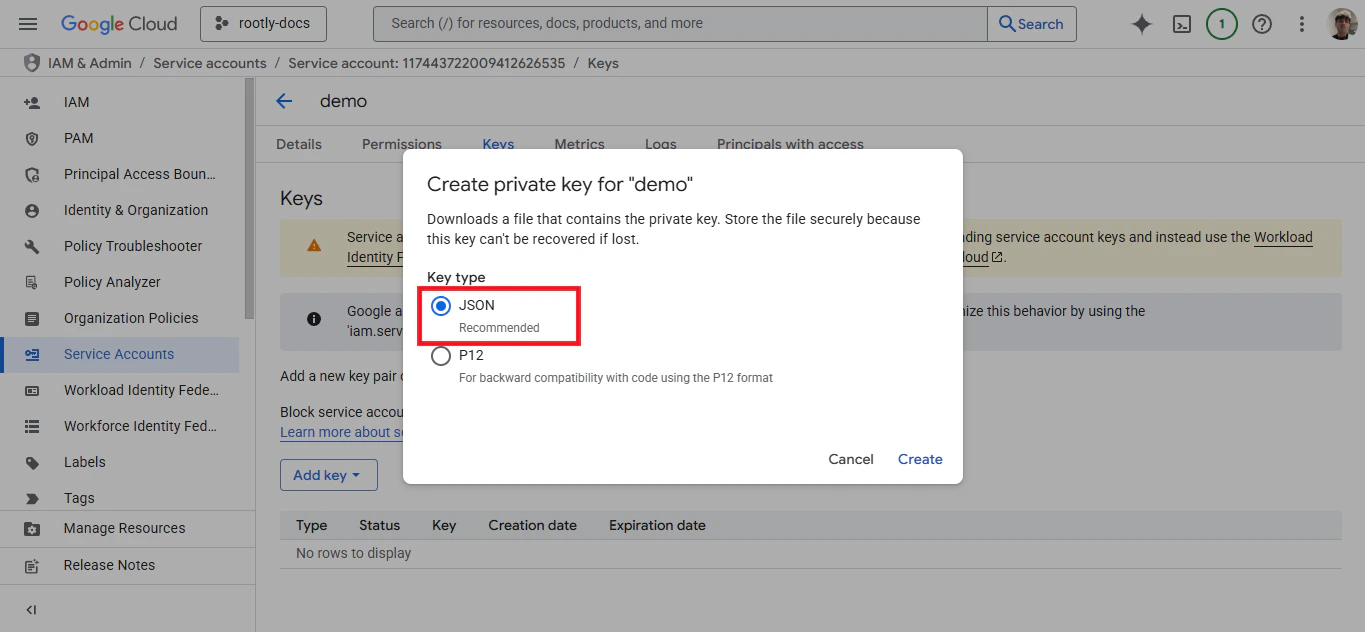
5
Enable Domain-wide Delegation
The service account needs domain-wide delegation to create documents on behalf of users in your Google Workspace.In Google Admin Console, go to Security → API Controls → Domain-wide Delegation and click Add new. Enter your service account’s Client ID (found in GCP Console under the service account details), then add these OAuth scopes:Click Authorize.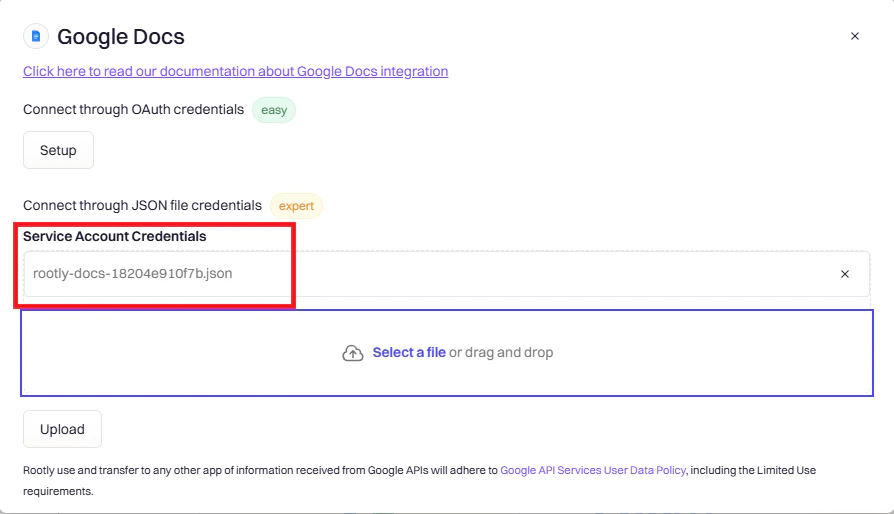
Verify the Connection
Once connected, confirm the integration is working before building templates and workflows.- OAuth
- Service Account
- The integration should show Connected status with your Google account email
- Try creating a test document in Google Drive to confirm access is working
Troubleshooting
Authentication failed
Authentication failed
OAuth: Try signing in again using a different browser or an incognito window.Service Account: Verify the JSON key file is valid and hasn’t been corrupted or truncated.
403 Forbidden when creating documents
403 Forbidden when creating documents
This is almost always a domain-wide delegation issue. Check that:
- The Client ID in Google Admin matches your service account exactly
- All three OAuth scopes are entered as shown (no extra spaces or typos)
- You’ve waited at least 15 minutes for Google to propagate the changes
Integration shows connected but documents aren't created
Integration shows connected but documents aren't created
OAuth: Re-authenticate to refresh your access token.Service Account: Confirm the service account has Editor access to the target folder in Google Drive.
Uninstall
To remove the Google Docs integration, go to Configuration → Integrations, find Google Docs, and click the Connected button to reveal the disconnect option.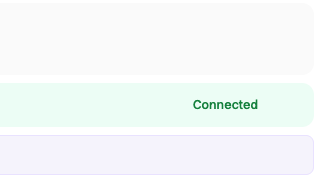
Next Steps
Create Templates & Workflows
Set up a Liquid template and wire it to a workflow to auto-generate documents on incident events
View Examples
Browse ready-to-use template examples for retrospectives and executive summaries