

To use these workflow actions, you must first connect ClickUp to Rootly. See ClickUp Installation.
Outbound Actions (Rootly → ClickUp)
The actions in this section are used in Incident Workflows. They execute on changes to the Rootly incident or action item.
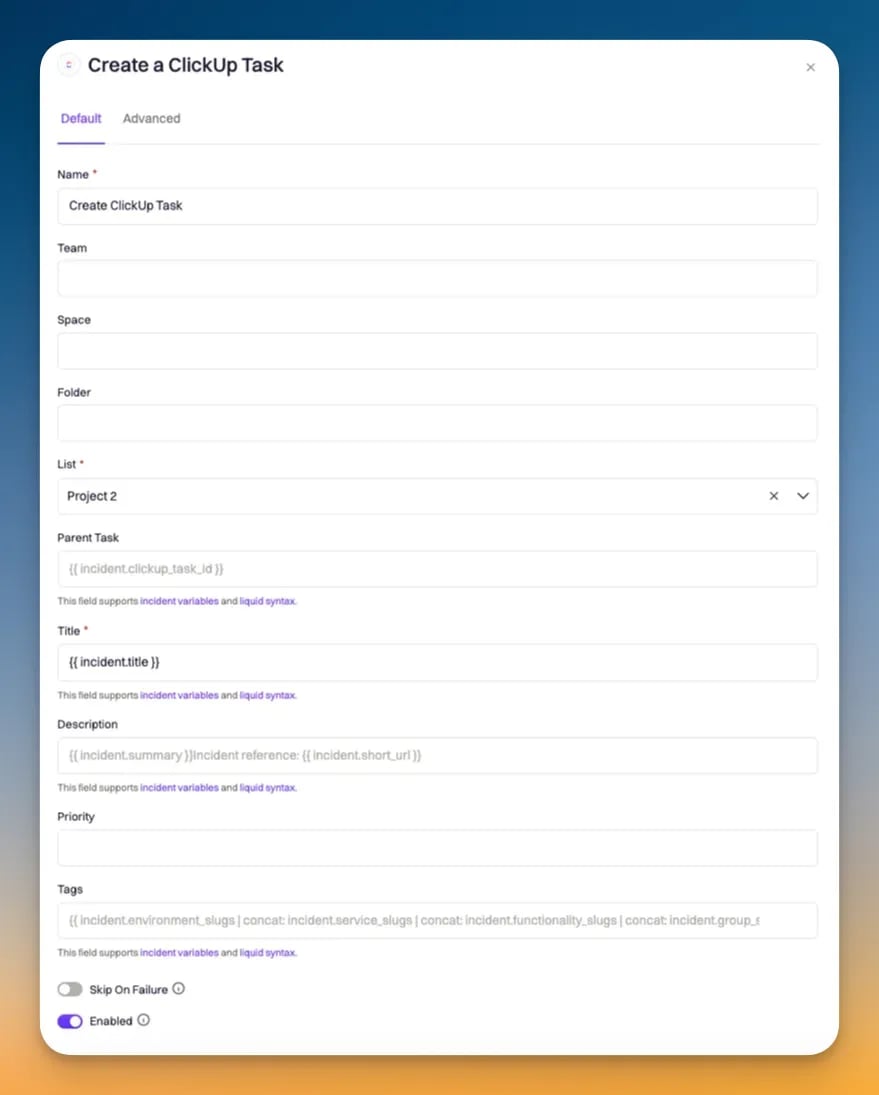
Create a ClickUp Task for Incident
Creates a new task in a ClickUp list, linked to the Rootly incident.
Priority mapping (Auto)
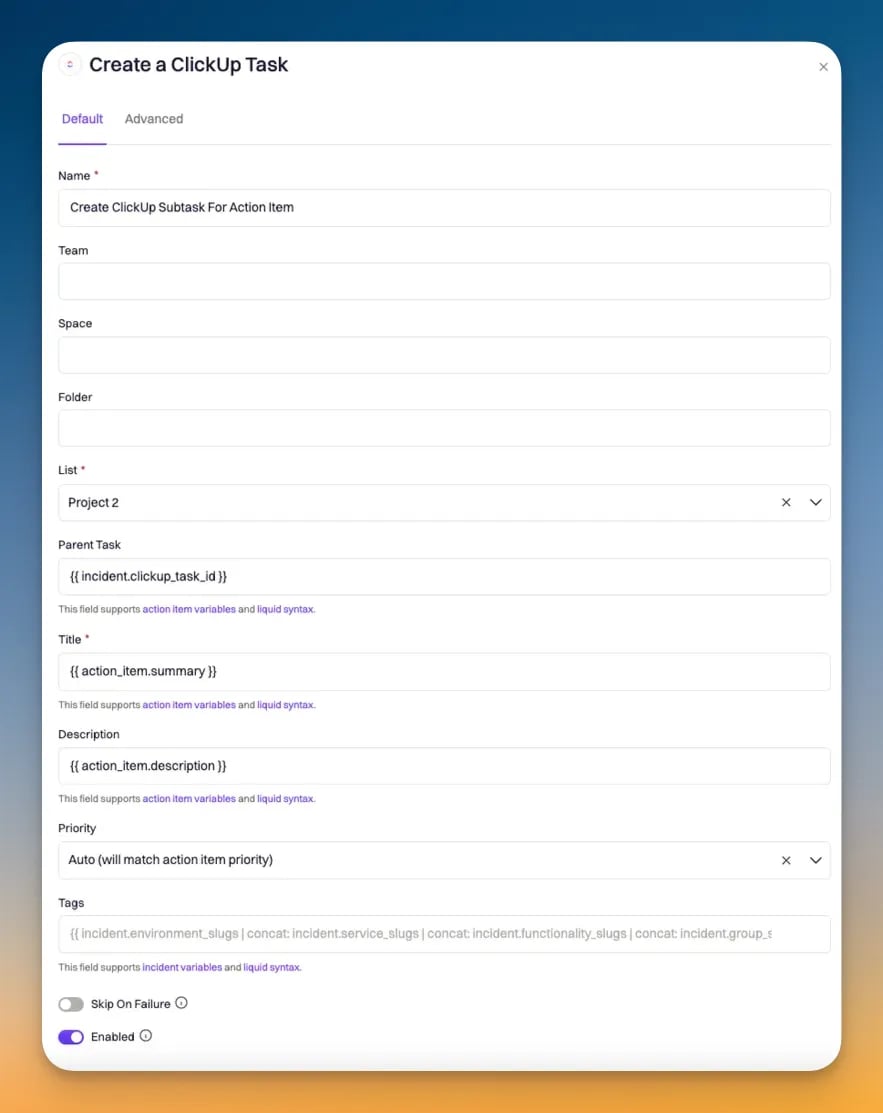
Create a ClickUp Subtask for Action Item
Creates a new task as a subtask of an existing ClickUp task, linked to a Rootly action item.When a Create a ClickUp Task for Incident action runs, Rootly stores the resulting task ID on the incident record. Reference it in the Parent Task ID field using Liquid to nest this subtask under the incident task.
Update a ClickUp Task
Updates an existing ClickUp task linked to a Rootly incident.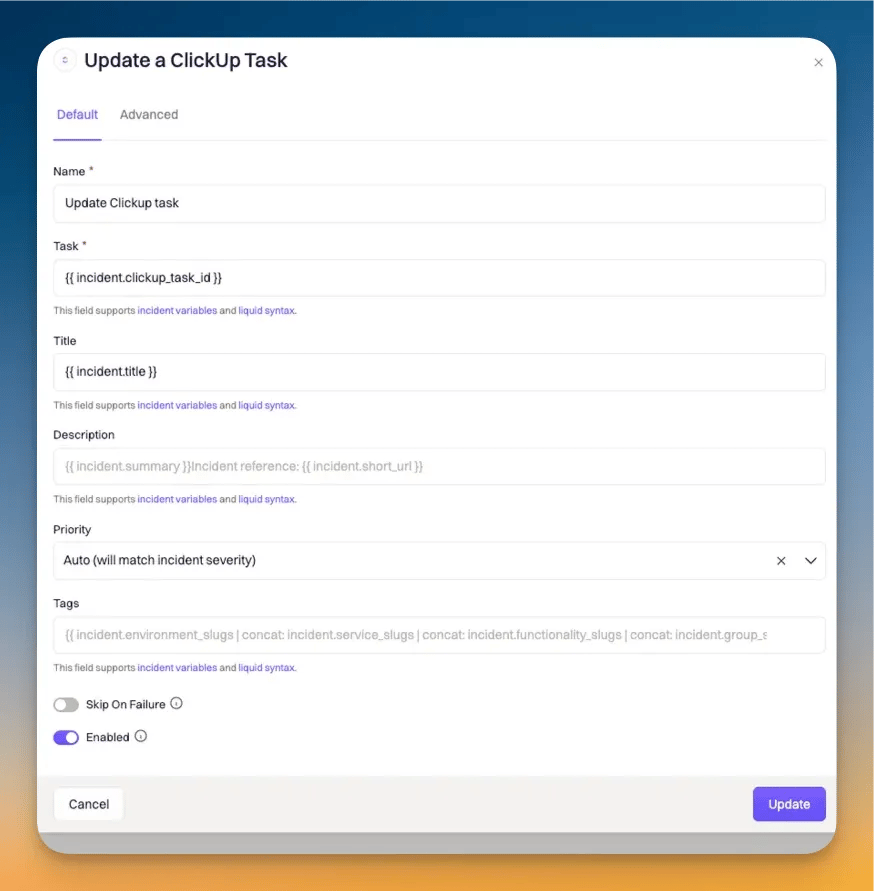
Update a ClickUp Subtask
Updates an existing ClickUp subtask linked to a Rootly action item.Update a ClickUp Action Item
Updates a ClickUp task that represents a Rootly action item.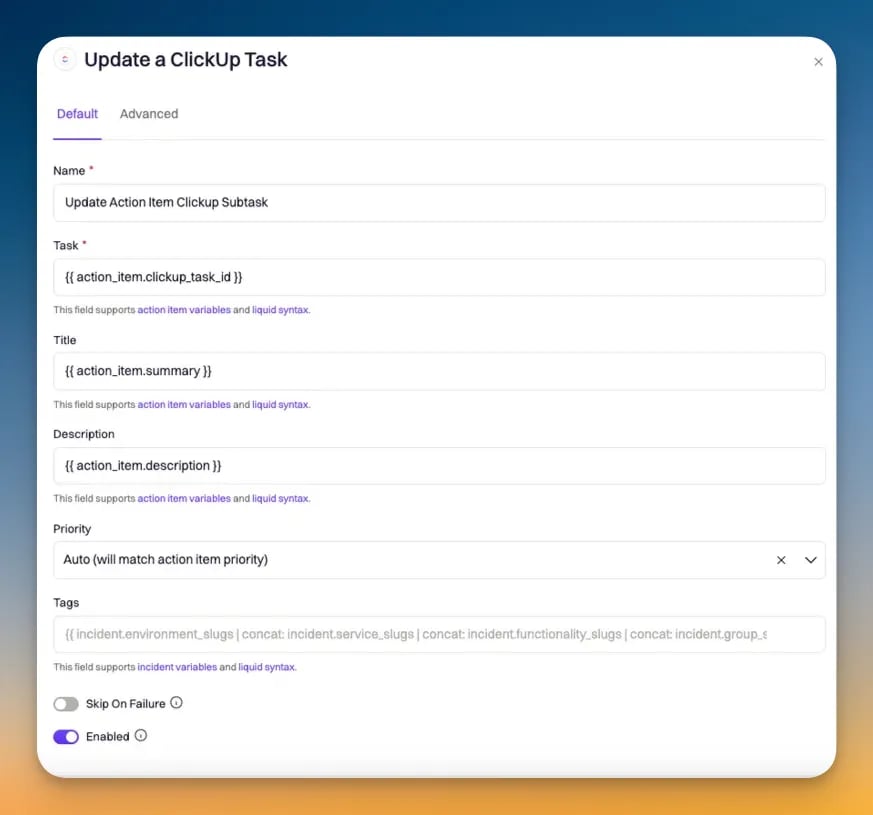
Inbound Events (ClickUp → Rootly)
The actions in this section are used in Alert Workflows. They execute on update events sent from ClickUp via webhook.
Each event creates a Rootly alert with the following labels:
Update Action Item
Use an Alert Workflow with the Update Action Item action to sync ClickUp task changes back to Rootly action items.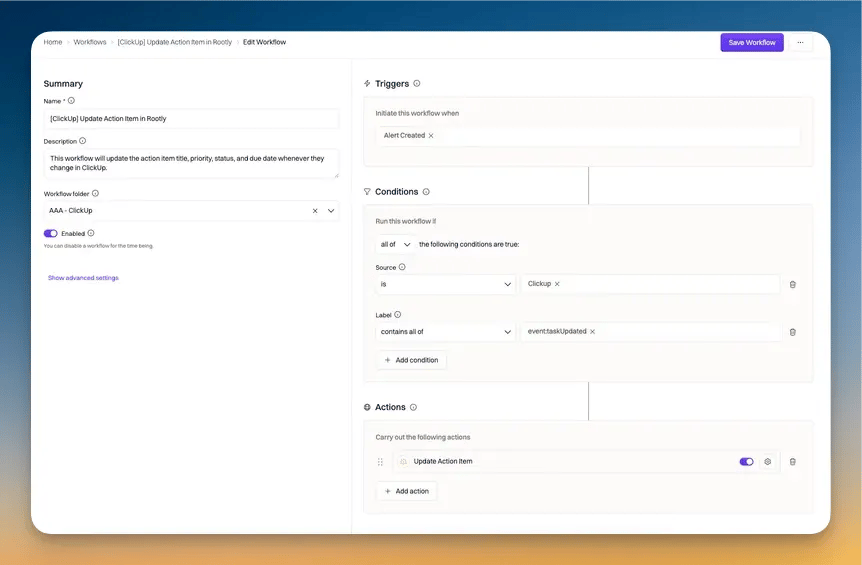
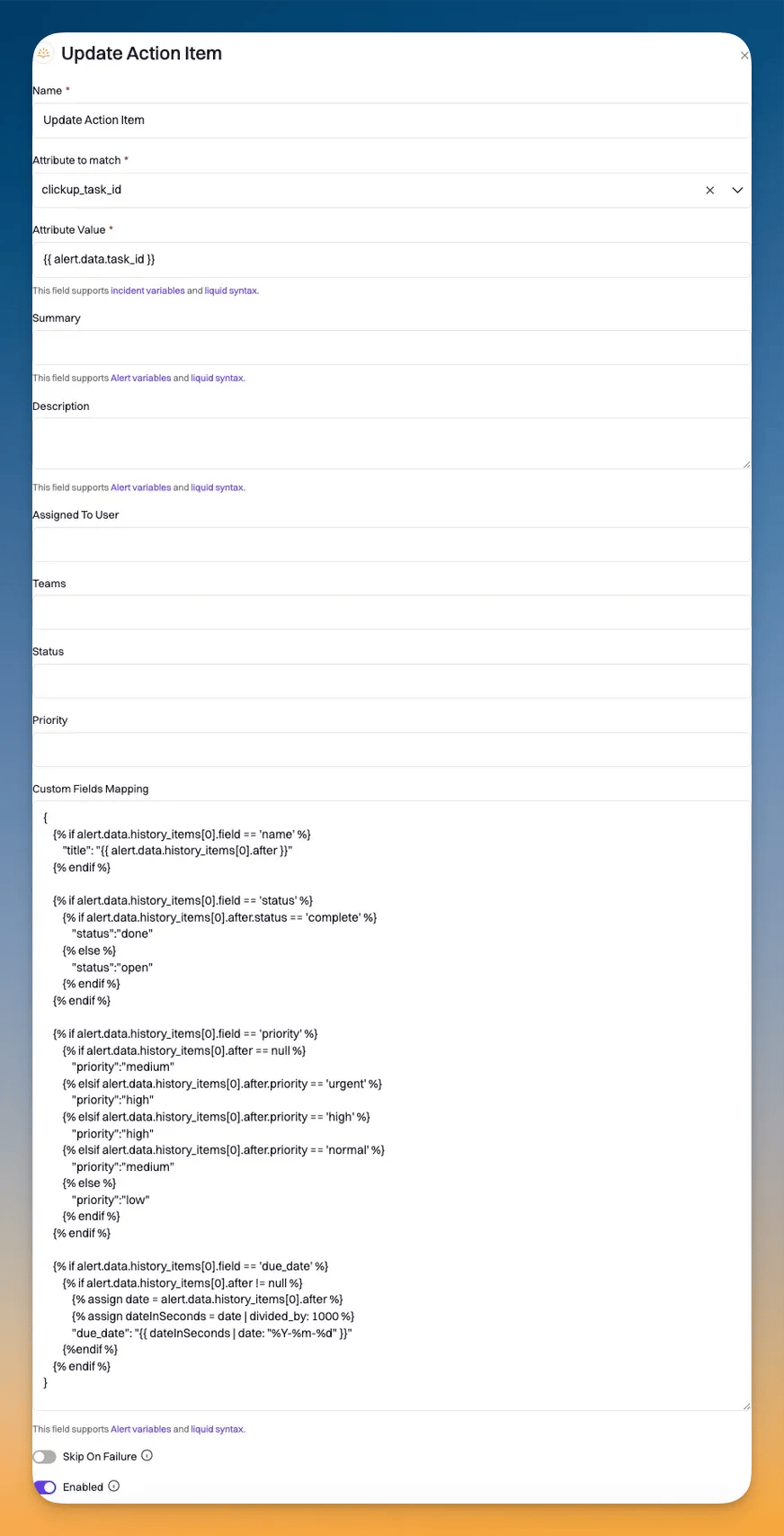
Data Mapping Syntax
Use the following Liquid template in the Data Mapping field to map ClickUp task update fields to Rootly action item fields:ClickUp sends due dates as Unix timestamps in milliseconds. Divide by 1000 and apply the
date filter to convert to a readable format.