

Overview
Workflows let you automate Confluence page creation and control exactly what information Rootly publishes during an incident. You can trigger a page creation when an incident resolves, when a retrospective begins, or on any other workflow event — and use Liquid variables to populate pages with live incident data.If you do not need advanced trigger or condition logic, skip to Step 3 to add the action directly.
Step 1: Create a Workflow
1
Open workflow creation
Navigate to Workflows in the Rootly sidebar and click Create Workflow.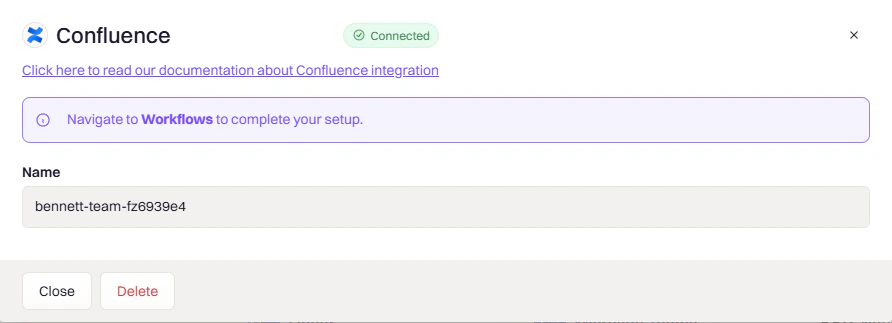
2
Choose a workflow type
Select the workflow type that matches your use case: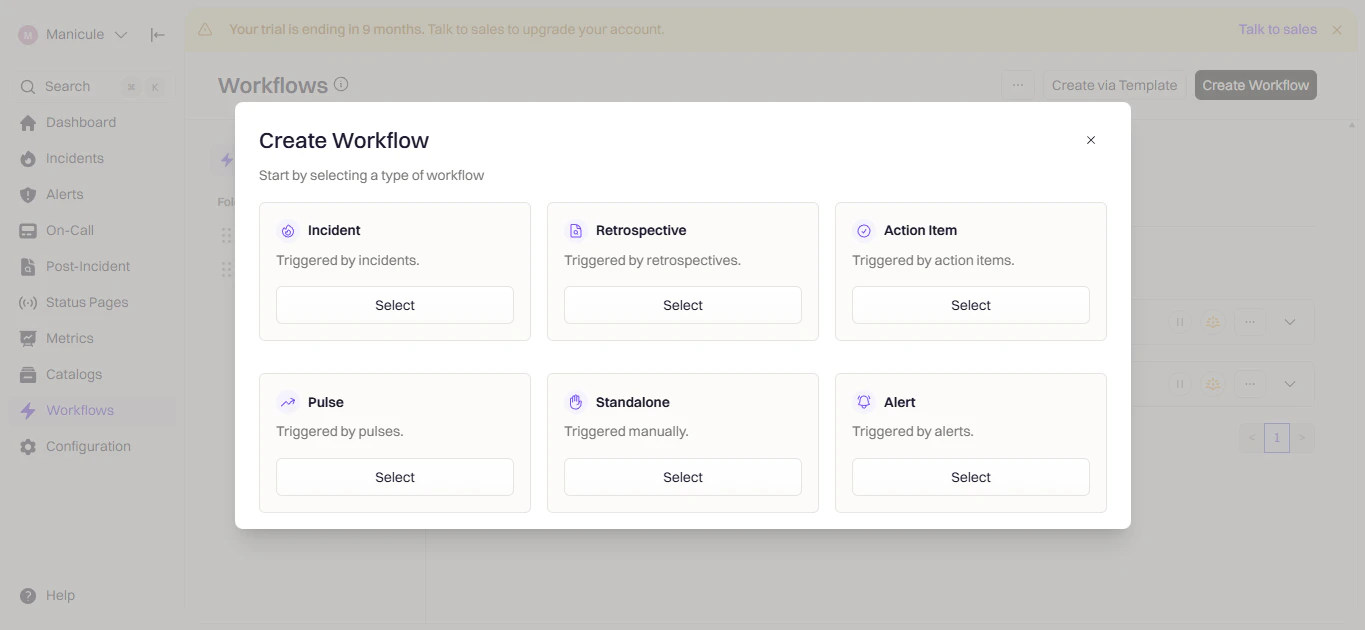
- Incident — trigger actions during active incidents
- Retrospective — trigger actions when a retrospective begins or changes status
- Pulse — trigger actions on a schedule
Step 2: Configure Triggers
Triggers define when the workflow runs.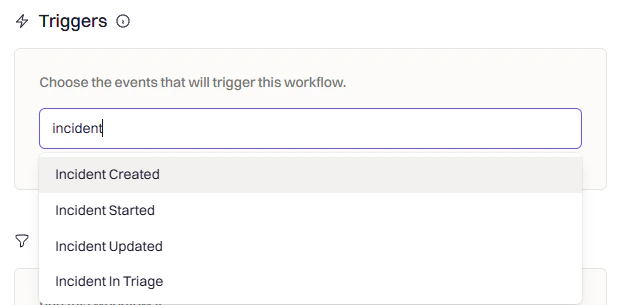
For retrospective pages, use Retrospective Status Changed with a condition of Status equals Started so pages are created when a retrospective kicks off.
Step 3: Add Conditions
Conditions let you refine when the workflow executes after a trigger fires.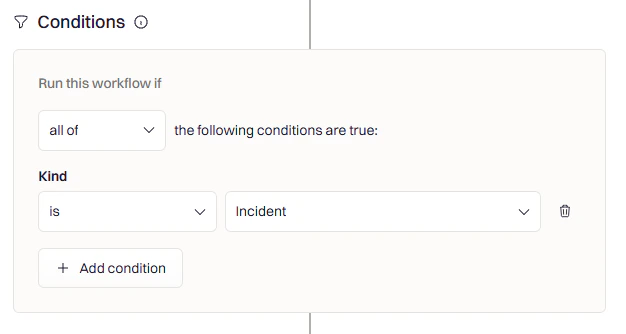
- Severity filter — only create a page for SEV-1 or SEV-2 incidents
- Team or service filter — scope page creation to incidents affecting specific teams or services
- Incident type — ensure the workflow only runs when Kind is set to Incident
- Environment — only generate pages for production or customer-impacting issues
Step 4: Add the Create Confluence Page Action
1
Add an action
Click Add Action and search for Confluence.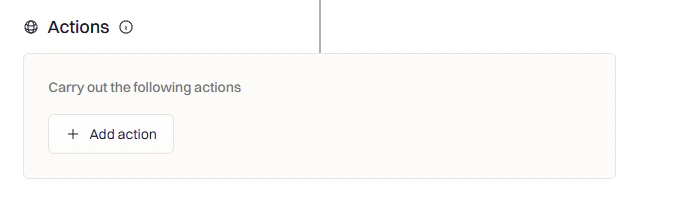
2
Select Create Confluence Page
Choose Create Confluence Page from the results.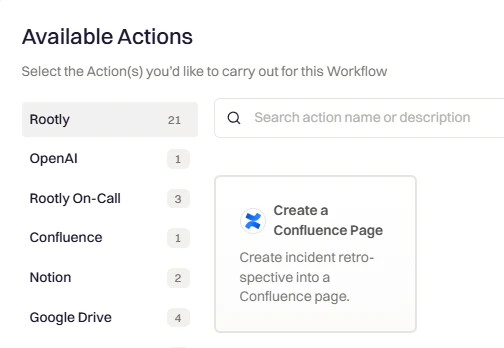
3
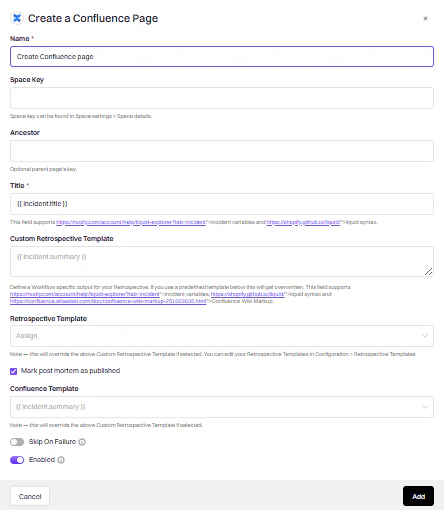
Configure the action
Fill in the fields using the table below.
4
Save the workflow
Click Add, enter a workflow name, and click Create Workflow.
Action Fields
If a Confluence Template is selected, it overrides both the Custom Retrospective Template and Retrospective Template fields.
Update an Existing Confluence Page
In addition to creating pages, Rootly can update pages that already exist. Add an Update Confluence Page action and configure the following fields:Creating a Confluence Template
Rootly fetches page templates directly from your Confluence space via the API. Templates you create in Confluence appear automatically in the Confluence Template dropdown within the workflow action.1
Open your Confluence space
Navigate to the space where you want to create the template and open Space Settings.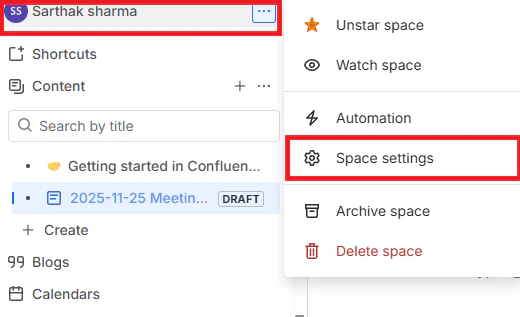
2
Access template settings
Under Look and Feel, select Templates.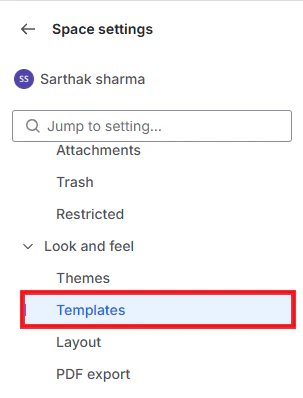
3
Create the template
Click Create New Template and add your content. Liquid syntax is fully supported.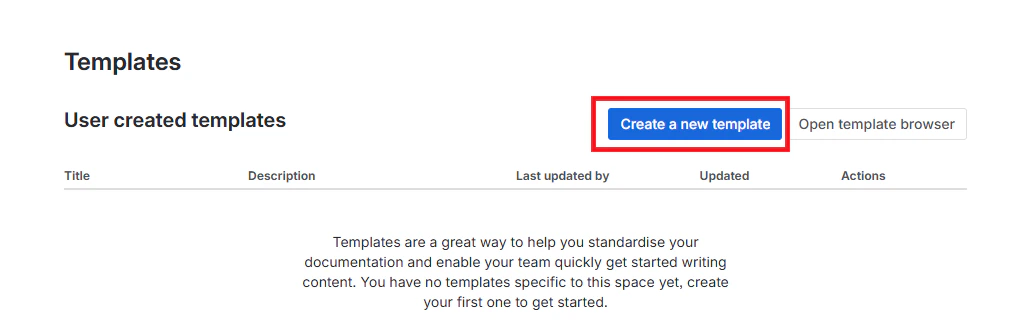
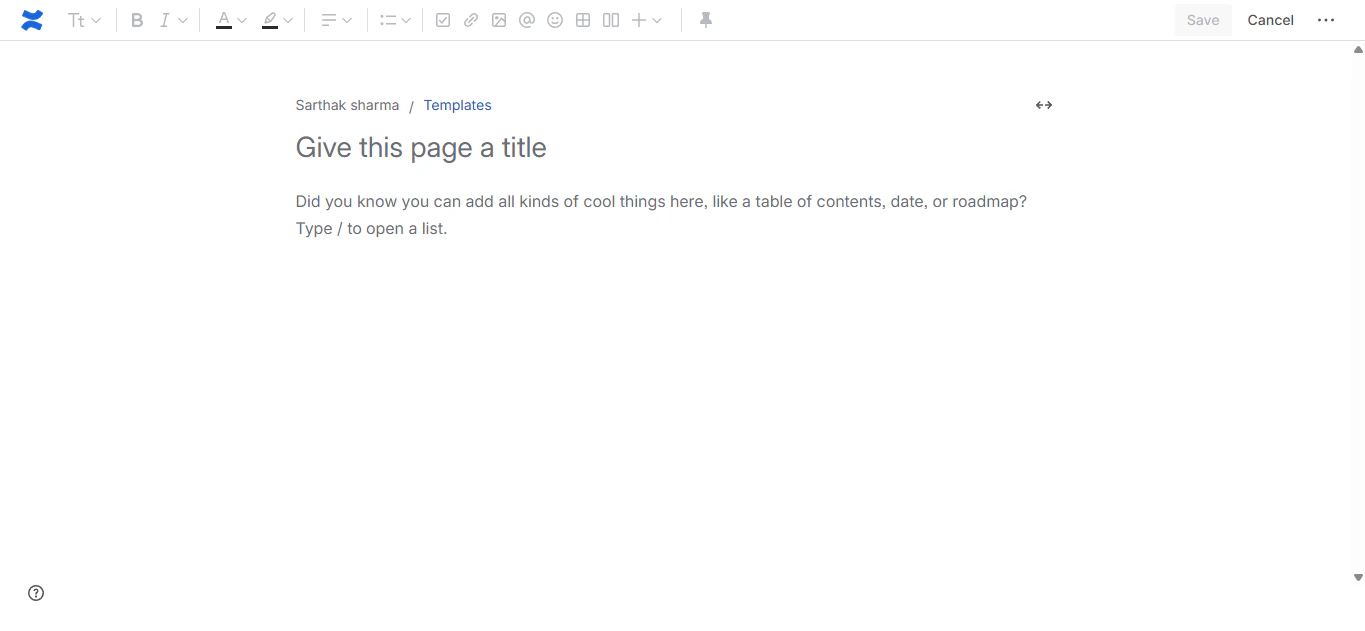
4
Save the template
Click Save. The template will appear in the Confluence Template dropdown the next time you configure a Create Confluence Page action.
Template Examples
Use the Liquid Variable Explorer to test variables before deploying templates in production.- Standard Retrospective
- Executive Summary
- Technical RCA
Frequently Asked Questions
My Confluence template is not appearing in the dropdown
My Confluence template is not appearing in the dropdown
Rootly fetches templates from your Confluence space via the API. Ensure the template was saved in the correct space and that your Rootly integration has access to that space. Try disconnecting and reconnecting the integration to refresh the template list.
The workflow ran but no Confluence page was created
The workflow ran but no Confluence page was created
Check the workflow run log in Rootly for error details. Common causes include an invalid Space Key, a missing or incorrect Ancestor page ID, or a Liquid variable that returned an empty value for the Title field (Title is required). Verify the Space Key matches exactly what appears in Space Settings → Space Details in Confluence.
Liquid variables are rendering as blank on the page
Liquid variables are rendering as blank on the page
Use the Liquid Variable Explorer to verify that the variable returns a value for your incident. Some variables like
incident.resolved_at will be empty if the incident has not yet resolved. Add a fallback using Liquid filters (e.g., {{ incident.resolved_at | default: "TBD" }}).Can I create a page in multiple spaces from one workflow?
Can I create a page in multiple spaces from one workflow?
Add multiple Create Confluence Page actions to the same workflow, each configured with a different Space Key. Each action runs sequentially and creates an independent page.
How do I reference a page created earlier in the same workflow?
How do I reference a page created earlier in the same workflow?
Use the Update Confluence Page action after a Create Confluence Page action. Reference the created page ID via Liquid using the output of the prior step.