

Overview
Ask Rootly AI to:- “This is now a SEV1. Update the incident severity.”
- “Draft comms to our high-value customers, letting them know the impact of the incident on their product experience.”
- “Page the security team, and convert this to a private incident.”
- “Catch me up. What’s still open, and who owns it?”
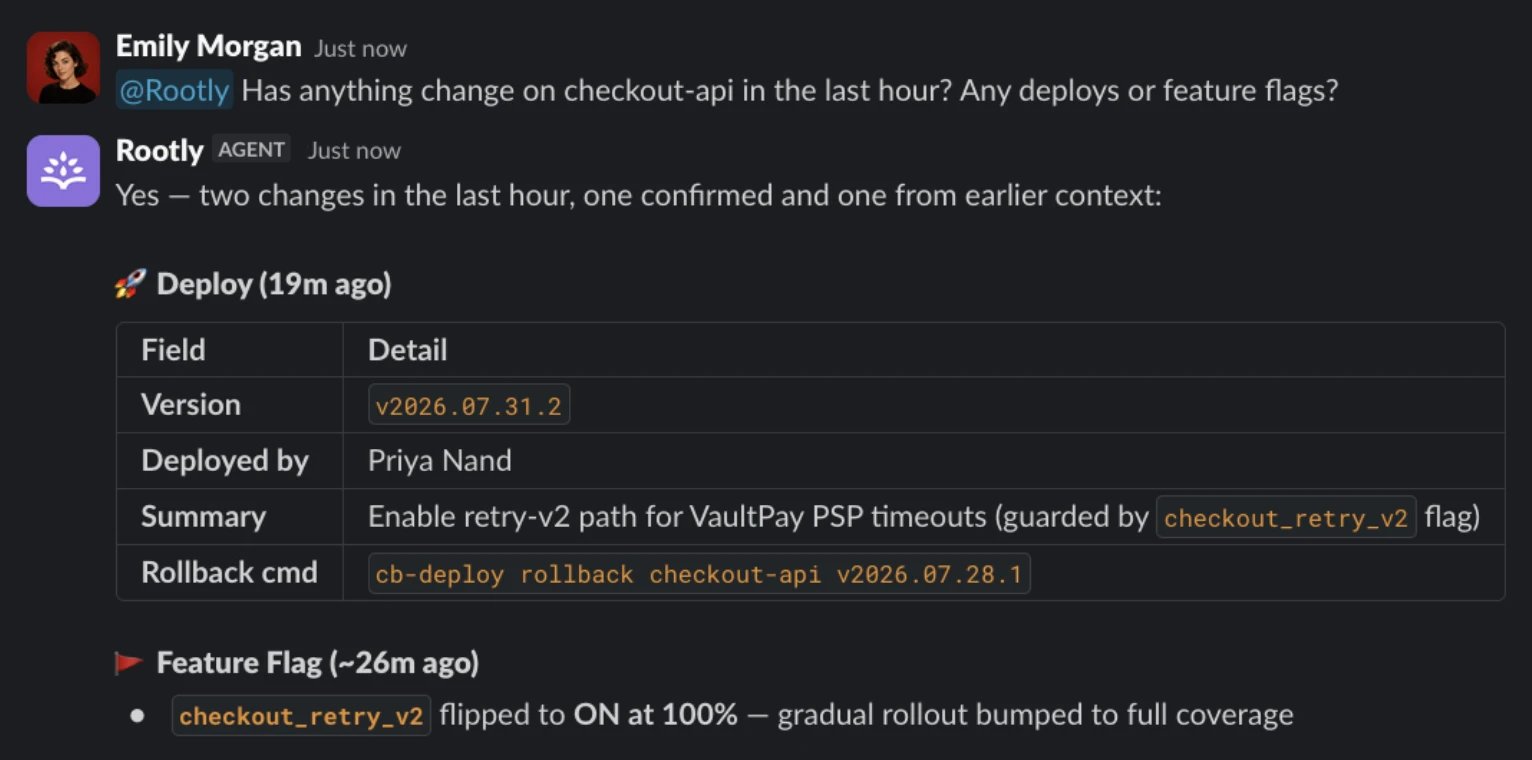
@Rootly and ask.
Supported Communication Channels
Pick your chat tool to turn on Rootly AI and see where you can use it.Rootly AI in Slack
One toggle and a Slack reconnect. Use it in incident channels, the Slack assistant pane, and DMs.
Rootly AI in Microsoft Teams
One toggle on top of your Teams integration. Use it in incident channels, team channels, and chats.
How Rootly AI Works
Rootly AI reads from your Rootly data and the channel conversation, including bridge call transcripts when available, to answer questions and take actions on your behalf. Mention@Rootly and ask. It uses the incident’s live context to decide how to respond, and replies in-thread so the channel sees any action taken.
Rootly AI also answers outside incident channels, such as in private conversations with the Rootly app. Changes to an existing incident happen only in that incident’s channel. What else you can do from each surface, such as paging or creating schedule overrides, depends on your chat tool, and a connector can expose separately governed external actions. See Using Rootly AI for the full guide.
Model details, including failover behavior, are documented in Data Privacy for Rootly AI.
Key Capabilities at a Glance
This table is a sample. The full prompt catalog lives in What to Use Rootly AI For.
Who Can Use Rootly AI
Rootly AI requires an Incident Response role. Without one, Rootly AI asks you to contact your admin, and requests to page or check who is on call are refused.How Permissions Work
Rootly AI uses each user’s existing Rootly permissions. If a user can’t see a private incident in the web app, Rootly AI won’t surface it for them in chat. If a role doesn’t allow paging, Rootly AI declines to page when that user asks. Connector data and actions can add a separate access boundary. A connector guide identifies which users can use its tools and the provider account that scopes the available data and operations. For example, Devin repository reads use the connected service user’s repository access, including for Rootly AI users who cannot manage the connector.Permissions are managed in Settings → Roles & Permissions. There is no separate AI permission system.
Frequently Asked Questions
What about private incidents and private channels?
What about private incidents and private channels?
Rootly AI has to be added to a channel before it sees anything there or takes action. User permissions still apply on top.
Can Rootly AI page using vendors outside of Rootly On-Call?
Can Rootly AI page using vendors outside of Rootly On-Call?
Rootly AI’s native paging action uses Rootly On-Call only and does not fall back to third-party paging integrations configured elsewhere in Rootly. A connector with an explicitly supported paging tool can define a separate permission boundary; see that connector’s guide.
Does Rootly AI work differently in Slack and Microsoft Teams?
Does Rootly AI work differently in Slack and Microsoft Teams?
It’s the same agent with the same tools, permissions, and confirmation behavior. What differs is setup and where you open it, which each platform’s page covers.
Related Pages
Using Rootly AI
How clarification cards work and how actions run.
What to Use Rootly AI For
The full catalog of prompts, grouped by use case.
Troubleshooting
Common symptoms and how to resolve them.
Data Privacy for Rootly AI
What Rootly AI sees, retention, and model training controls.