

Prerequisites
- The Slack integration is installed and connected to your Rootly workspace.
- You are an Incident Response Owner or Admin with an Incident Response seat.
Turn On Rootly AI in Slack
Setup is one toggle in Rootly plus a Slack reconnect. Reconnecting reinstalls the app with the scopes Rootly AI needs; your existing channels and workflows are unaffected.1
Turn on Rootly Agent in Slack
In Rootly, open AI & Agents. Confirm Opt in to Rootly AI capabilities is on under Global, then toggle Rootly Agent in Slack on under Features.
2
Refresh the Slack Connection
Go to Settings → Integrations → Slack and click Refresh Connection in the banner at the top of the page. A Slack workspace admin clicks Allow to re-grant the scopes Rootly AI needs.There is no need to disconnect first. Refreshing reinstalls the app with its current scopes and leaves your workspace selection, channels, Smart Defaults, and workflows intact. See Refresh and Reconnect for the full walkthrough.
Where to Use Rootly AI in Slack
Rootly AI is added automatically to incident channels created through Rootly. Declare an incident with/rootly new, then mention @Rootly in the channel or thread and ask “catch me up” or “page the database on-call team”. Rootly AI always replies in-thread.
Every surface requires an Incident Response role. Your Rootly permissions govern which incidents and Rootly records you can see. Data from a connector is scoped to its connected provider account; see the connector’s guide for any additional Rootly permission check.
Opening Each Surface
- Incident channel. Type
@Rootlyin the incident’s Slack channel or in a thread on it. Rootly replies in-thread with the incident’s context. - Slack assistant pane. Click Rootly in Slack’s channel sidebar or split view to open a private chat scoped to that channel. In an incident channel, the incident context is carried automatically.
- Direct message. Message the Rootly app directly from your Slack sidebar, or open it from Slack’s Agents & tools sidebar tab (look under More if the tab isn’t visible). Opens a fresh chat with no channel context.
Your First Interaction
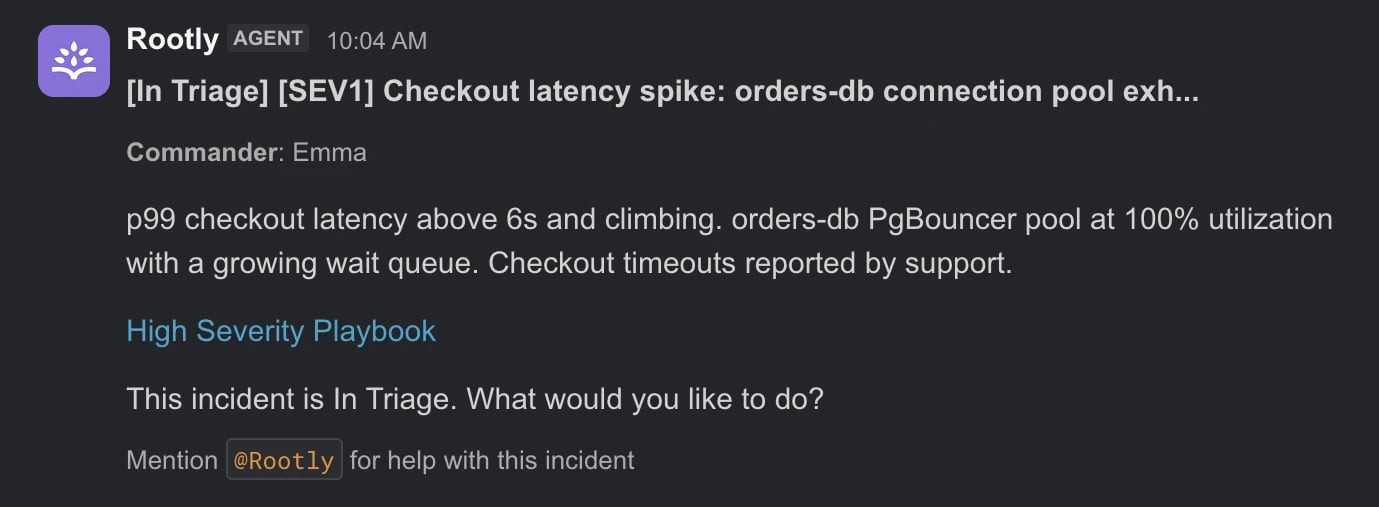
In any channel Rootly AI is a member of, type@Rootly and ask a question.
Try These First
- “Catch me up”
- “Who’s on call?”
- “Escalate to SEV1”
- “What are the open action items?”
Slack-Specific Troubleshooting
For issues that apply on every platform, see Troubleshooting.
Related Pages
AI Agent in Communication Channels
What Rootly AI is and everything it can do.
Using Rootly AI
How clarification cards work and how actions run.
What to Use Rootly AI For
The full catalog of prompts, grouped by use case.
Slack Integration
Install, refresh, and configure the Slack integration.