

Setting Up Processes
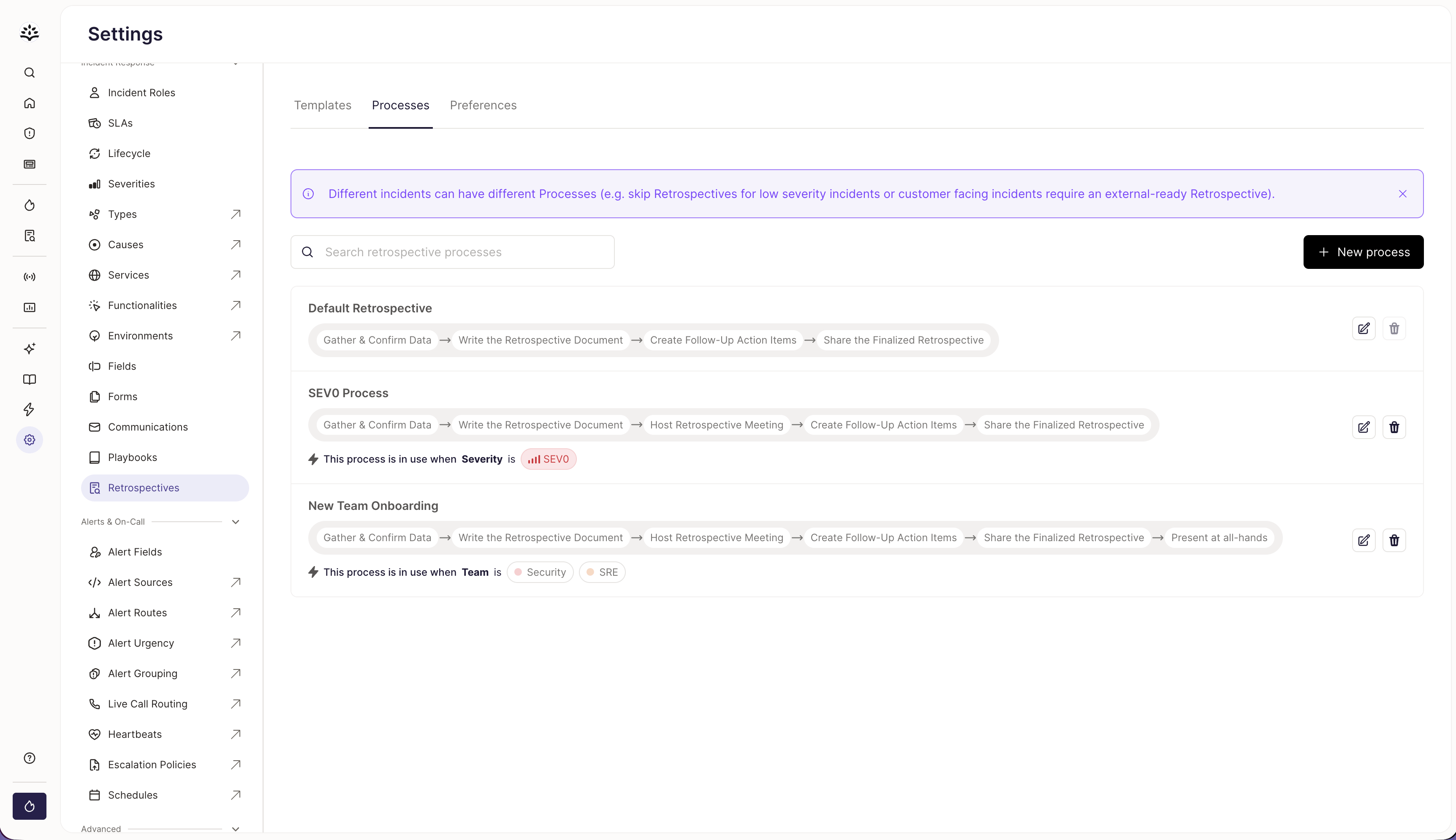
If you have different retrospective processes for different teams and incident types, you’re able to configure each process separately in Settings > Retrospectives > Processes. Each Process configured is set up with conditions: this lets Rootly know when to apply which Process to which incident. For example, you can configure a SEV0 Process with conditions to use it for any incident with a SEV0 severity. Every workspace comes with a Default Retrospective Process to get you started. This Default Process can be edited, but cannot be deleted. If you add additional custom processes to Rootly, your Default Retrospective Process will become the fallback process, and will be used for any incident that does not match any conditions for the custom processes you’ve set up.Custom Processes
For more opinionated incident practices, you can create custom retrospective processes and apply them only to incidents that match specific conditions. A custom process can be configured to apply based on:- Severity
- Incident type
- Team
Skip and Mandatory Preferences
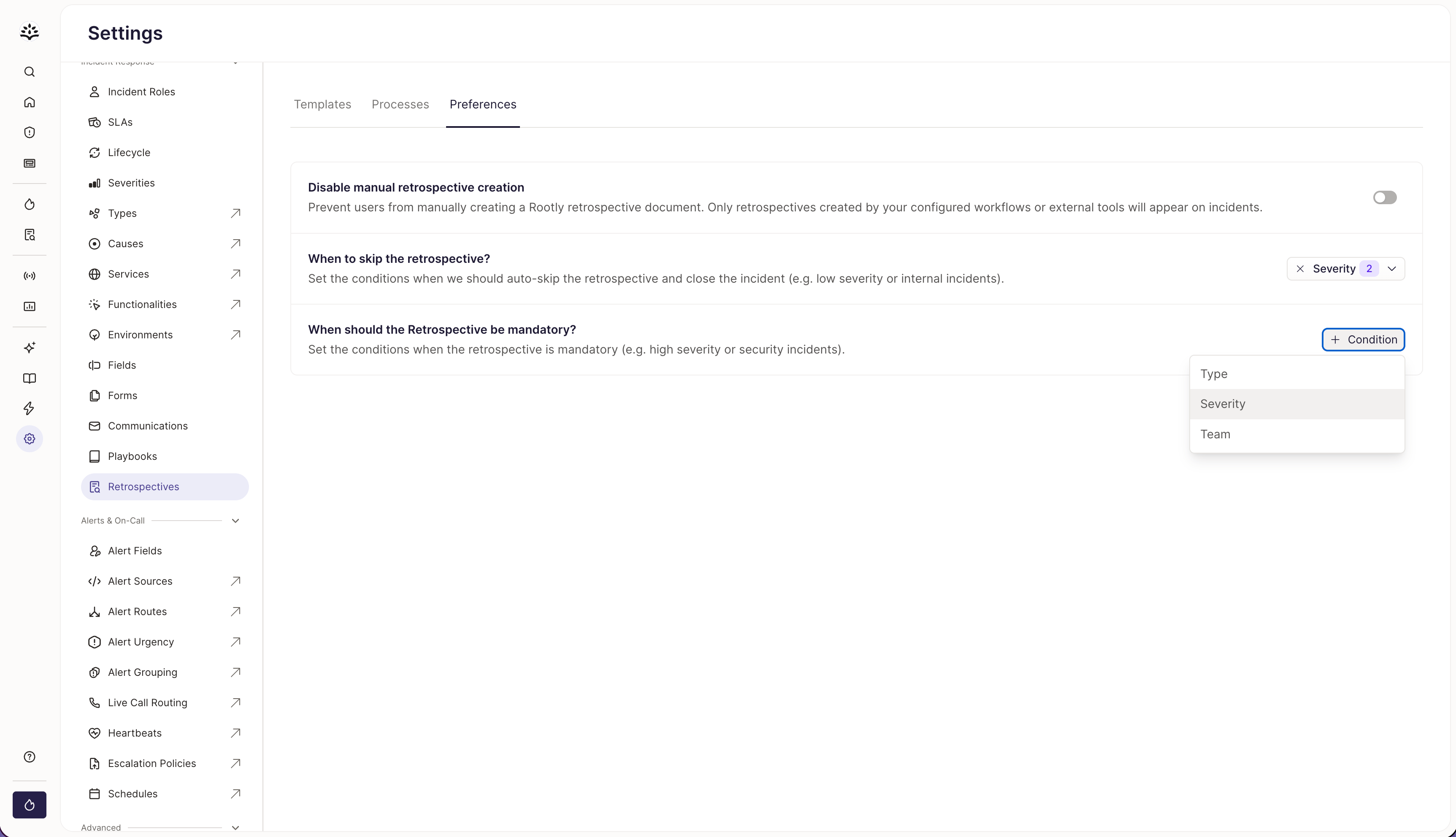
In addition to choosing which process applies, you can also control whether a retrospective should be skipped or required for certain incidents. Configure skip and mandatory rules under Retrospectives > Preferences or the equivalent area in your workspace. These preferences use the same condition types:- Severity
- Incident type
- Team
retrospective mode
Responders cannot skip the retrospective for matching incidents.
retrospective mode
The retrospective is skipped by default for matching incidents. Responders can still resume it later if follow-up work is needed.
retrospective mode
No mandatory or auto-skip rule applies, so responders can choose whether to skip the retrospective on a per-incident basis.
By default, responders can skip a retrospective from the bottom of the Retrospective tab. This option is not available when the retrospective is mandatory for that incident.
How Process Selection Works
When an incident is created or its status changes, Rootly evaluates the incident’s severity, incident types, and attached teams to determine which retrospective process should be used. Rootly then:- Selects the matching custom process, if one exists
- Falls back to the default process when no custom process matches
- Creates the steps for the selected process on the incident
- Relative due dates
- Default assignees based on incident roles
- Required or skippable behavior
- Reminder notifications
Example Configurations
SEV1 Incident Example
A SEV1 incident might use a more rigorous retrospective process with steps such as:- Gather information
- Hold retrospective meeting
- Peer review the generated document
- Publish the retrospective document
- Assigned owners based on incident role
- Relative due dates
- Reminder notifications
SEV3 Incident Example
A SEV3 incident might use a lighter process with optional steps such as:- Gather information
- Hold a self-facilitated team retrospective
- Capture lightweight follow-up actions only when needed
Frequently Asked Questions
What is a retrospective process?
What is a retrospective process?
A retrospective process is a named set of ordered steps used to guide post-incident follow-up work. Each process can include its own steps, due dates, assignees, and reminders.
How does Rootly choose which process to use?
How does Rootly choose which process to use?
Rootly checks the conditions attached to each custom process and looks for matches based on severity, incident type, or team. If more than one custom process matches, the most recently created one is used. If none match, the default retrospective process is used.
What happens if a custom process has no conditions?
What happens if a custom process has no conditions?
A custom process without any conditions is inactive. It will not be selected for any incident until at least one severity, incident type, or team condition is added.
What is the difference between process conditions and skip or mandatory preferences?
What is the difference between process conditions and skip or mandatory preferences?
Process conditions determine which retrospective process and steps are used for an incident. Skip and mandatory preferences determine whether responders can skip the retrospective for incidents that match those rules.
Can responders skip a retrospective?
Can responders skip a retrospective?
Yes, by default responders can skip a retrospective on an individual incident. However, if that incident matches a mandatory retrospective rule, the retrospective cannot be skipped.
Can an auto-skipped retrospective be brought back?
Can an auto-skipped retrospective be brought back?
Yes. Auto-skipped retrospectives can be resumed later if responders decide that follow-up work is still needed.