

This operation links the current incident to a canonical incident via
This is separate from sub-incidents, which use
duplicate_incident_id.This is separate from sub-incidents, which use
parent_incident_id.Mark a Duplicate in Slack
In any incident Slack channel, type: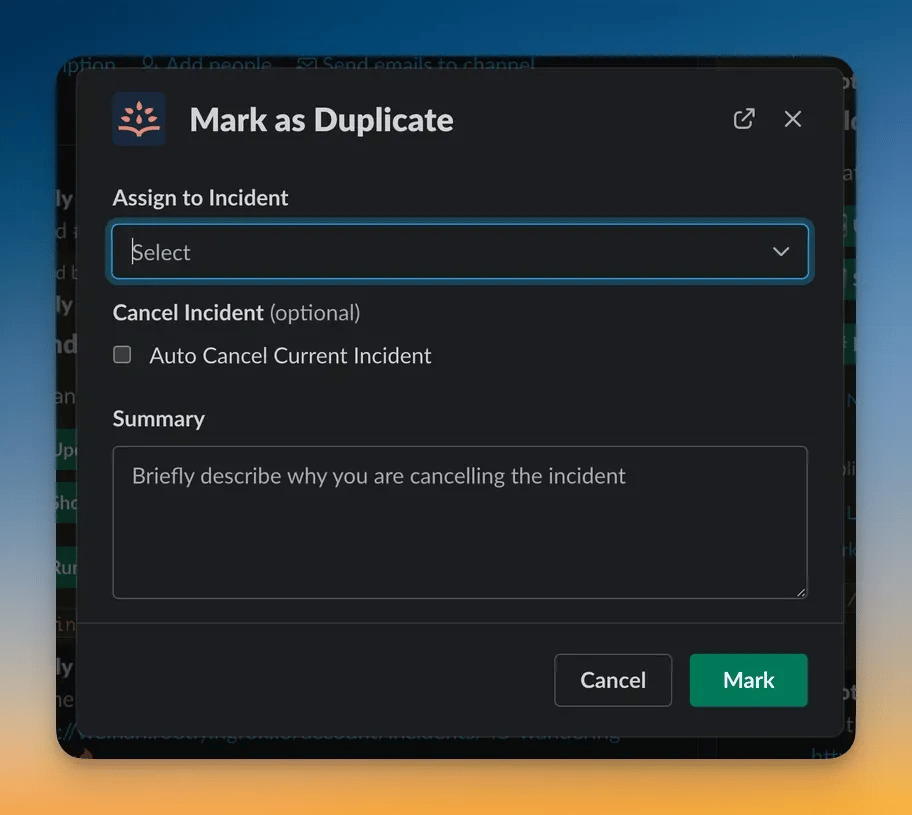
Modal Fields
The Slack modal includes:string
required
Search for the canonical incident.
boolean
default:"true"
Optional toggle (on by default).
string
Optional free text, added to the timeline.
Slack enforces the same permissions as the web interface.
You must be able to update the incident to mark it as a duplicate.
You must be able to update the incident to mark it as a duplicate.
What Happens After Submission
When you confirm the duplicate:- The current incident is linked to the selected original incident
- A non-editable timeline entry is created
- Slack posts a confirmation message in the duplicate’s channel (if applicable)
- If Auto Cancel is enabled:
- The duplicate is cancelled
- Alerts attached to the duplicate are resolved automatically
- Slack posts a “Duplicate incident detected” message
Rootly also updates Slack summaries and workflows that rely on incident lifecycle changes.
Best Practices
-
Run the command from the incident channel
Slack automatically associates the action with the incident the channel is tied to. -
Use the canonical incident with the most context
Choose the incident that contains the most accurate investigation details or customer-facing messaging. -
Provide a clear cancellation summary
This helps responders understand why context moved and assists retrospectives. -
Auto-cancel when appropriate
This prevents duplicate incidents from remaining open and triggering unnecessary automations. -
Avoid marking scheduled maintenance as duplicates
Slack prevents this automatically, since maintenance incidents follow different lifecycle rules.
Troubleshooting
“This command cannot be used here”
“This command cannot be used here”
You must run
The command will not work in normal or private Slack channels.
/rootly dup inside a Rootly incident Slack channel.The command will not work in normal or private Slack channels.
The modal does not open
The modal does not open
Possible reasons:
- You do not have update permissions on the incident
- The incident is a scheduled maintenance incident (duplicates are disallowed)
- The incident is already marked as a duplicate
The original incident doesn’t appear in the dropdown
The original incident doesn’t appear in the dropdown
Slack only shows incidents you have permission to view.
Private or restricted incidents may not appear unless you have the required access.
Private or restricted incidents may not appear unless you have the required access.
The incident did not auto-cancel
The incident did not auto-cancel
Common causes:
- Auto-cancel was toggled off
- The incident was already cancelled
- Slack permissions prevented cancellation
- Workflow or feature flags restricting cancellation were active
Slack did not post a confirmation message
Slack did not post a confirmation message
This can occur when:
- Slack is not integrated or connected for your team
- The duplicate incident has no Slack channel
- Notifications are suppressed by workspace settings