

Overview
An alert is Rootly’s record of “something needs attention.” Alerts arrive programmatically from monitoring tools like Datadog, PagerDuty, or Sentry, or manually from a responder paging a teammate in Web, Slack, Microsoft Teams, or mobile. Once an alert exists, Rootly deduplicates repeats, groups related alerts together, routes each one to the right team, and pages the on-call responder — every stage is configurable.Alert Fields
Alert Routing
Alert Urgency
Alert Deduplication
Alert Grouping
Alert Statuses
Manual Paging
Heartbeats
Live Call Routing
Alert Lifecycle
A programmatic alert — one that arrives from a monitoring tool through an Alert Source — moves through seven stages:- Ingestion — a monitoring tool posts to an Alert Source webhook.
- Deduplication — if the same condition is already firing on an open alert, the request is folded into it instead of creating a new one. A keyed match increments that alert’s counter; an exact-body match is ignored without one. See Alert Deduplication.
- Routing — Rootly determines which teams, services, and escalation policies receive the alert. A route can name any combination of them, and an alert can reach several destinations. See Alert Routing.
- Grouping — if several different monitors are firing on the same underlying incident, they bundle under one leader alert. Grouping matches on what the alert was routed to, so it runs after routing, never before. See Alert Grouping.
- Paging — the escalation policy fires and notifies the on-call responder via mobile push, SMS, phone call, Slack, or Microsoft Teams.
- Linkage — the alert can attach to an incident (automatically via alert workflows, or manually from the incident view).
- Resolution — the alert closes when the underlying condition clears, either from the monitoring tool’s resolution signal or by manual close in Rootly. See Alert Statuses.
Programmatic vs. Manual Alerts
Supported Alert Sources
Rootly integrates with many alerting and ticketing tools. Some of the most common:Reducing Alert Noise
Rootly ships two complementary noise-reduction tools: Deduplication and Alert Grouping. They solve different problems and can be enabled together.Deduplication vs. Alert Grouping
Linking Alerts to Incidents
Alerts become most useful when tied to incidents. In Rootly, alerts attach to incidents via:- Integration mappings and workflows — e.g., “When a PagerDuty incident is created, attach the alert to the corresponding Rootly incident.”
- Automation logic — based on service, environment, or alert attributes.
- Manual linking — from the incident or alert views.
Default Notification Settings
Every new user arrives with a set of notification rules that decide how their first page reaches them. Admins set those starting channels for the whole organization, separately for high urgency (the user’s audible rule) and low urgency (their quiet rule), so a responder’s first shift matches how the team pages. With nothing configured, a new user starts with email, phone call, and SMS on high urgency and email on low urgency — a first page that rings their phone, tablet, and laptop at the same time.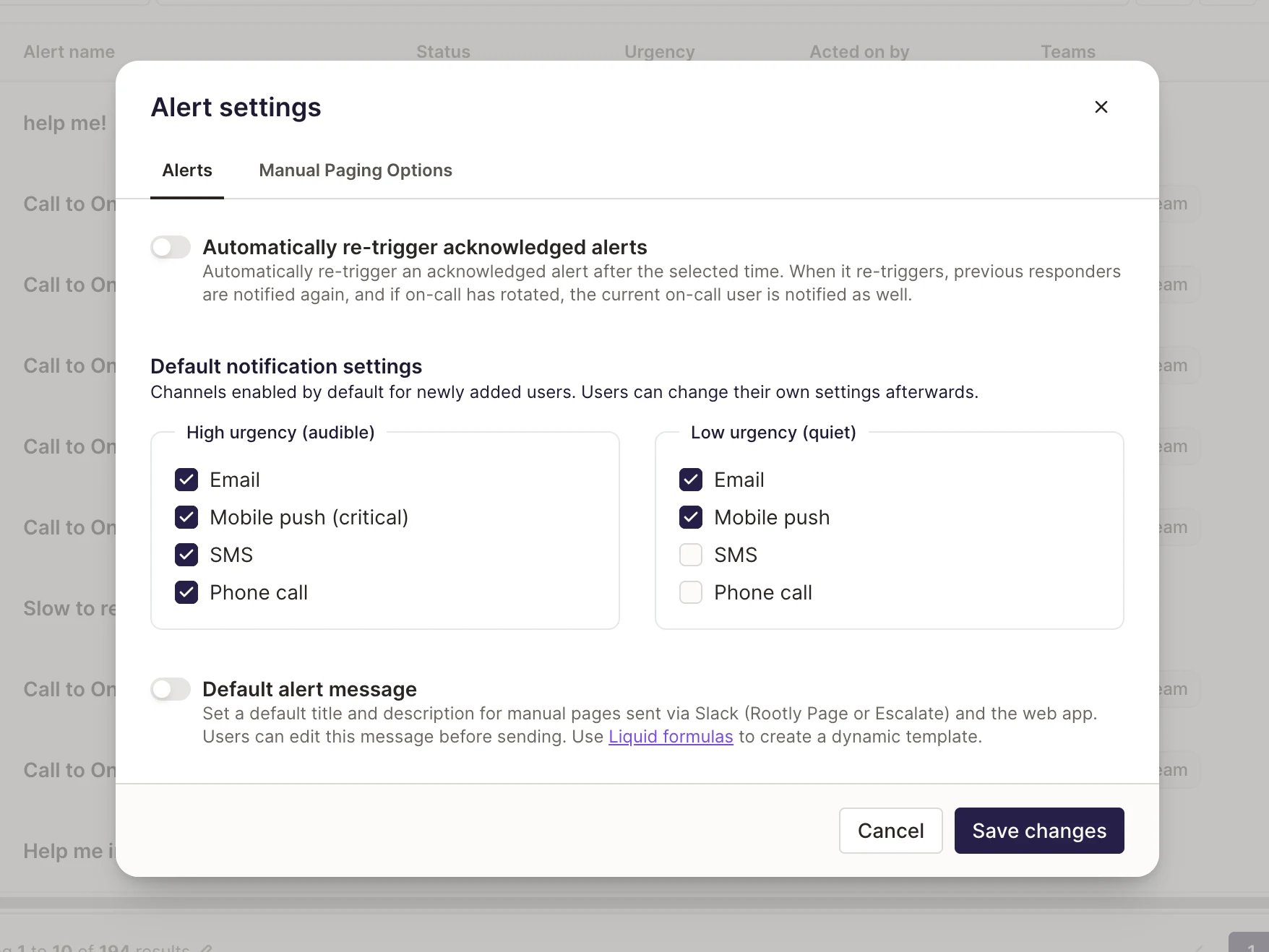
An example configuration: mobile push on both urgency levels, with calls and SMS reserved for high urgency
Setting the Defaults
Open Alert Settings
Choose the Starting Channels
Save the Settings
Guardrails
- High and low urgency rules must have at least one channel selected. You cannot set a default that does not have any options selected.
- Defaults are a starting point. Users can change their own channels at any time under Account Settings → Notifications → On-Call Notifications.
Best Practices
- Choose a stable deduplication key. Use identifiers like monitor IDs, incident keys, or ticket IDs — avoid full message text or highly variable fields.
- Start narrow, then broaden. Begin with conservative dedup rules and relax them as you gain confidence, to avoid accidentally merging unrelated alerts.
- Link alerts to incidents early. Use workflows to auto-attach alerts to incidents as soon as they’re ingested.
- Watch the request count. A high
×Ncount on an alert is a strong signal of ongoing or flapping conditions and can inform severity and prioritization. - Tune rate limits for noisy environments. If you know a source can spike, increase the per-source rate limit for that team.
- Set the notification defaults before onboarding a cohort. New hires are provisioned once, at creation — deciding the starting channels first saves every one of them from reconfiguring their rules after the first page.
- Own each Slack or Teams channel once. Escalation-policy steps, the default alerts channel, workflows, and (in Slack) team or service broadcasts can all target the same channel — pick one owner per channel to avoid duplicate posts.
Troubleshooting
Alerts aren’t being combined as expected
Alerts aren’t being combined as expected
I see fewer alerts than my provider shows
I see fewer alerts than my provider shows
The alert requests counter isn’t increasing
The alert requests counter isn’t increasing
- Combine duplicate alerts into one alert is on for the Alert Source and the deduplication key path is set.
- Incoming payloads resolve to the same key. If the identifier differs, Rootly creates separate alerts instead of incrementing the existing one.
Alerts are hitting rate limits
Alerts are hitting rate limits
One alert posts twice to the same Slack or Teams channel
One alert posts twice to the same Slack or Teams channel
- Escalation policy steps — a level can notify a Slack or Microsoft Teams channel directly.
- Team Alert Broadcast (Slack only) — a team can broadcast every alert routed to it into a Slack channel.
- Service Alert Broadcast (Slack only) — each service can broadcast alerts on that service into a Slack channel of its own.
- Default alerts channel — the Slack and Microsoft Teams integrations can each post every new alert to one channel.
- Alert workflows — can send Slack or Microsoft Teams messages to any channel.
A new user isn't paged by call or SMS
A new user isn't paged by call or SMS
An alert from my tool never appears in Rootly
An alert from my tool never appears in Rootly
- The integration is installed and authenticated.
- The mapping points to the right team or alert source.
- The webhook or outbound configuration is using the correct URL.
- The payload contains all required fields for that integration.
Frequently Asked Questions
Does every alert create an incident?
Does every alert create an incident?
Do I need both deduplication and grouping?
Do I need both deduplication and grouping?
What's the difference between an Alert Source and an Integration?
What's the difference between an Alert Source and an Integration?
Can I re-open a resolved alert?
Can I re-open a resolved alert?
Does changing the notification defaults affect people already on-call?
Does changing the notification defaults affect people already on-call?
How is manual paging different from a programmatic alert?
How is manual paging different from a programmatic alert?