

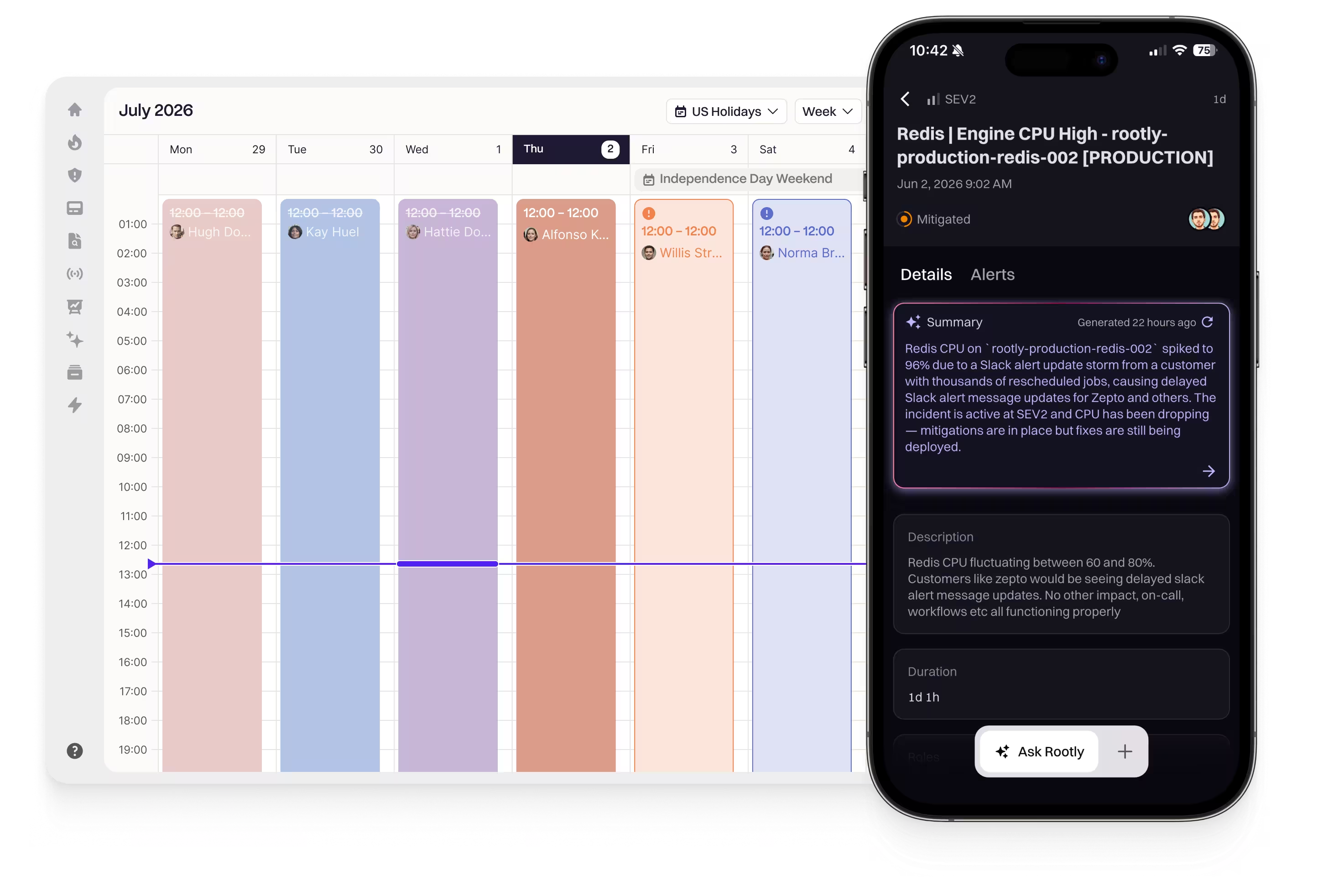
Required User Seats and User PermissionsUsers will need an on-call seat to log in and access the app.
Download the Mobile App
Rootly’s mobile app supports both iOS and Android devices.Download on iOS
Download on Android
- Open the Rootly app on your device
- Enter your Rootly credentials to log in
Log in to Rootly
Log in to your Rootly account using any of the following methods:- Email address and password
- Google SSO
- Slack SSO
- Third-party identity provider (SAML SSO)
Compatibility
The minimum supported operating system versions are:- Android 9+ (SDK 28+)
- iOS 17.6+
Rootly AI
Rootly AI is built into the mobile app so on-call responders can get up to speed and ask questions from their phone — with an Incident Summary card on every incident’s Details tab and a conversational Rootly AI assistant behind the Ask Rootly launcher. Mobile is enabled by a separate toggle from the web assistant (Rootly Agent in Mobile), so an Admin can turn it on for phones independently of the other surfaces. For the full walkthrough — Incident Summary, Rootly AI chat, taking actions, prerequisites, and privacy — see Rootly AI on Mobile.Push Notification
Pages not coming through, or arriving silently? See Notification Troubleshooting for symptom-by-symptom fixes across iOS and Android: Do Not Disturb, battery optimization, calls that don’t ring, and device-specific (Samsung, Pixel, OnePlus) issues.
- iOS
- Android
iOS uses critical alerts for high urgency alerts.
Alert Muting
During an alert storm you can temporarily mute automated alert notifications addressed to you — push, SMS, calls, email, and chat direct messages — for 2 to 30 minutes, directly from the app or from an alert push notification. Manually triggered pages and live call routing still come through. Alerts keep flowing and escalation policies run as normal; only your own notifications pause. See Alert Muting.Home Screen Widgets
Add the Rootly widget to your iPhone or Android home screen to see whether you’re on call, when your current shift ends or your next one starts, and which schedules you’re covering — without opening the app. See Mobile Home Screen Widgets.China Support
Rootly is available in China in the following stores.
Store listings track the current Rootly mobile release — new versions are published to all five stores as part of the regular release process. Where no direct link is listed, search for Rootly in the store on your device.
On Huawei devices, Rootly requires an Android-based HarmonyOS build (HarmonyOS 2, 3, or 4). Devices shipping HarmonyOS NEXT / HarmonyOS 5 do not run Android apps and are not supported.
Intune Support
Rootly’s mobile app supports Microsoft Intune Mobile Application Management (MAM), allowing your organization to enforce App Protection Policies on the Rootly app without requiring full device enrollment (MDM). This means you can protect corporate data on both company-owned and personal (BYOD) devices by controlling actions like copy/paste, screenshots, and selective wipe — all scoped to the Rootly app.How It Works
When Intune MAM is enabled for your organization in Rootly:- Users log into Rootly normally (SSO, email, etc.)
- Rootly detects that the organization requires Intune and prompts the user to sign in with their Microsoft work account
- The Intune MAM SDK enrolls the app with your organization’s App Protection Policy
- The app restarts to apply the protection policies
Prerequisites
Microsoft Authenticator is required on user devices because it acts as the authentication broker for Intune MAM enrollment. Without it, the MAM token acquisition will fail.
Step 1: Enable Intune in Rootly
Contact Rootly support or your account manager to enable Intune MAM for your organization. Once enabled, Rootly will set themdm_provider configuration to intune for your team, which activates the Intune enrollment gate in the mobile app.
Step 2: Grant Admin Consent for the Rootly App Registration
Rootly’s mobile app uses a Microsoft Entra ID (Azure AD) app registration to authenticate with MSAL and enroll with the Intune MAM service. Your tenant admin must grant consent for this app. Rootly App Registration:- Client ID:
8a50cf17-45cf-41d2-8e32-2fe6fa0c5baf - App Name: Rootly (may appear as “Rootly [Dev]” in sign-in logs)
1
Open Entra ID Enterprise Applications
In the Microsoft Entra admin center, go to Identity > Applications > Enterprise applications.
2
Search for the Rootly App
Search for the Rootly client ID:
8a50cf17-45cf-41d2-8e32-2fe6fa0c5baf.If the app does not appear, you will need to grant admin consent first (see next step).3
Grant Tenant-Wide Admin Consent
Open the following URL in your browser, replacing Sign in as a Global Administrator or Application Administrator and accept the requested permissions.
{TENANT_ID} with your Entra tenant ID:4
Verify Permissions
After granting consent, go back to Enterprise applications > Rootly > Permissions. Confirm that the following permissions are granted:
- Microsoft Graph:
User.Read(delegated) - Microsoft Mobile Application Management: device management permissions (delegated)
Step 3: Add Rootly to Your App Protection Policy
1
Open Intune App Protection Policies
In the Microsoft Intune admin center, go to Apps > App protection policies.Select the iOS/iPadOS policy you want to apply to Rootly (or create a new one).
2
Add Rootly as a Custom App
In the policy, go to Properties > Apps > Edit. Under Custom apps, click Select custom apps and add:
- Bundle ID:
com.rootly.app - Platform: iOS/iPadOS
com.rootly.app.3
Assign Users or Groups
Under Assignments > Included groups, ensure the users who need Rootly are included in this policy’s target groups.The policy must target both the app (bundle ID) and the user/group. Adding the app without assigning users will not activate the policy.
4
Wait for Policy Sync
Policy changes can take up to 8 hours to propagate to devices. Typically this takes 30 minutes to 2 hours.Users can force a sync from Company Portal > Settings > Sync on their device.
Step 4: User Login Flow
Once everything is configured, the end-user experience is:1
Log Into Rootly
Open the Rootly app and sign in using your organization’s SSO (or email/password).
2
Microsoft Sign-In Prompt
After Rootly authentication, the app detects that your organization requires Intune and displays the “Organization Sign-In Required” screen. Tap Sign in with Microsoft.
3
Authenticate via Microsoft Authenticator
The Microsoft Authenticator app opens. Select your work account and complete MFA if prompted.
4
App Restart
After successful enrollment, the app restarts to apply the App Protection Policies. This restart is required by the Intune MAM SDK and only happens on first enrollment.
Supported Platforms
Intune MAM works on both managed (MDM-enrolled) and unmanaged (BYOD) devices. Full device enrollment via Company Portal is not required for app-level protection.
Managed App Configuration (Android)
Rootly’s Android app reads managed app configuration (AppConfig) pushed from Intune. AppConfig is how your tenant signals to Rootly that the app is operating in a managed context, and how you enable behaviors that require tenant intent — such as routing SSO through your APP policy’s managed browser.When to Push AppConfig
- You are on a BYOD / MAM-only deployment (no Work Profile) and want Rootly’s SSO launch to honor your APP policy’s managed-browser redirect (for example, to Microsoft Edge). Without AppConfig, Rootly cannot tell that Intune is governing the app and falls back to the system default browser, which the MAM policy cannot intercept.
- You use per-app VPN scoped to Rootly and need authentication traffic to stay inside the app process. See
use_in_app_browserbelow.
Supported Keys
How to Push AppConfig
In the Microsoft Intune admin center:1
Create an App Configuration Policy
Go to Apps > App configuration policies > Add > Managed apps. Choose Android, then add
com.rootly.app as the targeted app.2
Add the Configuration Keys
Under Configuration settings, add the keys you need from the table above. For example, to opt into the in-app browser:
- Configuration key:
use_in_app_browser - Value type:
Boolean - Configuration value:
true
3
Assign to Users or Groups
Under Assignments, target the same users or groups that have your APP policy assigned.
Intune Troubleshooting
MSALErrorDomain error -50002 (iOS)
This error means the Intune MAM SDK could not acquire a token for the Microsoft Mobile Application Management service. Common causes:
To diagnose, ask your Entra ID admin to check Sign-in logs for the user and look for entries where the Resource is “Microsoft Mobile Application Management” with status “Interrupted”. The error code (for example,
AADSTS65001) will identify the exact cause.
App Protection Policy Not Applying
If the Rootly app is enrolled but policies don’t seem active (for example, screenshots still work):- Verify the policy’s Data protection settings are configured as expected
- Check that the user appears in the Intune admin center under Apps > Monitor > App protection status with
com.rootly.appshowing “Checked in” - If
com.rootly.appdoes not appear in the check-in list, enrollment did not complete. Re-trigger by signing out of Rootly and signing back in
Enrollment Works but App Keeps Asking to Sign In
This can happen if the MSAL token cache was cleared (for example, after an app update or device restart). The Rootly app automatically attempts to re-enroll silently on launch. If silent re-enrollment fails:- Ensure Microsoft Authenticator is still installed and signed in
- Tap Sign in with Microsoft to re-authenticate
- If the issue persists, sign out of Rootly completely and sign back in