

Overview
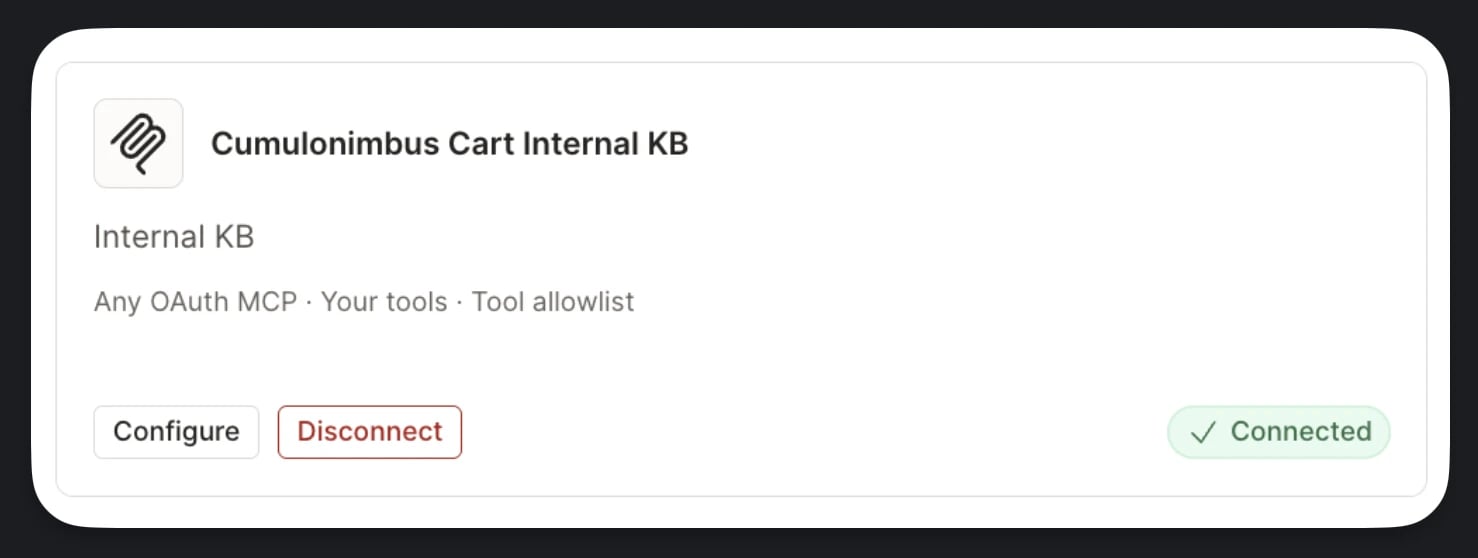
The Custom connector lets you point Rootly AI at a publicly reachable MCP server that isn’t in the built-in catalog. Connect with OAuth or a bearer key. This covers tools your team hosts, third-party services that expose MCP endpoints, and vendor integrations Rootly hasn’t shipped native support for yet. Once connected, you can ask Rootly AI about whatever the server exposes: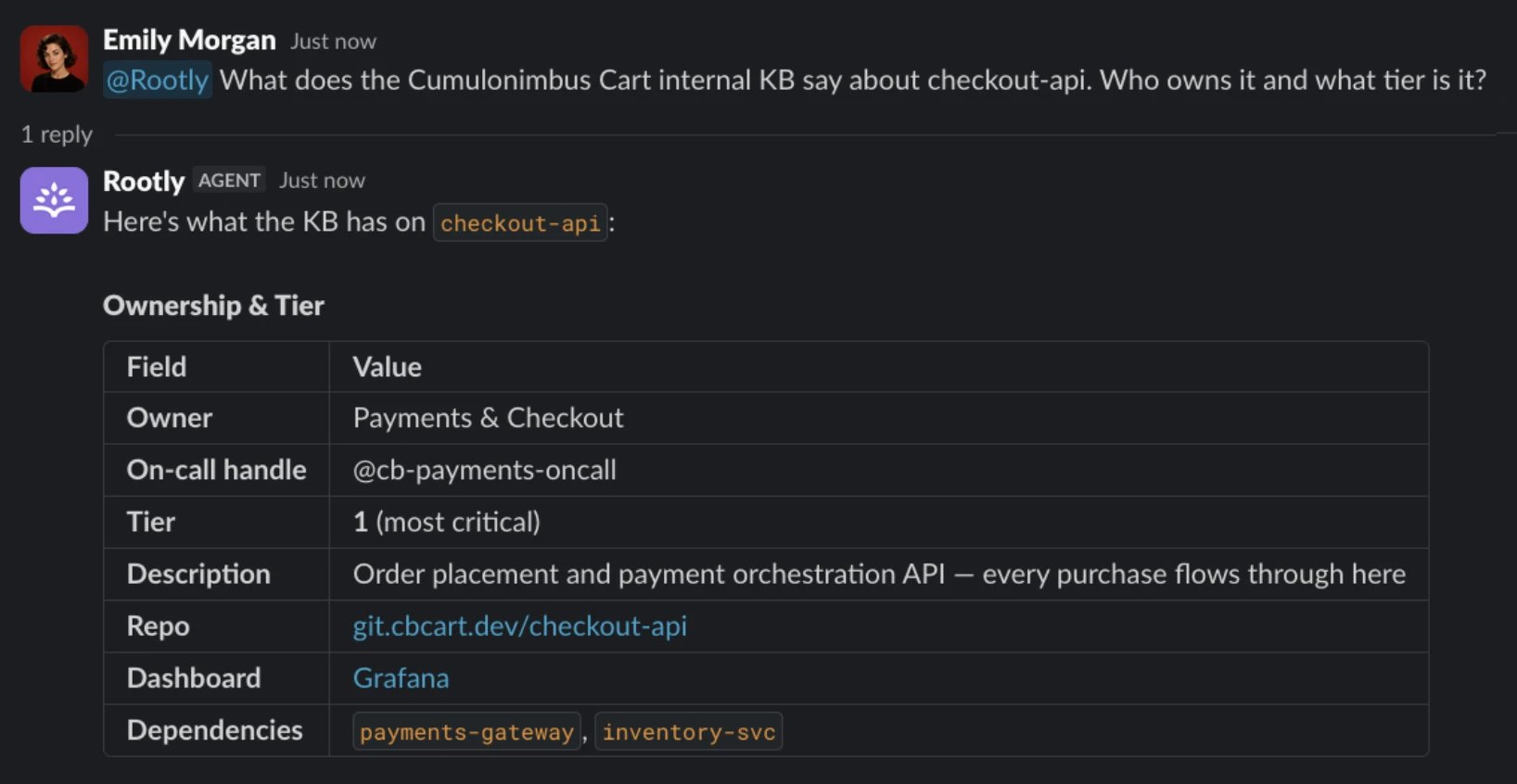
Before You Start
Choose OAuth if your MCP server supports OAuth discovery and Dynamic Client Registration. Choose Bearer key if it accepts a static bearer token. Rootly stores the key as a connector credential and sends it to the server with MCP requests. For either method, use a credential with only the access you intend to expose through Rootly AI.OAuth Requirements
The requirements below apply when you choose OAuth. Rootly registers itself as an OAuth client against your server at connect time. Your server must implement metadata discovery, Dynamic Client Registration, PKCE, and resource indicators. Bearer-key connections skip OAuth discovery and registration, but still require a reachable MCP endpoint and a valid key.localhost, and self-signed certificates are rejected. Every discovery, registration, and token request also has a 15-second timeout; slow well-known endpoints fail the connection.authorization_servers array to know which authorization server to talk to. Serve it either way:GET /.well-known/oauth-protected-resource/<path>returning200with JSON. The path is suffixed with your MCP server’s path: forhttps://mcp.your-company.com/mcp, Rootly requestshttps://mcp.your-company.com/.well-known/oauth-protected-resource/mcp, not the bare well-known path.- Or return
401from the MCP endpoint itself with aWWW-Authenticateheader carryingresource_metadata="https://…".
/.well-known/oauth-authorization-server on the issuer from authorization_servers[0] (path-suffixed the same way when the issuer has a path) and requires a 200. The document must advertise:authorization_endpointtoken_endpointregistration_endpoint
/authorize, /token, or /register. If an endpoint isn’t in this document, the connection fails.POSTs to your advertised registration_endpoint with token_endpoint_auth_method: "none", grant_types: ["authorization_code", "refresh_token"], response_types: ["code"], client_name: "Rootly", and Rootly’s single callback URL as redirect_uris. Your server must respond 201 Created with a client_id; a 200 with a valid body still fails.client_id in the request body, not via HTTP Basic auth. An authorization server that only accepts Basic auth will reject the token exchange. (If your registration response does return a client_secret, Rootly stores it and switches to Basic auth automatically.)code_challenge_method=S256. Your authorization server must support S256 code challenges; plain is never offered.resource parameter on the authorization request, the token exchange, and every refresh. The value is the resource field from your protected resource metadata, or the canonical origin + path of your MCP URL. Your authorization server must accept the parameter and issue a token valid for that resource rather than erroring on it.refresh_token alongside the access token, and the refresh_token grant must work on its own. Without it the connection works initially and then stops once the first access token expires.scope parameter for custom connections. Your authorization server has to grant a sensible default scope rather than rejecting the request for a missing scope.POSTs JSON-RPC to your MCP URL with Authorization: Bearer, Accept: application/json, text/event-stream, and MCP-Protocol-Version: 2025-06-18, echoing Mcp-Session-Id back if you set it. Your server must handle initialize, notifications/initialized, tools/list (cursor pagination supported, up to 1,000 tools), and tools/call. Replies may be JSON or SSE.Setup
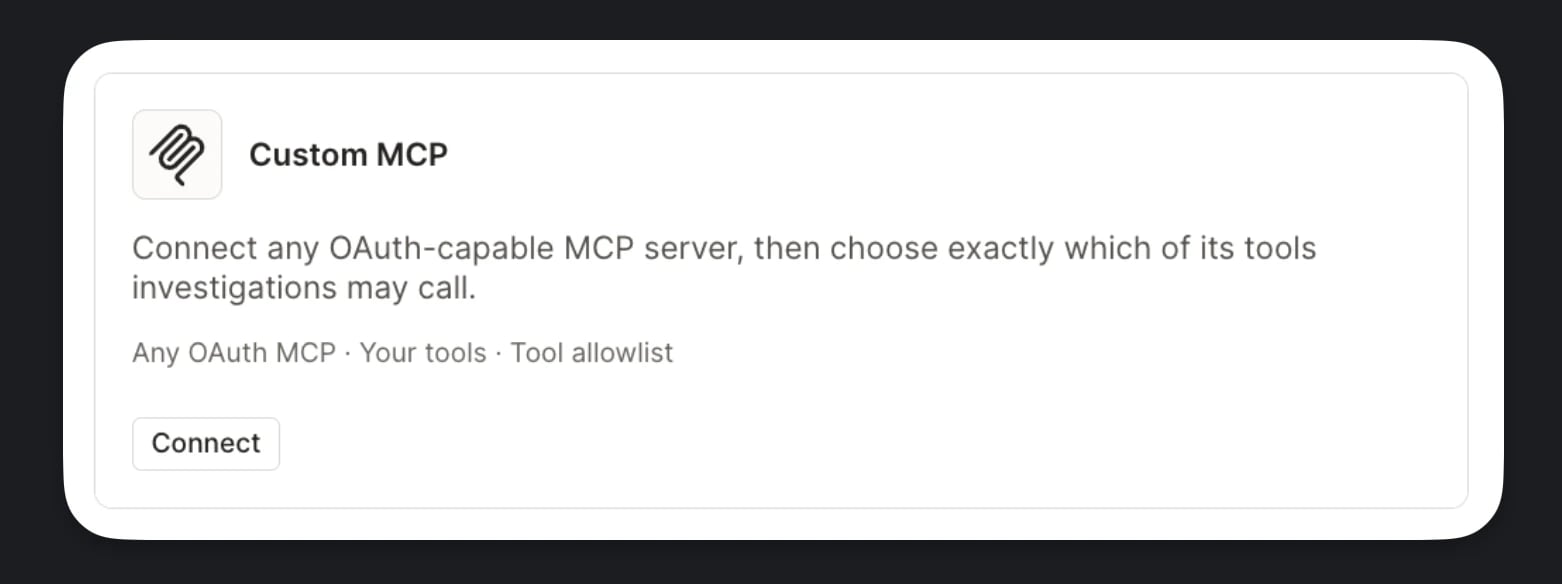
Open the Custom MCP Card
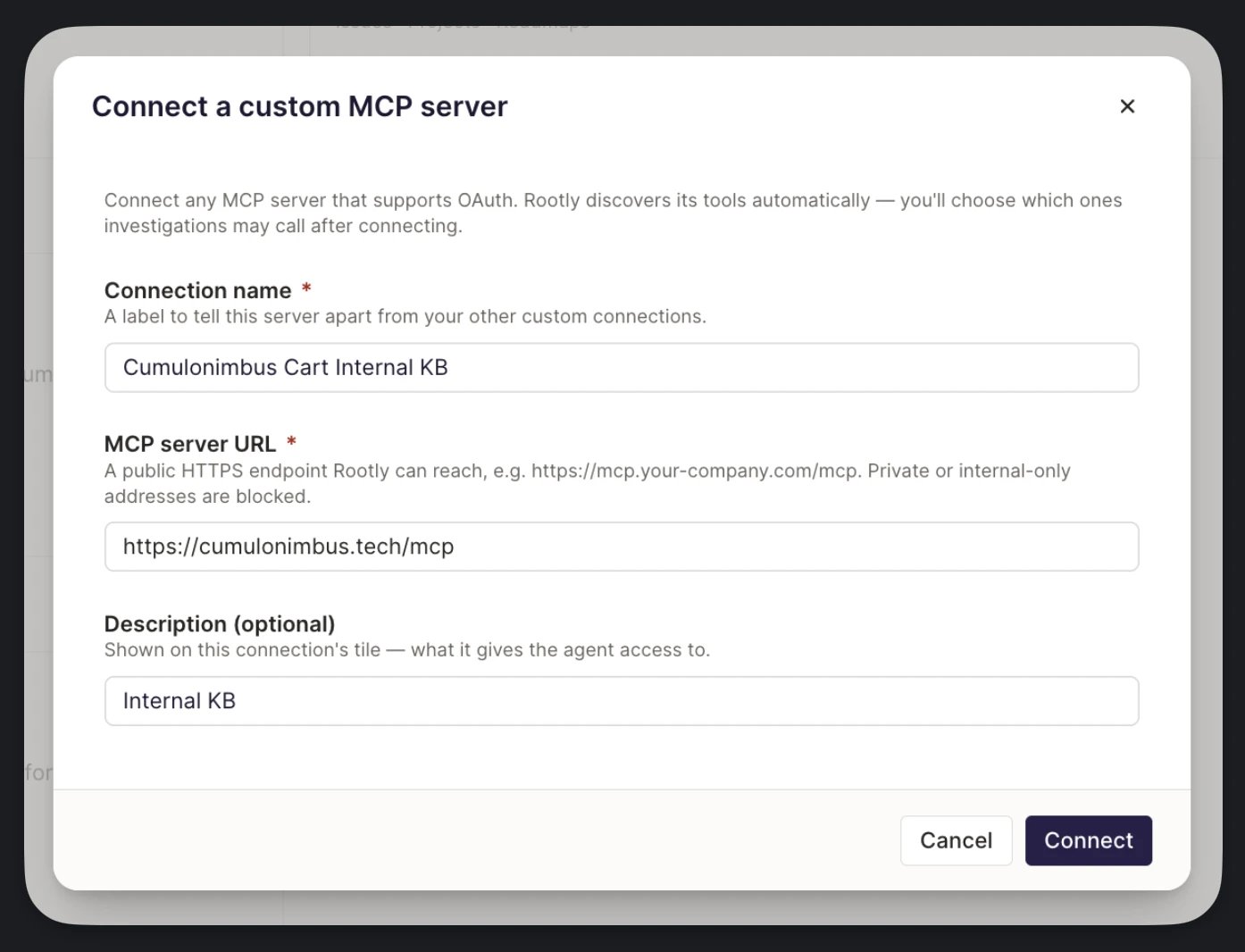
Enter a Connection Name
Enter the MCP Server URL
https://mcp.your-company.com/mcp. Private and internal-only addresses are blocked.Add a Description (Optional)
Choose Authentication and Connect
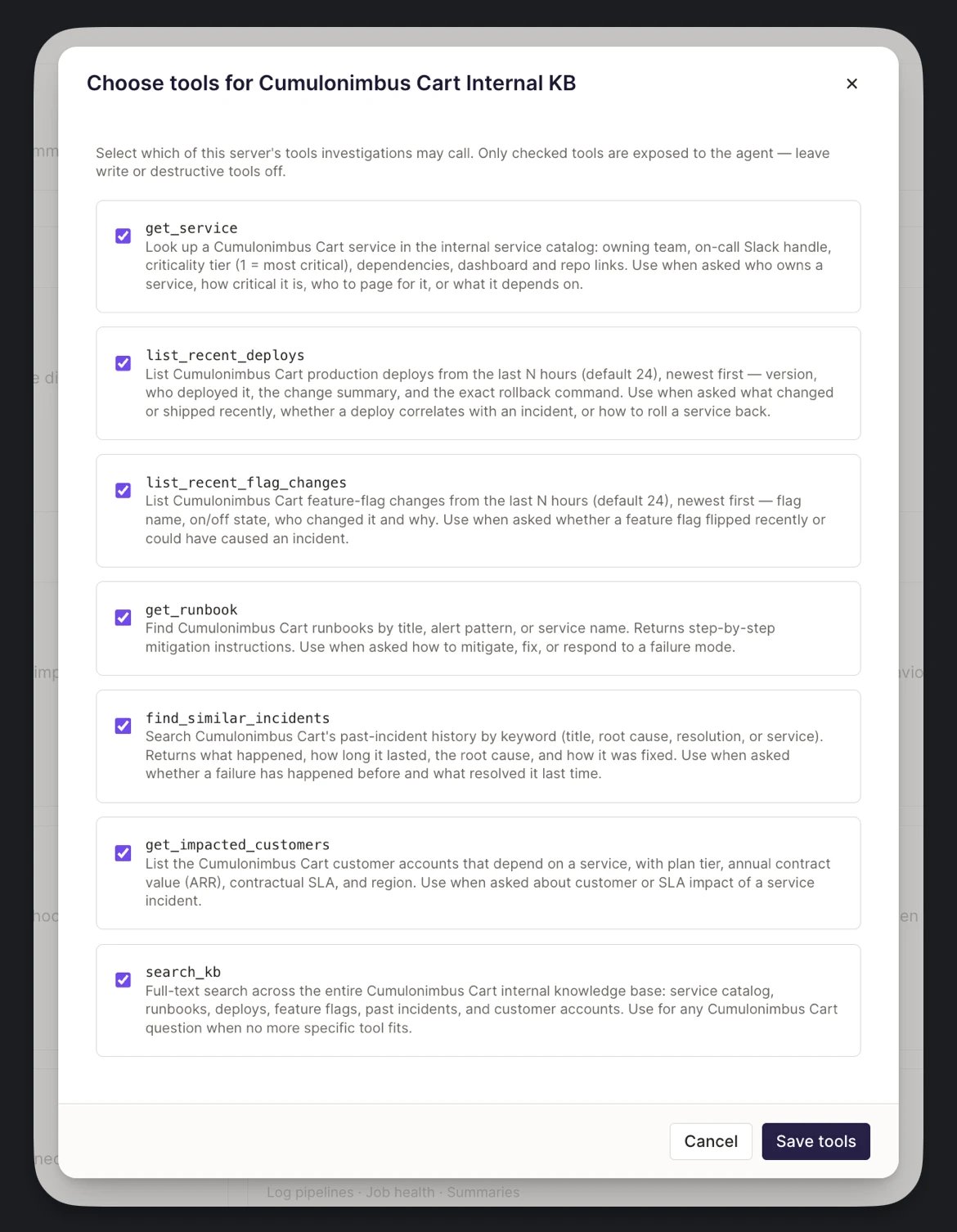
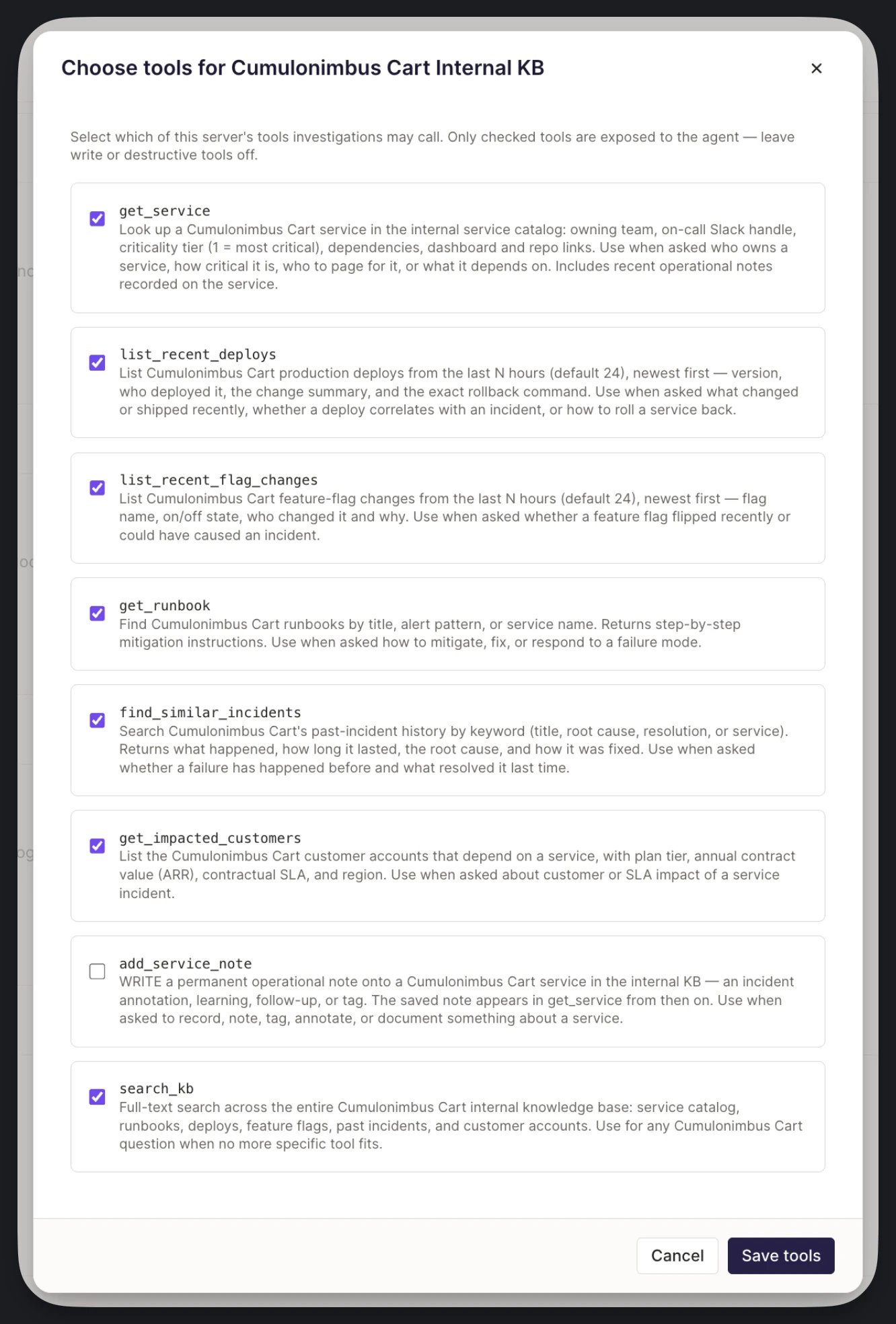
Choose Tools
During an Incident
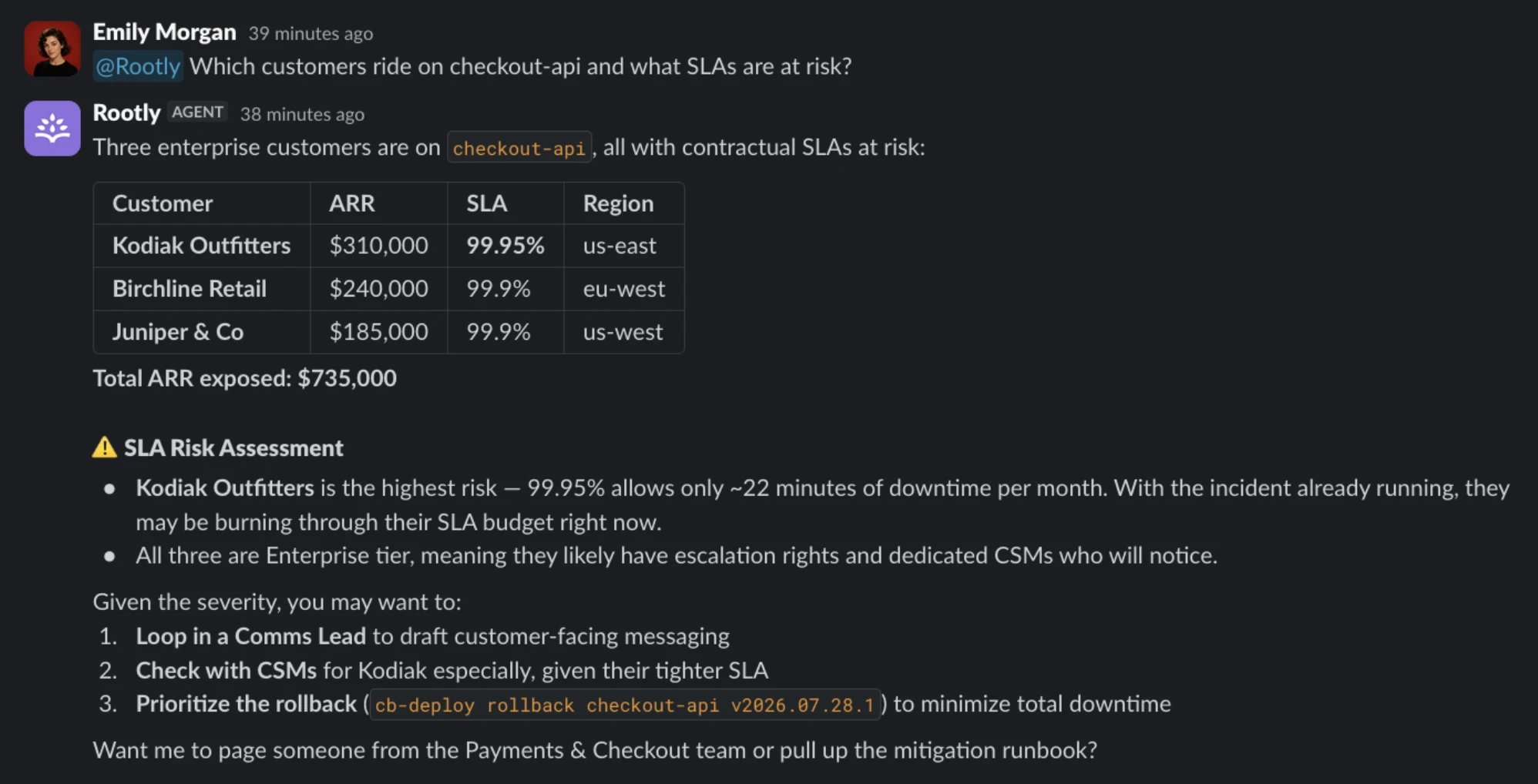
When you connect a Custom MCP endpoint, Rootly AI calls the tools you allowlist during investigations and when responders ask it questions. Teams commonly expose internal deploy trackers, feature-flag services, service catalogs, or bespoke telemetry. The examples below come from the same internal knowledge base connection as the overview. The question every responder asks first, answered from your own deploy and feature-flag history: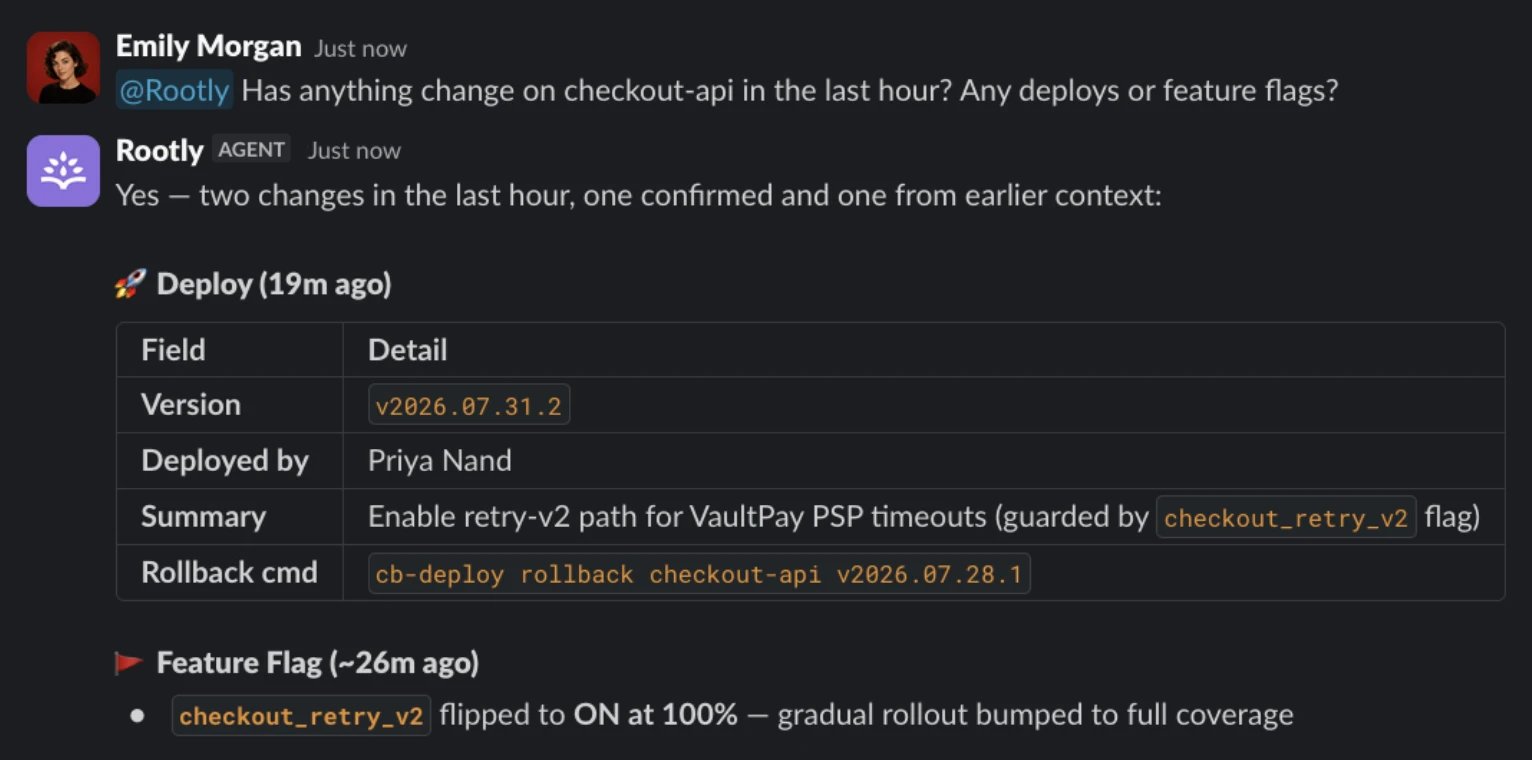
Write Tools
Built-in connectors have provider-specific tool and permission boundaries. Some expose a reviewed tool list; others expose the provider catalog, and provider-defined commands or queries can have their own write effects. The Custom connector can also act on your systems through a write-capable tool you deliberately allowlist. Here, a responder asks Rootly AI to record the incident’s findings, and the note lands in the knowledge base for whoever hits this failure mode next:
Permission and Surface Boundary
The permission to manage AI connectors controls setup, tool allowlisting, reconfiguration, and disconnection. It doesn’t gate each tool invocation. After a tool is allowlisted, AI SRE can use it during investigations, and Slack AI users can use it in incident channels, the assistant pane, and DMs. Rootly doesn’t inspect a Custom MCP tool’s semantics or automatically classify its calls as reads or writes. Consequently, Rootly doesn’t automatically add a write confirmation based on the tool’s behavior. The connected OAuth account or bearer key determines which provider data and operations are available. Only allowlist write-capable tools when they’re appropriate for every Rootly user with the Incident Response role and for autonomous AI SRE usage.Managing the Connection
Open the connection’s Configure screen to:- Change which tools are exposed. Reopen Choose tools, adjust the checkboxes, and click Save tools. Unchecking a tool takes effect on the next investigation.
- Update the endpoint URL. If you move your MCP server, point Rootly at the new host and reconnect with the selected authentication method.
- Rotate credentials. Disconnect and reconnect to authorize again with OAuth or supply a new bearer key. Revoke the old grant or key on your server.
Best Practices
- Start with a minimal allowlist. Only allowlist the tools you’re sure Rootly AI should call. It’s easier to add later than to explain a surprise tool call.
- Give the connection a descriptive name. “Internal ops MCP” or “Finance data MCP” is more useful than “Custom MCP” when Rootly AI cites it in an investigation summary. Use the optional description to record what it exposes.
- Rotate on personnel changes. An OAuth grant can be tied to the person who authorized it. Reconnect from another account when that person leaves. For a bearer key, follow your server’s key rotation policy.
- Prefer named connectors over Custom when a native one exists. First-class connectors have provider-specific setup, access controls, and troubleshooting guidance.
Troubleshooting
Save fails with 'endpoint not reachable'
Save fails with 'endpoint not reachable'
localhost, and self-signed certificates are rejected. Deploy behind a public gateway with a real cert.'Rootly couldn't complete the OAuth handshake with that server'
'Rootly couldn't complete the OAuth handshake with that server'
- Protected resource metadata is missing. Discovery begins here and everything else depends on it. Confirm
GET https://your-host/.well-known/oauth-protected-resource/<your-mcp-path>returns200with anauthorization_serversarray. Note the path suffix: the bare well-known path isn’t checked. Alternatively, return401from the MCP endpoint withWWW-Authenticate: Bearer resource_metadata="https://…". - Authorization server metadata is missing or incomplete.
/.well-known/oauth-authorization-serveron the issuer must return200and advertiseauthorization_endpoint,token_endpoint, andregistration_endpoint. Rootly has no fallback paths. Serving DCR at/registerwithout advertising it in this document still fails. If the issuer has no path, check for a 404 caused by a trailing slash on the well-known URL. - The registration endpoint doesn’t return
201 Created. A200with a valid body still fails; Rootly requires201. Check what your server returns for aPOSTto its registration path. - Your server requires a client secret. Rootly registers as a public client with
token_endpoint_auth_methodset tonone. Authorization servers that reject public-client registration can’t complete this step. - Your server rejects the requested grants. Rootly asks for
authorization_codeandrefresh_tokenwith thecoderesponse type. If your server doesn’t allow that combination for dynamically registered clients, registration fails. - Something in the chain is slow. Each discovery, registration, and token request times out after 15 seconds.
Registration succeeds but the connection fails after you sign in
Registration succeeds but the connection fails after you sign in
- No S256 PKCE support. Rootly always sends
code_challenge_method=S256. - The
resourceparameter is rejected. Rootly sends it on the authorization request, the token exchange, and every refresh. Your authorization server must accept it, not error on an unrecognized parameter. - The token endpoint requires HTTP Basic auth. As a public client, Rootly sends
client_idin the request body. - A
scopeparameter is required. Rootly doesn’t send one for custom connections. Your server needs a usable default scope.
The connection works, then stops after a while
The connection works, then stops after a while
refresh_token grant at registration; if your server registers the client but never issues refresh tokens, the connection works until the first access token expires and then every query fails. Confirm your token endpoint returns a refresh_token alongside the access token, then disconnect and reconnect.'Rootly couldn't list any tools from this server right now'
'Rootly couldn't list any tools from this server right now'
A tool I allowlisted isn't being called during investigations
A tool I allowlisted isn't being called during investigations
Disconnected on the vendor side
Disconnected on the vendor side
Frequently Asked Questions
How is Custom different from the built-in connectors?
How is Custom different from the built-in connectors?
Can I connect multiple Custom MCP endpoints?
Can I connect multiple Custom MCP endpoints?
Does the Custom connector support API keys instead of OAuth?
Does the Custom connector support API keys instead of OAuth?
Authorization: Bearer credential. OAuth is also available; it requires Dynamic Client Registration.Why does Rootly need Dynamic Client Registration?
Why does Rootly need Dynamic Client Registration?
Can I pre-register Rootly as a client instead of using DCR?
Can I pre-register Rootly as a client instead of using DCR?
Can Rootly AI write via a Custom connector?
Can Rootly AI write via a Custom connector?