> ## Documentation Index
> Fetch the complete documentation index at: https://docs.rootly.com/llms.txt
> Use this file to discover all available pages before exploring further.
# Slack
> Connect Slack to Rootly to declare incidents from chat, run a dedicated incident channel, and drive response with commands and workflows.
Rootly's Slack integration automatically creates and manages incident channels the moment an incident starts. Channels stay in sync with incident details in real time, so teams stay aligned without manual coordination.
## What You Can Do
Auto-create dedicated channels for each incident with consistent naming, topics, and bookmarks. Channels can be public or private based on incident sensitivity.
Channel topics, names, and bookmarks update automatically as incident status, severity, or details change.
Announce new incidents to designated channels, notify user groups for high-severity events, and send reminders for stale incidents or unassigned roles.
Auto-invite on-call responders, service owners, or specific user groups to incident channels based on conditions.
Declare incidents, update status, assign roles, add action items, and trigger workflows directly from Slack with `/rootly` commands.
Send rich, interactive messages with buttons for common actions like updating summary, assigning roles, or escalating to PagerDuty.
***
## How It Works
Authorize Rootly to access your Slack workspace. For Enterprise Grid, install at the organization level and add to specific workspaces.
Use **Smart Defaults** for quick channel and notification setup, or build **Custom Workflows** for advanced conditional logic.
When incidents occur, Rootly creates channels, posts announcements, invites responders, sends reminders, and archives channels when resolved.
***
## Before You Begin
**You'll need:**
* Rootly account with admin permissions
* Slack workspace admin or owner access
* For Enterprise Grid: Org Owner or Org Admin role
***
### Required Permissions
Rootly requests the following Slack permissions during installation.
| Scope | Purpose |
| -------------------------------------- | ---------------------------------------- |
| `bookmarks:write` | Add bookmarks to incident channels |
| `channels:manage` | Create public incident channels |
| `channels:read` | View public channel information |
| `chat:write` | Send messages to incident channels |
| `chat:write.public` | Post to channels without joining |
| `commands` | Add `/rootly` and `/incident` commands |
| `files:read` | Save pinned/reacted files to timeline |
| `files:write` | Upload files via workflows |
| `groups:read` | View private channels Rootly is added to |
| `groups:write` | Create private incident channels |
| `pins:read` / `pins:write` | Pin messages to incident channels |
| `reactions:read` / `reactions:write` | Add timeline events via emoji reactions |
| `usergroups:read` / `usergroups:write` | Manage on-call user groups |
| `users:read` / `users:read.email` | View user info for invitations |
| `users.profile:read` | Display full names instead of usernames |
| Scope | Purpose |
| ------------------- | -------------------------------------------- |
| `app_mentions:read` | Respond to @rootly mentions |
| `channels:history` | Read public channel history for AI features |
| `groups:history` | Read private channel history for AI features |
| `assistant:write` | Enable Rootly AI agent |
| `im:history` | Read DMs for AI agent interactions |
| Scope | Purpose |
| ------------------ | ----------------------------- |
| `usergroups:write` | On-call user group management |
**When bot cannot create channels** (some workspaces restrict this):
| Scope | Purpose |
| ---------------- | ------------------------------------------- |
| `channels:write` | Create public channels on behalf of admins |
| `groups:write` | Create private channels on behalf of admins |
| Scope | Purpose |
| ----------------------------- | ---------------------------------- |
| `conversations.connect:write` | Connect channels across workspaces |
| `admin.conversations:write` | Manage conversations at org level |
For details on Slack scopes, see [Slack's permission documentation](https://docs.slack.dev/reference/scopes).
***
## Installation
Single workspace installation. Most common setup for teams on standard Slack plans.
Organization-level installation with multi-workspace support. Requires Org Owner/Admin.
***
### Slack Free, Pro, and Business+
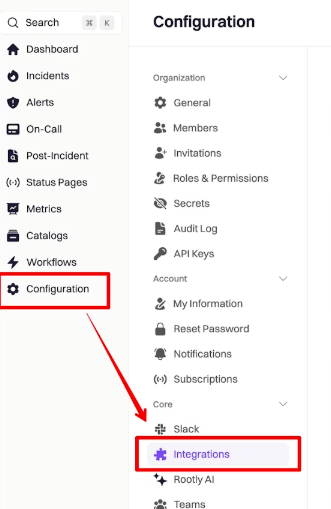
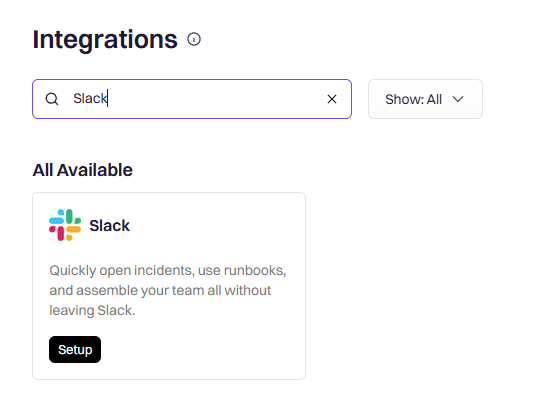
In Rootly, go to **Configuration → Integrations** and search for **Slack**. Click **Setup**.
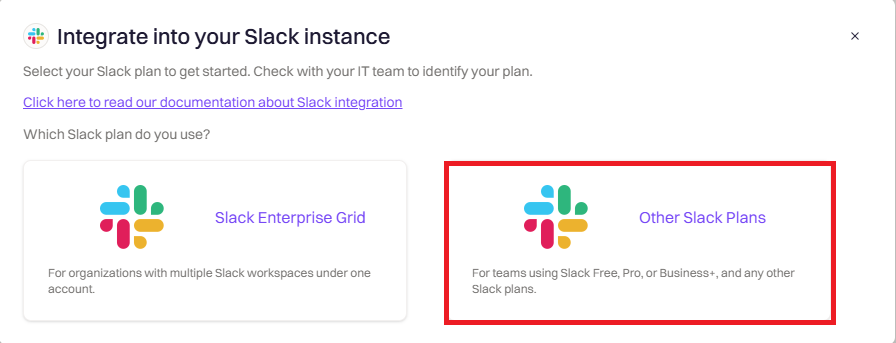
 Choose **Other Slack Plans** (this covers Free, Pro, and Business+).
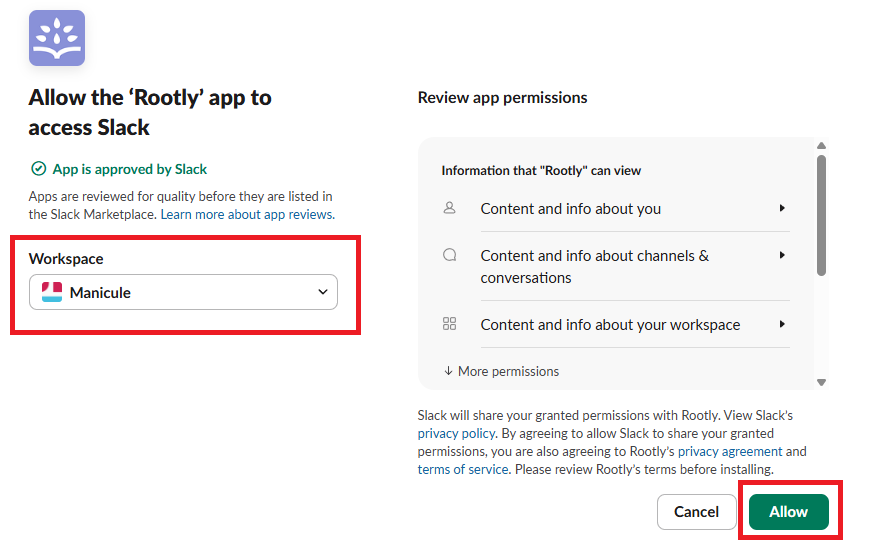
 You'll be redirected to Slack. Verify you're installing to the correct workspace (check the dropdown in the top right), then click **Allow**.
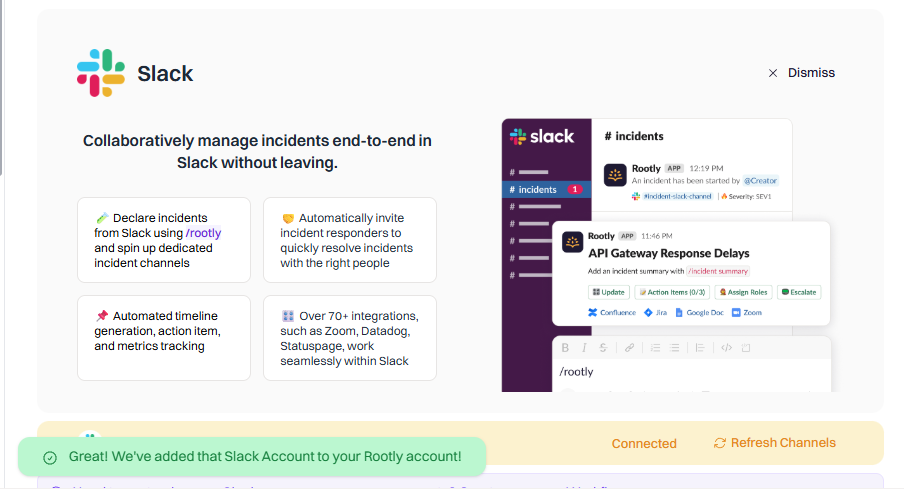
 You'll be redirected back to Rootly. The integration should show as **Connected**.
 ***
### Slack Enterprise Grid
You must be an **Org Owner** or **Org Admin** to complete Enterprise Grid setup. The install happens at the Slack organization level, so workspace-level roles (Workspace Owner, Workspace Admin) don't have the required permissions on their own.
With Enterprise Grid, you install Rootly at the organization level, then add it to specific workspaces. This lets you manage incidents across multiple workspaces from a single Rootly account.
In Rootly, go to **Configuration → Integrations** and search for **Slack**. Click **Setup**.
Choose **Slack Enterprise Grid**.
***
### Slack Enterprise Grid
You must be an **Org Owner** or **Org Admin** to complete Enterprise Grid setup. The install happens at the Slack organization level, so workspace-level roles (Workspace Owner, Workspace Admin) don't have the required permissions on their own.
With Enterprise Grid, you install Rootly at the organization level, then add it to specific workspaces. This lets you manage incidents across multiple workspaces from a single Rootly account.
In Rootly, go to **Configuration → Integrations** and search for **Slack**. Click **Setup**.
Choose **Slack Enterprise Grid**.
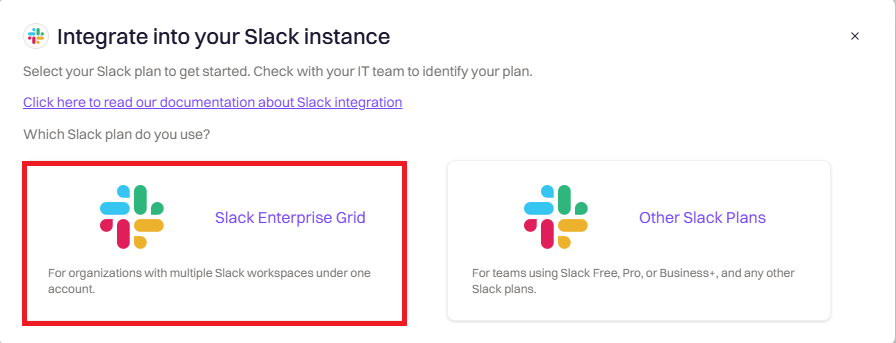 You'll be redirected to Slack. **Before clicking Allow**, verify you're installing at the **organization level** (not a single workspace).
Click **Allow** to approve Rootly as an organization-wide app.
After authorization, switch to your Slack Enterprise Grid admin portal:
1. Go to **Organization Settings → Integrations → Installed Apps**
2. Find **Rootly** in the list
3. Click the menu and select **Add to more workspaces**
4. Select which workspaces should have access to Rootly
5. Click **Next** and **Allow**
Rootly will now be available in those workspaces.
Return to Rootly and go to **Integrations → Slack → Configure**:
1. **Select incident workspace** — Choose which workspace will host your dedicated incident channels
2. **Set announcement channel** — Choose where new incidents are announced
3. **Set alerts channel** — Choose where alerts are posted
4. Click **Save Settings**
For cross-workspace visibility, create a shared incident channel:
1. In Slack, create or select a channel (for example, `#incidents`)
2. Click the channel name → **Settings** → **Workspaces with access**
3. Add all workspaces that should see incident announcements
This way, users in any workspace can see incidents declared from any other workspace.
***
### Switching From a Workspace Install to Enterprise Grid
If Rootly was originally installed at the **workspace** level (Slack Free / Pro / Business+) and you now want Enterprise Grid features — multi-workspace channel selection, Forms across workspaces, pin-to-timeline, shared cross-workspace incident channels — you need to **disconnect and reinstall** Rootly with the Enterprise Grid option selected.
The install-mode choice (workspace install vs Enterprise Grid install) is set **once during installation**. There is no setting in the Rootly UI to switch between the two modes after the fact. If you dismissed the install-mode prompt or originally picked workspace install, the only way to access Enterprise Grid features is to disconnect and reinstall.
**Slack-driven automation is unavailable during the disconnect-reinstall window.** Between the disconnect and the completed Enterprise Grid reinstall (including Add-to-Workspaces and channel reselection), the following stop working: `/incident` and other Slack slash commands, incident channel auto-creation, Slack notifications from workflows, `/rootly` alert commands, and any workflow action that posts to or invites into a Slack channel. Web-based incident creation and non-Slack integrations remain fully functional. **Plan the switch during a quiet operational window** — most teams schedule it outside of business hours or during a maintenance window so an active incident doesn't collide with the reinstall.
#### What's Preserved Across The Reinstall
Disconnecting and reinstalling the Slack integration only resets the **Slack integration's own settings** — the broader Rootly configuration around it stays intact. Specifically:
| Stays intact | Resets and needs to be re-set |
| ------------------------------------------------------------- | ----------------------------------------- |
| Incident workflows (triggers, conditions, actions) | Slack incident workspace selection |
| On-call schedules and escalation policies | Announcement channel |
| Other integrations (Jira, Datadog, PagerDuty, etc.) | Alerts channel |
| Channel and user references stored on existing Rootly records | Slack Smart Defaults |
| Historical incidents, timelines, retrospectives | App scopes (re-authorized during install) |
Existing workflow actions that reference specific Slack channels or users **do not need to be edited** after the reinstall — **as long as Rootly is re-added to every workspace that hosts those channels or users during the Enterprise Grid install**. Channel and user references are stored on the Rootly side and continue to resolve correctly once Rootly is present in the workspace again. You gain the *ability* to change which workspace a channel is selected from going forward, but you don't have to retroactively update anything. If Rootly is not added back to a workspace, actions that reference channels or users in that workspace will fail at execution time — this is the biggest reason to be deliberate about which workspaces you add Rootly to during Step 2.
#### Procedure
In Rootly, go to **Configuration → Integrations**, find **Slack**, click **Connected** to reveal the disconnect option, then click **Disconnect**.
See [Uninstall](#uninstall) for the full disconnect steps, including how to also remove Rootly from your Slack workspace (recommended before reinstalling to avoid lingering app state).
Restart the installation flow from **Configuration → Integrations → Slack → Setup**. When the install-mode prompt appears, choose **Slack Enterprise Grid** and follow the [Enterprise Grid install steps](#slack-enterprise-grid) above.
You must be an **Org Owner** or **Org Admin** to complete the Enterprise Grid setup — the install happens at the Slack organization level, so workspace-level roles aren't sufficient on their own. If your account doesn't have the required role, ask an Org Owner or Org Admin to complete this step.
After the Enterprise Grid install completes, set:
* The incident workspace (which workspace hosts dedicated incident channels)
* The announcement channel
* The alerts channel
* Smart Defaults as needed
These are the settings that were reset during the reinstall. Your workflows, schedules, and other integration configurations are unchanged.
Open a few of your most-used incident workflows and confirm their Slack actions still resolve to the expected channels. In almost every case they will — references are preserved across the reinstall — but spot-checking a couple of high-traffic workflows gives you a sanity check before the next incident.
If your organization isn't on a Slack Enterprise Grid plan, the Enterprise Grid option won't appear during the install flow. See the **Enterprise Grid option not showing** accordion in [Troubleshooting](#troubleshooting) below for the most common causes.
***
### Re-Claiming the /incident Command
During the transition to Rootly, you may experience issues where Rootly's bot claims the `/incident` Slack command from your existing bot. When multiple bots use the same command, [Slack will always invoke the one that was installed most recently](https://docs.slack.dev/interactivity/implementing-slash-commands/#naming_your_command). If this interrupts your transition, follow the steps below to reclaim the `/incident` command from Rootly.
#### Option 1 (Recommended)
This is the safest method — it does not result in a blackout period where your old bot is unusable.
1. Ensure Rootly is already installed on your Slack workspace.
2. Update your old bot's Slack command from `/incident` to a placeholder (for example, `/incident-1`).
3. Save the change.
4. Change the command of your old bot back to `/incident`.
Slack recognizes an update to the command as a new installation. This should make your old bot the "most recently installed bot" that uses the `/incident` command.
#### Option 2
If Option 1 does not work, try this option. There will be a brief blackout period where your old bot is unusable.
1. Ensure Rootly is already installed on your Slack workspace.
2. Uninstall your old bot.
3. Reinstall your old bot.
This is effectively the same as Option 1 — the reinstallation reclaims the `/incident` command from Rootly.
#### Enterprise Grid Consideration
If the issue persists after trying the above, check your installation scope. If **Rootly is installed at the Slack organization level** (Slack Enterprise Grid), you must also reinstall your old bot at the **Slack organization level**, not just at the workspace level.
***
## Smart Defaults
Smart Defaults let you configure automatic Slack behaviors without building custom workflows. Enable channel creation, set up announcements, configure reminders, and manage archiving from a single settings panel.
**New vs Existing Customers:**
* **New customers** have Smart Defaults enabled by default and can manage incidents immediately
* **Existing customers** have Smart Defaults disabled to avoid disrupting existing workflow configurations
***
1. Go to **Configuration → Integrations → Slack**
2. Click **Configure**
3. You'll see the Smart Defaults panel
***
### Workspace Setup
You'll be redirected to Slack. **Before clicking Allow**, verify you're installing at the **organization level** (not a single workspace).
Click **Allow** to approve Rootly as an organization-wide app.
After authorization, switch to your Slack Enterprise Grid admin portal:
1. Go to **Organization Settings → Integrations → Installed Apps**
2. Find **Rootly** in the list
3. Click the menu and select **Add to more workspaces**
4. Select which workspaces should have access to Rootly
5. Click **Next** and **Allow**
Rootly will now be available in those workspaces.
Return to Rootly and go to **Integrations → Slack → Configure**:
1. **Select incident workspace** — Choose which workspace will host your dedicated incident channels
2. **Set announcement channel** — Choose where new incidents are announced
3. **Set alerts channel** — Choose where alerts are posted
4. Click **Save Settings**
For cross-workspace visibility, create a shared incident channel:
1. In Slack, create or select a channel (for example, `#incidents`)
2. Click the channel name → **Settings** → **Workspaces with access**
3. Add all workspaces that should see incident announcements
This way, users in any workspace can see incidents declared from any other workspace.
***
### Switching From a Workspace Install to Enterprise Grid
If Rootly was originally installed at the **workspace** level (Slack Free / Pro / Business+) and you now want Enterprise Grid features — multi-workspace channel selection, Forms across workspaces, pin-to-timeline, shared cross-workspace incident channels — you need to **disconnect and reinstall** Rootly with the Enterprise Grid option selected.
The install-mode choice (workspace install vs Enterprise Grid install) is set **once during installation**. There is no setting in the Rootly UI to switch between the two modes after the fact. If you dismissed the install-mode prompt or originally picked workspace install, the only way to access Enterprise Grid features is to disconnect and reinstall.
**Slack-driven automation is unavailable during the disconnect-reinstall window.** Between the disconnect and the completed Enterprise Grid reinstall (including Add-to-Workspaces and channel reselection), the following stop working: `/incident` and other Slack slash commands, incident channel auto-creation, Slack notifications from workflows, `/rootly` alert commands, and any workflow action that posts to or invites into a Slack channel. Web-based incident creation and non-Slack integrations remain fully functional. **Plan the switch during a quiet operational window** — most teams schedule it outside of business hours or during a maintenance window so an active incident doesn't collide with the reinstall.
#### What's Preserved Across The Reinstall
Disconnecting and reinstalling the Slack integration only resets the **Slack integration's own settings** — the broader Rootly configuration around it stays intact. Specifically:
| Stays intact | Resets and needs to be re-set |
| ------------------------------------------------------------- | ----------------------------------------- |
| Incident workflows (triggers, conditions, actions) | Slack incident workspace selection |
| On-call schedules and escalation policies | Announcement channel |
| Other integrations (Jira, Datadog, PagerDuty, etc.) | Alerts channel |
| Channel and user references stored on existing Rootly records | Slack Smart Defaults |
| Historical incidents, timelines, retrospectives | App scopes (re-authorized during install) |
Existing workflow actions that reference specific Slack channels or users **do not need to be edited** after the reinstall — **as long as Rootly is re-added to every workspace that hosts those channels or users during the Enterprise Grid install**. Channel and user references are stored on the Rootly side and continue to resolve correctly once Rootly is present in the workspace again. You gain the *ability* to change which workspace a channel is selected from going forward, but you don't have to retroactively update anything. If Rootly is not added back to a workspace, actions that reference channels or users in that workspace will fail at execution time — this is the biggest reason to be deliberate about which workspaces you add Rootly to during Step 2.
#### Procedure
In Rootly, go to **Configuration → Integrations**, find **Slack**, click **Connected** to reveal the disconnect option, then click **Disconnect**.
See [Uninstall](#uninstall) for the full disconnect steps, including how to also remove Rootly from your Slack workspace (recommended before reinstalling to avoid lingering app state).
Restart the installation flow from **Configuration → Integrations → Slack → Setup**. When the install-mode prompt appears, choose **Slack Enterprise Grid** and follow the [Enterprise Grid install steps](#slack-enterprise-grid) above.
You must be an **Org Owner** or **Org Admin** to complete the Enterprise Grid setup — the install happens at the Slack organization level, so workspace-level roles aren't sufficient on their own. If your account doesn't have the required role, ask an Org Owner or Org Admin to complete this step.
After the Enterprise Grid install completes, set:
* The incident workspace (which workspace hosts dedicated incident channels)
* The announcement channel
* The alerts channel
* Smart Defaults as needed
These are the settings that were reset during the reinstall. Your workflows, schedules, and other integration configurations are unchanged.
Open a few of your most-used incident workflows and confirm their Slack actions still resolve to the expected channels. In almost every case they will — references are preserved across the reinstall — but spot-checking a couple of high-traffic workflows gives you a sanity check before the next incident.
If your organization isn't on a Slack Enterprise Grid plan, the Enterprise Grid option won't appear during the install flow. See the **Enterprise Grid option not showing** accordion in [Troubleshooting](#troubleshooting) below for the most common causes.
***
### Re-Claiming the /incident Command
During the transition to Rootly, you may experience issues where Rootly's bot claims the `/incident` Slack command from your existing bot. When multiple bots use the same command, [Slack will always invoke the one that was installed most recently](https://docs.slack.dev/interactivity/implementing-slash-commands/#naming_your_command). If this interrupts your transition, follow the steps below to reclaim the `/incident` command from Rootly.
#### Option 1 (Recommended)
This is the safest method — it does not result in a blackout period where your old bot is unusable.
1. Ensure Rootly is already installed on your Slack workspace.
2. Update your old bot's Slack command from `/incident` to a placeholder (for example, `/incident-1`).
3. Save the change.
4. Change the command of your old bot back to `/incident`.
Slack recognizes an update to the command as a new installation. This should make your old bot the "most recently installed bot" that uses the `/incident` command.
#### Option 2
If Option 1 does not work, try this option. There will be a brief blackout period where your old bot is unusable.
1. Ensure Rootly is already installed on your Slack workspace.
2. Uninstall your old bot.
3. Reinstall your old bot.
This is effectively the same as Option 1 — the reinstallation reclaims the `/incident` command from Rootly.
#### Enterprise Grid Consideration
If the issue persists after trying the above, check your installation scope. If **Rootly is installed at the Slack organization level** (Slack Enterprise Grid), you must also reinstall your old bot at the **Slack organization level**, not just at the workspace level.
***
## Smart Defaults
Smart Defaults let you configure automatic Slack behaviors without building custom workflows. Enable channel creation, set up announcements, configure reminders, and manage archiving from a single settings panel.
**New vs Existing Customers:**
* **New customers** have Smart Defaults enabled by default and can manage incidents immediately
* **Existing customers** have Smart Defaults disabled to avoid disrupting existing workflow configurations
***
1. Go to **Configuration → Integrations → Slack**
2. Click **Configure**
3. You'll see the Smart Defaults panel
***
### Workspace Setup
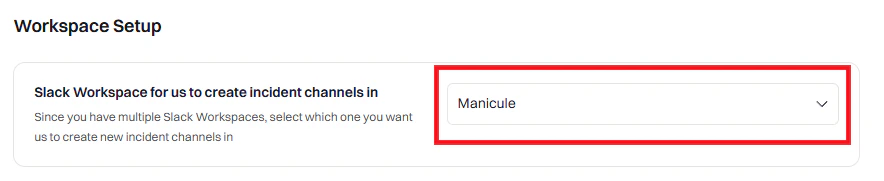 Select the Slack workspace where incident channels will be created.
Most users see one workspace. **Enterprise Grid** customers may see multiple workspaces.
The selected workspace determines which users, groups, and channels appear in Rootly dropdowns.
***
### Notifications
Configure what messages Rootly sends to Slack.
#### Team Notifications
Select the Slack workspace where incident channels will be created.
Most users see one workspace. **Enterprise Grid** customers may see multiple workspaces.
The selected workspace determines which users, groups, and channels appear in Rootly dropdowns.
***
### Notifications
Configure what messages Rootly sends to Slack.
#### Team Notifications
 Announces every new **public** incident in a specified channel. [Private incidents](/incidents/private-incidents/private-incidents) are excluded from this announcement.
 Rootly refreshes channels daily. Click **Refresh channels** if a channel doesn't appear.
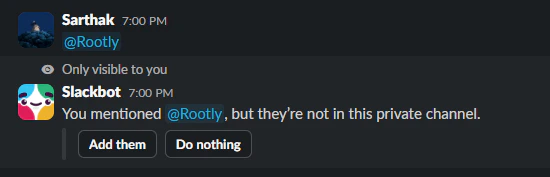
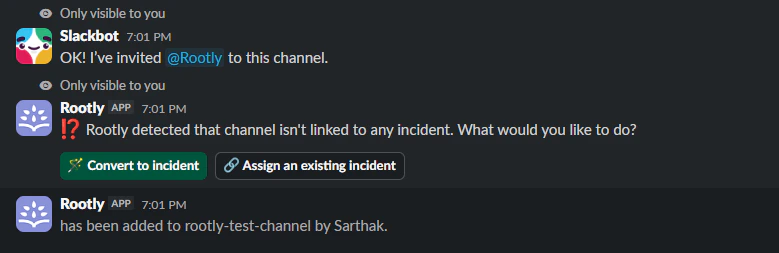
For **private channels**, the Rootly bot must be added first. Send `@Rootly` in the channel to invite the bot.
Rootly refreshes channels daily. Click **Refresh channels** if a channel doesn't appear.
For **private channels**, the Rootly bot must be added first. Send `@Rootly` in the channel to invite the bot.
 Notify specific users, groups, or channels when high-severity incidents are declared.
See [Severities](/configuration/severities) to configure severity levels.
Announces new alerts in a specified channel. Messages auto-update as alerts are acknowledged, escalated, or resolved.
For conditional routing (for example, different channels per team), use a Custom Workflow.
#### Smart Reminders
Notify specific users, groups, or channels when high-severity incidents are declared.
See [Severities](/configuration/severities) to configure severity levels.
Announces new alerts in a specified channel. Messages auto-update as alerts are acknowledged, escalated, or resolved.
For conditional routing (for example, different channels per team), use a Custom Workflow.
#### Smart Reminders
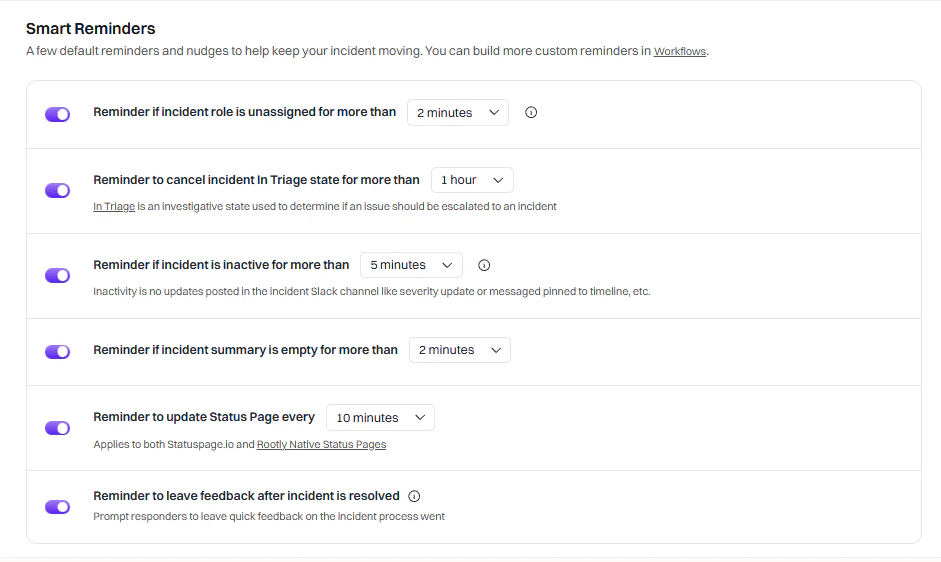 | Reminder | What It Does |
| ---------------------- | ------------------------------------------------------------ |
| **Unassigned roles** | Notifies if no incident roles are assigned within a set time |
| **Triage timeout** | Notifies if incident stays in Triage state too long |
| **Inactive incident** | Notifies if no activity occurs within a set time |
| **Empty summary** | Notifies if incident summary remains blank |
| **Status page update** | Periodic reminder to update status pages |
| **Leave feedback** | Reminder to log feedback after resolution |
**What counts as "activity"?**
* Updating the incident summary ✓
* Using 📌 emoji to log timeline events ✓
* Regular messages in the channel ✗ (does not count)
#### Updates
| Reminder | What It Does |
| ---------------------- | ------------------------------------------------------------ |
| **Unassigned roles** | Notifies if no incident roles are assigned within a set time |
| **Triage timeout** | Notifies if incident stays in Triage state too long |
| **Inactive incident** | Notifies if no activity occurs within a set time |
| **Empty summary** | Notifies if incident summary remains blank |
| **Status page update** | Periodic reminder to update status pages |
| **Leave feedback** | Reminder to log feedback after resolution |
**What counts as "activity"?**
* Updating the incident summary ✓
* Using 📌 emoji to log timeline events ✓
* Regular messages in the channel ✗ (does not count)
#### Updates
 | Setting | What It Does |
| ------------------------------------- | ---------------------------------------------- |
| **Status change notifications** | Post to channel when incident status changes |
| **Status page notifications** | Post when a status page is updated |
| **Draft communication notifications** | Post when a draft communication is created |
| **Timeline pin reaction** | Add ✅ emoji when events are pinned to timeline |
| **Pin timeline events** | Pin timeline updates to the Slack channel |
#### Advanced
| Setting | What It Does |
| ------------------------------------- | ---------------------------------------------- |
| **Status change notifications** | Post to channel when incident status changes |
| **Status page notifications** | Post when a status page is updated |
| **Draft communication notifications** | Post when a draft communication is created |
| **Timeline pin reaction** | Add ✅ emoji when events are pinned to timeline |
| **Pin timeline events** | Pin timeline updates to the Slack channel |
#### Advanced
 | Setting | What It Does |
| ----------------------------- | -------------------------------------------------------------------------------------------- |
| **Broadcast incident events** | Post timeline updates as new messages instead of threading them. Noisier but harder to miss. |
| **Mention and tag @user** | Tag users mentioned by Rootly in timeline updates. Disable to reduce notification fatigue. |
***
### Incident Channel
Configure how incident channels are created and managed.
#### Channel Settings
| Setting | What It Does |
| ----------------------------- | -------------------------------------------------------------------------------------------- |
| **Broadcast incident events** | Post timeline updates as new messages instead of threading them. Noisier but harder to miss. |
| **Mention and tag @user** | Tag users mentioned by Rootly in timeline updates. Disable to reduce notification fatigue. |
***
### Incident Channel
Configure how incident channels are created and managed.
#### Channel Settings
 | Setting | What It Does |
| ------------------------------- | ---------------------------------------------------------------------------------------------------------- |
| **Create incident channel** | Auto-create a Slack channel for each new incident. Highly recommended. |
| **Channel naming convention** | Select from predefined formats or create custom names using [Liquid variables](/liquid/incident-variables) |
| **Auto-bookmark incident link** | Add a bookmark linking to the incident in Rootly web UI |
| **Auto-update channel topic** | Update topic when severity, status, type, or environment changes |
Slack doesn't allow duplicate channel names. Predefined options ensure uniqueness. For custom names, include unique identifiers like `{{ incident.sequential_id }}`.
**Example custom channel names:**
* `inc-{{ incident.sequential_id }}-{{ incident.title | slugify }}`
* `{{ incident.severity | downcase }}-{{ incident.created_at | date: '%Y%m%d' }}-{{ incident.title | truncate: 20 }}`
#### Bypass Slack Permissions
| Setting | What It Does |
| ------------------------------- | ---------------------------------------------------------------------------------------------------------- |
| **Create incident channel** | Auto-create a Slack channel for each new incident. Highly recommended. |
| **Channel naming convention** | Select from predefined formats or create custom names using [Liquid variables](/liquid/incident-variables) |
| **Auto-bookmark incident link** | Add a bookmark linking to the incident in Rootly web UI |
| **Auto-update channel topic** | Update topic when severity, status, type, or environment changes |
Slack doesn't allow duplicate channel names. Predefined options ensure uniqueness. For custom names, include unique identifiers like `{{ incident.sequential_id }}`.
**Example custom channel names:**
* `inc-{{ incident.sequential_id }}-{{ incident.title | slugify }}`
* `{{ incident.severity | downcase }}-{{ incident.created_at | date: '%Y%m%d' }}-{{ incident.title | truncate: 20 }}`
#### Bypass Slack Permissions
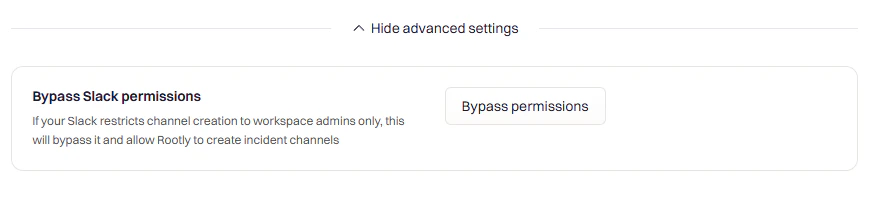 Some workspaces restrict channel creation to admins. Enable this to let Rootly create channels on behalf of admin users.
Check with your Slack admin before enabling. This requires additional user scopes.
#### Emoji Shortcuts
Some workspaces restrict channel creation to admins. Enable this to let Rootly create channels on behalf of admin users.
Check with your Slack admin before enabling. This requires additional user scopes.
#### Emoji Shortcuts
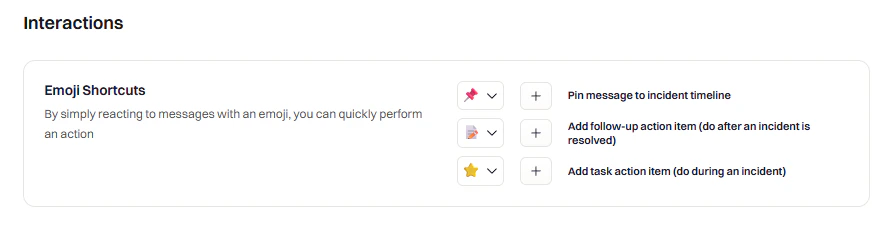 Configure emoji reactions to trigger actions:
| Default Emoji | Action |
| ------------- | -------------------------------- |
| 📌 | Add message to incident timeline |
| 🔧 | Create a follow-up action item |
| ⭐ | Create a task |
Choose uncommon emojis to avoid accidental triggers. Avoid 👍, 😄, or other frequently used reactions.
#### Archive Channels
Configure emoji reactions to trigger actions:
| Default Emoji | Action |
| ------------- | -------------------------------- |
| 📌 | Add message to incident timeline |
| 🔧 | Create a follow-up action item |
| ⭐ | Create a task |
Choose uncommon emojis to avoid accidental triggers. Avoid 👍, 😄, or other frequently used reactions.
#### Archive Channels
 | Setting | What It Does |
| ---------------------------------- | --------------------------------------------------------------------------------------- |
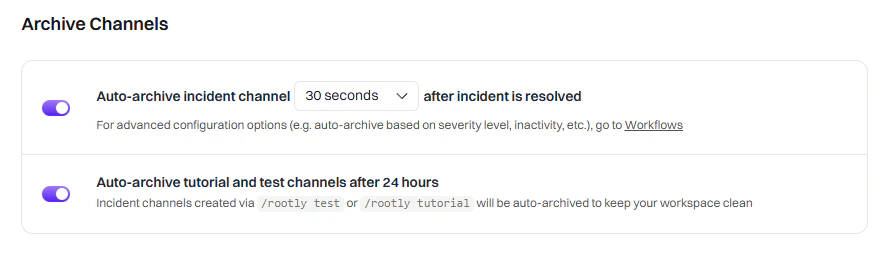
| **Auto-archive incident channels** | Archive channels after resolution. Set a delay (1-2 days recommended) to allow cleanup. |
| **Auto-archive test incidents** | Archive test/tutorial channels 24 hours after creation |
#### Member Tracking
| Setting | What It Does |
| ---------------------------------- | --------------------------------------------------------------------------------------- |
| **Auto-archive incident channels** | Archive channels after resolution. Set a delay (1-2 days recommended) to allow cleanup. |
| **Auto-archive test incidents** | Archive test/tutorial channels 24 hours after creation |
#### Member Tracking
 | Setting | What It Does |
| ---------------------------- | ------------------------------------------------------ |
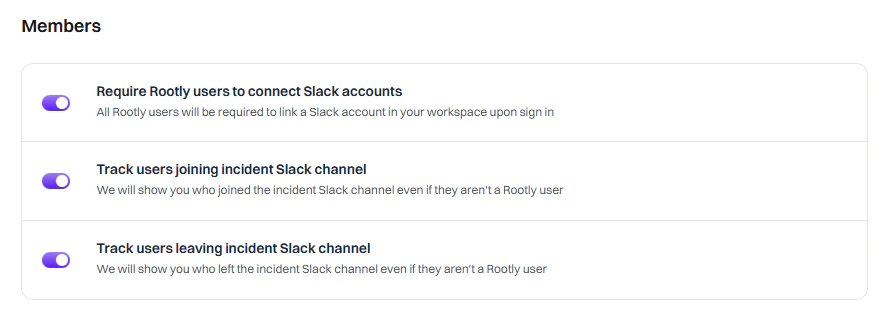
| **Require Slack connection** | Force all Rootly users to connect their Slack accounts |
| **Track joins** | Log when users join incident channels to the timeline |
| **Track leaves** | Log when users leave incident channels to the timeline |
***
### When to Use Custom Workflows Instead
Smart Defaults cover common scenarios, but use Custom Workflows when you need:
* **Conditional logic** — Different channels for different teams or severities
* **Multi-step automations** — Invite users, then send a message, then add a bookmark
* **Integration actions** — Create Jira tickets, page PagerDuty, update status pages
* **Scheduled/delayed actions** — Send reminders at specific intervals
* **Custom message formatting** — Use Block Kit for rich interactive messages
## Workflows
**Quick setup, no code**
Pre-configured settings for channel creation, topics, notifications, and reminders.
**Full control**
Build conditional automations with triggers, conditions, and 10+ Slack actions.
### Available Actions
Custom workflows give you full control over Slack automation. Create channels, send messages, invite users, and more based on triggers and conditions you define. If you're new to workflows, see the [Workflows](/workflows/workflows) documentation first.
***
| Action | What It Does |
| --------------------------------------------------- | ----------------------------------------- |
| [Create Slack Channel](#create-slack-channel) | Create a dedicated incident channel |
| [Send Slack Message](#send-slack-message) | Post a message to channels/users |
| [Send Slack Reminder](#send-slack-reminder) | Send recurring messages with snooze/pause |
| [Send Slack Blocks](#send-slack-blocks) | Send rich Block Kit messages |
| [Invite to Slack Channel](#invite-to-slack-channel) | Add users/groups to a channel |
| [Rename Slack Channel](#rename-slack-channel) | Change channel name dynamically |
| [Update Channel Topic](#update-channel-topic) | Update the channel topic |
| [Add Slack Bookmark](#add-slack-bookmark) | Pin links to channel bookmark bar |
| [Archive Slack Channel](#archive-slack-channel) | Archive inactive channels |
| [Change Channel Privacy](#change-channel-privacy) | Switch between public/private |
***
### Create a Workflow
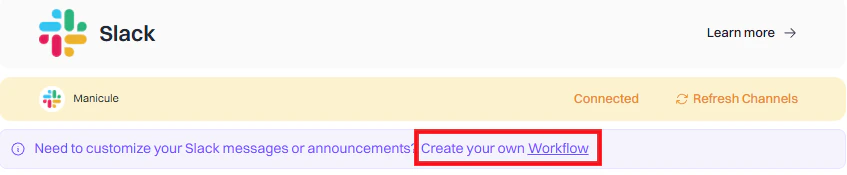
Go to **Rootly → Workflows → Create Workflow**.
| Setting | What It Does |
| ---------------------------- | ------------------------------------------------------ |
| **Require Slack connection** | Force all Rootly users to connect their Slack accounts |
| **Track joins** | Log when users join incident channels to the timeline |
| **Track leaves** | Log when users leave incident channels to the timeline |
***
### When to Use Custom Workflows Instead
Smart Defaults cover common scenarios, but use Custom Workflows when you need:
* **Conditional logic** — Different channels for different teams or severities
* **Multi-step automations** — Invite users, then send a message, then add a bookmark
* **Integration actions** — Create Jira tickets, page PagerDuty, update status pages
* **Scheduled/delayed actions** — Send reminders at specific intervals
* **Custom message formatting** — Use Block Kit for rich interactive messages
## Workflows
**Quick setup, no code**
Pre-configured settings for channel creation, topics, notifications, and reminders.
**Full control**
Build conditional automations with triggers, conditions, and 10+ Slack actions.
### Available Actions
Custom workflows give you full control over Slack automation. Create channels, send messages, invite users, and more based on triggers and conditions you define. If you're new to workflows, see the [Workflows](/workflows/workflows) documentation first.
***
| Action | What It Does |
| --------------------------------------------------- | ----------------------------------------- |
| [Create Slack Channel](#create-slack-channel) | Create a dedicated incident channel |
| [Send Slack Message](#send-slack-message) | Post a message to channels/users |
| [Send Slack Reminder](#send-slack-reminder) | Send recurring messages with snooze/pause |
| [Send Slack Blocks](#send-slack-blocks) | Send rich Block Kit messages |
| [Invite to Slack Channel](#invite-to-slack-channel) | Add users/groups to a channel |
| [Rename Slack Channel](#rename-slack-channel) | Change channel name dynamically |
| [Update Channel Topic](#update-channel-topic) | Update the channel topic |
| [Add Slack Bookmark](#add-slack-bookmark) | Pin links to channel bookmark bar |
| [Archive Slack Channel](#archive-slack-channel) | Archive inactive channels |
| [Change Channel Privacy](#change-channel-privacy) | Switch between public/private |
***
### Create a Workflow
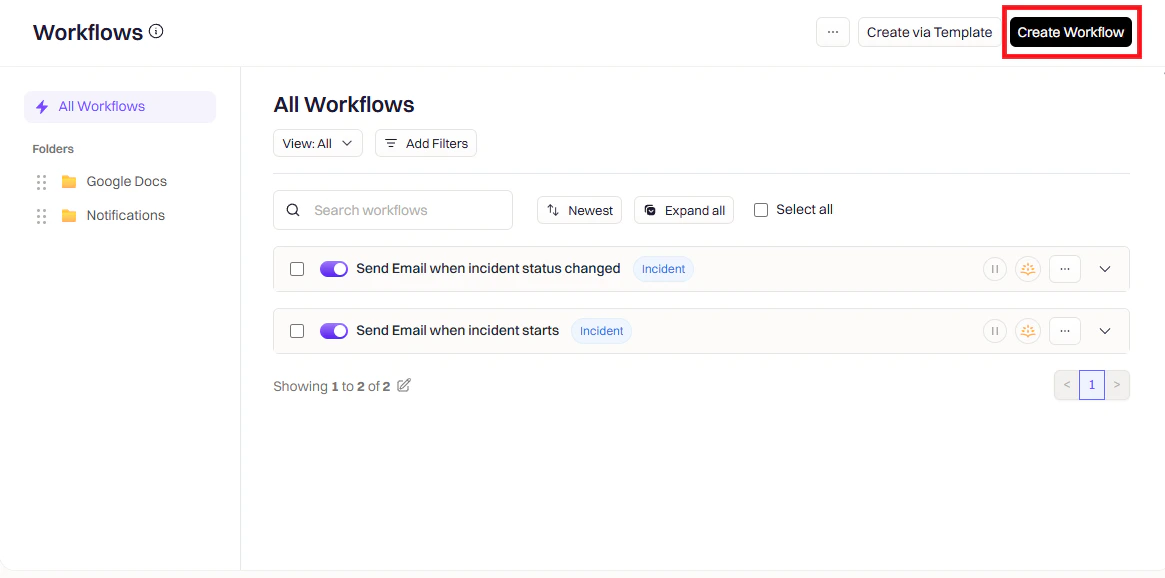
Go to **Rootly → Workflows → Create Workflow**.
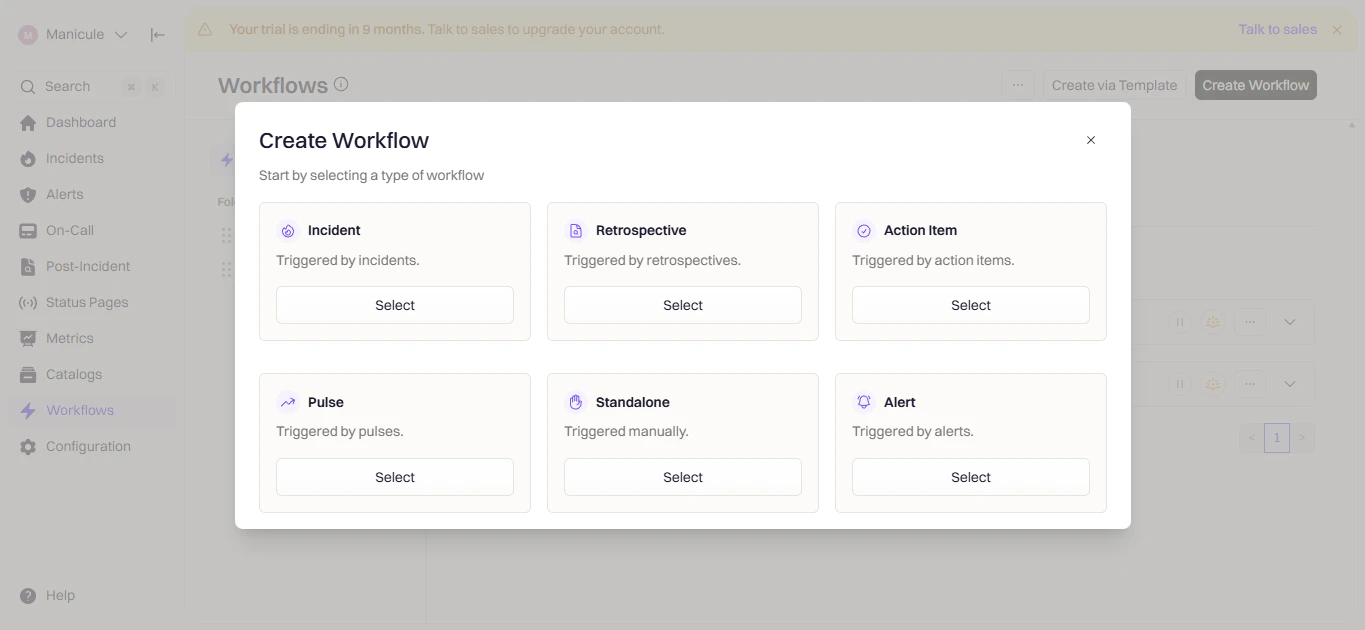 Select **Incident**, **Retrospective**, or **Pulse** depending on when you want the workflow to run.
 Triggers define when the workflow runs.
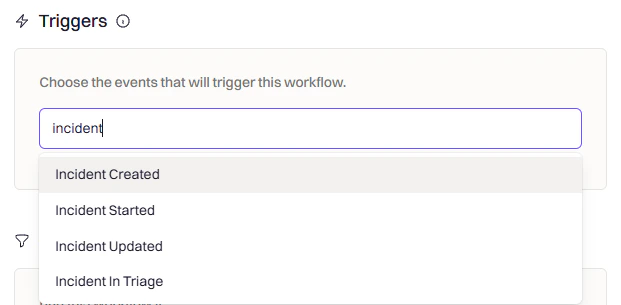 | Trigger | When It Fires |
| ------------------------------- | ---------------------------------------------- |
| **Incident Created** | New incident declared |
| **Incident Updated** | Fields like severity or status change |
| **Incident Status Changed** | Status moves (for example, Active → Mitigated) |
| **Incident Commander Assigned** | Someone takes ownership |
| **Manual Trigger** | Run on-demand from Slack or web UI |
Conditions filter when the workflow should actually execute.
| Trigger | When It Fires |
| ------------------------------- | ---------------------------------------------- |
| **Incident Created** | New incident declared |
| **Incident Updated** | Fields like severity or status change |
| **Incident Status Changed** | Status moves (for example, Active → Mitigated) |
| **Incident Commander Assigned** | Someone takes ownership |
| **Manual Trigger** | Run on-demand from Slack or web UI |
Conditions filter when the workflow should actually execute.
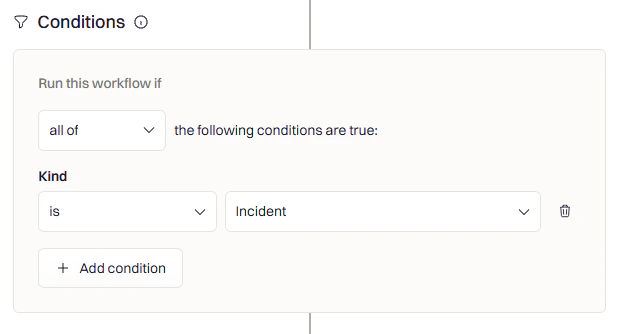 **Common conditions:**
* **Severity** — Only for SEV-1 or SEV-2
* **Team/Service** — Only for specific teams
* **Incident Type** — Only for actual incidents (not tests)
* **Environment** — Only for production
Click **Add Action** and search for **Slack**.
**Common conditions:**
* **Severity** — Only for SEV-1 or SEV-2
* **Team/Service** — Only for specific teams
* **Incident Type** — Only for actual incidents (not tests)
* **Environment** — Only for production
Click **Add Action** and search for **Slack**.
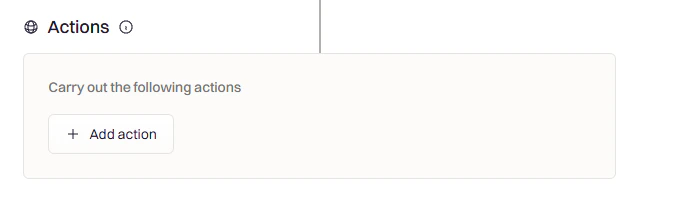
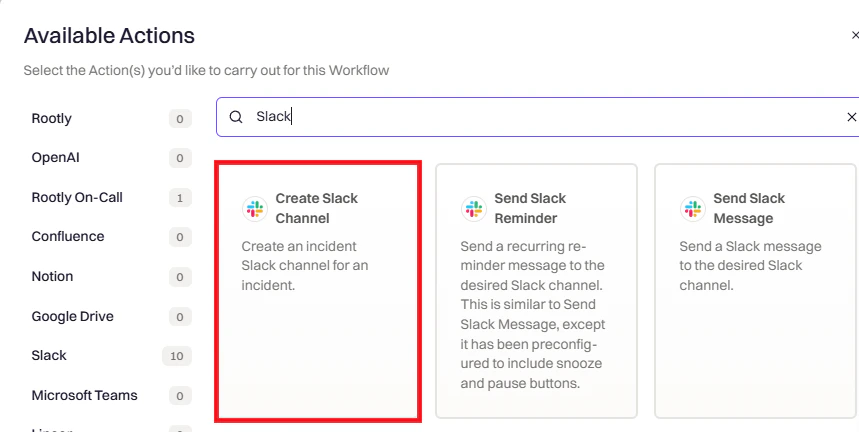 Select one or more Slack actions. Each action is configured independently.
***
### Action Reference
Creates a dedicated channel for the incident.
Select one or more Slack actions. Each action is configured independently.
***
### Action Reference
Creates a dedicated channel for the incident.
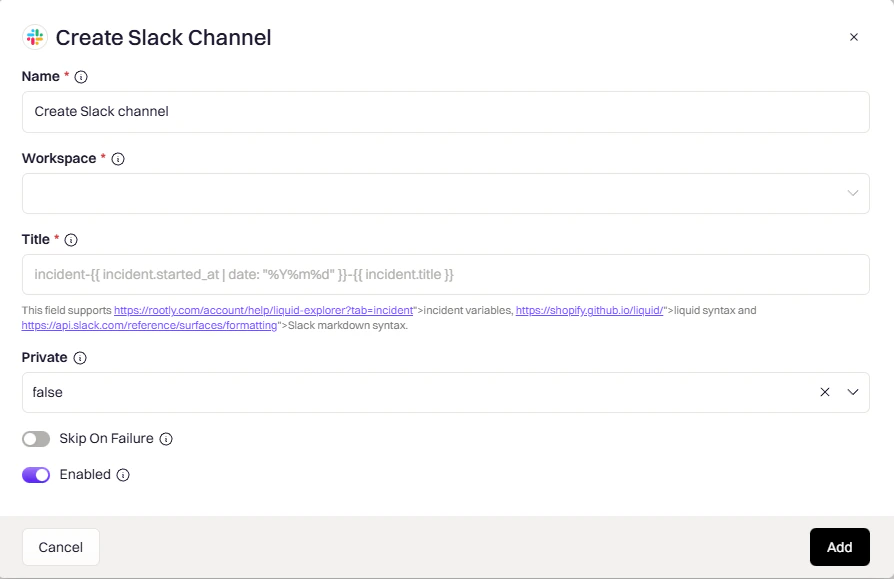 Which Slack workspace to create the channel in.
Channel name. Supports [Liquid variables](/liquid/incident-variables).
Example: `incident-{{ incident.sequential_id }}-{{ incident.title }}`
Controls channel visibility:
* `auto` — matches incident privacy (private incident → private channel)
* `true` — always private
* `false` — always public
If the incident already has a Slack channel, this action will skip channel creation to avoid duplicates.
Posts a message to channels, users, or user groups.
Which Slack workspace to create the channel in.
Channel name. Supports [Liquid variables](/liquid/incident-variables).
Example: `incident-{{ incident.sequential_id }}-{{ incident.title }}`
Controls channel visibility:
* `auto` — matches incident privacy (private incident → private channel)
* `true` — always private
* `false` — always public
If the incident already has a Slack channel, this action will skip channel creation to avoid duplicates.
Posts a message to channels, users, or user groups.
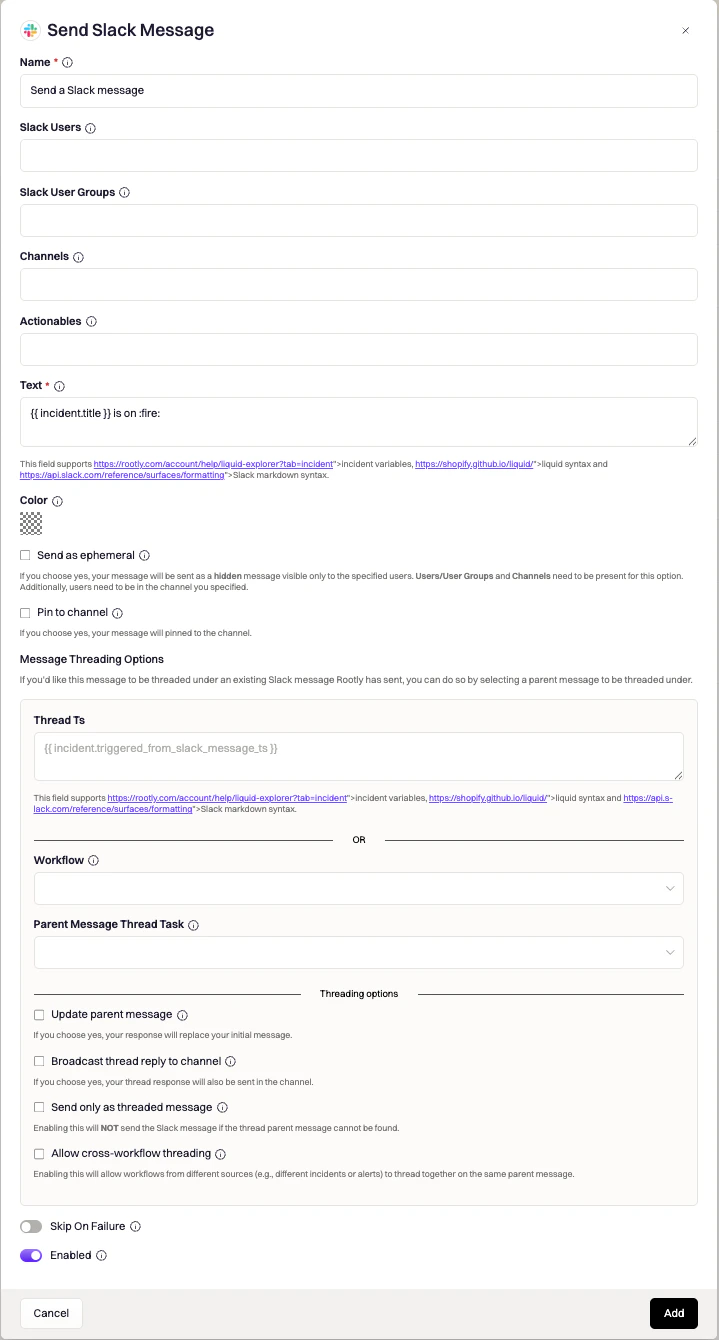 Target channels. Use `{{ incident.slack_channel_id }}` for the incident channel. Supports [Liquid variables](/liquid/incident-variables).
Individual users to message directly.
Groups to notify — all members receive the message.
Message content. Supports [Liquid variables](/liquid/incident-variables) and [Slack markdown](https://api.slack.com/reference/surfaces/formatting).
**Message Options:**
| Option | Description |
| -------------------------- | --------------------------------------- |
| **Pin to Channel** | Pin the message |
| **Send as Ephemeral** | Only visible to specified users |
| **Thread under parent** | Reply to an existing message |
| **Update Parent Message** | Replace the parent instead of threading |
| **Broadcast Thread Reply** | Also post threaded reply as new message |
**Action Buttons** — add interactive buttons to messages:
| Button | What It Opens |
| ------------------------ | ------------------------ |
| Update Summary | Edit incident summary |
| Manage Incident Roles | Assign/remove roles |
| Update Incident | Edit incident fields |
| Leave Feedback | Log incident feedback |
| Manage Action Items | Task/follow-up checklist |
| Add PagerDuty Responders | Page via PagerDuty |
| Add Opsgenie Responders | Page via Opsgenie |
Same as Send Message, but with **Snooze/Pause** buttons and support for **recurring schedules**.
Target channels. Use `{{ incident.slack_channel_id }}` for the incident channel. Supports [Liquid variables](/liquid/incident-variables).
Individual users to message directly.
Groups to notify — all members receive the message.
Message content. Supports [Liquid variables](/liquid/incident-variables) and [Slack markdown](https://api.slack.com/reference/surfaces/formatting).
**Message Options:**
| Option | Description |
| -------------------------- | --------------------------------------- |
| **Pin to Channel** | Pin the message |
| **Send as Ephemeral** | Only visible to specified users |
| **Thread under parent** | Reply to an existing message |
| **Update Parent Message** | Replace the parent instead of threading |
| **Broadcast Thread Reply** | Also post threaded reply as new message |
**Action Buttons** — add interactive buttons to messages:
| Button | What It Opens |
| ------------------------ | ------------------------ |
| Update Summary | Edit incident summary |
| Manage Incident Roles | Assign/remove roles |
| Update Incident | Edit incident fields |
| Leave Feedback | Log incident feedback |
| Manage Action Items | Task/follow-up checklist |
| Add PagerDuty Responders | Page via PagerDuty |
| Add Opsgenie Responders | Page via Opsgenie |
Same as Send Message, but with **Snooze/Pause** buttons and support for **recurring schedules**.
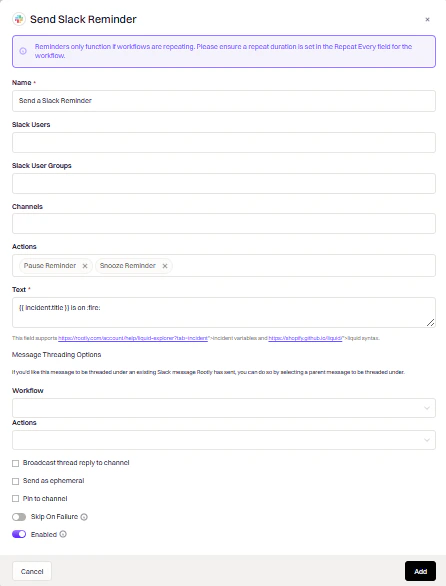 Target channels. Supports [Liquid variables](/liquid/incident-variables).
Reminder message content. Supports [Liquid variables](/liquid/incident-variables).
How often the reminder fires. Options include once, every N minutes, hourly, and daily.
Use reminders for periodic nudges (for example, "Update the incident summary every 30 minutes"). The Snooze and Pause buttons allow responders to defer or stop reminders without leaving Slack.
Send rich, interactive messages using [Slack Block Kit](https://api.slack.com/reference/block-kit).
Target channels. Supports [Liquid variables](/liquid/incident-variables).
Reminder message content. Supports [Liquid variables](/liquid/incident-variables).
How often the reminder fires. Options include once, every N minutes, hourly, and daily.
Use reminders for periodic nudges (for example, "Update the incident summary every 30 minutes"). The Snooze and Pause buttons allow responders to defer or stop reminders without leaving Slack.
Send rich, interactive messages using [Slack Block Kit](https://api.slack.com/reference/block-kit).
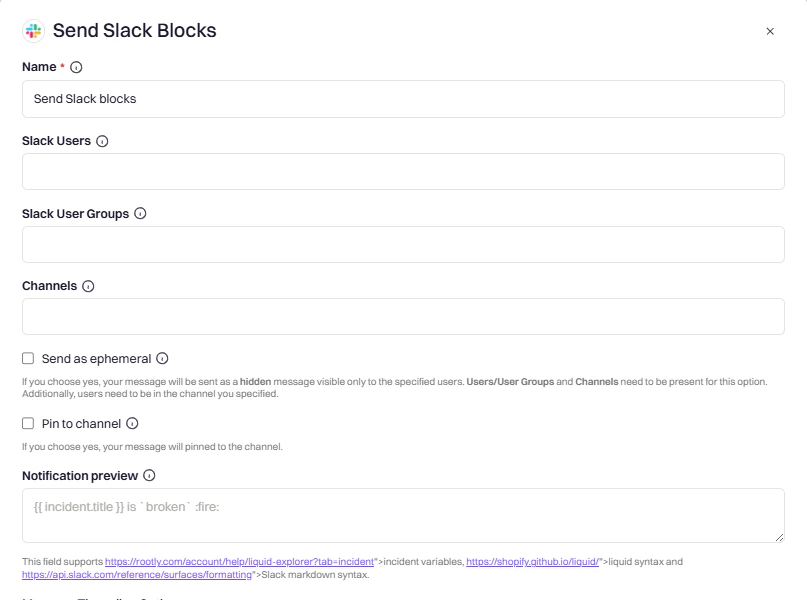 JSON payload following Block Kit format. Supports [Liquid variables](/liquid/incident-variables).
Text shown in push notifications when Block Kit content can't be rendered.
**Block Kit Examples:**
Text section with markdown:
```json theme={null}
{
"type": "section",
"text": {
"type": "mrkdwn",
"text": "*Incident:* {{ incident.title }}\n*Severity:* {{ incident.severity }}"
}
}
```
Button that triggers a workflow:
```json theme={null}
{
"type": "actions",
"elements": [{
"type": "button",
"text": { "type": "plain_text", "text": "View Action Items" },
"action_id": "trigger_custom_workflow",
"value": "incident-list-out-incomplete-action-items"
}]
}
```
**Available `action_id` values:**
| action\_id | What It Does |
| ----------------------------------------- | --------------------------------------------------- |
| `toolbar_update_incident_summary` | Edit summary modal |
| `toolbar_update_status` | Change status modal |
| `toolbar_update_incident` | Edit incident modal |
| `manage_incident_role_assignments_dialog` | Assign roles modal |
| `manage_incident_action_items` | Action items checklist |
| `add_feedback` | Feedback modal |
| `pagerduty_responders` | PagerDuty escalation |
| `opsgenie_responders` | Opsgenie escalation |
| `snooze_reminder` | Snooze recurring workflow |
| `pause_reminder` | Pause recurring workflow |
| `trigger_custom_workflow` | Run another workflow (set `value` to workflow slug) |
| `open_custom_form` | Open a custom form (set `value` to form slug) |
Slack's Block Kit Builder can't interpret Liquid variables. Test your templates in Rootly's [Liquid Variable Explorer](https://rootly.com/account/help/liquid-explorer).
Adds users or user groups to a channel.
JSON payload following Block Kit format. Supports [Liquid variables](/liquid/incident-variables).
Text shown in push notifications when Block Kit content can't be rendered.
**Block Kit Examples:**
Text section with markdown:
```json theme={null}
{
"type": "section",
"text": {
"type": "mrkdwn",
"text": "*Incident:* {{ incident.title }}\n*Severity:* {{ incident.severity }}"
}
}
```
Button that triggers a workflow:
```json theme={null}
{
"type": "actions",
"elements": [{
"type": "button",
"text": { "type": "plain_text", "text": "View Action Items" },
"action_id": "trigger_custom_workflow",
"value": "incident-list-out-incomplete-action-items"
}]
}
```
**Available `action_id` values:**
| action\_id | What It Does |
| ----------------------------------------- | --------------------------------------------------- |
| `toolbar_update_incident_summary` | Edit summary modal |
| `toolbar_update_status` | Change status modal |
| `toolbar_update_incident` | Edit incident modal |
| `manage_incident_role_assignments_dialog` | Assign roles modal |
| `manage_incident_action_items` | Action items checklist |
| `add_feedback` | Feedback modal |
| `pagerduty_responders` | PagerDuty escalation |
| `opsgenie_responders` | Opsgenie escalation |
| `snooze_reminder` | Snooze recurring workflow |
| `pause_reminder` | Pause recurring workflow |
| `trigger_custom_workflow` | Run another workflow (set `value` to workflow slug) |
| `open_custom_form` | Open a custom form (set `value` to form slug) |
Slack's Block Kit Builder can't interpret Liquid variables. Test your templates in Rootly's [Liquid Variable Explorer](https://rootly.com/account/help/liquid-explorer).
Adds users or user groups to a channel.
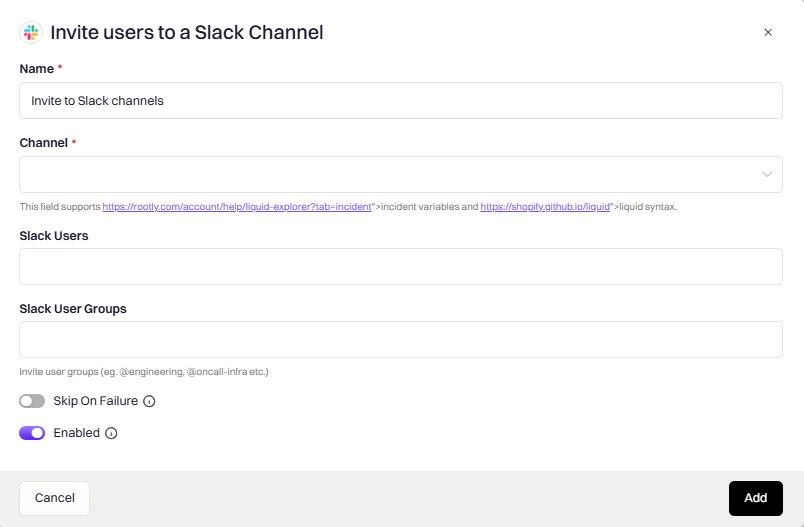 Target channel. Use `{{ incident.slack_channel_id }}` for the incident channel. Supports [Liquid variables](/liquid/incident-variables).
Individual users to invite. Use `{{ incident.creator }}` for the incident creator.
Groups to invite — all members are added to the channel.
Changes the channel name dynamically, useful for reflecting status changes.
Target channel. Use `{{ incident.slack_channel_id }}` for the incident channel. Supports [Liquid variables](/liquid/incident-variables).
Individual users to invite. Use `{{ incident.creator }}` for the incident creator.
Groups to invite — all members are added to the channel.
Changes the channel name dynamically, useful for reflecting status changes.
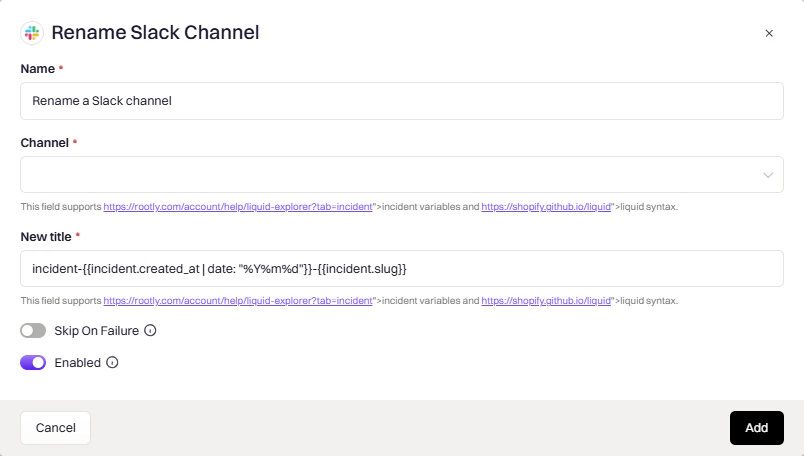 Channel to rename. Use `{{ incident.slack_channel_id }}`. Supports [Liquid variables](/liquid/incident-variables).
New channel name. Supports [Liquid variables](/liquid/incident-variables).
Example: `resolved-{{ incident.title }}`
**Common use case:** Rename to include status when resolved (for example, `resolved-database-outage`).
Sets the channel topic to display key incident info at a glance.
Channel to rename. Use `{{ incident.slack_channel_id }}`. Supports [Liquid variables](/liquid/incident-variables).
New channel name. Supports [Liquid variables](/liquid/incident-variables).
Example: `resolved-{{ incident.title }}`
**Common use case:** Rename to include status when resolved (for example, `resolved-database-outage`).
Sets the channel topic to display key incident info at a glance.
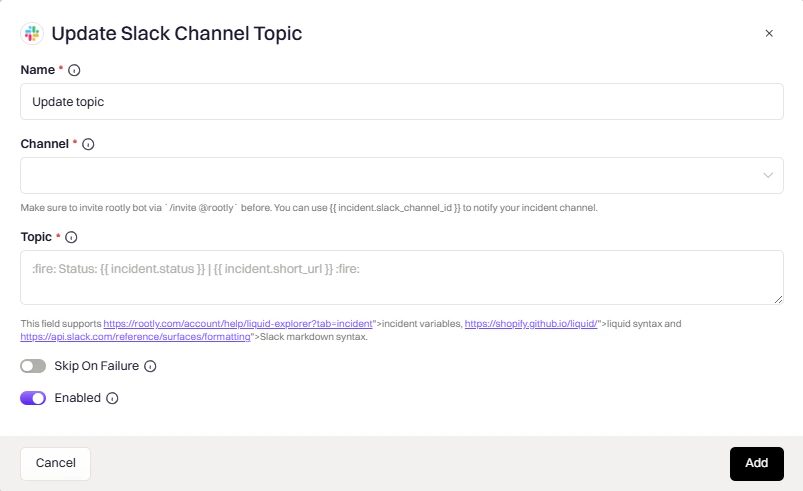 Channels to update. Supports [Liquid variables](/liquid/incident-variables).
New topic text. Supports [Liquid variables](/liquid/incident-variables) and Slack markdown.
**Example topic:**
```liquid theme={null}
🔴 {{ incident.severity }} | {{ incident.status }} | Commander: {{ incident.commander.name | default: "Unassigned" }}
```
Pins a link to the channel's bookmark bar for quick access during an incident.
Channels to update. Supports [Liquid variables](/liquid/incident-variables).
New topic text. Supports [Liquid variables](/liquid/incident-variables) and Slack markdown.
**Example topic:**
```liquid theme={null}
🔴 {{ incident.severity }} | {{ incident.status }} | Commander: {{ incident.commander.name | default: "Unassigned" }}
```
Pins a link to the channel's bookmark bar for quick access during an incident.
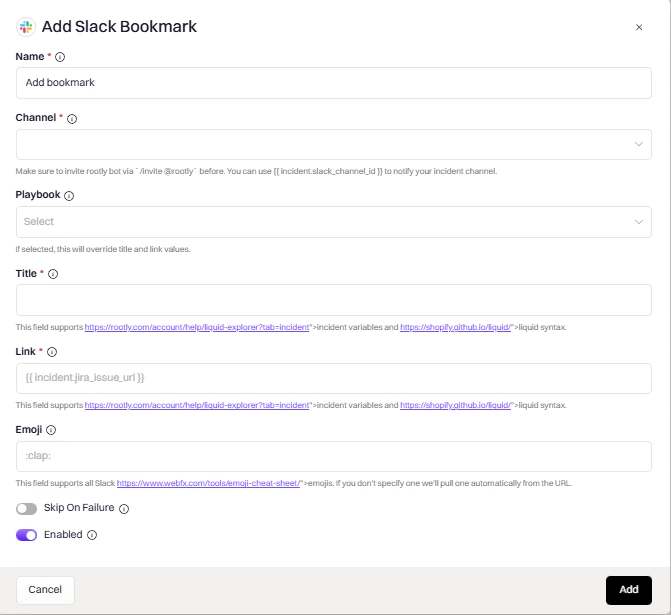 Channel to add the bookmark to. Supports [Liquid variables](/liquid/incident-variables).
Bookmark display text. Supports [Liquid variables](/liquid/incident-variables).
URL to bookmark. Common values: `{{ incident.url }}`, `{{ incident.jira_issue_url }}`. Supports [Liquid variables](/liquid/incident-variables).
Icon shown next to the bookmark.
Optionally link to a Rootly playbook instead of specifying a title and link manually.
Archives the channel to keep your workspace clean after an incident is resolved.
Channel to add the bookmark to. Supports [Liquid variables](/liquid/incident-variables).
Bookmark display text. Supports [Liquid variables](/liquid/incident-variables).
URL to bookmark. Common values: `{{ incident.url }}`, `{{ incident.jira_issue_url }}`. Supports [Liquid variables](/liquid/incident-variables).
Icon shown next to the bookmark.
Optionally link to a Rootly playbook instead of specifying a title and link manually.
Archives the channel to keep your workspace clean after an incident is resolved.
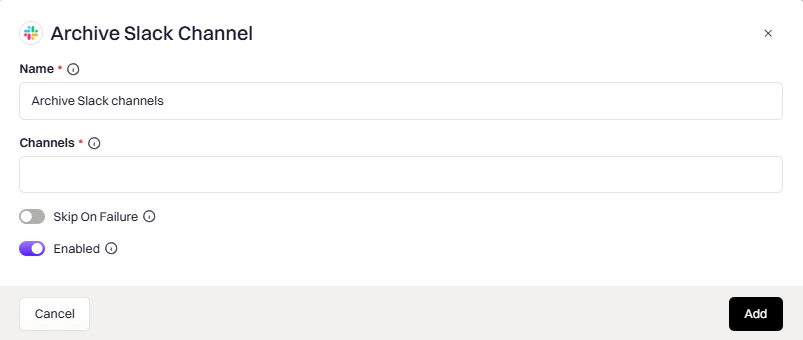 Channel to archive. Use `{{ incident.slack_channel_id }}`. Supports [Liquid variables](/liquid/incident-variables).
**Common trigger:** Incident status changed to "Closed" with a 24–48 hour delay to allow post-incident cleanup.
Switches a channel between public and private.
Channel to archive. Use `{{ incident.slack_channel_id }}`. Supports [Liquid variables](/liquid/incident-variables).
**Common trigger:** Incident status changed to "Closed" with a 24–48 hour delay to allow post-incident cleanup.
Switches a channel between public and private.
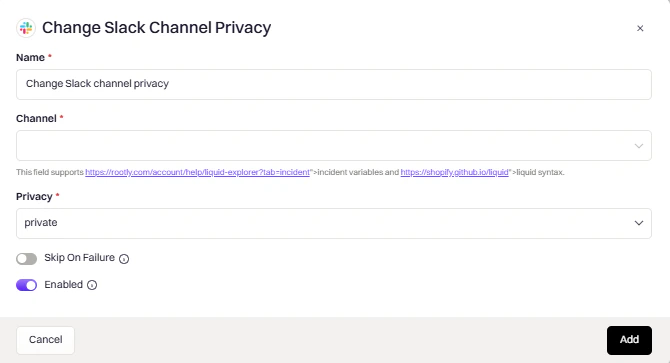 Channel to modify. Supports [Liquid variables](/liquid/incident-variables).
* `public` — make the channel visible to all workspace members
* `private` — restrict access to invited members only
Changing from private to public may not be allowed by your Slack workspace settings.
***
### Common Liquid Variables
| Variable | Description |
| ---------------------------------------- | --------------------------------------------- |
| `{{ incident.slack_channel_id }}` | Current incident's channel ID |
| `{{ incident.title }}` | Incident title |
| `{{ incident.severity }}` | Severity level |
| `{{ incident.status }}` | Current status |
| `{{ incident.url }}` | Link to incident in Rootly |
| `{{ incident.creator }}` | User who created the incident |
| `{{ parent_incident.slack_channel_id }}` | Parent incident's channel (for sub-incidents) |
Explore all variables in the [Liquid Variable Explorer](https://rootly.com/account/help/liquid-explorer).
## Slash Commands
| Icon | Meaning |
| ---- | -------------------------- |
| 🌐 | Works in any Slack channel |
| 🚨 | Requires incident channel |
***
### Getting Started
| Command | Description | Where |
| ----------------- | ---------------------------------------- | ----- |
| `/rootly connect` | Link your Slack account to Rootly | 🌐 |
| `/rootly help` | View available commands and descriptions | 🌐 |
| `/rootly support` | Report an issue to Rootly | 🌐 |
***
### Create & View Incidents
| Command | Description | Where |
| --------------------- | ----------------------------------------------- | ----- |
| `/rootly new` | Declare a new incident and create a channel | 🌐 |
| `/rootly test` | Create a test incident (not publicly announced) | 🌐 |
| `/rootly maintenance` | Schedule a maintenance window | 🌐 |
| `/rootly list` | View up to 10 active incidents | 🌐 |
| `/rootly overview` | Open incident control center | 🚨 |
| `/rootly catchup` | Get AI-powered incident summary | 🚨 |
***
### Update Incidents
| Command | Description | Where |
| -------------------- | ------------------------------------------- | ----------------- |
| `/rootly update` | Edit incident fields (severity, type, etc.) | 🚨 |
| `/rootly summary` | Add or edit incident summary | 🚨 |
| `/rootly timeline` | Add an event to the incident timeline | 🚨 |
| `/rootly timestamps` | Edit status change timestamps | 🚨 |
| `/rootly convert` | Convert current channel to incident channel | 🌐 (non-incident) |
***
### Incident Status
| Command | Description | Where |
| ------------------ | -------------------------- | ----- |
| `/rootly status` | Change incident status | 🚨 |
| `/rootly mitigate` | Mark incident as mitigated | 🚨 |
| `/rootly resolve` | Mark incident as resolved | 🚨 |
***
### Teams & Services
| Command | Description | Where |
| --------------------------- | ------------------------------------ | ----- |
| `/rootly add team` | Attach a team to the incident | 🚨 |
| `/rootly add service` | Tag impacted services | 🚨 |
| `/rootly add functionality` | Tag impacted functionalities | 🚨 |
| `/rootly add alert` | Associate an alert with the incident | 🚨 |
***
### Roles & Assignments
| Command | Description | Where |
| ------------------------------------------------------ | ----------------------------------------------------------------------------------------------------------------------------------------------------------------------------------------------------------------------------------------------------------------------------------------------------------- | ------- |
| `/rootly assign` | Assign, add, or remove incident roles | 🚨 |
| `/rootly escalate` \| `/rootly call` \| `/rootly page` | Open the paging dialog. In an incident channel this attaches the page to the incident and routes through any configured external provider (PagerDuty, Opsgenie, VictorOps); outside an incident channel it opens the manual Rootly On-Call paging dialog. All three words are aliases for the same command. | 🌐 / 🚨 |
***
### Action Items
| Command | Description | Where |
| ------------------------- | -------------------------------------------- | ----- |
| `/rootly task` | Create a task (to complete during incident) | 🚨 |
| `/rootly followup` | Create a follow-up (post-incident action) | 🚨 |
| `/rootly add action item` | Create a task or follow-up | 🚨 |
| `/rootly action items` | Manage the incident's action items | 🚨 |
| `/rootly todo` | View your assigned action items (to-do list) | 🚨 |
| `/rootly tasks` | View your assigned action items (to-do list) | 🚨 |
Alias: `/rootly action` also works for managing action items.
***
### On-Call & Paging
| Command | Description | Where |
| ------------------------------------------------------ | ---------------------------------------------------------------------------------------------- | ------- |
| `/rootly oncall` | View on-call schedules | 🌐 |
| `/rootly page` \| `/rootly escalate` \| `/rootly call` | Alias for the paging dialog (see [Roles & Assignments](#roles-assignments) for full behavior). | 🌐 / 🚨 |
| `/rootly alerts` | View all alerts | 🌐 |
***
### Advanced
| Command | Description | Where |
| ----------------------- | -------------------------------------------------------- | ----------- |
| `/rootly manage fields` | Set values for custom incident fields | 🚨 |
| `/rootly integrations` | Manage links to integrated tools (Jira, PagerDuty, etc.) | 🚨 |
| `/rootly statuspage` | Publish an update to a status page | 🚨 |
| `/rootly feedback` | Log feedback about the incident response | 🚨 |
| `/rootly duplicate` | Mark incident as duplicate of another | 🚨 |
| `/rootly sub` | Create a sub-incident | 🚨 (parent) |
| `/rootly workflows` | Manually trigger a workflow | 🚨 |
***
### Command Details
### `/rootly new`
Opens the incident creation form. Fill in title, summary, severity, and type. Rootly will:
* Create a dedicated Slack channel
* Post the initial incident message
* Trigger configured workflows
### `/rootly test`
Same as `/rootly new`, but the incident is marked as a test and won't be publicly announced. Use for training and workflow testing.
### `/rootly maintenance`
Schedule planned maintenance. Maintenance incidents appear in the Rootly web UI and can be published to status pages.
### `/rootly status`
Opens a modal to change the incident status (In Triage → Active → Mitigated → Resolved → Closed).
### `/rootly mitigate`
Quick action to mark the incident as mitigated. You'll be prompted to add a comment explaining the mitigation.
### `/rootly resolve`
Quick action to mark the incident as resolved. You'll be prompted to add a resolution comment.
**Tasks** are actions to complete during the incident (for example, "Restart the database").
**Follow-ups** are post-incident actions (for example, "Add monitoring for this failure mode").
Use `/rootly action items` to manage this incident's action items, or `/rootly todo` (alias `/rootly tasks`) to see the checklist of items assigned to you.
### `/rootly oncall`
View who's currently on-call for any schedule. Works with Rootly On-Call and integrated providers (PagerDuty, Opsgenie, VictorOps).
### `/rootly escalate` · `/rootly call` · `/rootly page`
These three words are **aliases for the same command** — pick whichever your team prefers. The dialog that opens depends on where you invoke the command:
* **Inside an incident Slack channel** — the escalation dialog opens with the current incident's context. If your team has an external paging integration (PagerDuty, Opsgenie, VictorOps, PagerTree), the dialog routes the page through that provider; otherwise it uses Rootly On-Call.
* **In any other channel** — the manual page dialog opens for ad-hoc paging (Rootly On-Call schedules, teams, services, functionalities, or escalation policies).
You can prefill target users by `@`-mentioning them after the command: `/rootly page @alice @bob`. Non-mention trailing text is ignored.
If a team admin has enabled a custom Slack paging workflow (Team Settings), the alias set is disabled and these commands won't respond.
### `/rootly convert`
Convert an existing Slack channel into a Rootly incident channel. Use this when an incident discussion is already happening in a channel before it's formally declared.
Run this command in the channel you want to convert (not an existing incident channel).
## Troubleshooting
**Causes:**
* You're not an Admin or Owner of the workspace
* Workspace doesn't allow members to install apps
* Logged into wrong Slack account
**Solutions:**
* Ask a Slack Admin/Owner to install Rootly
* Check **Slack → Settings & Permissions → App Management**
* Try in a private browser window with the correct Slack account
**Causes:**
* Your org isn't on Enterprise Grid
* You're not an Org Owner/Admin
* Logged into a non-Grid workspace
**Solutions:**
* Verify your plan at [Slack's pricing page](https://slack.com/pricing)
* Ask an Org Owner/Admin to complete installation
* Log into your Enterprise org, not a standalone workspace
**Causes:**
* Rootly bot lacks channel creation permissions
* Workspace restricts channel creation to admins
**Solutions:**
* Enable **Bypass Slack permissions** in Smart Defaults
* Verify Rootly has `channels:manage` and `groups:write` scopes
* Check workflow logs for specific errors
**Causes:**
* Announcement channel isn't shared across workspaces
* Rootly not added to all required workspaces
**Solutions:**
* Create a shared channel for incident announcements
* Add Rootly to all workspaces via **Organization Settings → Installed Apps**
Slack includes a native, Slack-built Rootly connector in Workflow Builder that is separate from the Rootly Slack app. If you need to disable or restrict this connector at the workspace level, see the [FAQ on the Slack integration page](/integrating-with-slack#frequently-asked-questions) for step-by-step instructions.
If you're on Slack Enterprise Grid and pinning messages to the incident timeline isn't working, this is a sign that your Slack integration was installed as a **non-Grid** (single-workspace) installation rather than at the organization level. \
\
**Solutions:**
* Disconnect the Slack integration from Rootly
* Reconnect it, making sure to select **Slack Enterprise Grid** during installation and authorize at the **organization level** (not a single workspace)
## Uninstall
To remove the Slack integration:
1. Go to **Configuration → Integrations** and find **Slack**
2. Click **Connected** to reveal the disconnect option
3. Click **Disconnect**
Channel to modify. Supports [Liquid variables](/liquid/incident-variables).
* `public` — make the channel visible to all workspace members
* `private` — restrict access to invited members only
Changing from private to public may not be allowed by your Slack workspace settings.
***
### Common Liquid Variables
| Variable | Description |
| ---------------------------------------- | --------------------------------------------- |
| `{{ incident.slack_channel_id }}` | Current incident's channel ID |
| `{{ incident.title }}` | Incident title |
| `{{ incident.severity }}` | Severity level |
| `{{ incident.status }}` | Current status |
| `{{ incident.url }}` | Link to incident in Rootly |
| `{{ incident.creator }}` | User who created the incident |
| `{{ parent_incident.slack_channel_id }}` | Parent incident's channel (for sub-incidents) |
Explore all variables in the [Liquid Variable Explorer](https://rootly.com/account/help/liquid-explorer).
## Slash Commands
| Icon | Meaning |
| ---- | -------------------------- |
| 🌐 | Works in any Slack channel |
| 🚨 | Requires incident channel |
***
### Getting Started
| Command | Description | Where |
| ----------------- | ---------------------------------------- | ----- |
| `/rootly connect` | Link your Slack account to Rootly | 🌐 |
| `/rootly help` | View available commands and descriptions | 🌐 |
| `/rootly support` | Report an issue to Rootly | 🌐 |
***
### Create & View Incidents
| Command | Description | Where |
| --------------------- | ----------------------------------------------- | ----- |
| `/rootly new` | Declare a new incident and create a channel | 🌐 |
| `/rootly test` | Create a test incident (not publicly announced) | 🌐 |
| `/rootly maintenance` | Schedule a maintenance window | 🌐 |
| `/rootly list` | View up to 10 active incidents | 🌐 |
| `/rootly overview` | Open incident control center | 🚨 |
| `/rootly catchup` | Get AI-powered incident summary | 🚨 |
***
### Update Incidents
| Command | Description | Where |
| -------------------- | ------------------------------------------- | ----------------- |
| `/rootly update` | Edit incident fields (severity, type, etc.) | 🚨 |
| `/rootly summary` | Add or edit incident summary | 🚨 |
| `/rootly timeline` | Add an event to the incident timeline | 🚨 |
| `/rootly timestamps` | Edit status change timestamps | 🚨 |
| `/rootly convert` | Convert current channel to incident channel | 🌐 (non-incident) |
***
### Incident Status
| Command | Description | Where |
| ------------------ | -------------------------- | ----- |
| `/rootly status` | Change incident status | 🚨 |
| `/rootly mitigate` | Mark incident as mitigated | 🚨 |
| `/rootly resolve` | Mark incident as resolved | 🚨 |
***
### Teams & Services
| Command | Description | Where |
| --------------------------- | ------------------------------------ | ----- |
| `/rootly add team` | Attach a team to the incident | 🚨 |
| `/rootly add service` | Tag impacted services | 🚨 |
| `/rootly add functionality` | Tag impacted functionalities | 🚨 |
| `/rootly add alert` | Associate an alert with the incident | 🚨 |
***
### Roles & Assignments
| Command | Description | Where |
| ------------------------------------------------------ | ----------------------------------------------------------------------------------------------------------------------------------------------------------------------------------------------------------------------------------------------------------------------------------------------------------- | ------- |
| `/rootly assign` | Assign, add, or remove incident roles | 🚨 |
| `/rootly escalate` \| `/rootly call` \| `/rootly page` | Open the paging dialog. In an incident channel this attaches the page to the incident and routes through any configured external provider (PagerDuty, Opsgenie, VictorOps); outside an incident channel it opens the manual Rootly On-Call paging dialog. All three words are aliases for the same command. | 🌐 / 🚨 |
***
### Action Items
| Command | Description | Where |
| ------------------------- | -------------------------------------------- | ----- |
| `/rootly task` | Create a task (to complete during incident) | 🚨 |
| `/rootly followup` | Create a follow-up (post-incident action) | 🚨 |
| `/rootly add action item` | Create a task or follow-up | 🚨 |
| `/rootly action items` | Manage the incident's action items | 🚨 |
| `/rootly todo` | View your assigned action items (to-do list) | 🚨 |
| `/rootly tasks` | View your assigned action items (to-do list) | 🚨 |
Alias: `/rootly action` also works for managing action items.
***
### On-Call & Paging
| Command | Description | Where |
| ------------------------------------------------------ | ---------------------------------------------------------------------------------------------- | ------- |
| `/rootly oncall` | View on-call schedules | 🌐 |
| `/rootly page` \| `/rootly escalate` \| `/rootly call` | Alias for the paging dialog (see [Roles & Assignments](#roles-assignments) for full behavior). | 🌐 / 🚨 |
| `/rootly alerts` | View all alerts | 🌐 |
***
### Advanced
| Command | Description | Where |
| ----------------------- | -------------------------------------------------------- | ----------- |
| `/rootly manage fields` | Set values for custom incident fields | 🚨 |
| `/rootly integrations` | Manage links to integrated tools (Jira, PagerDuty, etc.) | 🚨 |
| `/rootly statuspage` | Publish an update to a status page | 🚨 |
| `/rootly feedback` | Log feedback about the incident response | 🚨 |
| `/rootly duplicate` | Mark incident as duplicate of another | 🚨 |
| `/rootly sub` | Create a sub-incident | 🚨 (parent) |
| `/rootly workflows` | Manually trigger a workflow | 🚨 |
***
### Command Details
### `/rootly new`
Opens the incident creation form. Fill in title, summary, severity, and type. Rootly will:
* Create a dedicated Slack channel
* Post the initial incident message
* Trigger configured workflows
### `/rootly test`
Same as `/rootly new`, but the incident is marked as a test and won't be publicly announced. Use for training and workflow testing.
### `/rootly maintenance`
Schedule planned maintenance. Maintenance incidents appear in the Rootly web UI and can be published to status pages.
### `/rootly status`
Opens a modal to change the incident status (In Triage → Active → Mitigated → Resolved → Closed).
### `/rootly mitigate`
Quick action to mark the incident as mitigated. You'll be prompted to add a comment explaining the mitigation.
### `/rootly resolve`
Quick action to mark the incident as resolved. You'll be prompted to add a resolution comment.
**Tasks** are actions to complete during the incident (for example, "Restart the database").
**Follow-ups** are post-incident actions (for example, "Add monitoring for this failure mode").
Use `/rootly action items` to manage this incident's action items, or `/rootly todo` (alias `/rootly tasks`) to see the checklist of items assigned to you.
### `/rootly oncall`
View who's currently on-call for any schedule. Works with Rootly On-Call and integrated providers (PagerDuty, Opsgenie, VictorOps).
### `/rootly escalate` · `/rootly call` · `/rootly page`
These three words are **aliases for the same command** — pick whichever your team prefers. The dialog that opens depends on where you invoke the command:
* **Inside an incident Slack channel** — the escalation dialog opens with the current incident's context. If your team has an external paging integration (PagerDuty, Opsgenie, VictorOps, PagerTree), the dialog routes the page through that provider; otherwise it uses Rootly On-Call.
* **In any other channel** — the manual page dialog opens for ad-hoc paging (Rootly On-Call schedules, teams, services, functionalities, or escalation policies).
You can prefill target users by `@`-mentioning them after the command: `/rootly page @alice @bob`. Non-mention trailing text is ignored.
If a team admin has enabled a custom Slack paging workflow (Team Settings), the alias set is disabled and these commands won't respond.
### `/rootly convert`
Convert an existing Slack channel into a Rootly incident channel. Use this when an incident discussion is already happening in a channel before it's formally declared.
Run this command in the channel you want to convert (not an existing incident channel).
## Troubleshooting
**Causes:**
* You're not an Admin or Owner of the workspace
* Workspace doesn't allow members to install apps
* Logged into wrong Slack account
**Solutions:**
* Ask a Slack Admin/Owner to install Rootly
* Check **Slack → Settings & Permissions → App Management**
* Try in a private browser window with the correct Slack account
**Causes:**
* Your org isn't on Enterprise Grid
* You're not an Org Owner/Admin
* Logged into a non-Grid workspace
**Solutions:**
* Verify your plan at [Slack's pricing page](https://slack.com/pricing)
* Ask an Org Owner/Admin to complete installation
* Log into your Enterprise org, not a standalone workspace
**Causes:**
* Rootly bot lacks channel creation permissions
* Workspace restricts channel creation to admins
**Solutions:**
* Enable **Bypass Slack permissions** in Smart Defaults
* Verify Rootly has `channels:manage` and `groups:write` scopes
* Check workflow logs for specific errors
**Causes:**
* Announcement channel isn't shared across workspaces
* Rootly not added to all required workspaces
**Solutions:**
* Create a shared channel for incident announcements
* Add Rootly to all workspaces via **Organization Settings → Installed Apps**
Slack includes a native, Slack-built Rootly connector in Workflow Builder that is separate from the Rootly Slack app. If you need to disable or restrict this connector at the workspace level, see the [FAQ on the Slack integration page](/integrating-with-slack#frequently-asked-questions) for step-by-step instructions.
If you're on Slack Enterprise Grid and pinning messages to the incident timeline isn't working, this is a sign that your Slack integration was installed as a **non-Grid** (single-workspace) installation rather than at the organization level. \
\
**Solutions:**
* Disconnect the Slack integration from Rootly
* Reconnect it, making sure to select **Slack Enterprise Grid** during installation and authorize at the **organization level** (not a single workspace)
## Uninstall
To remove the Slack integration:
1. Go to **Configuration → Integrations** and find **Slack**
2. Click **Connected** to reveal the disconnect option
3. Click **Disconnect**
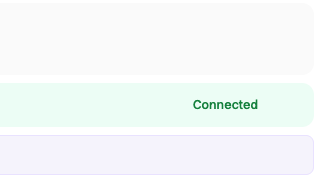 Disconnecting from Rootly does not remove Rootly from Slack. To fully revoke access:
1. In Slack, go to **Settings & Administration → Manage Apps**
2. Find **Rootly** and click **Remove**
***
Disconnecting from Rootly does not remove Rootly from Slack. To fully revoke access:
1. In Slack, go to **Settings & Administration → Manage Apps**
2. Find **Rootly** and click **Remove**
***