> ## Documentation Index
> Fetch the complete documentation index at: https://docs.rootly.com/llms.txt
> Use this file to discover all available pages before exploring further.
# Incident Lifecycle
> How Rootly models an incident from triage through closure — every status, the timestamps each one records, and how transitions actually happen.
Every incident in Rootly moves through a sequence of **statuses** that mirror how teams actually respond: contain uncertainty, coordinate a response, contain impact, fix the underlying issue, and wrap up the follow-up work. Each transition records a timestamp, which powers MTTx analytics, retrospectives, and workflow automation.
## Overview
Rootly's incident status model has six primary statuses and two optional timestamps. A status change is made from the web UI, from Slack (`/rootly mitigate`, `/rootly resolve`, `/rootly cancel`), or via workflow automation — and Rootly records the corresponding timestamp automatically.
| Status | Data Value | Timestamp | Notes |
| :-------- | :---------- | :------------- | :--------------------------------------------------- |
| Triage | `in_triage` | `in_triage_at` | Only recorded if the incident actually enters Triage |
| Started | `started` | `started_at` | Set when coordinated response begins |
| Mitigated | `mitigated` | `mitigated_at` | Impact contained; work continues |
| Resolved | `resolved` | `resolved_at` | Underlying issue fixed |
| Closed | `closed` | `closed_at` | All follow-up work complete |
| Cancelled | `cancelled` | `cancelled_at` | False positive or duplicate; Triage-only |
Two additional timestamps — `detected_at` and `acknowledged_at` — are separate fields, not statuses. They power MTTD and MTTA metrics without changing the incident's primary status.
***
## Triage
Incidents often begin with ambiguous signals. **Triage** is designed for the early moment when something *might* be wrong, but responders aren't yet certain. Notifications are limited so teams can investigate without alarming broader stakeholders.
**Enter Triage by:**
* Selecting **Mark as In Triage** when creating the incident
* Updating the status from the incident page or `/rootly status` in Slack
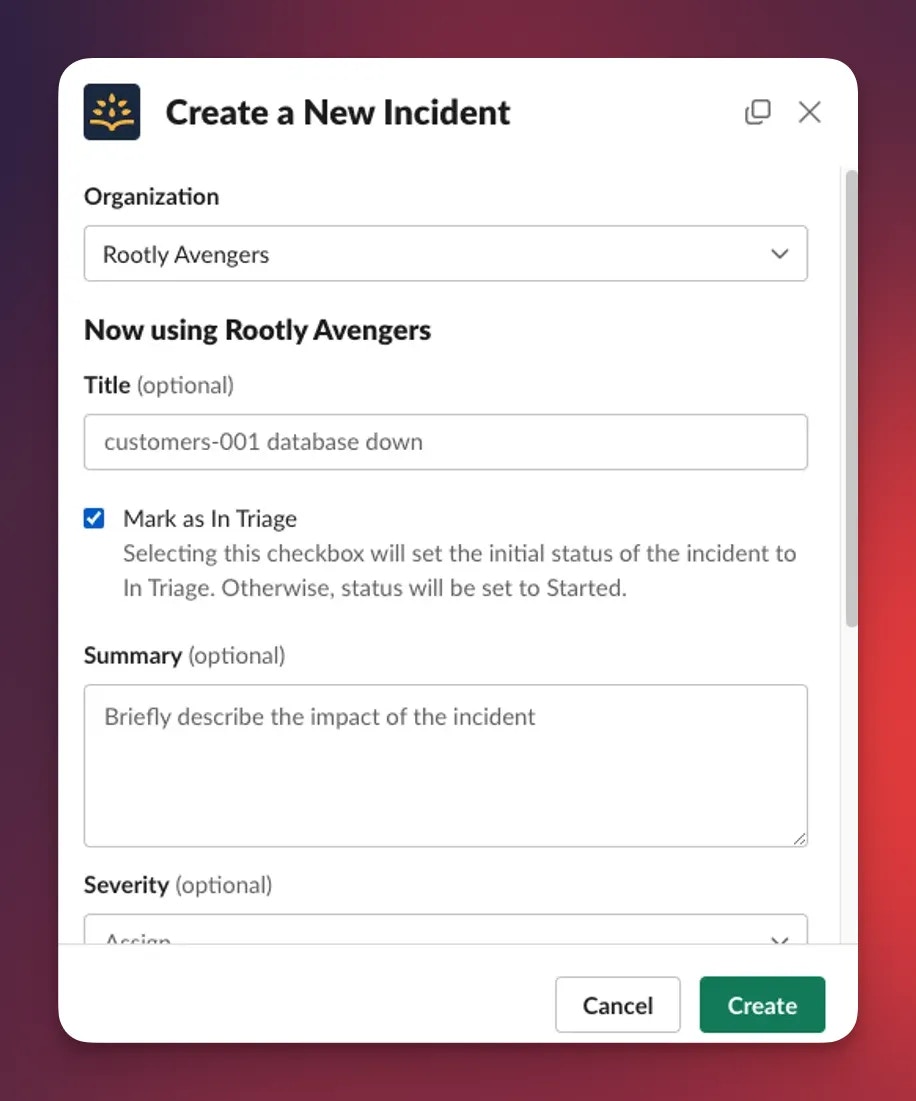 Triage contains blast radius. Use it when the signal is real but unconfirmed — you can always promote to Started once you're sure.
***
## Started
Once responders confirm the issue is real, the incident moves to **Started**. This is the point of coordinated response: roles get assigned, communication channels open, and early hypotheses form.
**Enter Started by:**
* Leaving **Mark as In Triage** *unchecked* at creation — Rootly sets Started directly
* Moving from Triage → Started from the incident page or Slack
Triage contains blast radius. Use it when the signal is real but unconfirmed — you can always promote to Started once you're sure.
***
## Started
Once responders confirm the issue is real, the incident moves to **Started**. This is the point of coordinated response: roles get assigned, communication channels open, and early hypotheses form.
**Enter Started by:**
* Leaving **Mark as In Triage** *unchecked* at creation — Rootly sets Started directly
* Moving from Triage → Started from the incident page or Slack
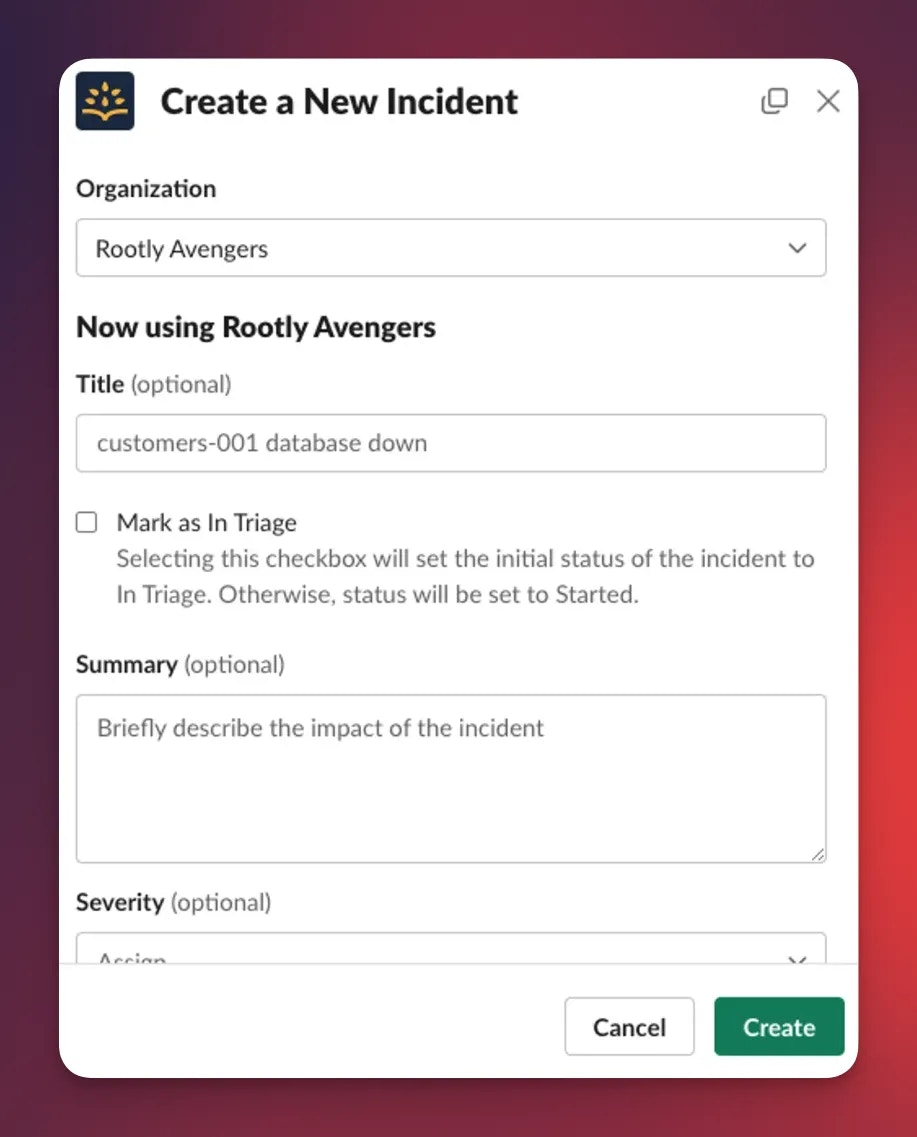 Skipping Triage during creation is common for confirmed incidents. Rootly sets the incident straight to Started with no intermediate Triage timestamp.
***
## Mitigated
**Mitigated** means the immediate impact has been contained. Users may still be affected, but the incident is no longer actively getting worse. This is common when a failover, temporary fix, or emergency control has been applied while the underlying issue is still being investigated.
**Enter Mitigated by:**
* Clicking **Mitigate** on the incident page
* Running `/rootly mitigate` in Slack
Skipping Triage during creation is common for confirmed incidents. Rootly sets the incident straight to Started with no intermediate Triage timestamp.
***
## Mitigated
**Mitigated** means the immediate impact has been contained. Users may still be affected, but the incident is no longer actively getting worse. This is common when a failover, temporary fix, or emergency control has been applied while the underlying issue is still being investigated.
**Enter Mitigated by:**
* Clicking **Mitigate** on the incident page
* Running `/rootly mitigate` in Slack
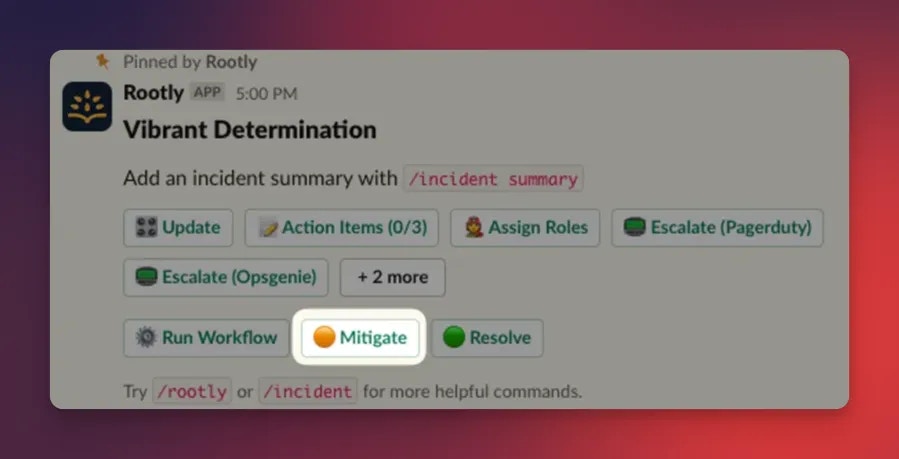 If an incident moves straight to Resolved without passing through Mitigated, Rootly sets `mitigated_at` equal to `resolved_at` so time-to-mitigate analytics stay accurate.
***
## Resolved
An incident is **Resolved** when the underlying issue has been fixed and service impact is no longer present. This is the moment that typically triggers stakeholder updates and kicks off the retrospective process.
**Enter Resolved by:**
* Clicking **Resolve** on the incident page
* Running `/rootly resolve` in Slack
If an incident moves straight to Resolved without passing through Mitigated, Rootly sets `mitigated_at` equal to `resolved_at` so time-to-mitigate analytics stay accurate.
***
## Resolved
An incident is **Resolved** when the underlying issue has been fixed and service impact is no longer present. This is the moment that typically triggers stakeholder updates and kicks off the retrospective process.
**Enter Resolved by:**
* Clicking **Resolve** on the incident page
* Running `/rootly resolve` in Slack
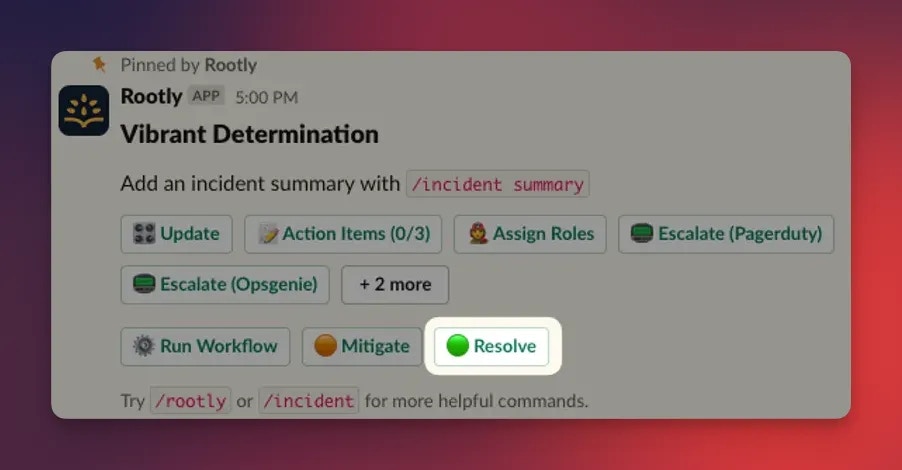 Many teams configure a workflow to automatically generate a retrospective when an incident reaches Resolved. See [Configuring Templates](/retrospectives/configuring-templates).
***
## Closed
**Resolved** means the system is fixed. **Closed** means all follow-up work is complete — retrospectives published, action items verified, and communications wrapped up.
Closed is optional but recommended: it separates technical completion from process completion, so dashboards can distinguish "fixed" from "fully done".
Closed status is controlled per-team via **Configuration → Teams → Enable Closed Status**. When disabled, incidents transition directly from Resolved to their final state without a separate Closed step.
***
## Cancelled
A **Cancelled** incident is a false positive or a duplicate. Cancelling prevents wasted responder effort and keeps analytics clean by excluding non-actionable events from your incident metrics.
**Enter Cancelled by:**
* Clicking **Cancel Incident** on the incident page
* Running `/rootly cancel` in Slack
Many teams configure a workflow to automatically generate a retrospective when an incident reaches Resolved. See [Configuring Templates](/retrospectives/configuring-templates).
***
## Closed
**Resolved** means the system is fixed. **Closed** means all follow-up work is complete — retrospectives published, action items verified, and communications wrapped up.
Closed is optional but recommended: it separates technical completion from process completion, so dashboards can distinguish "fixed" from "fully done".
Closed status is controlled per-team via **Configuration → Teams → Enable Closed Status**. When disabled, incidents transition directly from Resolved to their final state without a separate Closed step.
***
## Cancelled
A **Cancelled** incident is a false positive or a duplicate. Cancelling prevents wasted responder effort and keeps analytics clean by excluding non-actionable events from your incident metrics.
**Enter Cancelled by:**
* Clicking **Cancel Incident** on the incident page
* Running `/rootly cancel` in Slack
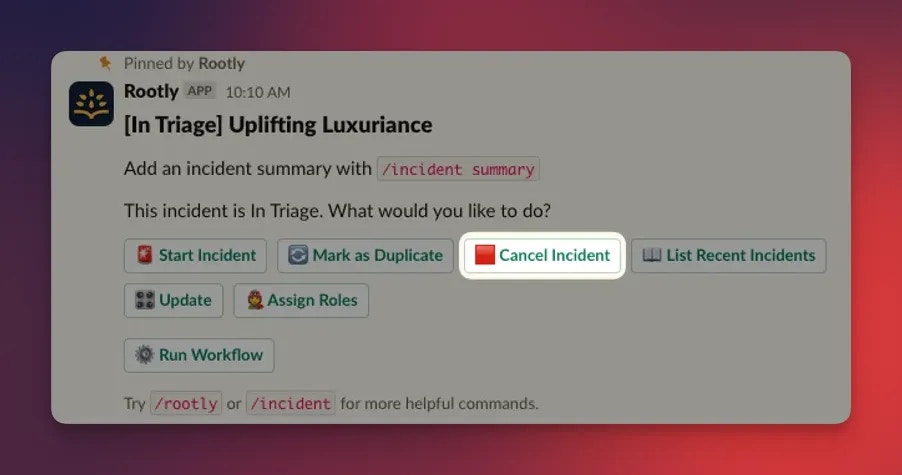 Cancel is only available while the incident is in Triage. Once an incident is Started, it must go through the normal Resolved path — even if it turns out to be non-impactful.
***
## Optional Timestamps
Two timestamps sit alongside the primary statuses to support detection and acknowledgement metrics:
When the issue was first *noticed* — often earlier than when response formally began. Powers MTTD (Mean Time To Detect).
When a specific responder took ownership of the incident. Pauses paging escalations and clarifies responsibility. Powers MTTA (Mean Time To Acknowledge).
Neither field changes the incident's primary status. Both can be set from the incident page, updated via API, or backfilled with **Update Timestamps** — see [Updating Incident Timestamps](/incidents/managing-incidents/updating-incident-timestamps).
***
## Planned Maintenance
Rootly models scheduled operational work with its own lifecycle values, distinct from unplanned incidents:
| Status | Data Value | What It Means |
| :---------- | :------------ | :------------------------------------------------------------------ |
| Planning | `planning` | Scope and impact being defined |
| Scheduled | `scheduled` | Approved for a specific window (`scheduled_for`, `scheduled_until`) |
| In Progress | `in_progress` | Work is underway |
| Completed | `completed` | Work is finished |
| Verifying | `verifying` | Final checks in progress |
Planned maintenance uses the same automation, timeline, and retrospective machinery as normal incidents. See [Scheduling a Maintenance Incident](/incidents/incident-operations/scheduling-a-maintenance-incident).
***
## Incident Timeline
Every incident has a **Timeline** that captures status changes, role assignments, workflow actions, Slack updates, alert events, and manual entries in one chronological view. It's the source of truth for retrospectives and stakeholder recaps.
Timeline entries can be added from Slack, the web UI, email-to-incident, or automations. See [Incident Timeline](/incidents/incident-timeline/incident-timeline).
***
## Troubleshooting
Cancel is only available while the incident is in Triage. If the incident has already moved to Started, resolve it as normal — cancellation isn't possible from later stages.
If the incident went straight from Started to Resolved without a Mitigate action, Rootly sets `mitigated_at` equal to `resolved_at`. To backfill a true mitigation timestamp, use **Update Timestamps** on the incident page.
Closed is controlled per-team. Ask an admin to check **Configuration → Teams → Enable Closed Status**. When disabled, incidents finalize at Resolved.
Common causes:
* The incident is already Resolved, Closed, or Cancelled — check the channel header before running the command.
* Your team has **Sub-Statuses** enabled, which disables `/rootly mitigate` by design. Use `/rootly status` and pick the appropriate sub-status instead. See [Managing Incident Status via Slack](/incidents/managing-incidents/managing-incident-status-via-slack) for the full sub-status flow.
***
## Frequently Asked Questions
Use **Triage**. It limits notifications and keeps early investigation to a small responder group. Promote to **Started** once you're confident the issue is real.
Yes. Leave **Mark as In Triage** unchecked at creation and Rootly sets the incident directly to Started. No `in_triage_at` timestamp is recorded.
No. Mitigated is optional but recommended. If you go straight to Resolved, Rootly sets `mitigated_at = resolved_at` automatically so MTTM analytics still work.
**Resolved** means the technical issue is fixed and impact is gone. **Closed** means all follow-up work — retrospective, action items, comms — is complete. Many teams resolve within hours but close days later.
They're timestamp fields, not statuses. `detected_at` and `acknowledged_at` power MTTD and MTTA metrics but the incident's primary status keeps moving through the main lifecycle (Triage → Started → Mitigated → Resolved).
You can add **sub-statuses** underneath the primary statuses to model your team's more granular process (for example, "Investigating" or "Awaiting Vendor" beneath Started). See [Incident Sub-Statuses](/configuration/incident-status).
In [Action Items](/incidents/action-items/action-items). Once every action item is closed and the retrospective is published, move the incident to Closed.
Cancel is only available while the incident is in Triage. Once an incident is Started, it must go through the normal Resolved path — even if it turns out to be non-impactful.
***
## Optional Timestamps
Two timestamps sit alongside the primary statuses to support detection and acknowledgement metrics:
When the issue was first *noticed* — often earlier than when response formally began. Powers MTTD (Mean Time To Detect).
When a specific responder took ownership of the incident. Pauses paging escalations and clarifies responsibility. Powers MTTA (Mean Time To Acknowledge).
Neither field changes the incident's primary status. Both can be set from the incident page, updated via API, or backfilled with **Update Timestamps** — see [Updating Incident Timestamps](/incidents/managing-incidents/updating-incident-timestamps).
***
## Planned Maintenance
Rootly models scheduled operational work with its own lifecycle values, distinct from unplanned incidents:
| Status | Data Value | What It Means |
| :---------- | :------------ | :------------------------------------------------------------------ |
| Planning | `planning` | Scope and impact being defined |
| Scheduled | `scheduled` | Approved for a specific window (`scheduled_for`, `scheduled_until`) |
| In Progress | `in_progress` | Work is underway |
| Completed | `completed` | Work is finished |
| Verifying | `verifying` | Final checks in progress |
Planned maintenance uses the same automation, timeline, and retrospective machinery as normal incidents. See [Scheduling a Maintenance Incident](/incidents/incident-operations/scheduling-a-maintenance-incident).
***
## Incident Timeline
Every incident has a **Timeline** that captures status changes, role assignments, workflow actions, Slack updates, alert events, and manual entries in one chronological view. It's the source of truth for retrospectives and stakeholder recaps.
Timeline entries can be added from Slack, the web UI, email-to-incident, or automations. See [Incident Timeline](/incidents/incident-timeline/incident-timeline).
***
## Troubleshooting
Cancel is only available while the incident is in Triage. If the incident has already moved to Started, resolve it as normal — cancellation isn't possible from later stages.
If the incident went straight from Started to Resolved without a Mitigate action, Rootly sets `mitigated_at` equal to `resolved_at`. To backfill a true mitigation timestamp, use **Update Timestamps** on the incident page.
Closed is controlled per-team. Ask an admin to check **Configuration → Teams → Enable Closed Status**. When disabled, incidents finalize at Resolved.
Common causes:
* The incident is already Resolved, Closed, or Cancelled — check the channel header before running the command.
* Your team has **Sub-Statuses** enabled, which disables `/rootly mitigate` by design. Use `/rootly status` and pick the appropriate sub-status instead. See [Managing Incident Status via Slack](/incidents/managing-incidents/managing-incident-status-via-slack) for the full sub-status flow.
***
## Frequently Asked Questions
Use **Triage**. It limits notifications and keeps early investigation to a small responder group. Promote to **Started** once you're confident the issue is real.
Yes. Leave **Mark as In Triage** unchecked at creation and Rootly sets the incident directly to Started. No `in_triage_at` timestamp is recorded.
No. Mitigated is optional but recommended. If you go straight to Resolved, Rootly sets `mitigated_at = resolved_at` automatically so MTTM analytics still work.
**Resolved** means the technical issue is fixed and impact is gone. **Closed** means all follow-up work — retrospective, action items, comms — is complete. Many teams resolve within hours but close days later.
They're timestamp fields, not statuses. `detected_at` and `acknowledged_at` power MTTD and MTTA metrics but the incident's primary status keeps moving through the main lifecycle (Triage → Started → Mitigated → Resolved).
You can add **sub-statuses** underneath the primary statuses to model your team's more granular process (for example, "Investigating" or "Awaiting Vendor" beneath Started). See [Incident Sub-Statuses](/configuration/incident-status).
In [Action Items](/incidents/action-items/action-items). Once every action item is closed and the retrospective is published, move the incident to Closed.