> ## Documentation Index
> Fetch the complete documentation index at: https://docs.rootly.com/llms.txt
> Use this file to discover all available pages before exploring further.
# Custom (Any OAuth MCP)
> Bring your own OAuth-based MCP server as a Rootly AI connector, with an allowlist of tools it can call during investigations.
## Overview
The **Custom** connector lets you point Rootly AI at any OAuth-based MCP server that isn't in the built-in catalog. This covers internal tools your team hosts, third-party services that expose MCP endpoints, and vendor integrations Rootly hasn't shipped native support for yet.
Once connected, you can ask Rootly AI about whatever the server exposes:
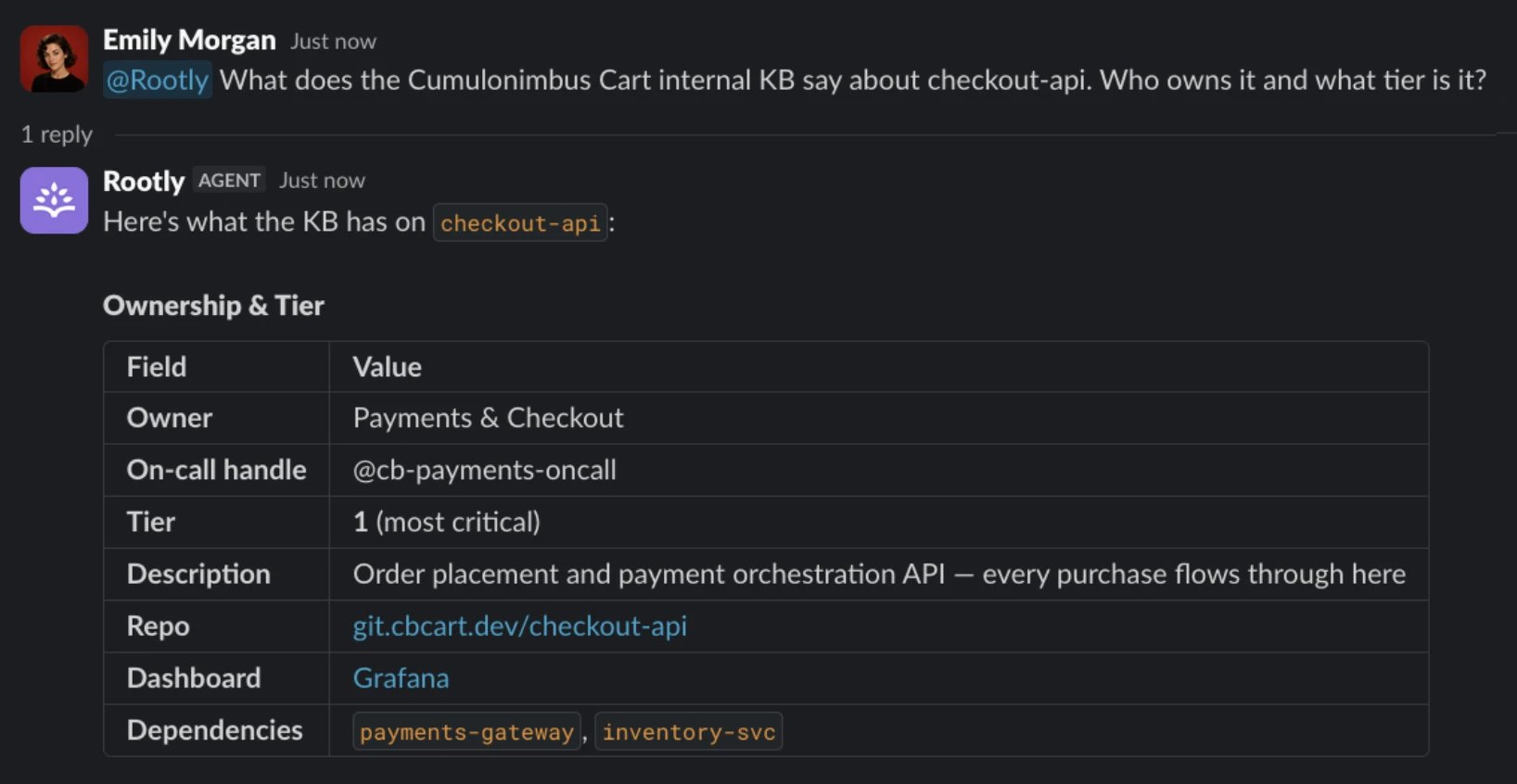 You provide the endpoint and the OAuth details. Rootly AI authorizes against your server, then calls tools you've explicitly allowlisted during investigations.
Unlike built-in connectors, the Custom connector does **not** filter write-capable tools server-side. Rootly AI can call any tool you allowlist, including tools that mutate state on your MCP server. Allowlist read-only tools unless you specifically want Rootly AI to be able to invoke a write.
***
## Before You Start
Rootly AI doesn't use pre-shared credentials for custom MCP servers. It registers itself as an OAuth client against your server at connect time, then authorizes through the standard OAuth flow.
Rootly treats a custom server exactly like one of its built-in connectors: the same MCP protocol version (**2025-06-18**) and the same OAuth implementation, with no fallbacks or leniency for user-supplied URLs. In practice that means your server has to implement the MCP authorization spec as written: metadata discovery, Dynamic Client Registration, PKCE, and resource indicators.
A running MCP server reachable at a public HTTPS URL with a valid TLS certificate. Private and reserved IP ranges, `localhost`, and self-signed certificates are rejected. Every discovery, registration, and token request also has a **15-second timeout**; slow well-known endpoints fail the connection.
This is where discovery starts, and everything else hangs off it. Rootly needs the `authorization_servers` array to know which authorization server to talk to. Serve it either way:
* `GET /.well-known/oauth-protected-resource/` returning `200` with JSON. The path is **suffixed with your MCP server's path**: for `https://mcp.your-company.com/mcp`, Rootly requests `https://mcp.your-company.com/.well-known/oauth-protected-resource/mcp`, not the bare well-known path.
* Or return `401` from the MCP endpoint itself with a `WWW-Authenticate` header carrying `resource_metadata="https://…"`.
Rootly fetches `/.well-known/oauth-authorization-server` on the issuer from `authorization_servers[0]` (path-suffixed the same way when the issuer has a path) and requires a `200`. The document must advertise:
* `authorization_endpoint`
* `token_endpoint`
* `registration_endpoint`
There are **no default endpoint paths**. Rootly does not guess `/authorize`, `/token`, or `/register`. If an endpoint isn't in this document, the connection fails.
Rootly `POST`s to your advertised `registration_endpoint` with `token_endpoint_auth_method: "none"`, `grant_types: ["authorization_code", "refresh_token"]`, `response_types: ["code"]`, `client_name: "Rootly"`, and Rootly's single callback URL as `redirect_uris`. Your server must respond **`201 Created`** with a `client_id`; a `200` with a valid body still fails.
Rootly registers as a public client and does not expect a client secret. At the token endpoint it sends `client_id` **in the request body**, not via HTTP Basic auth. An authorization server that only accepts Basic auth will reject the token exchange. (If your registration response does return a `client_secret`, Rootly stores it and switches to Basic auth automatically.)
Rootly always sends `code_challenge_method=S256`. Your authorization server must support S256 code challenges; `plain` is never offered.
Rootly sends a `resource` parameter on the authorization request, the token exchange, **and** every refresh. The value is the `resource` field from your protected resource metadata, or the canonical origin + path of your MCP URL. Your authorization server must accept the parameter and issue a token valid for that resource rather than erroring on it.
Your token endpoint must return a `refresh_token` alongside the access token, and the `refresh_token` grant must work on its own. Without it the connection works initially and then stops once the first access token expires.
Rootly does **not** send a `scope` parameter for custom connections. Your authorization server has to grant a sensible default scope rather than rejecting the request for a missing `scope`.
After authorization, Rootly `POST`s JSON-RPC to your MCP URL with `Authorization: Bearer`, `Accept: application/json, text/event-stream`, and `MCP-Protocol-Version: 2025-06-18`, echoing `Mcp-Session-Id` back if you set it. Your server must handle `initialize`, `notifications/initialized`, `tools/list` (cursor pagination supported, up to 1,000 tools), and `tools/call`. Replies may be JSON or SSE.
The subset of your server's tools you're comfortable letting Rootly AI call. You control this explicitly after authorization.
Most MCP server frameworks ship DCR, PKCE, and the well-known metadata endpoints already wired up. If you built your server on one of those, this is usually already satisfied. Confirm it before you assume it's missing.
***
## Setup
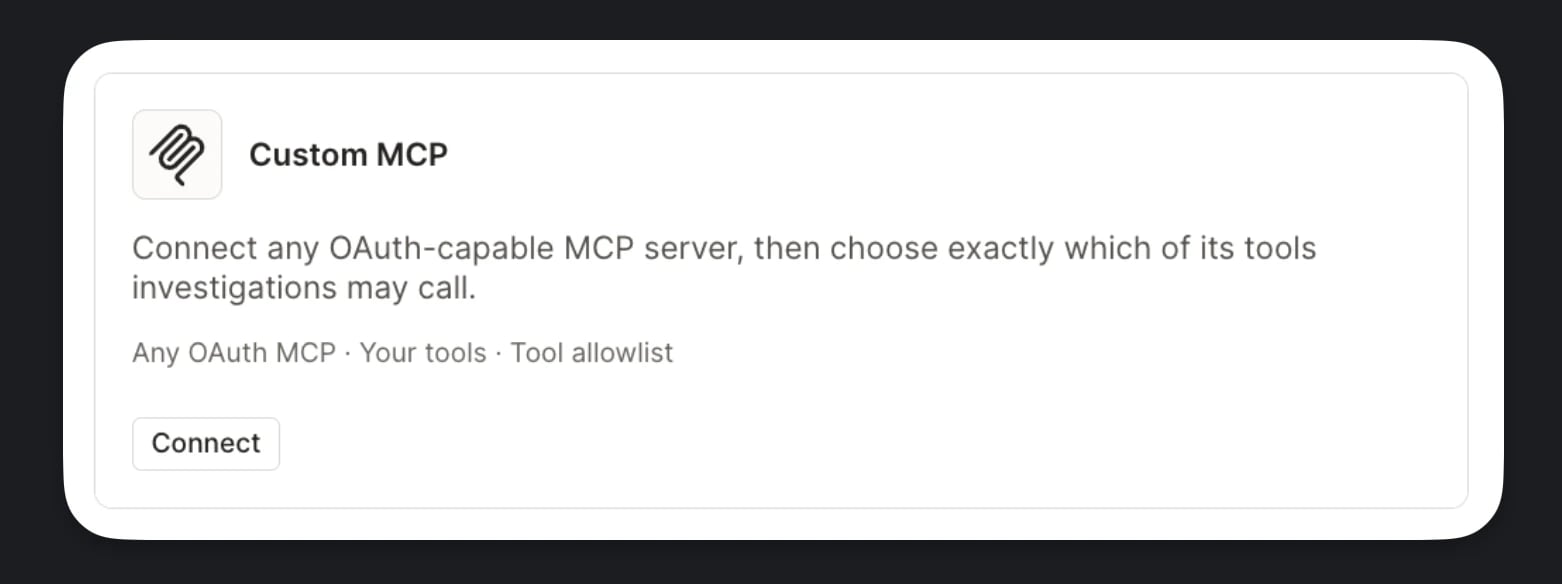
Go to **Configuration → AI → Connectors** and click **Connect** on the **Custom MCP** card. The **Connect a custom MCP server** dialog opens.
You provide the endpoint and the OAuth details. Rootly AI authorizes against your server, then calls tools you've explicitly allowlisted during investigations.
Unlike built-in connectors, the Custom connector does **not** filter write-capable tools server-side. Rootly AI can call any tool you allowlist, including tools that mutate state on your MCP server. Allowlist read-only tools unless you specifically want Rootly AI to be able to invoke a write.
***
## Before You Start
Rootly AI doesn't use pre-shared credentials for custom MCP servers. It registers itself as an OAuth client against your server at connect time, then authorizes through the standard OAuth flow.
Rootly treats a custom server exactly like one of its built-in connectors: the same MCP protocol version (**2025-06-18**) and the same OAuth implementation, with no fallbacks or leniency for user-supplied URLs. In practice that means your server has to implement the MCP authorization spec as written: metadata discovery, Dynamic Client Registration, PKCE, and resource indicators.
A running MCP server reachable at a public HTTPS URL with a valid TLS certificate. Private and reserved IP ranges, `localhost`, and self-signed certificates are rejected. Every discovery, registration, and token request also has a **15-second timeout**; slow well-known endpoints fail the connection.
This is where discovery starts, and everything else hangs off it. Rootly needs the `authorization_servers` array to know which authorization server to talk to. Serve it either way:
* `GET /.well-known/oauth-protected-resource/` returning `200` with JSON. The path is **suffixed with your MCP server's path**: for `https://mcp.your-company.com/mcp`, Rootly requests `https://mcp.your-company.com/.well-known/oauth-protected-resource/mcp`, not the bare well-known path.
* Or return `401` from the MCP endpoint itself with a `WWW-Authenticate` header carrying `resource_metadata="https://…"`.
Rootly fetches `/.well-known/oauth-authorization-server` on the issuer from `authorization_servers[0]` (path-suffixed the same way when the issuer has a path) and requires a `200`. The document must advertise:
* `authorization_endpoint`
* `token_endpoint`
* `registration_endpoint`
There are **no default endpoint paths**. Rootly does not guess `/authorize`, `/token`, or `/register`. If an endpoint isn't in this document, the connection fails.
Rootly `POST`s to your advertised `registration_endpoint` with `token_endpoint_auth_method: "none"`, `grant_types: ["authorization_code", "refresh_token"]`, `response_types: ["code"]`, `client_name: "Rootly"`, and Rootly's single callback URL as `redirect_uris`. Your server must respond **`201 Created`** with a `client_id`; a `200` with a valid body still fails.
Rootly registers as a public client and does not expect a client secret. At the token endpoint it sends `client_id` **in the request body**, not via HTTP Basic auth. An authorization server that only accepts Basic auth will reject the token exchange. (If your registration response does return a `client_secret`, Rootly stores it and switches to Basic auth automatically.)
Rootly always sends `code_challenge_method=S256`. Your authorization server must support S256 code challenges; `plain` is never offered.
Rootly sends a `resource` parameter on the authorization request, the token exchange, **and** every refresh. The value is the `resource` field from your protected resource metadata, or the canonical origin + path of your MCP URL. Your authorization server must accept the parameter and issue a token valid for that resource rather than erroring on it.
Your token endpoint must return a `refresh_token` alongside the access token, and the `refresh_token` grant must work on its own. Without it the connection works initially and then stops once the first access token expires.
Rootly does **not** send a `scope` parameter for custom connections. Your authorization server has to grant a sensible default scope rather than rejecting the request for a missing `scope`.
After authorization, Rootly `POST`s JSON-RPC to your MCP URL with `Authorization: Bearer`, `Accept: application/json, text/event-stream`, and `MCP-Protocol-Version: 2025-06-18`, echoing `Mcp-Session-Id` back if you set it. Your server must handle `initialize`, `notifications/initialized`, `tools/list` (cursor pagination supported, up to 1,000 tools), and `tools/call`. Replies may be JSON or SSE.
The subset of your server's tools you're comfortable letting Rootly AI call. You control this explicitly after authorization.
Most MCP server frameworks ship DCR, PKCE, and the well-known metadata endpoints already wired up. If you built your server on one of those, this is usually already satisfied. Confirm it before you assume it's missing.
***
## Setup
Go to **Configuration → AI → Connectors** and click **Connect** on the **Custom MCP** card. The **Connect a custom MCP server** dialog opens.
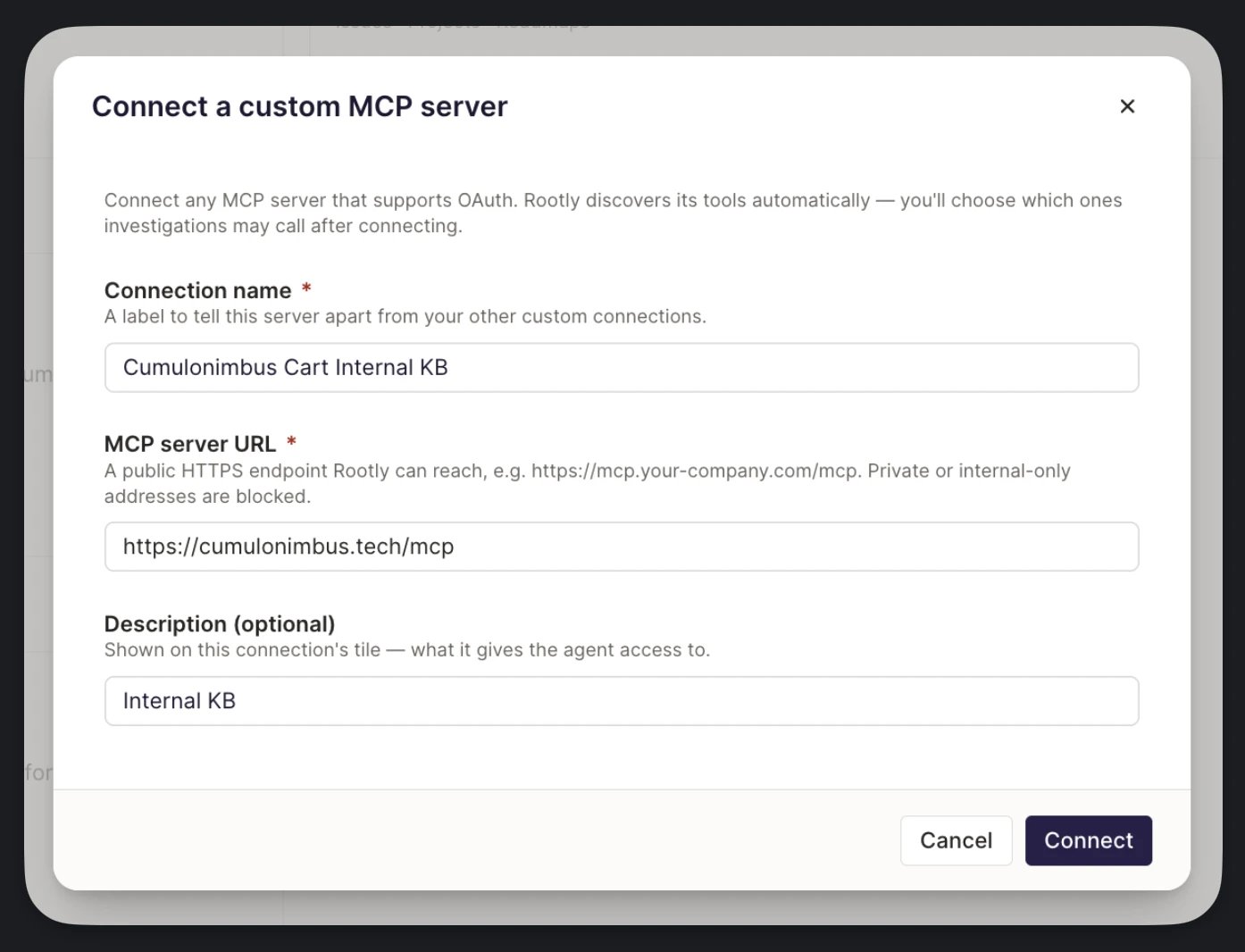
 A label that tells this server apart from your other custom connections. Rootly also uses it when citing the connector in investigations (for example, *"queried the internal-ops MCP"*), so pick something responders will recognize.
A public HTTPS endpoint Rootly can reach, for example `https://mcp.your-company.com/mcp`. Private and internal-only addresses are blocked.
Shown on this connection's tile: a short note on what it gives Rootly AI access to. Useful once you have several custom connections.
A label that tells this server apart from your other custom connections. Rootly also uses it when citing the connector in investigations (for example, *"queried the internal-ops MCP"*), so pick something responders will recognize.
A public HTTPS endpoint Rootly can reach, for example `https://mcp.your-company.com/mcp`. Private and internal-only addresses are blocked.
Shown on this connection's tile: a short note on what it gives Rootly AI access to. Useful once you have several custom connections.
 Rootly registers itself as a client against your server, then redirects to your MCP server's OAuth flow. Sign in and grant access. If registration fails, you'll see the error at this point rather than after authorization. See [Troubleshooting](#troubleshooting) for the common causes.
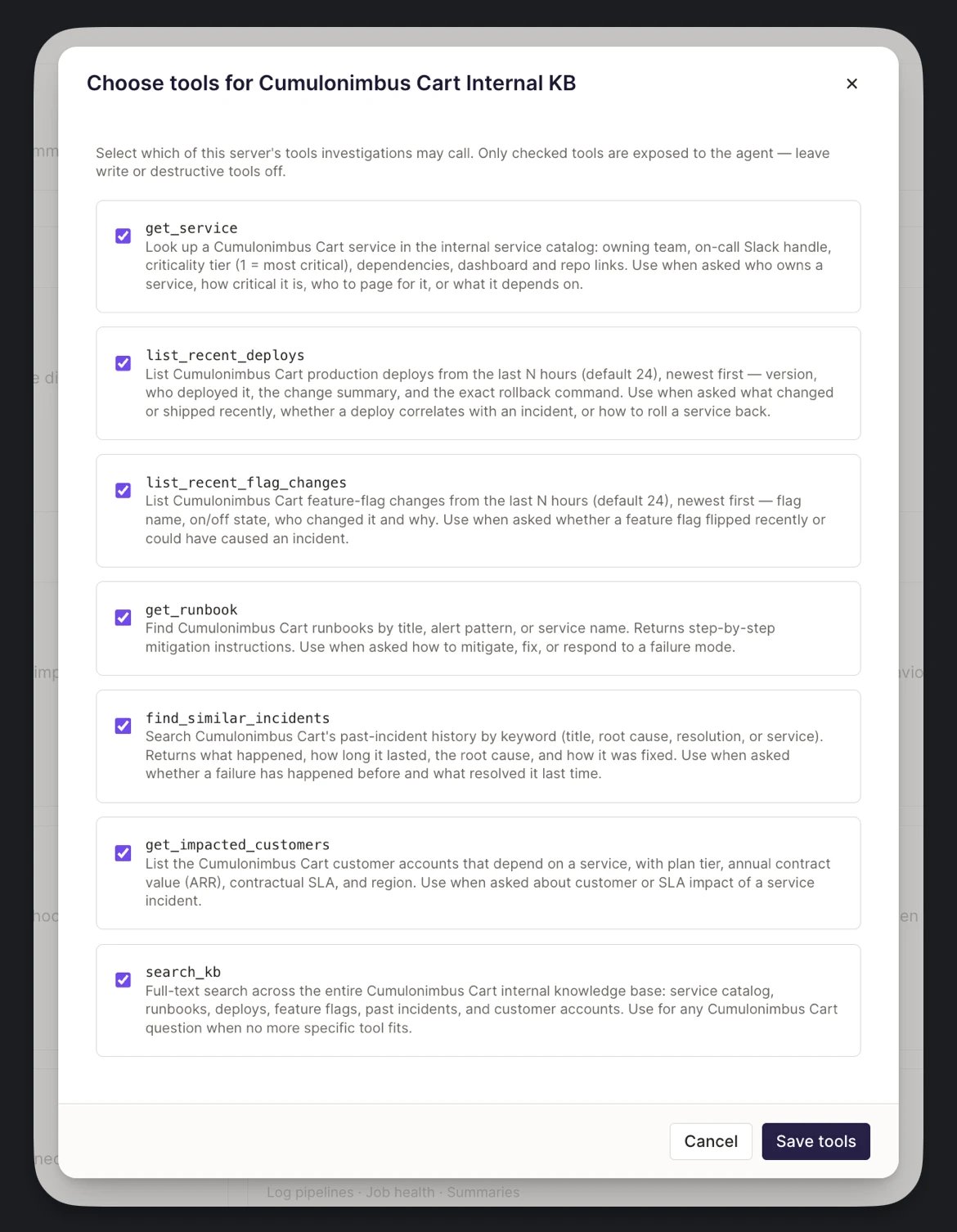
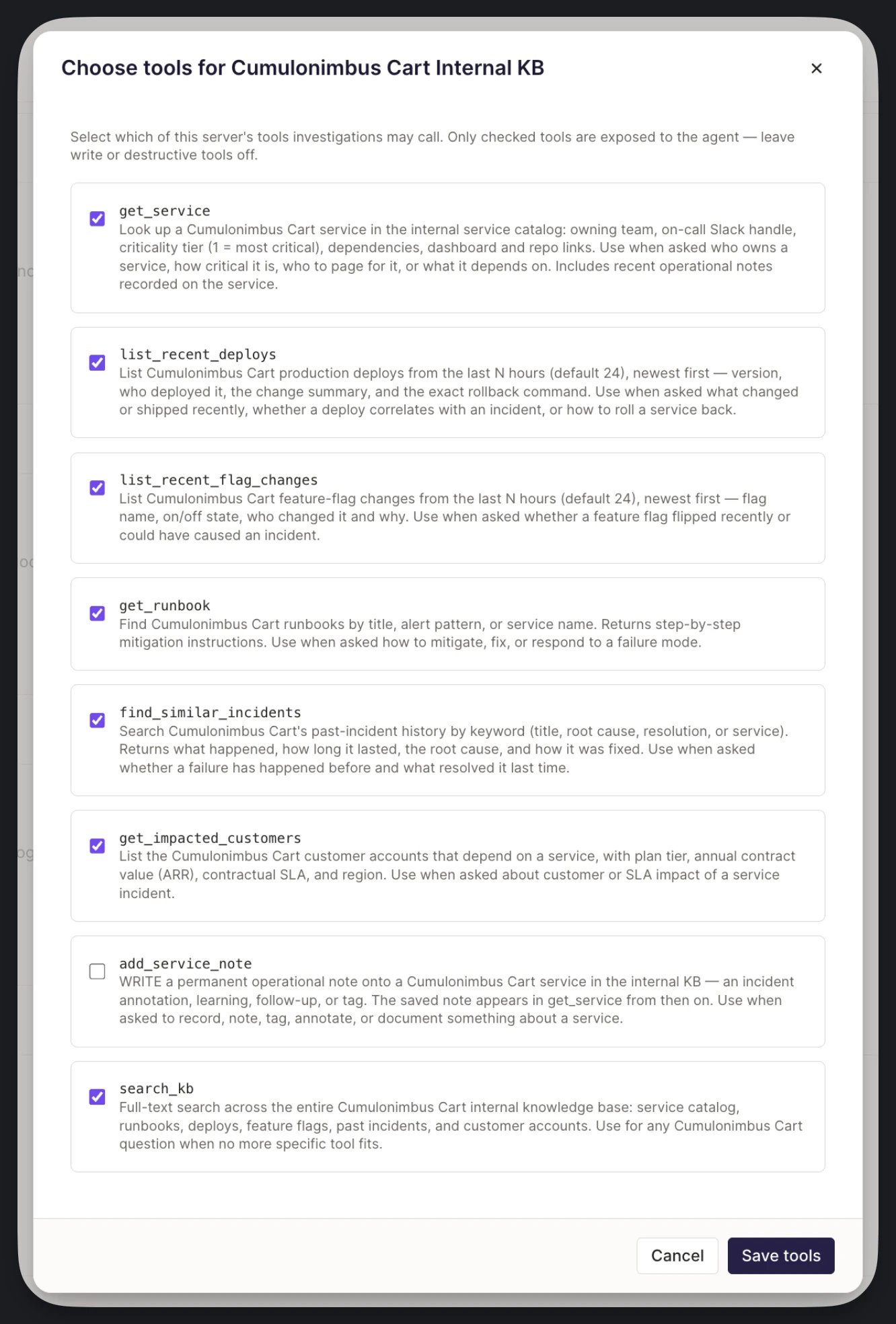
After authorization, Rootly discovers the tools your server exposes and opens the **Choose tools** screen for that connection. Check only the tools investigations may call, then click **Save tools**. Unchecked tools are never exposed to Rootly AI.
Rootly registers itself as a client against your server, then redirects to your MCP server's OAuth flow. Sign in and grant access. If registration fails, you'll see the error at this point rather than after authorization. See [Troubleshooting](#troubleshooting) for the common causes.
After authorization, Rootly discovers the tools your server exposes and opens the **Choose tools** screen for that connection. Check only the tools investigations may call, then click **Save tools**. Unchecked tools are never exposed to Rootly AI.
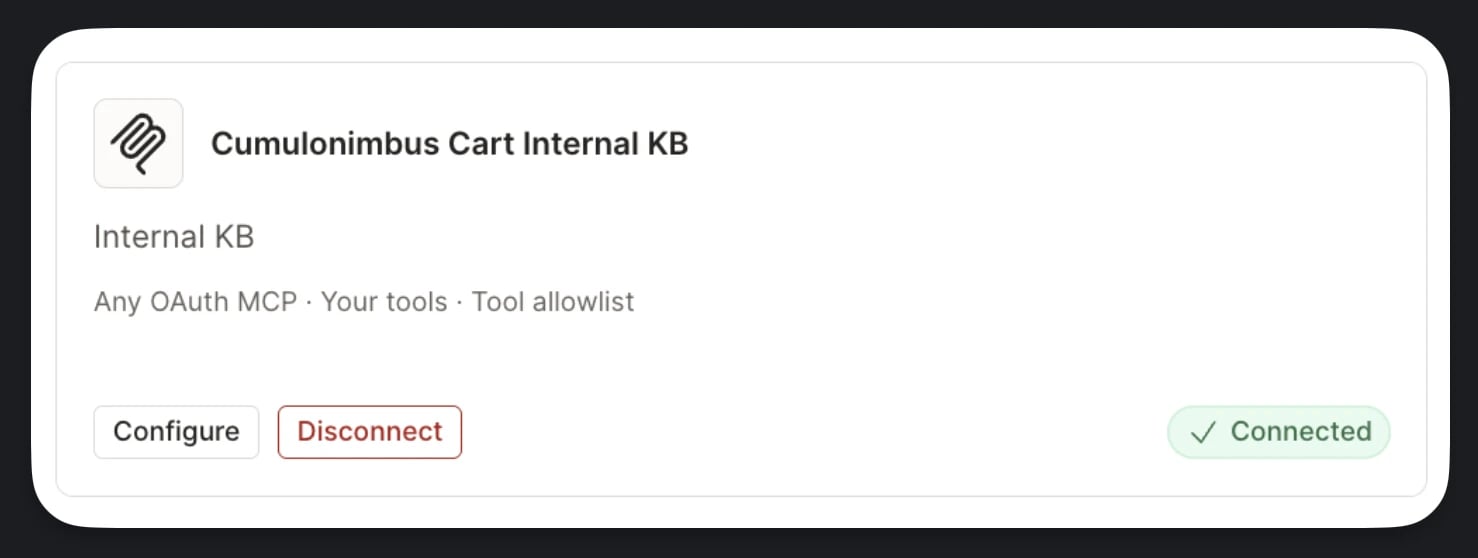
 Once tools are saved, the card shows **Connected**. Rootly AI can now reach for this server during investigations.
 **Public HTTPS only.** Rootly can't reach an MCP server on a private network or via `localhost`. If your MCP is behind a VPN, expose it through a reverse proxy with a valid TLS certificate before connecting.
***
## During an Incident
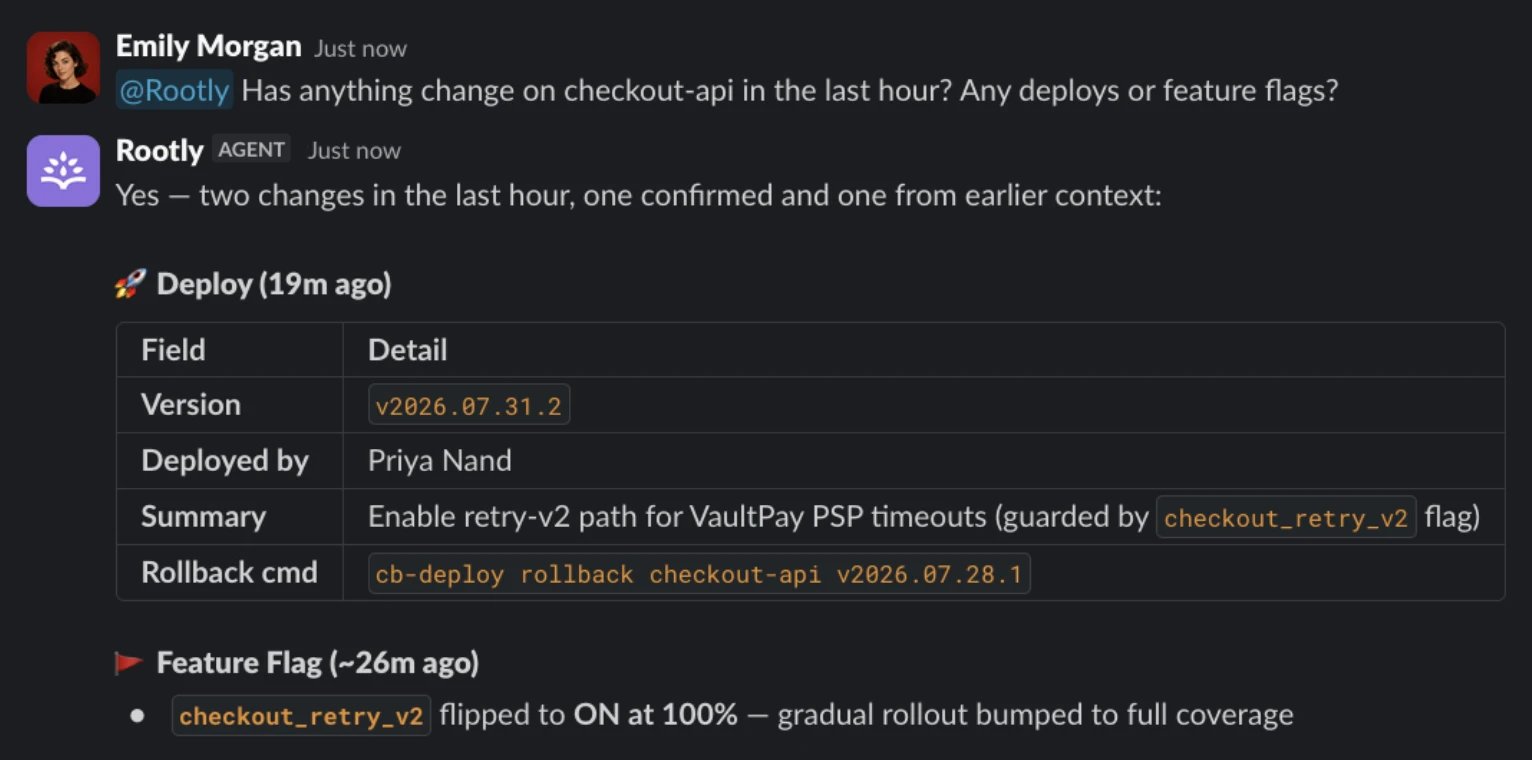
When you connect a Custom MCP endpoint, Rootly AI calls the tools you allowlist during investigations and when responders ask it questions. Teams commonly expose internal deploy trackers, feature-flag services, service catalogs, or bespoke telemetry. The examples below come from the same internal knowledge base connection as the overview.
The question every responder asks first, answered from your own deploy and feature-flag history:
**Public HTTPS only.** Rootly can't reach an MCP server on a private network or via `localhost`. If your MCP is behind a VPN, expose it through a reverse proxy with a valid TLS certificate before connecting.
***
## During an Incident
When you connect a Custom MCP endpoint, Rootly AI calls the tools you allowlist during investigations and when responders ask it questions. Teams commonly expose internal deploy trackers, feature-flag services, service catalogs, or bespoke telemetry. The examples below come from the same internal knowledge base connection as the overview.
The question every responder asks first, answered from your own deploy and feature-flag history:
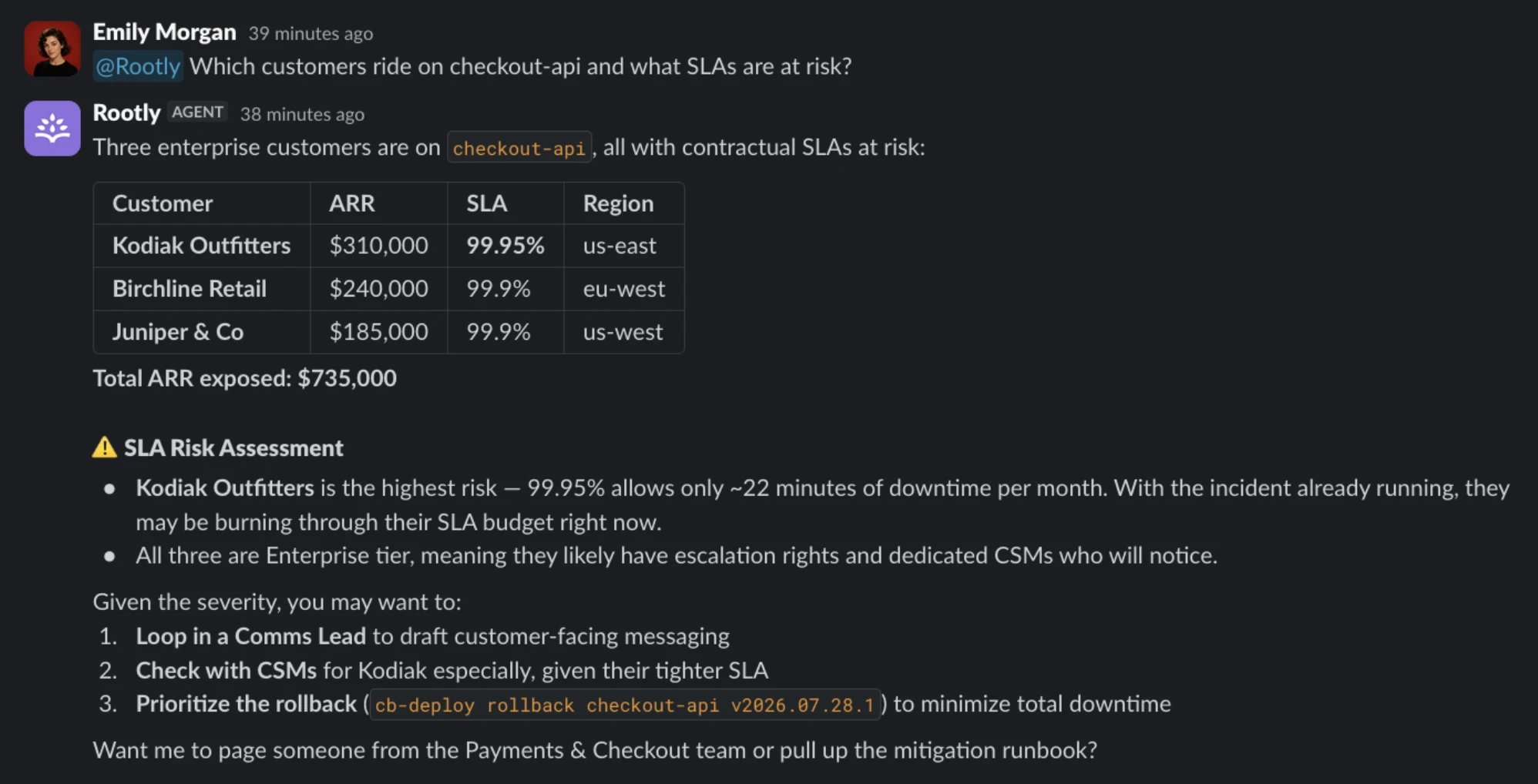
 Internal data also carries context no vendor tool has, and Rootly AI reasons over it. Here, customer SLA data becomes business impact and suggested next steps:
 ### Write Tools
Built-in connectors are strictly read-only. The Custom connector is the one place Rootly AI can act on your systems, and only through a write-capable tool you have deliberately allowlisted. Here, a responder asks Rootly AI to record the incident's findings, and the note lands in the knowledge base for whoever hits this failure mode next:
### Write Tools
Built-in connectors are strictly read-only. The Custom connector is the one place Rootly AI can act on your systems, and only through a write-capable tool you have deliberately allowlisted. Here, a responder asks Rootly AI to record the incident's findings, and the note lands in the knowledge base for whoever hits this failure mode next:
 Newly discovered tools stay unchecked until you enable them, so a write tool is always a deliberate choice. Read the warning at the top of this page before allowlisting one.
***
## Managing the Connection
Open the connection's **Configure** screen to:
* **Change which tools are exposed.** Reopen **Choose tools**, adjust the checkboxes, and click **Save tools**. Unchecking a tool takes effect on the next investigation.
* **Update the endpoint URL.** If you move your MCP server, point Rootly at the new host. Rootly re-authorizes on save.
* **Rotate credentials.** Disconnect and reconnect to trigger a fresh OAuth flow. Old tokens are revoked.
Your server's tool catalog isn't frozen at connect time. Each time you open **Choose tools**, Rootly re-discovers what the server exposes. Ship a new tool and it appears in the list, unchecked, ready to enable when you are:
Newly discovered tools stay unchecked until you enable them, so a write tool is always a deliberate choice. Read the warning at the top of this page before allowlisting one.
***
## Managing the Connection
Open the connection's **Configure** screen to:
* **Change which tools are exposed.** Reopen **Choose tools**, adjust the checkboxes, and click **Save tools**. Unchecking a tool takes effect on the next investigation.
* **Update the endpoint URL.** If you move your MCP server, point Rootly at the new host. Rootly re-authorizes on save.
* **Rotate credentials.** Disconnect and reconnect to trigger a fresh OAuth flow. Old tokens are revoked.
Your server's tool catalog isn't frozen at connect time. Each time you open **Choose tools**, Rootly re-discovers what the server exposes. Ship a new tool and it appears in the list, unchecked, ready to enable when you are:
 ***
## Best Practices
* **Start with a minimal allowlist.** Only allowlist the tools you're sure Rootly AI should call. It's easier to add later than to explain a surprise tool call.
* **Give the connection a descriptive name.** *"Internal ops MCP"* or *"Finance data MCP"* is more useful than *"Custom MCP"* when Rootly AI cites it in an investigation summary. Use the optional description to record what it exposes.
* **Rotate on personnel changes.** The OAuth grant is tied to whoever authorized it. When that person leaves, disconnect and reconnect from someone else's account so the connection doesn't die silently.
* **Prefer named connectors over Custom when a native one exists.** If Rootly ships a first-class connector for what you're doing, use it. First-class connectors get better UI, tighter tool sets, and validated setup.
***
## Troubleshooting
The URL must be a public HTTPS endpoint with a valid TLS certificate. Private IPs, `localhost`, and self-signed certificates are rejected. Deploy behind a public gateway with a real cert.
The full message reads: *"Rootly couldn't complete the OAuth handshake with that server. It must support OAuth discovery and dynamic client registration. Check the URL and try again."*
Rootly discovers your endpoints and registers itself as a client *before* the authorization redirect, so this surfaces at connect time rather than after sign-in. Work through these in order; discovery fails first, so start at the top:
* **Protected resource metadata is missing.** Discovery begins here and everything else depends on it. Confirm `GET https://your-host/.well-known/oauth-protected-resource/` returns `200` with an `authorization_servers` array. Note the path suffix: the bare well-known path isn't checked. Alternatively, return `401` from the MCP endpoint with `WWW-Authenticate: Bearer resource_metadata="https://…"`.
* **Authorization server metadata is missing or incomplete.** `/.well-known/oauth-authorization-server` on the issuer must return `200` and advertise `authorization_endpoint`, `token_endpoint`, and `registration_endpoint`. Rootly has **no fallback paths**. Serving DCR at `/register` without advertising it in this document still fails. If the issuer has no path, check for a 404 caused by a trailing slash on the well-known URL.
* **The registration endpoint doesn't return `201 Created`.** A `200` with a valid body still fails; Rootly requires `201`. Check what your server returns for a `POST` to its registration path.
* **Your server requires a client secret.** Rootly registers as a public client with `token_endpoint_auth_method` set to `none`. Authorization servers that reject public-client registration can't complete this step.
* **Your server rejects the requested grants.** Rootly asks for `authorization_code` and `refresh_token` with the `code` response type. If your server doesn't allow that combination for dynamically registered clients, registration fails.
* **Something in the chain is slow.** Each discovery, registration, and token request times out after 15 seconds.
Registration and discovery worked, so the failure is in the token exchange. The usual causes:
* **No S256 PKCE support.** Rootly always sends `code_challenge_method=S256`.
* **The `resource` parameter is rejected.** Rootly sends it on the authorization request, the token exchange, and every refresh. Your authorization server must accept it, not error on an unrecognized parameter.
* **The token endpoint requires HTTP Basic auth.** As a public client, Rootly sends `client_id` in the request body.
* **A `scope` parameter is required.** Rootly doesn't send one for custom connections. Your server needs a usable default scope.
Almost always missing refresh tokens. Rootly requests the `refresh_token` grant at registration; if your server registers the client but never issues refresh tokens, the connection works until the first access token expires and then every query fails. Confirm your token endpoint returns a `refresh_token` alongside the access token, then disconnect and reconnect.
Your MCP server has to expose a tool discovery endpoint that Rootly can call after OAuth completes. If your server doesn't return a tool list, the **Choose tools** screen comes up empty and there's nothing to select. Confirm the discovery response with an independent MCP client, then reconnect.
Rootly AI only reaches for a tool when the current question actually needs it. If the tool isn't showing up, it usually means the question didn't warrant that lookup, not that the connector is broken. Try a prompt that explicitly targets the tool's data.
If someone revokes the OAuth grant on the MCP server side, Rootly's card still shows Connected but every query fails. Reconnect to trigger a fresh OAuth flow.
***
## Frequently Asked Questions
Built-in connectors ship with dedicated setup UI, tested tool sets, and per-provider troubleshooting. The Custom connector is the escape hatch: point it at any OAuth-based MCP endpoint and provide your own allowlist. Use built-ins when they exist; use Custom when they don't.
Yes. Each connection is independent, with its own connection name, URL, and set of chosen tools. Common for teams that expose one MCP per internal system.
Not today. The Custom connector requires OAuth 2.0 with Dynamic Client Registration on the MCP server. If your MCP only exposes API-key auth, wrap it in an OAuth-capable gateway or contact support to request first-class API-key support.
Because there's no admin step where you hand Rootly a client ID and secret. Rootly creates its own OAuth client on your server at the moment you connect, which is what makes the flow self-serve: you paste a URL and authorize, rather than pre-provisioning credentials on both sides. It also means each connection gets its own client rather than sharing one across every Rootly customer.
Not currently. Registration happens automatically at connect time and there's no field for supplying an existing client ID or secret. If your authorization server can't allow dynamic registration, the workaround is an OAuth-capable gateway in front of your MCP server that does permit it.
Rootly AI can only call tools you allowlist, but *what those tools do* is defined by your MCP server, not by Rootly. Rootly doesn't inspect a tool's semantics or filter out write-capable tools automatically. **Only allowlist tools you're comfortable Rootly AI invoking**, and prefer read-only operations for anything you don't want Rootly AI to be able to mutate. Built-in connectors ship with a curated read-only tool set; the Custom connector puts that responsibility on you.
***
## Related Pages
All connectors and how they fit together.
What Rootly AI sees, retention, and model training controls.
Another endpoint-based connector and a good reference for public-HTTPS requirements.
***
## Best Practices
* **Start with a minimal allowlist.** Only allowlist the tools you're sure Rootly AI should call. It's easier to add later than to explain a surprise tool call.
* **Give the connection a descriptive name.** *"Internal ops MCP"* or *"Finance data MCP"* is more useful than *"Custom MCP"* when Rootly AI cites it in an investigation summary. Use the optional description to record what it exposes.
* **Rotate on personnel changes.** The OAuth grant is tied to whoever authorized it. When that person leaves, disconnect and reconnect from someone else's account so the connection doesn't die silently.
* **Prefer named connectors over Custom when a native one exists.** If Rootly ships a first-class connector for what you're doing, use it. First-class connectors get better UI, tighter tool sets, and validated setup.
***
## Troubleshooting
The URL must be a public HTTPS endpoint with a valid TLS certificate. Private IPs, `localhost`, and self-signed certificates are rejected. Deploy behind a public gateway with a real cert.
The full message reads: *"Rootly couldn't complete the OAuth handshake with that server. It must support OAuth discovery and dynamic client registration. Check the URL and try again."*
Rootly discovers your endpoints and registers itself as a client *before* the authorization redirect, so this surfaces at connect time rather than after sign-in. Work through these in order; discovery fails first, so start at the top:
* **Protected resource metadata is missing.** Discovery begins here and everything else depends on it. Confirm `GET https://your-host/.well-known/oauth-protected-resource/` returns `200` with an `authorization_servers` array. Note the path suffix: the bare well-known path isn't checked. Alternatively, return `401` from the MCP endpoint with `WWW-Authenticate: Bearer resource_metadata="https://…"`.
* **Authorization server metadata is missing or incomplete.** `/.well-known/oauth-authorization-server` on the issuer must return `200` and advertise `authorization_endpoint`, `token_endpoint`, and `registration_endpoint`. Rootly has **no fallback paths**. Serving DCR at `/register` without advertising it in this document still fails. If the issuer has no path, check for a 404 caused by a trailing slash on the well-known URL.
* **The registration endpoint doesn't return `201 Created`.** A `200` with a valid body still fails; Rootly requires `201`. Check what your server returns for a `POST` to its registration path.
* **Your server requires a client secret.** Rootly registers as a public client with `token_endpoint_auth_method` set to `none`. Authorization servers that reject public-client registration can't complete this step.
* **Your server rejects the requested grants.** Rootly asks for `authorization_code` and `refresh_token` with the `code` response type. If your server doesn't allow that combination for dynamically registered clients, registration fails.
* **Something in the chain is slow.** Each discovery, registration, and token request times out after 15 seconds.
Registration and discovery worked, so the failure is in the token exchange. The usual causes:
* **No S256 PKCE support.** Rootly always sends `code_challenge_method=S256`.
* **The `resource` parameter is rejected.** Rootly sends it on the authorization request, the token exchange, and every refresh. Your authorization server must accept it, not error on an unrecognized parameter.
* **The token endpoint requires HTTP Basic auth.** As a public client, Rootly sends `client_id` in the request body.
* **A `scope` parameter is required.** Rootly doesn't send one for custom connections. Your server needs a usable default scope.
Almost always missing refresh tokens. Rootly requests the `refresh_token` grant at registration; if your server registers the client but never issues refresh tokens, the connection works until the first access token expires and then every query fails. Confirm your token endpoint returns a `refresh_token` alongside the access token, then disconnect and reconnect.
Your MCP server has to expose a tool discovery endpoint that Rootly can call after OAuth completes. If your server doesn't return a tool list, the **Choose tools** screen comes up empty and there's nothing to select. Confirm the discovery response with an independent MCP client, then reconnect.
Rootly AI only reaches for a tool when the current question actually needs it. If the tool isn't showing up, it usually means the question didn't warrant that lookup, not that the connector is broken. Try a prompt that explicitly targets the tool's data.
If someone revokes the OAuth grant on the MCP server side, Rootly's card still shows Connected but every query fails. Reconnect to trigger a fresh OAuth flow.
***
## Frequently Asked Questions
Built-in connectors ship with dedicated setup UI, tested tool sets, and per-provider troubleshooting. The Custom connector is the escape hatch: point it at any OAuth-based MCP endpoint and provide your own allowlist. Use built-ins when they exist; use Custom when they don't.
Yes. Each connection is independent, with its own connection name, URL, and set of chosen tools. Common for teams that expose one MCP per internal system.
Not today. The Custom connector requires OAuth 2.0 with Dynamic Client Registration on the MCP server. If your MCP only exposes API-key auth, wrap it in an OAuth-capable gateway or contact support to request first-class API-key support.
Because there's no admin step where you hand Rootly a client ID and secret. Rootly creates its own OAuth client on your server at the moment you connect, which is what makes the flow self-serve: you paste a URL and authorize, rather than pre-provisioning credentials on both sides. It also means each connection gets its own client rather than sharing one across every Rootly customer.
Not currently. Registration happens automatically at connect time and there's no field for supplying an existing client ID or secret. If your authorization server can't allow dynamic registration, the workaround is an OAuth-capable gateway in front of your MCP server that does permit it.
Rootly AI can only call tools you allowlist, but *what those tools do* is defined by your MCP server, not by Rootly. Rootly doesn't inspect a tool's semantics or filter out write-capable tools automatically. **Only allowlist tools you're comfortable Rootly AI invoking**, and prefer read-only operations for anything you don't want Rootly AI to be able to mutate. Built-in connectors ship with a curated read-only tool set; the Custom connector puts that responsibility on you.
***
## Related Pages
All connectors and how they fit together.
What Rootly AI sees, retention, and model training controls.
Another endpoint-based connector and a good reference for public-HTTPS requirements.